EducationSoftwareStrategy.com
StrategyCommunity

Knowledge Base

Product

Community

Knowledge Base

TopicsBrowse ArticlesDeveloper Zone

Product

Download SoftwareProduct DocumentationSecurity Hub

Education

Tutorial VideosSolution GalleryEducation courses

Community

GuidelinesGrandmastersEvents
x_social-icon_white.svglinkedin_social-icon_white.svg
Strategy logoCommunity

© Strategy Inc. All Rights Reserved.

LegalTerms of UsePrivacy Policy
  1. Home
  2. Topics

KB80105: How to connect to Amazon Redshift


Norman Matos

Associate Scrum Master • Strategy


This tutorial explains how to connect to an Amazon Redshift database.

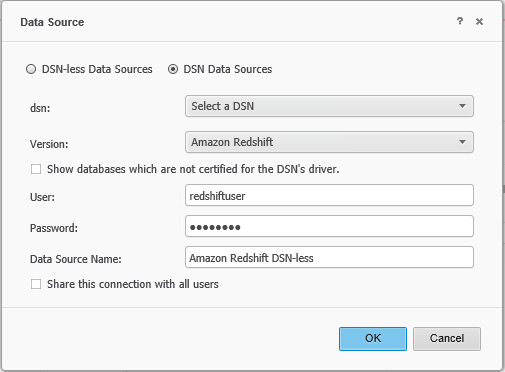
Connectivity using existing a DSN

When using an existing DSN in Strategy Desktop or Strategy Web, there is no option to choose the type of authentication as the underlying DSN determines the authentication mechanism.
ka0PW0000000zY9YAI_0EM440000002L78.png

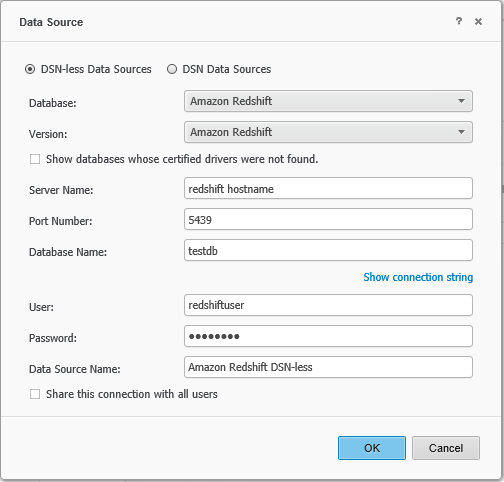
 Connectivity using DSN-less connection


When using a DSN-less connection in Strategy Desktop or Strategy Web, check the ‘Edit connection string’ check box and add the following parameter to the connection string
  • EncryptionMethod =1
  • TrustStore=<certificate location> \<certificate filename>
  • ValidateServerCertificate=1
ka0PW0000000zY9YAI_0EM440000002L7D.png


Connectivity in Windows


DSN connectivity using Login/Password Authentication


Password authentication is the default authentication mechanism for Strategy users when connecting to Amazon Redshift. The screenshots below show how to set up the ODBC driver for DSN connections.
DSN configuration in Strategy Server
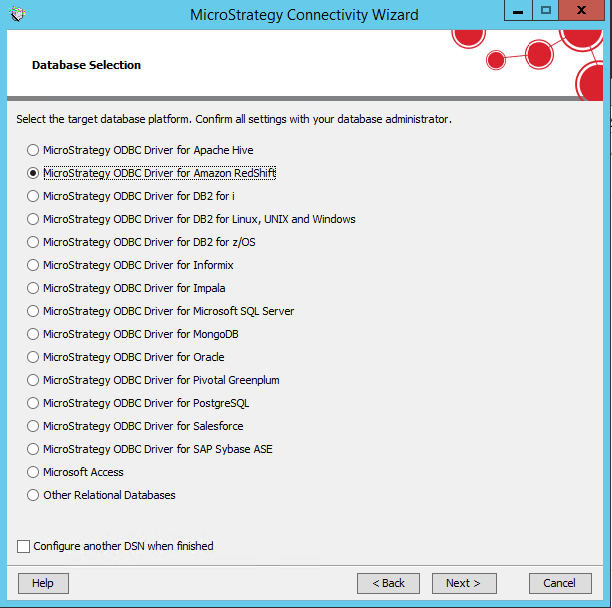
  • Select the Strategy ODBC Driver for Amazon Redshift from the Strategy Connectivity Wizard


ka0PW0000000zY9YAI_0EM440000002L3B.png


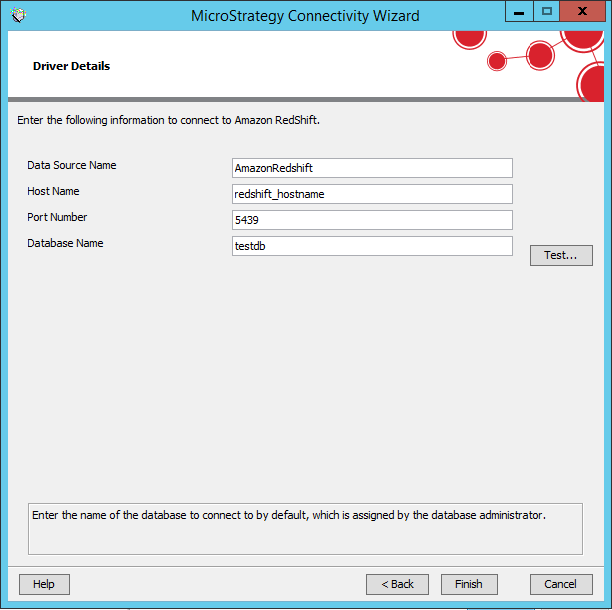
  • Provide the following information
    • Data Source Name: Provide a unique name for the DSN so that there is no conflict with existing DSNs
    • Host Name: Provide the host name of the server that hosts the Amazon Redshift database
    • Port Number: Provide the port number for the Amazon Redshift database (typically 5439)
    • Database Name: Provide the Amazon Redshift database name
ka0PW0000000zY9YAI_0EM440000002L3G.png
  • Click the Test… button to verify that the new DSN can connect successfully using a valid user name and password

DSN connectivity using SSL-encryption


Strategy users use SSL Encryption when connecting to Amazon Redshift. The screenshots below show how to set up the ODBC driver for DSN and DSN-less connection.
 
Download and install the public key from https://s3.amazonaws.com/redshift-downloads/redshift-ca-bundle.crt.
 
Note: Make sure that the Strategy user has permissions to access the folder where the certificate is stored.
 
SSL enabled DSN configuration in Strategy Server
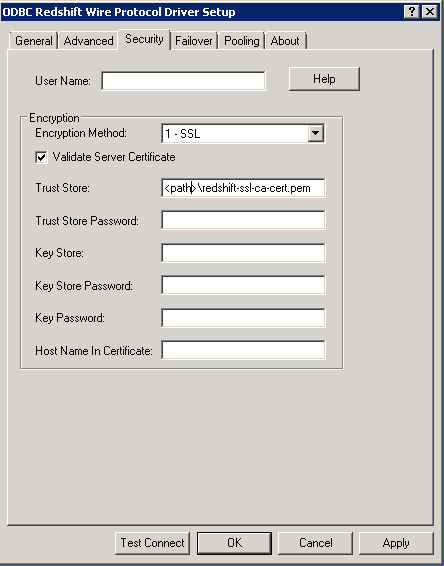
  • Create an Amazon Redshift DSN using the Strategy Connectivity Wizard. Open the ODBC Administrator and edit the pre-created Amazon Redshift DSN. Navigate to the Security tab and configure the following parameters
    • Set Encryption Method = “1-SSL”
    • Check the Validate Server Certificate checkbox
    • Set Trust Store= <certificate location> \<certificate filename>
ka0PW0000000zY9YAI_0EM440000002L3L.png


Connectivity in Linux


DSN connectivity using Login/Password Authentication


Password authentication is the default authentication mechanism for Strategy users when connecting to Amazon Redshift. The screenshots below show how to set up the ODBC driver for DSN connections.
DSN configuration in Strategy Server
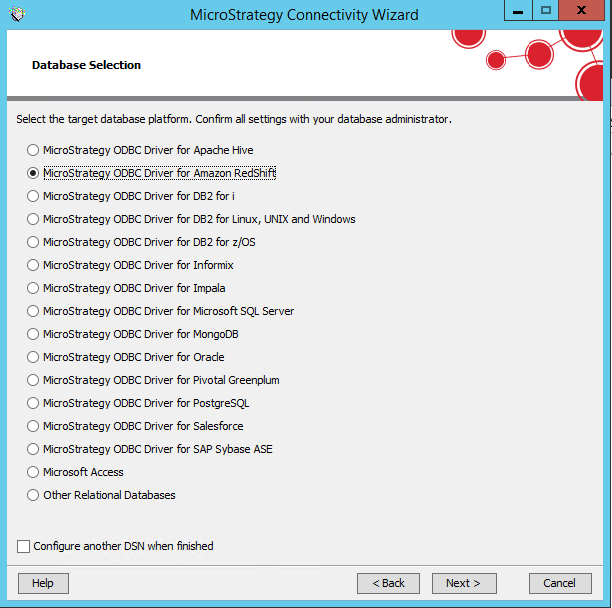
  • Select the Strategy ODBC Driver for Amazon Redshift from the Strategy Connectivity Wizard


ka0PW0000000zY9YAI_0EM440000002L3V.png
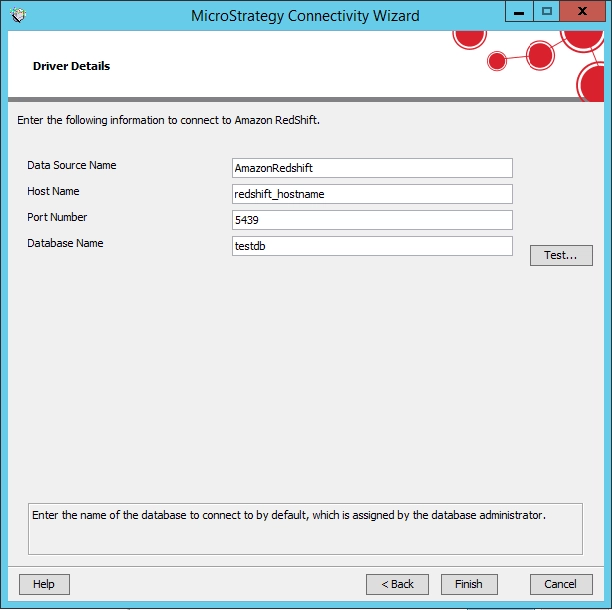
  • Provide the following information
    • Data Source Name: Provide a unique name for the DSN so that there is no conflict with existing DSNs
    • Host Name: Provide the host name of the server that hosts the Amazon Redshift database
    • Port Number: Provide the port number for the Amazon Redshift database (typically 5439)
    • Database Name: Provide the Amazon Redshift database name
  • Click the Test… button to verify that the new DSN can connect successfully using a valid user name and password
ka0PW0000000zY9YAI_0EM440000002L3a.png

DSN connectivity using SSL-encryption

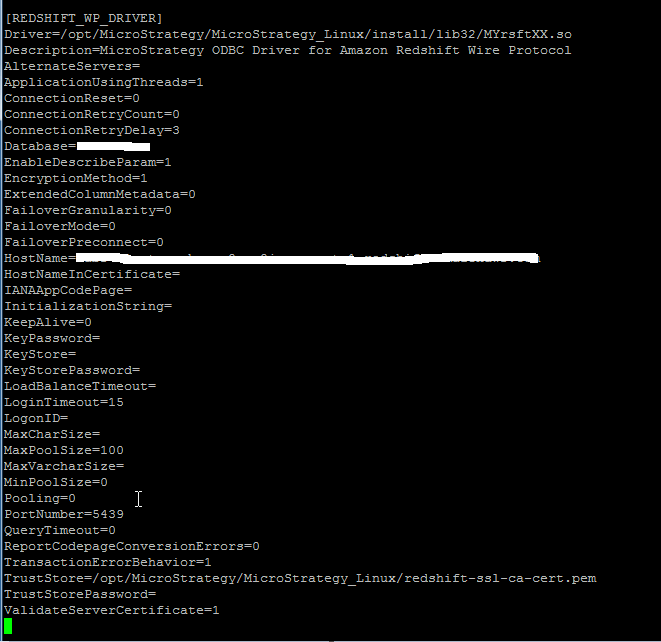
  • Create an Amazon Redshift DSN using the Strategy Connectivity Wizard, and update the following parameters in the ODBC.ini file
    • EncryptionMethod =1
    • TrustStore=<certificate location> \<certificate filename>
    • ValidateServerCertificate=1
ka0PW0000000zY9YAI_0EM440000002L3f.png

                 
Note:

  1. In some Linux environments, Strategy users have reported slow ODBC connection times when attempting to use SSL encryption on the Strategy ODBC Drivers. If SSL encryption is disabled in the DSN, the connection to the database is noticeably faster. To resolve the slow ODBC connection issue with SSL encryption enabled, a Linux administrator must update the Linux system to increase entropy in the /dev/random file. The following commands could be run in the Linux OS by a user with appropriate privileges to supply the entropy pool with values from /dev/urandom:
    • rngd –r/dev/urandom


or

  • ln –sf/dev/urandom/dev/random


Tuning the Amazon Redshift ODBC Driver


Symptom


Slow performance has been observed while querying tables that have columns set to varchar(max) or char(max) data types using the Strategy ODBC Driver for Amazon Redshift Wire Protocol


Cause


Strategy Intelligence Server uses an ODBC Call (SQLDescribeCol) to determine the proper resources to allocate to retrieve query results. In cases where the column datatype is VARCHAR(MAX) the call to SQLDescribeCol will return a value of 65535 bytes.  If the SQL is bringing back values with VARCHAR(MAX) dataype, the Strategy Intelligence Server will have to allocate a lot of memory resources (to be able to retrieve up to 65535 characters per string value) to fetch back the data causing degradation in query performance or out of memory issues. A similar performance impact can be observed where there is a large precision for varchar or char columns (VARCHAR (20000) or CHAR(MAX) for example).  


Workaround

  1. Option (preferred) change column type from VARCHAR(MAX) to a more precise value for all columns in Amazon Redshift. This will require a better understanding of values being stored in the respective columns. You should consult your DBA and set the max size values based on his/her recommendations after analyzing the data in the underlying database. After this updated WH catalog to reflect changes in the Strategy metadata.
  2. Option (explained below): Configure the maximum number of characters retrieved back VARCHAR(MAX) data types on the ODBC driver level. This does not require a database schema change, but potentially truncate values transferred to Strategy.

DSN Connection
Windows

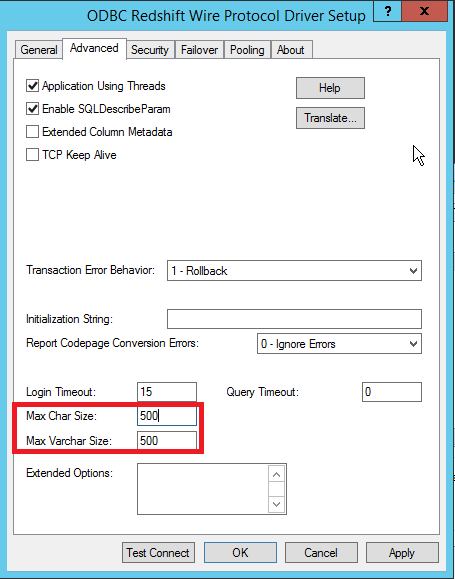
  • Navigate to you Amazon Redshift DSN from the ODBC Administrator. In the Advanced tab set the values for Max Char Size and Max Varchar Size. 
  • For the example below the default value has been set to be 500.  Note:  You should consult your DBA and set the max size values based on his/her recommendations after analyzing the data in the underlying database.
    Note: If this value is set too low it can lead to data truncation issues
ka0PW0000000zY9YAI_0EM440000002M9o.png


Linux

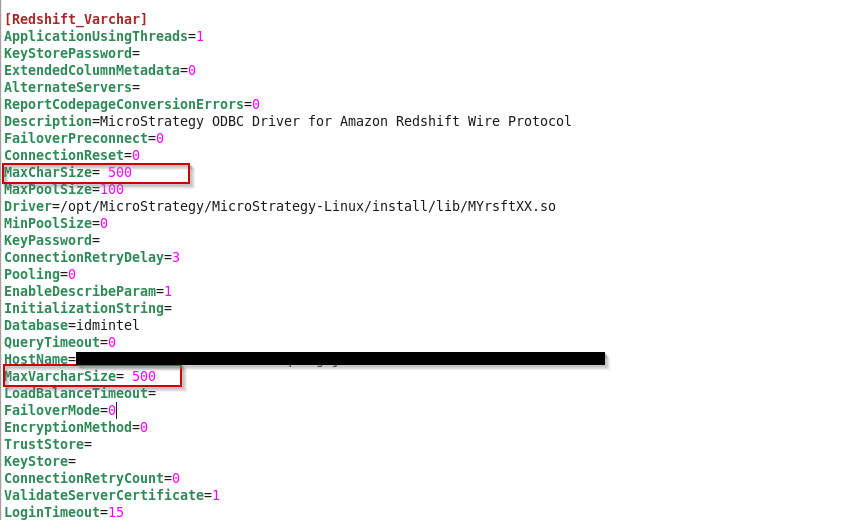
  • Create a DSN to Redshift using connectivity wizard.
  • Edit the DSN parameters in odbc.ini file in your Strategy install to set the values for Max Char Size and Max Varchar Size based on your DBA's suggestion
ka0PW0000000zY9YAI_0EM440000002M9t.png


DSN-Less Connection

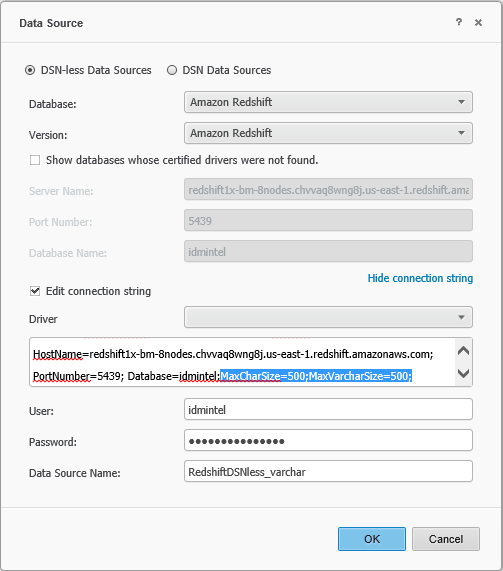
  1. Navigate to MSTR Web → Access External Data → Amazon Redshift → Select DSNLess Connection
  2. Enter the Server name, Port and Database name and check the Edit Connection String option and add MaxCharSize=500;MaxVarcharSize=500;
    Note: You should consult your DBA and set the max size values based on his/her recommendations after analyzing the data in the underlying database.
ka0PW0000000zY9YAI_0EM440000002M9y.png


Comment

0 comments

Details

Knowledge Article

Published:

August 4, 2017

Last Updated:

February 27, 2024