EducationSoftwareStrategy.com
StrategyCommunity

Knowledge Base

Product

Community

Knowledge Base

TopicsBrowse ArticlesDeveloper Zone

Product

Download SoftwareProduct DocumentationSecurity Hub

Education

Tutorial VideosSolution GalleryEducation courses

Community

GuidelinesGrandmastersEvents
x_social-icon_white.svglinkedin_social-icon_white.svg
Strategy logoCommunity

© Strategy Inc. All Rights Reserved.

LegalTerms of UsePrivacy Policy
  1. Home
  2. Topics

KB438455: How to connect to Druid


Community Admin

• Strategy


This article demonstrates how to connect to Druid in MicroStrategy.

Druid is a column oriented, open source , distributed data store. Please find more details here: http://druid.io/docs/latest/design/design.html
For a performance comparison between a druid datastore and a Strategy Muti-table Data Import (MTDI) cube, refer to the following:
https://community.strategy.com/article/ka144000000PQyOAAW/Performance-comparison-between-Druid-data-store-and-MicroStrategy-Multi-table-Data-Import-MTDI-Cubes
 

Connectivity in Strategy Secure Enterprise 10.4.x


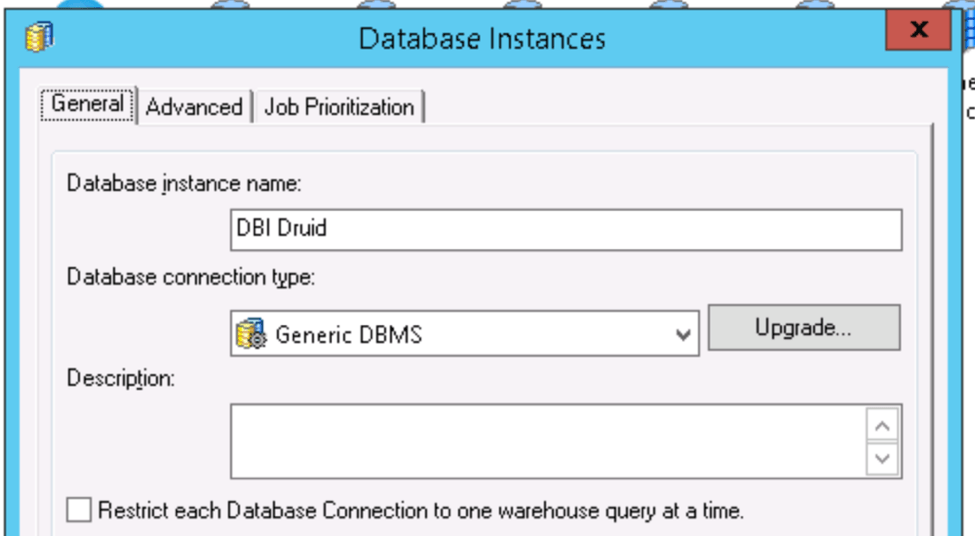
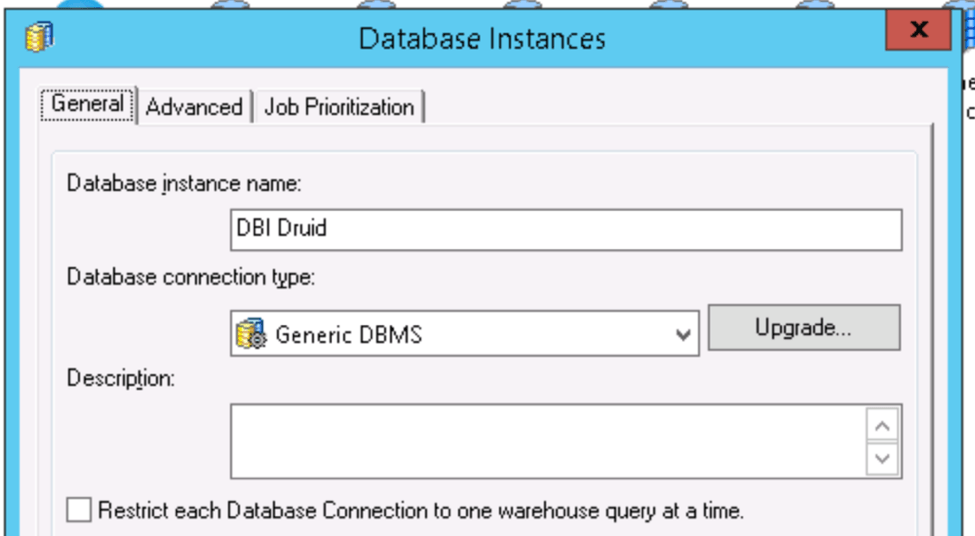
  • Create a database instance with type “Generic Database”
ka04W00000148qcQAA_0EM440000002cg9.png
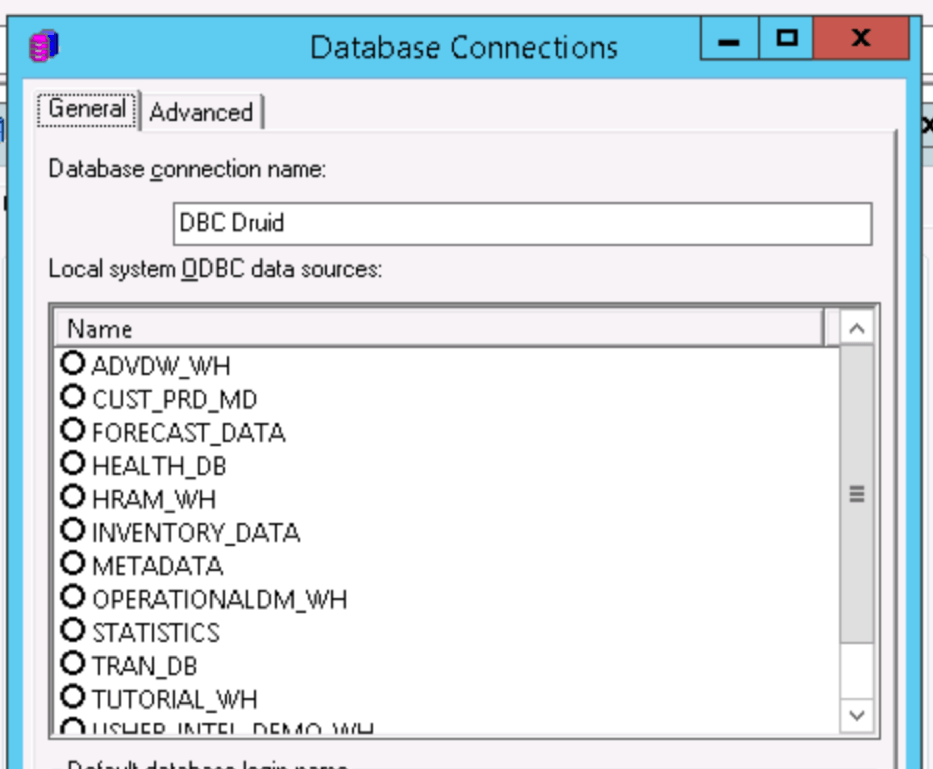
  • Add a new database connection
ka04W00000148qcQAA_0EM440000002cgE.png
  • In the database connection editor, click on the advanced tab
  • Add to the “Additional connection string parameters” the value.
    • JDBC;MSTR_JDBC_JAR_FOLDER=/opt/mstr/MicroStrategy/install/JDBC;DRIVER=org.apache.calcite.avatica.remote.Driver;URL={jdbc:avatica:remote:url=http://34.227.151.55:8082/druid/v2/sql/avatica/};
    • Find the Druid driver in the "attachments" located at the top left of this KB article.
    • Replace the ip address and port (34.227.151.55:8020) with the Druid’s broker ip address and port.
    • Replace the “/opt/mstr/MicroStrategy/install/JDBC” with path where Druid JDBC driver is located.
ka04W00000148qcQAA_0EM440000002cgJ.png
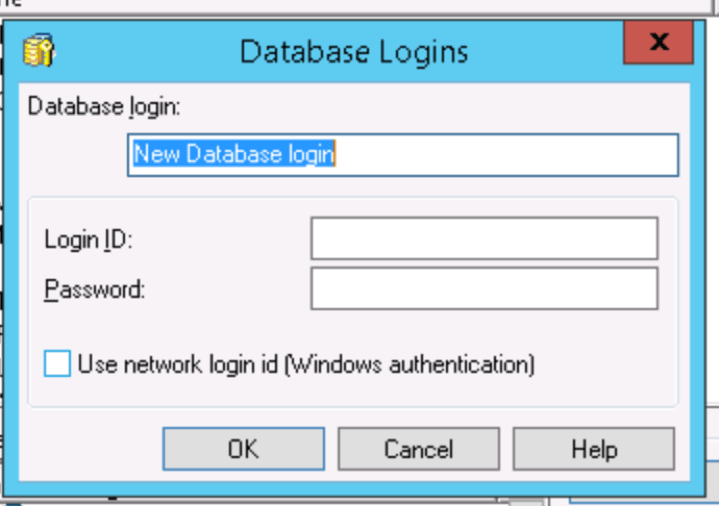
  • Add a new “database login”
ka04W00000148qcQAA_0EM440000002cgO.png
  • Click “OK” in the “Database Login” editor, then click “OK” in the “Database Connection” editor.
  • Click “OK” in the two warning messages that appear.
  • Click “OK” in the “Database Instance” editor.
  • Make a backup of DATABASE.PDS file (in C:\Program Files (x86)\Common Files\MicroStrategy\DATABASE.PDS).
  • Then edit DATABASE.PDS
  • Search for the string “<DSSOBJECT TYPE="DBMS" NAME="Generic DBMS" ID="@dbms38">”
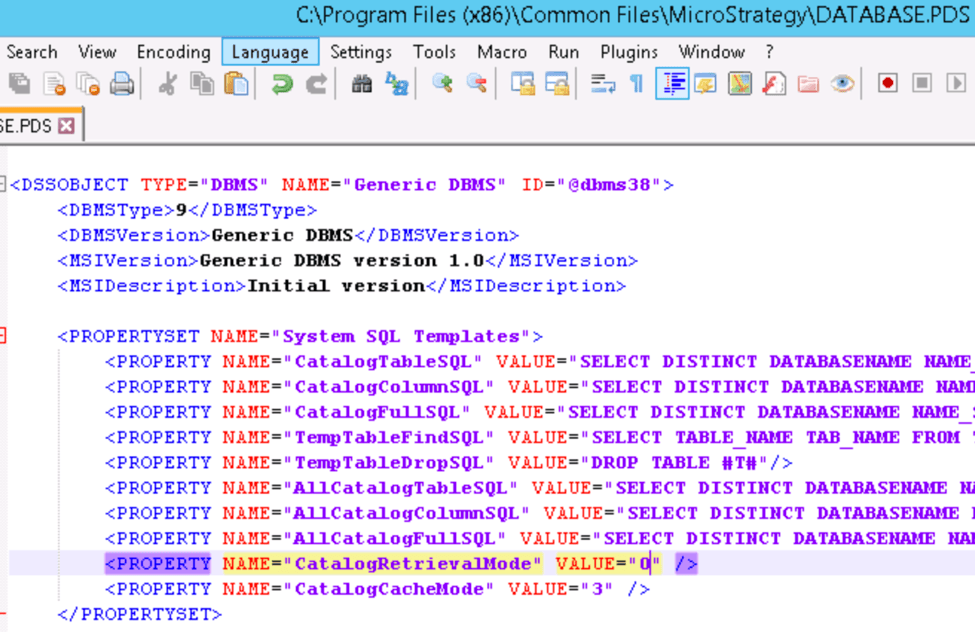
  • Then, search for the next tag “<PROPERTY NAME="CatalogRetrievalMode" VALUE="2" />”
ka04W00000148qcQAA_0EM440000002cgT.png
  • Replace the number “2” in that line to “0”.
ka04W00000148qcQAA_0EM440000002cgY.png
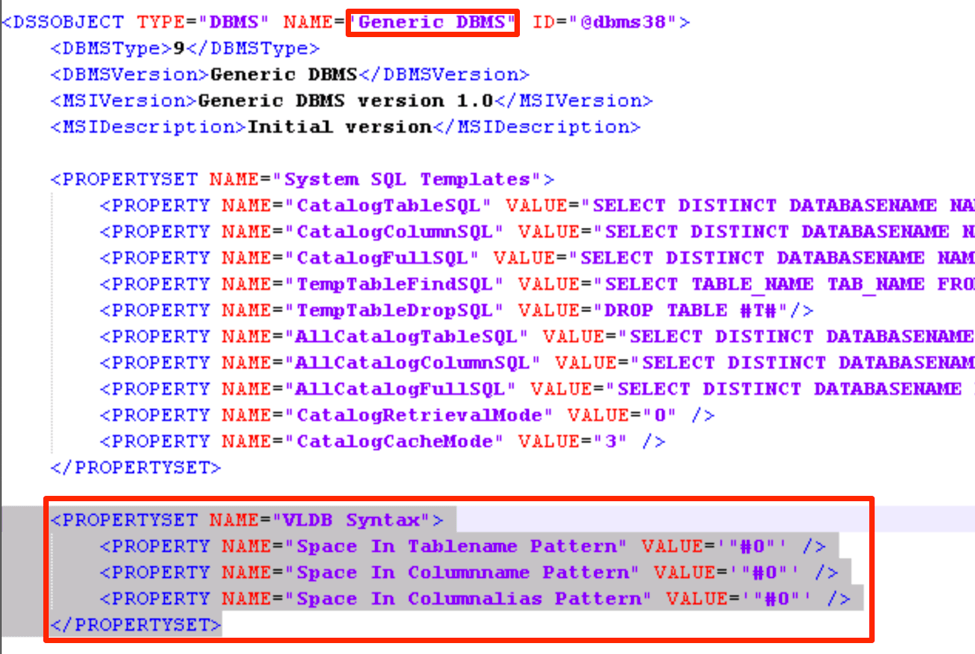
  • Then, in the same “DSSOBJECT” tag context add the following entry:
ka04W00000148qcQAA_0EM440000002cgd.png
  • Save DATABASE.PDS file.
  • Go back to Strategy Developer, edit the database instance created earlier.
  • Click on the “Upgrade” button.
ka04W00000148qcQAA_0EM440000002cgi.png
  • Select the DATABASE.PDS file we just edited.
  • Select Load,
ka04W00000148qcQAA_0EM440000002cgn.png
  • In the left hand side list, search for the “Generic DBMS”
  • Select it and move it to the right hand list.
ka04W00000148qcQAA_0EM440000002cgs.png
  • Click “Yes” on the alert that says that “Generic DBMS already exist do you want to replace it”
ka04W00000148qcQAA_0EM440000002cgx.png
  • Click “OK” in the “Upgrade database type” editor.
  • Click “OK” in the “Database Instance” editor.
  • Restart Intelligence Server
    • Consider installation folder of Strategy is $MSTR_HOME
    • $MSTR_HOME/bin/mstrctl –s IntelligenceServer stop
    • $MSTR_HOME/bin/mstrctl –s IntelligenceServer start
  • Connect to Strategy Developer, log in to a project and access the menu “Schema > Warehouse Catalog”
ka04W00000148qcQAA_0EM440000002ch2.png
  • Click “yes” in the alert to open the “Warehouse Catalog options”
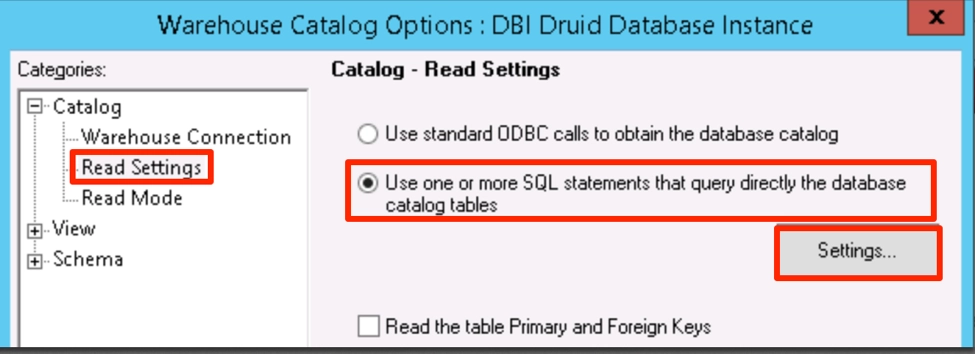
  • Click “Read settings” on the left hand side menu. Then the option “Use one or more SQL statements that query directly the database catalog tables”. And then click “Settings…”
ka04W00000148qcQAA_0EM440000002ch7.png
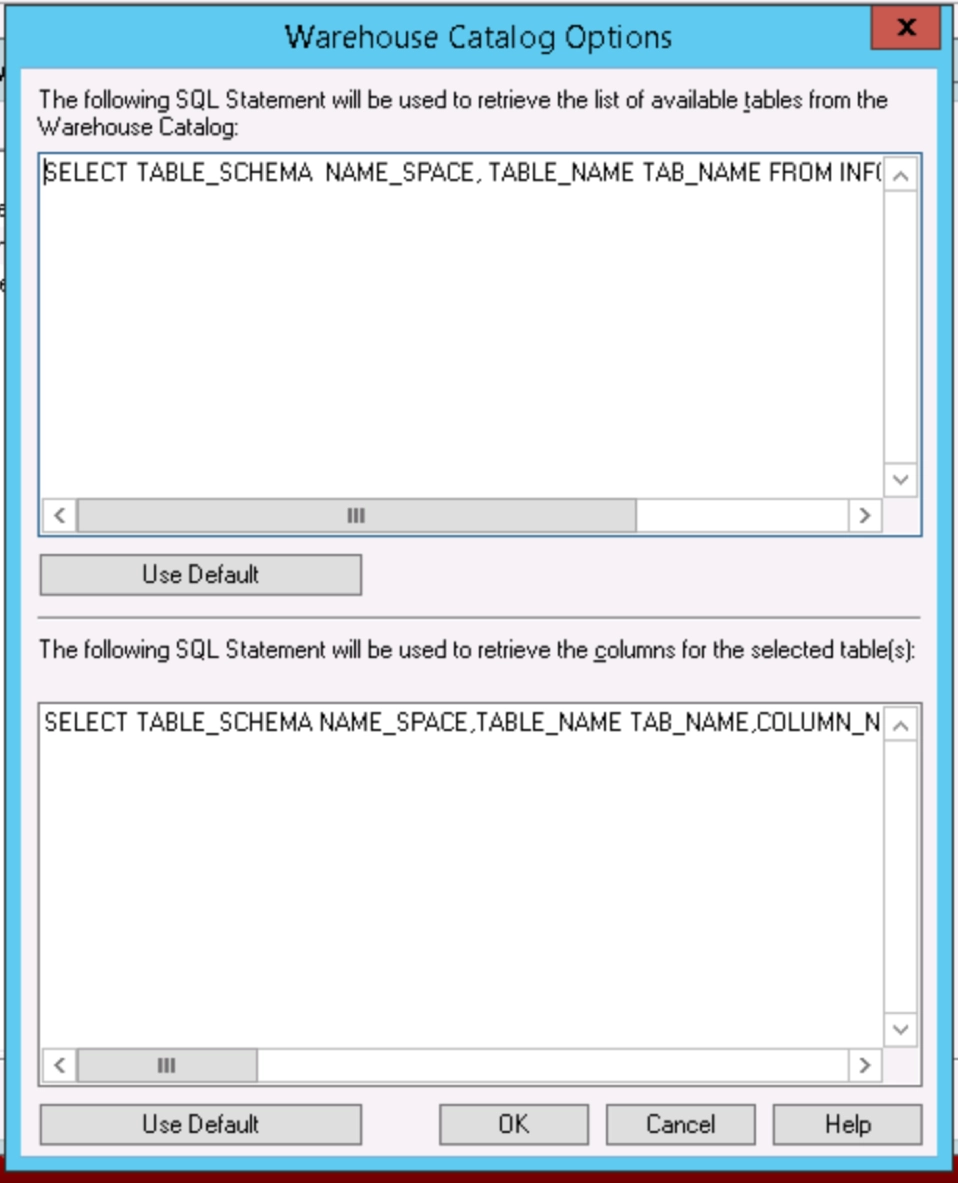
  • Replace the top query with :
    • SELECT TABLE_SCHEMA  NAME_SPACE, TABLE_NAME TAB_NAME FROM INFORMATION_SCHEMA.TABLES
  • Replace the bottom query with:
    • SELECT TABLE_SCHEMA NAME_SPACE,TABLE_NAME TAB_NAME,COLUMN_NAME COL_NAME,DATA_TYPE DATA_TYPE,CHARACTER_MAXIMUM_LENGTH DATA_LEN,NUMERIC_PRECISION DATA_PREC,NUMERIC_SCALE DATA_SCALE  
      FROM INFORMATION_SCHEMA.COLUMNS
      WHERE TABLE_NAME in (#TABLE_LIST#)
      ORDER BY 1, 2


ka04W00000148qcQAA_0EM440000002chC.png
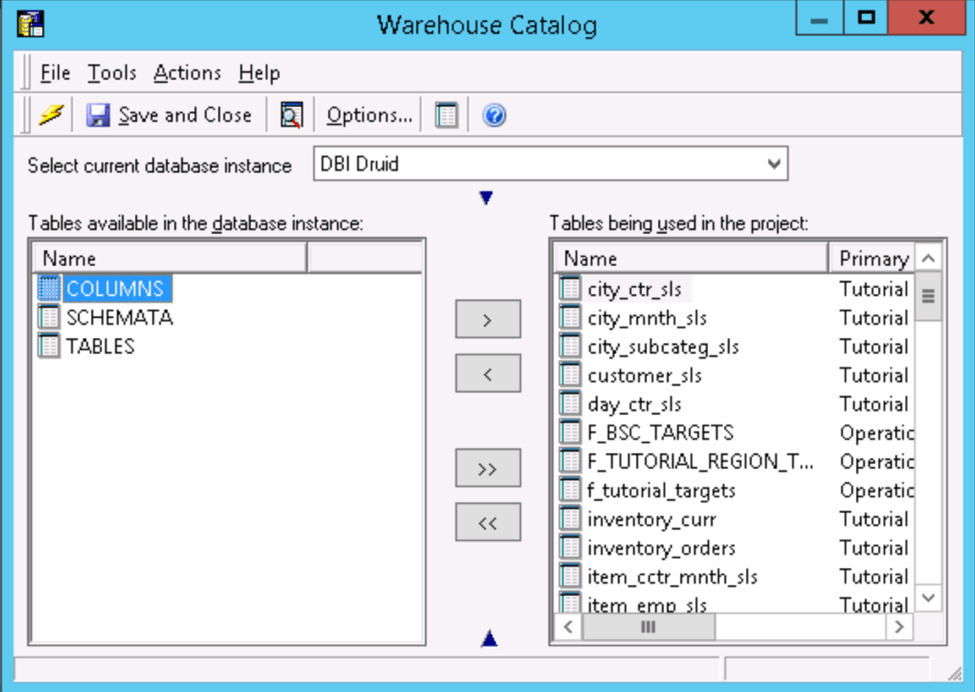
  • Click “Ok” to close the query dialog. Then click the lightening button on the “Warehouse Catalog” editor to see the tables from Druid:
ka04W00000148qcQAA_0EM440000002chH.png
  • End


KB438455


Comment

0 comments

Details

Knowledge Article

Published:

August 2, 2017

Last Updated:

November 30, 2021