EducationSoftwareStrategy.com
StrategyCommunity

Knowledge Base

Product

Community

Knowledge Base

TopicsBrowse ArticlesDeveloper Zone

Product

Download SoftwareProduct DocumentationSecurity Hub

Education

Tutorial VideosSolution GalleryEducation courses

Community

GuidelinesGrandmastersEvents
x_social-icon_white.svglinkedin_social-icon_white.svg
Strategy logoCommunity

© Strategy Inc. All Rights Reserved.

LegalTerms of UsePrivacy Policy
  1. Home
  2. Topics

KB484982: How to connect to Google Cloud Spanner via MicroStrategy Web and Workstation by manually deploying a JDBC driver in MicroStrategy 2021 Update 1


Jing Yang

Quality Engineer, Senior • Strategy


This article provides steps for connecting to Google Cloud Spanner via MicroStrategy Web and Workstation by deploying a JDBC driver.

Starting with the release of Strategy ONE (March 2024), dossiers are also known as dashboards.

Description 

You can connect to Google Cloud Spanner in Strategy Web and Workstation 2021 Update 1. 
Keep the following points in mind: 

  • For Strategy Web, after installation, please reload DATABASE.PDS to support Google Cloud Spanner
  • Google Cloud Spanner JDBC driver and Google BigQuery JDBC driver have compatibility issues, so only one can be left in the JDBC driver folder. Please remove the Google BigQuery JDBC driver to any other backup folder prior to connecting to Spanner. If you want to connect to Google BigQuery via the JDBC driver, please remove the Spanner JDBC driver to any other backup folder. 
  • Some limitations in Strategy 2021 Update 1:
    • For DDA cube and Workstation local mode, expose the credentials in the connection string. For more information, see Method 1, step 5. 
    • Downloading or uploading MSTR files is not supported between different platforms. 
    • Spanner is not supported by Hyper.Now. 

Prerequisites 

  • It is recommended that you download the verified JDBC Driver 1.18.3 for Google Cloud Spanner and rename it it to
    google-cloud-spanner-jdbc.jar
    .
    Please note that the latest version of Google open-source Spanner driver is not certified by Strategy.
  • Create a service account key in the Google API Console to get a credential. 
    • Go to the API Console Credentials page. 
    • From the Project drop-down, select your project. 
    • On the Credentials page, select the Create credentials drop-down, then select Service account. 
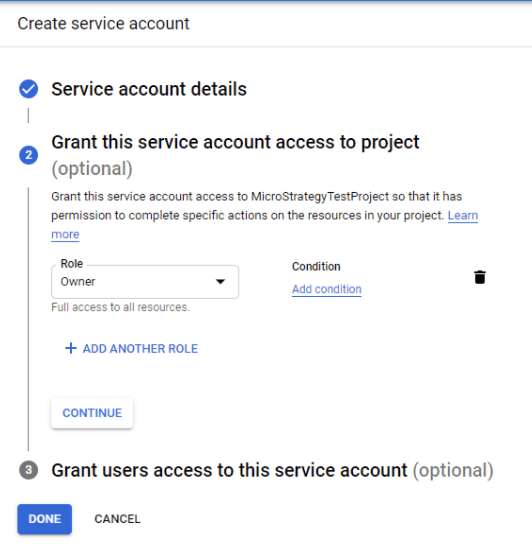
    • Name the service account and select Role as Owner from the drop-down. Mp\
ka0PW0000001JfoYAE_0EM4W0000027Ptc.jpeg
    • Choose the service account under the Service Accounts list, then create a new key. 
ka0PW0000001JfoYAE_0EM4W0000027Pth.jpeg
    • For the Key type, select the JSON key option, then select Create. The file automatically downloads to your computer. 
ka0PW0000001JfoYAE_0EM4W0000027Ptr.jpeg
    • Put the
      *.json
      file you just downloaded as an Intelligence Server directory. 
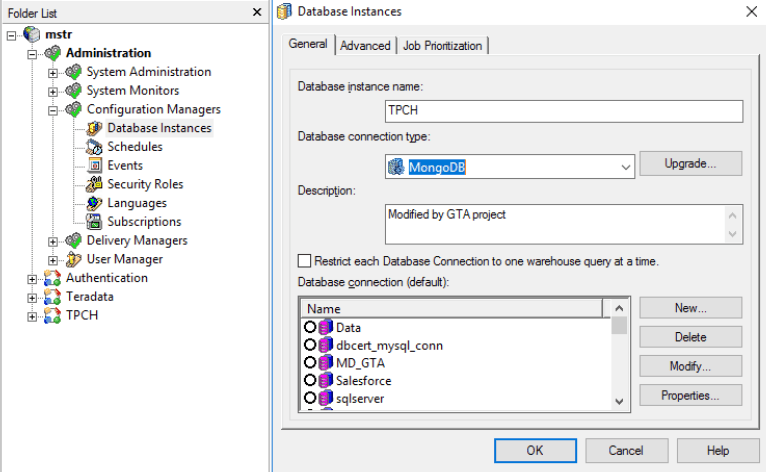
  • For Strategy Web, after installation, please reload DATABASE.PDS. 
    • Open Strategy Developer > Administration > Configuration Managers > Database Instance and edit any database instance. 
    • Click Upgrade under Database connection type. 
ka0PW0000001JfoYAE_0EM4W0000027Puf.jpeg
    • Load DATABASE.PDS and add Google Cloud Spanner to the right pane. Click OK to save the settings. 
ka0PW0000001JfoYAE_0EM4W0000027Pup.jpeg

Connect Google Cloud Spanner to Strategy Workstation via JDBC Driver

  1. Copy Spanner JDBC driver to the JDBC folder.


JDBC folder location for Windows installation: <Strategy Installation Folder>\JDBC. By default, it is C:\Program Files (x86)\Common Files\MicroStrategy\JDBC. 
JDBC folder location for Linux installation: <Strategy Installation Folder>/JDBC.
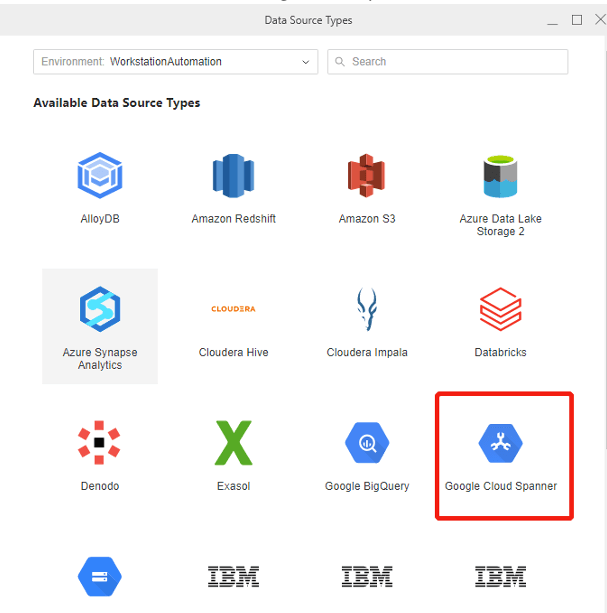
  1. Open Strategy Workstation and connect to your environment. All environments support Google Cloud Spanner connection except MCG (Strategy Cloud for Government) environment.
  2. Click Data Sources and choose Google Cloud Spanner. 
ka0PW0000001JfoYAE_0EM4W000005mdut.jpeg


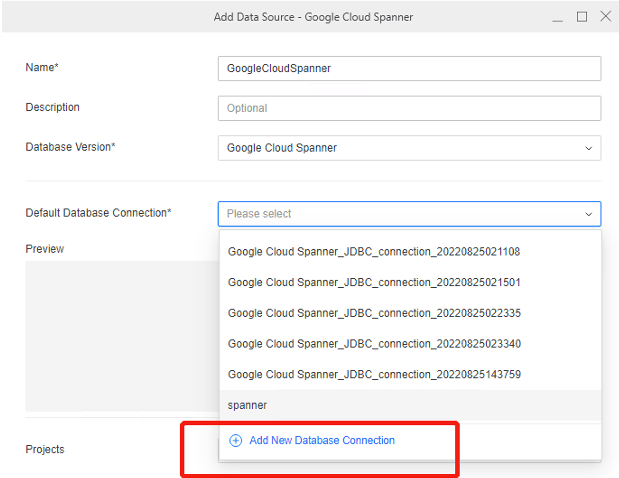
  1. Give a new name for the data source and add New Database Connection. 
ka0PW0000001JfoYAE_0EM4W000005mduy.jpeg


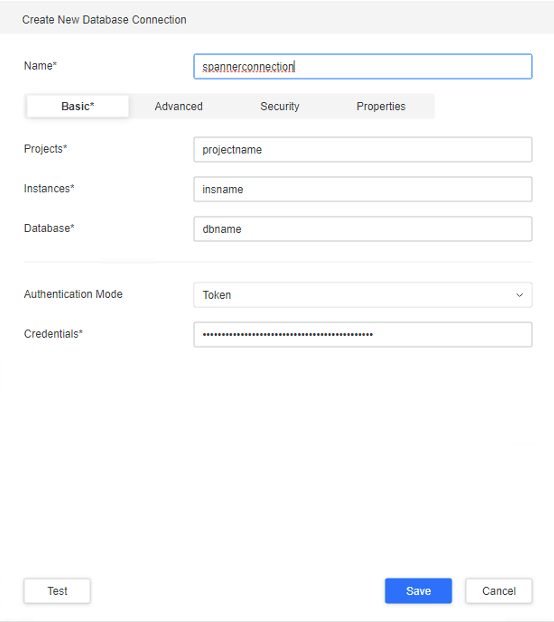
  1. Give a new name for the connection and update the three parameters (Projects, Instances, and Database) as per the project. Enter the credentials location, e.g., C:\key\<Key file name>.json for Credentials GUI. Please notice, Google Cloud Spanner do not support SSL/certificate. 
ka0PW0000001JfoYAE_0EM4W000005mdv8.jpeg


  1. Click Save and you can test the connection on the Data Source dialog. 
ka0PW0000001JfoYAE_0EM4W000005mdvD.jpeg


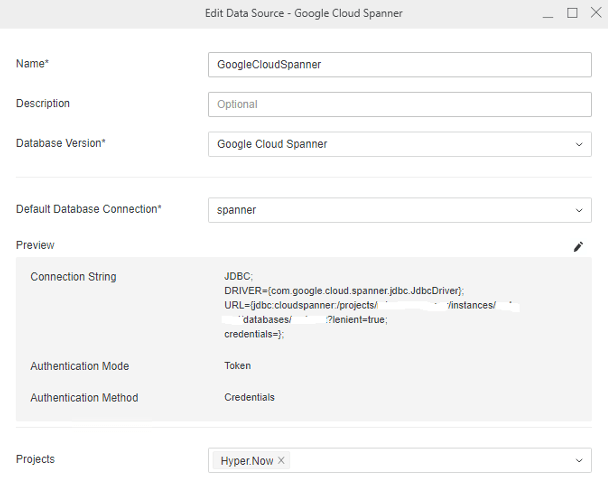
  1. Choose the project and save the new data source you just created. Then you can use Datasets to import and analyze data. 

Connect Google Cloud Spanner to Strategy Web via JDBC Driver

  • Copy Spanner JDBC driver to the JDBC folder and remove the Google Big Query JDBC driver to any other backup folder.
    In Strategy 2021 Update 1, the Google Cloud Spanner JDBC driver and Google Big Query JDBC driver have compatibility issues, so you can only leave one in the JDBC driver folder. If you want to connect to Google Big Query via JDBC driver, please remove the Spanner JDBC driver to any other backup folder. Google has fixed the issue with the 1.2.14.1017 Google Big Query JDBC driver.
    1. JDBC folder location for Windows installation:
      <Strategy Installation Folder>\JDBC
      . By default, it is
      C:\Program Files (x86)\Common Files\MicroStrategy\JDBC
      . 
    2. JDBC folder location for Linux installation:
      <Strategy Installation Folder>/JDBC.
  • Open Strategy Web and click External Data-Google Cloud Spanner. 
ka0PW0000001JfoYAE_0EM4W0000027Pvn.jpeg
  • Select any of the 3 presented options: Select Tables, Build a Query, or Type a Query. 
  • Click Add link in the top right of the Data Sources pane. 
  • Fill out the required data source information with one of the following two methods. 

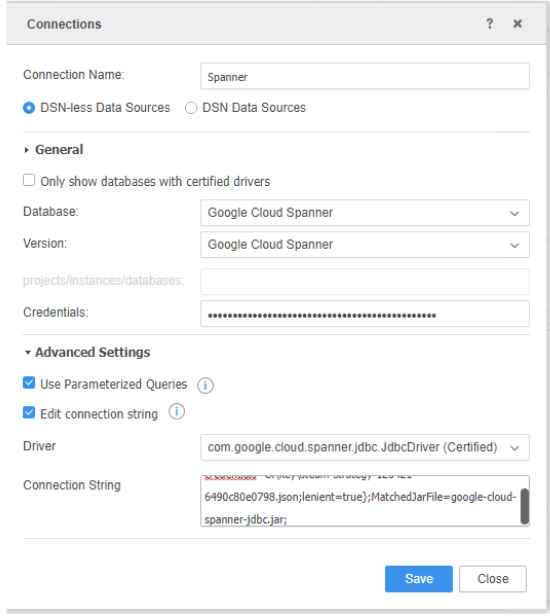
Method 1: Edit connection string 

  • Advanced Settings- Edit the connection string (the following is an example query):
    • JDBC;DRIVER=
      {com.google.cloud.spanner.jdbc.JdbcDriver};URL={jdbc:cloudspanner:/projects/<project ID>/instances/<InstanceName>/databases/<DatabaseName>?lenient=true};MatchedJarFile=google-cloud=spanner=jdbc.jar;
    • The entered connection string consists of the following:
      • DRIVER
        = The driver name as given in the open-source JDBC Driver Config Guide.
      • URL
        = Consists of three parameters (Project ID, Instance, and Database). Update these three parameters as per the project. 
      • lenient=true
        = Allow unknown properties in the connection URL. 
      • MatchedJarFile
        = Name of the driver jar file. 
    • Enter the credentials location, e.g.,
      C:\key\<Key file name>.json
      for Credentials GUI. 
    • Enter a data source name and click OK. The data source should now connect. 
ka0PW0000001JfoYAE_0EM4W0000027Px5.jpeg
    • It is recommended that you publish the cube with In-Memory mode. If you want to publish a DDA cube and create a dossier, please expose the credentials in the connection string (the following is an example query):
      • Enter the credentials location, e.g.,
        C:\key\<Key file name>.json
        for Credentials GUI. 
      • JDBC;DRIVER=
        {com.google.cloud.spanner.jdbc.JdbcDriver};URL={jdbc:cloudspanner:/projects/<project ID>/instances/<InstanceName>/databases/<DatabaseName>?credentials=C:\key\<Key file name>.json;lenient=true};MatchedJarFile=google-cloud=spanner=jdbc.jar;

Method 2: GUI implementation 

  • Enter the information in the project/instances/databases GUI in the following format:
    projects/<projectID>/instances/<InstanceName>/databases/<DatabaseName>
  • Enter a credentials location, e.g.,
    C:\key\<Key file name>.json
    for Credentials GUI.  
  • Enter a data source name and click OK. The data source should now connect. 
ka0PW0000001JfoYAE_0EM4W0000027Pxj.jpeg


Please note that we do not currently support setting the system environment variable to the path of the downloaded JSON file.  

Connect Google Cloud Spanner to Strategy Workstation via JDBC Driver


For Workstation Intelligence Server mode, please refer to the Strategy Web section and skip the content below. The following section only serves Workstation local mode. 

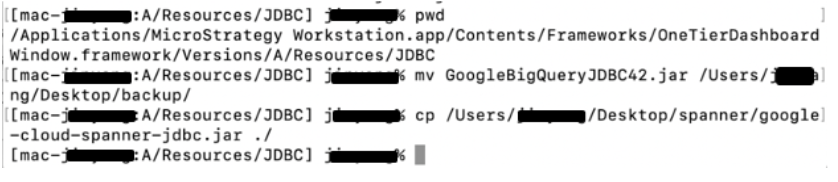
  • Copy Spanner JDBC driver to the JDBC folder and remove the Google Big Query JDBC driver to any other backup folder.
    In Strategy 2021 Update 1, the Google Cloud Spanner JDBC driver and Google Big Query JDBC driver have compatibility issues, so you can only leave one in the JDBC driver folder. If you want to connect to Google Big Query via JDBC driver, please remove the Spanner JDBC driver to any other backup folder. Google has fixed the issue with the 1.2.14.1017 Google Big Query JDBC driver.
    • JDBC folder location for Workstation on Mac:
      /Applications/Strategy Workstation.app/Contents/Frameworks/OneTierDashboardWindow.framework/Versions/A/Resources/JDBC
ka0PW0000001JfoYAE_0EM4W0000027Pza.jpeg
    • JDBC folder location for Workstation on Windows:
      <Windows Workstation Installation Folder>\JDBC
      . By default, it is 
      C:\Program Files\MicroStrategy\Workstation\JDBC
  • Open Workstation and click Dossier > New Data > Google Cloud Spanner.
  • Select any of the 3 presented options: Select Tables, Build a Query, or Type a Query. 
  • Click Add link in the top right of the Data Sources pane. 
  • Fill out the required data source information by using Method 1 via connection strings to connect to Google Cloud Spanner. The following is an example query:
    • Enter the credentials location, e.g.,
      C:\key\<Key file name>.json
      for Credentials GUI. 
    • JDBC;DRIVER=
      {com.google.cloud.spanner.jdbc.JdbcDriver};URL={jdbc:cloudspanner:/projects/<project ID>/instances/<InstanceName>/databases/<DatabaseName>?credentials=C:\key\<Key file name>.json;lenient=true};MatchedJarFile=google-cloud=spanner=jdbc.jar;


Comment

0 comments

Details

Knowledge Article

Published:

April 13, 2021

Last Updated:

March 21, 2024