EducationSoftwareStrategy.com
StrategyCommunity

Knowledge Base

Product

Community

Knowledge Base

TopicsBrowse ArticlesDeveloper Zone

Product

Download SoftwareProduct DocumentationSecurity Hub

Education

Tutorial VideosSolution GalleryEducation courses

Community

GuidelinesGrandmastersEvents
x_social-icon_white.svglinkedin_social-icon_white.svg
Strategy logoCommunity

© Strategy Inc. All Rights Reserved.

LegalTerms of UsePrivacy Policy
  1. Home
  2. Topics

KB485177: How to connect to Microsoft Azure PostgreSQL


Jing Yang

Quality Engineer, Senior • Strategy


This article provides steps for connecting to Microsoft Azure PostgreSQL Managed Instance with the ODBC and JDBC drivers starting in MicroStrategy 2021 Update 3.

Description 


Azure Database for PostgreSQL is a relational database service in the Microsoft cloud based on the PostgreSQL Community Edition (available under the GPLv2 license) database engine.
For more details of the database, please see the https://docs.microsoft.com/en-us/azure/postgresql/overviewhttps://docs.microsoft.com/en-us/azure/postgresql/overview. 
As of Strategy 2021 Update 3, you can now retrieve data form Azure PostgreSQL with Strategy.
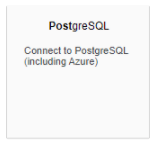
Azure PostgreSQL has almost the same compatibility with the latest PostgreSQL database engine. As such, you can use the PostgreSQL connector in Strategy 2021 to connect to Azure PostgreSQL. When hovering over the connector, the tooltip below indicates that Azure PostgreSQL is supported, as shown below. 
ka04W000001IrUnQAK_0EM4W0000038Yt3.jpeg


Driver Recommendation


Internal tests indicates that the performance of the Progress ODBC driver is better than the Progress JDBC driver and Native ODBC driver. Strategy suggests using the Progress ODBC driver. The following table outlines the result of a data fetch performance test. 


Browse:GrantRead:GrantWrite:DenyDelete:DenyControl:DenyUse:GrantExecute:GrantData VolumeProgress ODBC DriverProgress JDBC DriverNative ODBC Driver3,948,159 rows and 43 columns44.46s57.06s57s


Browse:GrantRead:GrantWrite:DenyDelete:DenyControl:DenyUse:GrantExecute:GrantData VolumeProgress ODBC DriverProgress JDBC DriverNative ODBC Driver3,948,159 rows and 43 columns44.46s57.06s57s


Browse:GrantRead:GrantWrite:DenyDelete:DenyControl:DenyUse:GrantExecute:GrantData VolumeProgress ODBC DriverProgress JDBC DriverNative ODBC Driver3,948,159 rows and 43 columns44.46s57.06s57s


Browse:GrantRead:GrantWrite:DenyDelete:DenyControl:DenyUse:GrantExecute:GrantData VolumeProgress ODBC DriverProgress JDBC DriverNative ODBC Driver3,948,159 rows and 43 columns44.46s57.06s57s

Connect to Azure PostgreSQL with ODBC ODBC Driver (DSN)

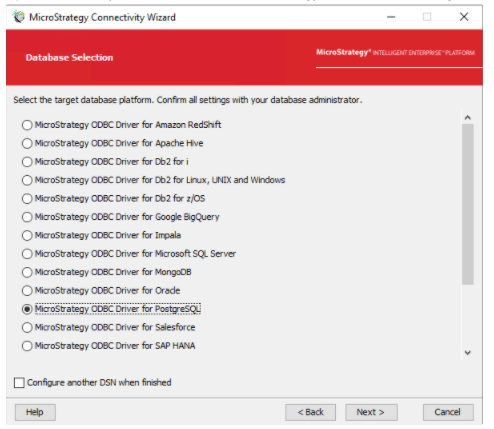
  • Open Strategy Connectivity Wizard and select MicroStratgey ODBC Driver for PostgreSQL. 
ka04W000001IrUnQAK_0EM4W0000038Z1M.jpeg
  • Click Next. 
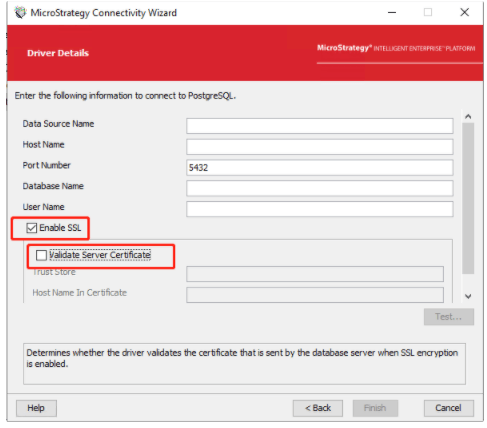
  • Select the Enable SSL checkbox. 
  • Deselect the Validate Server Certificate checkbox. 
ka04W000001IrUnQAK_0EM4W0000038Z1R.jpeg
  • Click Finish. 
  • In Strategy Web, click Create > Add External Data. 
  • Click PostgreSQL.
ka04W000001IrUnQAK_0EM4W0000038Z1W.jpeg
  • Select an import option. 
  • Create a new data source. 
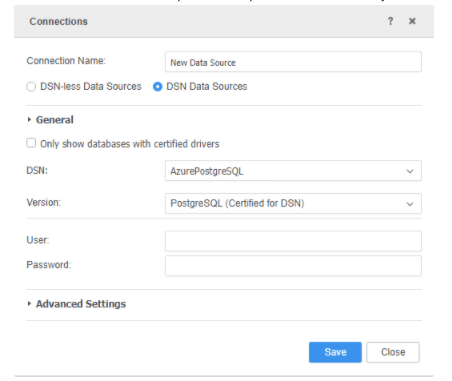
  • Select the DSN Data Sources option. 
  • From the DSN drop-down, choose the DSN created in the previous step and enter the necessary connection information.
  • From the Version drop-down, choose PostgreSQL. 
ka04W000001IrUnQAK_0EM4W0000038Z1b.jpeg
  • Click Save. 


Connect to Azure PostgreSQL with the Progress ODBC Driver (DSN-less)

  • In Strategy Web, click Create > Add External Data. 
  • Click PostgreSQL.
  • Select an import option. 
  • Create a new data source. 
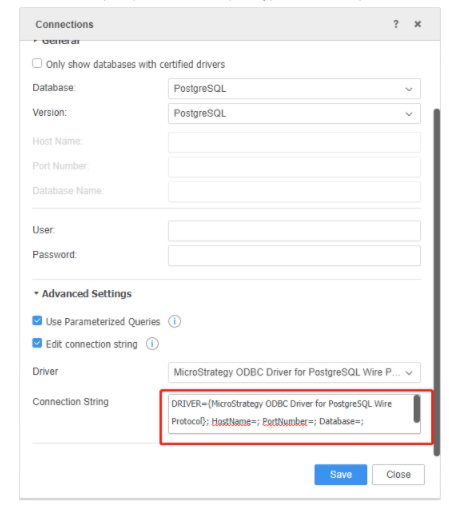
  • Select the DSN-less Data Sources option. 
  • From the Database and Version drop-downs, choose PostgreSQL. 
  • Enter the required connection information. The ODBC string should be: 
    
    DRIVER={Strategy ODBC Driver for PostgreSQL Wire Protocol}; HostName={host}; PortNumber={port}; Database={db}; EncryptionMethod=1; ValidateServerCertificate=0;
ka04W000001IrUnQAK_0EM4W0000038Z3c.jpeg

Click Save.

Connect to Azure PostgreSQL with Native ODBC Driver (DSN-less)

  1. In Strategy Web, click Create > Add External Data. 
  2. Click PostgreSQL.
  3. Select an import option. 
  4. Create a new data source. 
  5. Expand Advanced Settings.
  6. Click Edit connection string.
  7. Choose PostgreSQL Unicode(x86).
  8. Enter the required connection information. The ODBC string should be: 
    
    DRIVER={PostgreSQL Unicode(x64)}; Servername={host}; Port={port}; Database={db}; DriverUnicodeType=1; UseDeclareFetch=1; Fetch=1000; SSLmode=require;

  9. Click Save.

Connect to Azure PostgreSQL with JDBC Driver

  1. In Strategy Web, click Create > Add External Data. 
  2. Click PostgreSQL.
  3. Select an import option. 
  4. Create a new data source. 
  5. Expand Advanced Settings.
  6. Click Edit connection string.
  7. Choose com.Strategy.jdbc.postgresql.PostgreSQLDriver.
  8. Enter the required connection information. The JDBC string should be: 
    
          JDBC;DRIVER={com.Strategy.jdbc.postgresql.PostgreSQLDriver};URL={jdbc:Strategy:postgresql://{host}:{port};DatabaseName={db};EncryptionMethod=SSL;ValidateServerCertificate=false}

  9. Click Save.

Comment

0 comments

Details

Knowledge Article

Published:

September 23, 2021

Last Updated:

September 24, 2021