EducationSoftwareStrategy.com
StrategyCommunity

Knowledge Base

Product

Community

Knowledge Base

TopicsBrowse ArticlesDeveloper Zone

Product

Download SoftwareProduct DocumentationSecurity Hub

Education

Tutorial VideosSolution GalleryEducation courses

Community

GuidelinesGrandmastersEvents
x_social-icon_white.svglinkedin_social-icon_white.svg
Strategy logoCommunity

© Strategy Inc. All Rights Reserved.

LegalTerms of UsePrivacy Policy
  1. Home
  2. Topics

KB485172: How to connect to Microsoft Azure SQL Managed Instance in MicroStrategy 2021


Xiaoqian Lu

Quality Engineer, Principal • MicroStrategy


This article provides steps for connecting to Microsoft Azure SQL Managed Instance with the ODBC and JDBC drivers starting in MicroStrategy 2021 Update 3.

Description 


Azure SQL Managed Instance is the intelligent, scalable cloud database service that combines the broadest SQL Server database engine compatibility with all the benefits of a fully managed and evergreen platform as a service. SQL Managed Instance has near 100% compatibility with the latest SQL Server (Enterprise Edition) database engine, providing a native virtual network (VNet) implementation that addresses common security concerns, and a business model favorable for existing SQL Server customers. SQL Managed Instance allows existing SQL Server customers to lift and shift their on-premises applications to the cloud with minimal application and database changes. At the same time, SQL Managed Instance preserves all PaaS capabilities (automatic patching and version updates, automated backups, high availability) that drastically reduce management overhead and TCO.
For more details on the database, please see the Microsoft official documentation.
As of Strategy 2021 Update 3, you can now retrieve data from Azure SQL Managed Instance with Strategy. 
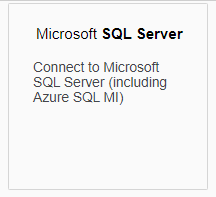
Azure SQL Managed Instance has near 100% compatibility with the latest SQL Server database. As such, you can use the Microsoft Server connector in Strategy 2021 to connect to SQL Managed Instance. When hovering over the connector, the tooltip indicated that Azure SQL Managed Instance is supported, as shown below. 
ka0PW0000000wtdYAA_0EM4W0000038XYO.jpeg

Driver Recommendation


Internal tests indicates that the performance of the ODBC driver is much better than that of the JDBC driver. Strategy suggests using the ODBC driver over the JDBC driver. The following table outlines the result of a data fetch performance test. 
 

 show this help message and exit
-f remove directories instead of renamingData VolumeODBC DriverJDBC Driver3,948,159 rows and 43 columns44.45s833.30s

 show this help message and exit
-f remove directories instead of renamingData VolumeODBC DriverJDBC Driver3,948,159 rows and 43 columns44.45s833.30s

 show this help message and exit
-f remove directories instead of renamingData VolumeODBC DriverJDBC Driver3,948,159 rows and 43 columns44.45s833.30s

Connect to Azure SQL Managed Instance with ODBC Driver (DSN)

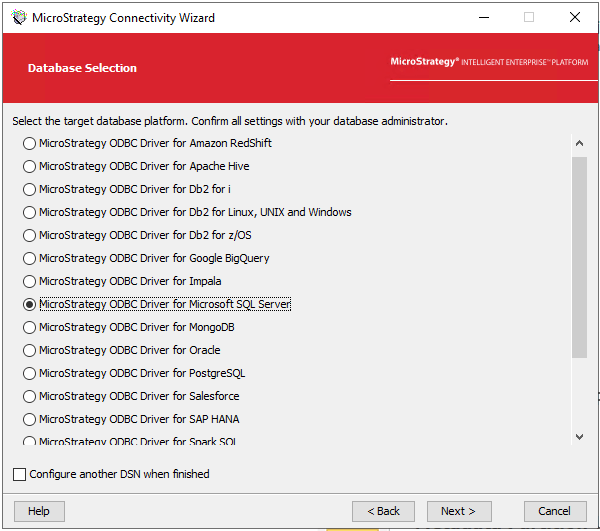
  • Open Strategy Connectivity Wizard and select MicroStratgey ODBC Driver for Microsoft SQL Server. 
ka0PW0000000wtdYAA_0EM4W0000038XZH.jpeg
  • Click Next. 
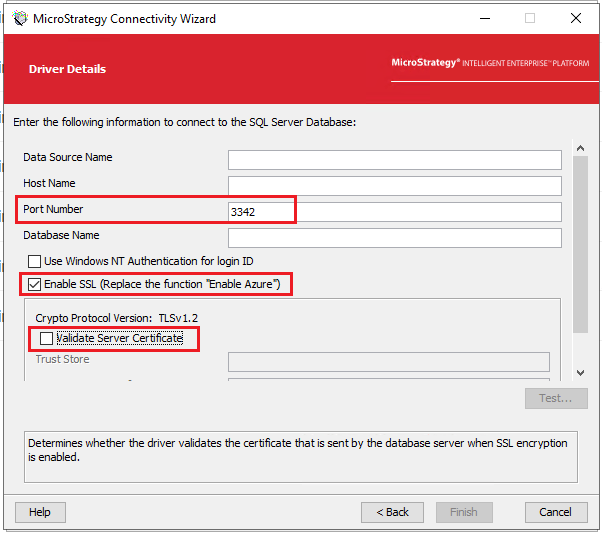
  • In the Driver Details dialog, modify the the Port Number value to 3342. 
  • Select the Enable SSL checkbox. 
  • Deselect the Validate Server Certificate checkbox. 
ka0PW0000000wtdYAA_0EM4W0000038XZW.jpeg
  • Click Finish. 
  • In Strategy Web, click Create > Add External Data. 
  • Click Microsoft SQL Server.
ka0PW0000000wtdYAA_0EM4W0000038XZg.jpeg
  • Select an import option. 
  • Create a new data source. 
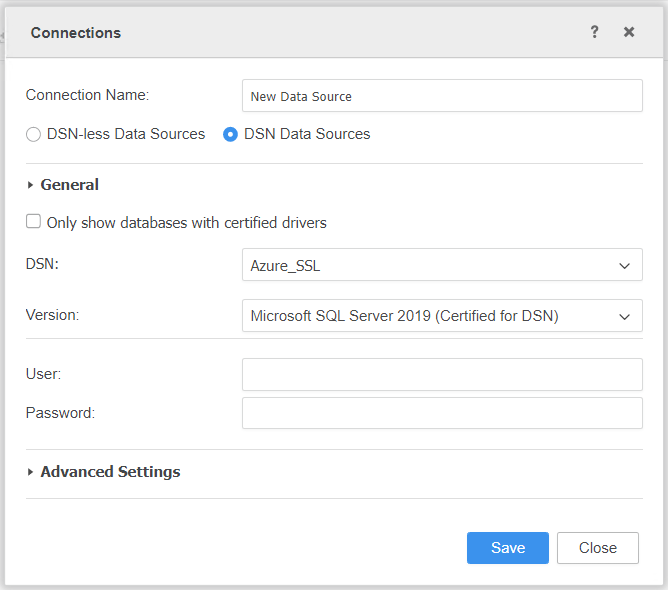
  • Select the DSN Data Sources option. 
  • From the Version drop-down, choose Microsoft SQL Server 2019. 
ka0PW0000000wtdYAA_0EM4W0000038XZv.jpeg
  • Click Save. 

Connect to Azure SQL Managed Instance with the ODBC Driver (DSN-less)

  • In Strategy Web, click Create > Add External Data. 
  • Click Microsoft SQL Server.
ka0PW0000000wtdYAA_0EM4W0000038XZg.jpeg
  • Select an import option. 
  • Create a new data source. 
  • Select the DSN-less Data Sources option. 
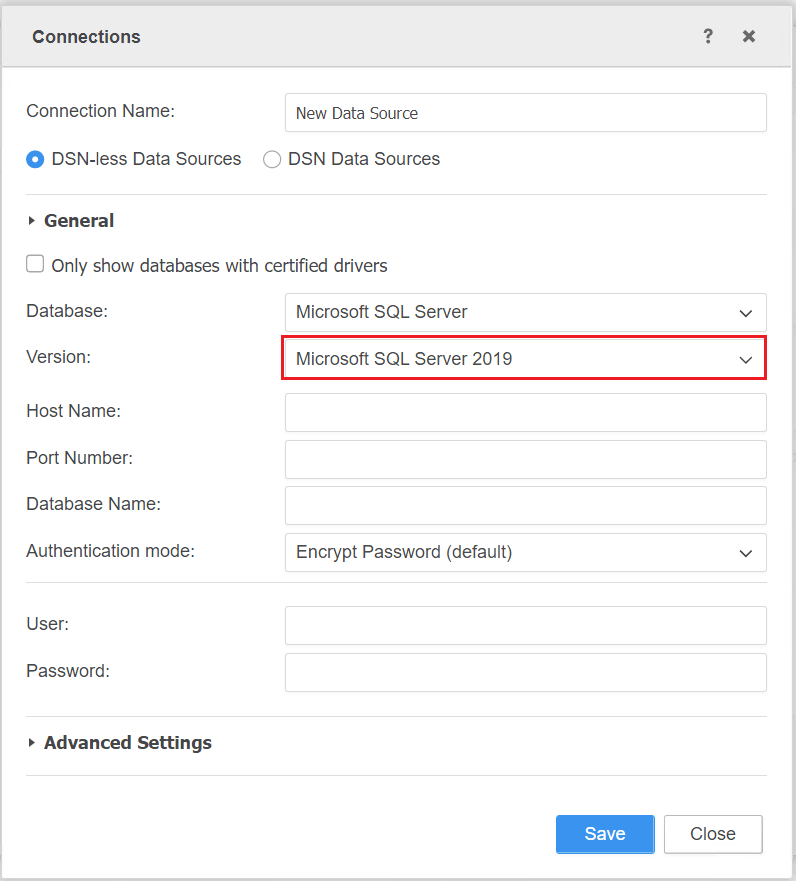
  • From the Version drop-down, choose Microsoft SQL Server 2019. 
ka0PW0000000wtdYAA_0EM4W0000038Xa0.jpeg
  • Enter the required connection information. The ODBC string should be: 
    
    The ODBC connection string can be:
    DRIVER={Strategy ODBC Driver for SQL Server Wire Protocol}; hostname={host}; Port={port}; Database={db}; AuthenticationMethod=1; EncryptionMethod=1; ValidateServerCertificate=0;
    

Connect to Azure SQL Managed Instance with JDBC Driver

  • In Strategy Web, click Create > Add External Data. 
  • Click Microsoft SQL Server.
ka0PW0000000wtdYAA_0EM4W0000038XZg.jpeg
  • Select an import option. 
  • Create a new data source. 
  • Select the DSN-less Data Sources option. 
  • From the Version drop-down, choose Microsoft SQL Server 2019.
  • Expand Advanced Settings. 
  • Click Edit connection string. 
  • Choose com.Strategy.jdbc.sqlserver.SQLServerDriver. 
  • Enter the required connection string information (including Connection String). The JDBC connection string should be: 
    
    JDBC;DRIVER={com.Strategy.jdbc.sqlserver.SQLServerDriver};URL=        {jdbc:Strategy:sqlserver://{host}:{port};DatabaseName={db};EncryptionMethod=SSL;ValidateServerCertificate=false;fetchTWFSasTime=TRUE;}

  • Click Save. 

Comment

0 comments

Details

Knowledge Article

Published:

September 22, 2021

Last Updated:

February 26, 2024