This article explains how to connect to oracle in the following scenarios:
1. Connectivity via DSN
2. DSN-less Connectivity
3. Connectivity via JDBC Driver
For analytical requests and for Strategy Metadata operations, Strategy Secure Enterprise uses the Strategy ODBC Driver for Oracle Wire Protocol. This driver is shipped with Strategy releases.
This section describes driver configuration, and the settings that are known to enhance performance of Strategy when connecting to Oracle.
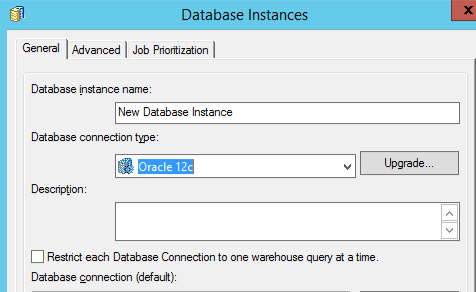
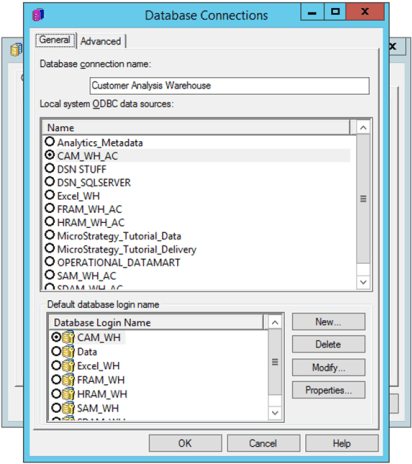
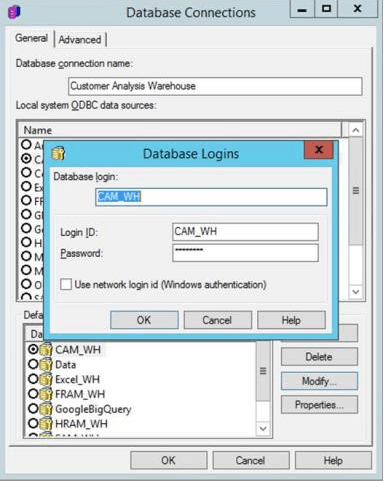
Configuration: Consists of three steps - create database instance, create a database connection, and configure and store credentials.
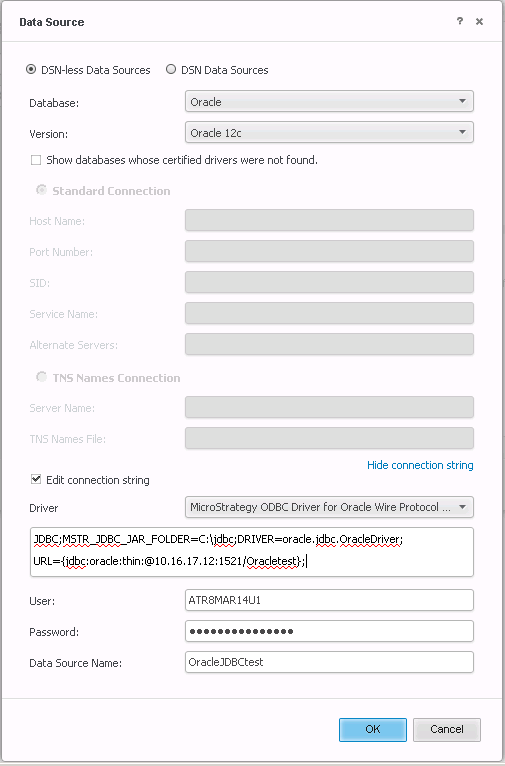
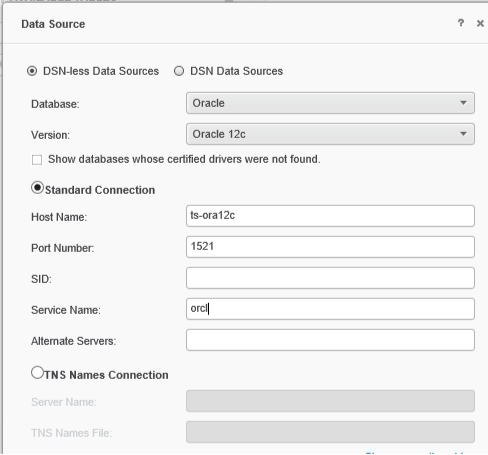
DSN-less connections to Oracle are supported via Strategy Web/Desktop Data Import. The following screenshot shows the configuration screen.
Some customers may need to use the Oracle provided JDBC in lieu of Strategy shipped ODBC driver to connect to Oracle database. The steps to use the JDBC driver to connect to Oracle are as follows:
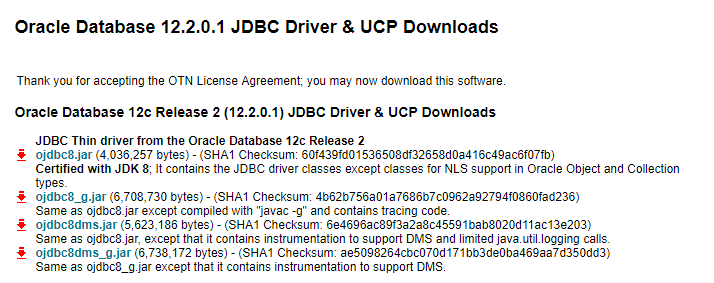
/opt/mstr/MicroStrategy/install/JDBC
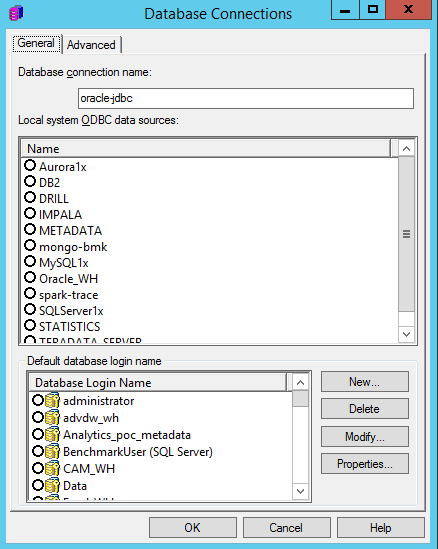
JDBC;MSTR_JDBC_JAR_FOLDER=/folder_path_to_where_ojdbc8_deployed;DRIVER=oracle.jdbc.OracleDriver;URL={jdbc:oracle:thin:@ORACLE_SERVER_IP:PORT/ORACLE_DB_FQDN};
alternatively use the Oracle System ID:
JDBC;MSTR_JDBC_JAR_FOLDER=/folder_path_to_where_ojdbc8_deployed;DRIVER=oracle.jdbc.OracleDriver;URL={jdbc:oracle:thin:@ORACLE_SERVER_IP:PORT/ORACLE_SID};
Do no include the JAR file name in the path.
For example:
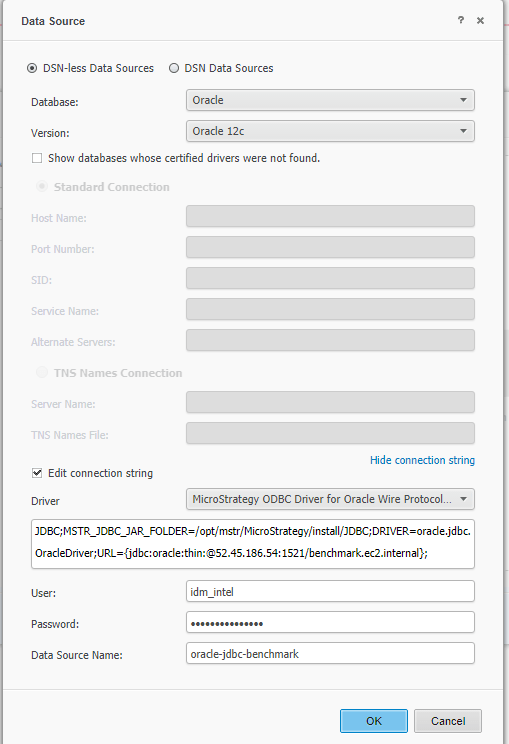
JDBC;MSTR_JDBC_JAR_FOLDER=/opt/mstr/MicroStrategy/install/JDBC;DRIVER=oracle.jdbc.OracleDriver;URL={jdbc:oracle:thin:@52.45.186.54:1521/labstuto.ec2.internal};
Note if the i-server is on Windows system, the MSTR_JDBC_JAR_FOLDER string format should be like “c:\folder_path_to_where_ojdbc8.jar”.
So if you placed the file "ojdbc8.jar" in C:\JDBC, the path should be as on the last screenshot.
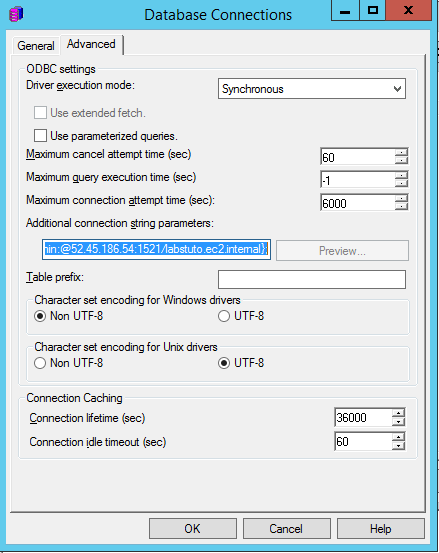
Use the connection string as show to create DSN-less Data source. The connection string format is the same as in previous section.
Settings when connecting from Linux and using FQDN:
Settings when connecting from Windows using an Oracle SID: