Note: The below configuration is only needed if you wish to use both SAP HANA 1.0 and SAP HANA 2.0 drivers to connect to SAP HANA servers respectively. According to SAP Note "1906576 - SAP HANA client and server cross-version compatibility" SAP HANA 1.0 drivers can be used to connect to both SAP HANA 1.0 and SAP HANA 2.0 servers, please refer to the SAP Note for more details.
If you wish to use only one driver to connect to both SAP HANA 1.0 and SAP HANA 2.0 servers, the below configuration is not needed. Only creating two different DSN pointing to the SAP HANA 1.0 and SAP HANA 2.0 server using the same SAP HANA client would be enough.
Configuring odbcinst.ini and ODBC.sh is only needed for DSN-less connection to work.
For Strategy Workstation local mode on a Windows machine, it will use the system DSN of the SAP HANA driver, no extra configuration is needed on Strategy side.
All driver path used in this article are subject to change as per your machine configuration.
/home/mstr/sap/hdbclient1- here we added “1” at the end for easier identification.
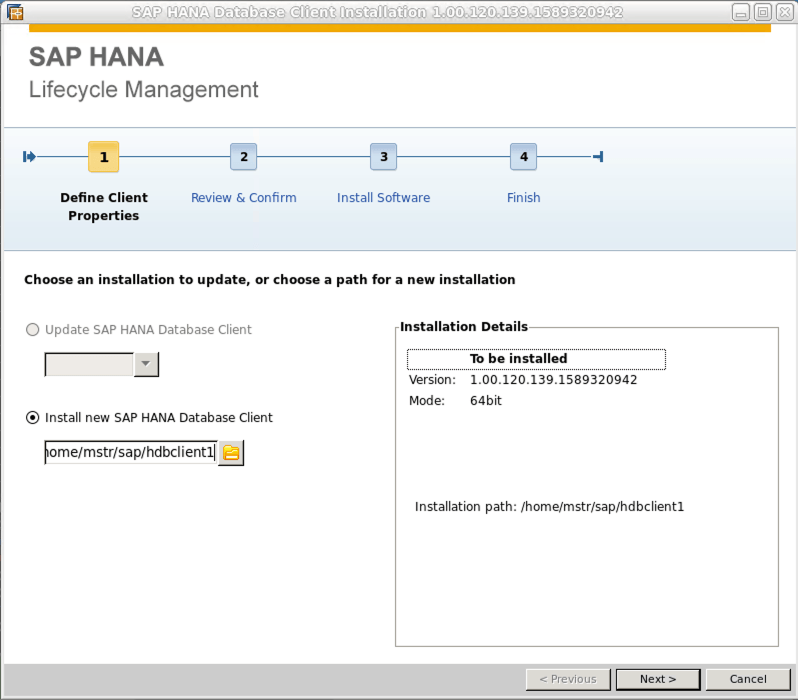
/opt/mstr/MicroStrategy/odbc.iniand add a DSN for SAP HANA 1.
[ODBC Data Sources]
SAP_HANA1=SAP HANA ODBC DRIVER

[SAP_HANA1]
Driver=/home/mstr/sap/hdbclient1/libodbcHDB.so
Servernode=<ip-address-of-your-hana-instance>:<port>
USER=SYSTEM
PASSWORD= <your-hana-DB-user-password>
DriverUnicodeType=1
/opt/mstr/MicroStrategy/odbcinst.iniand
/opt/mstr/MicroStrategy/env/ODBC.sh.
odbcinst.ini, find the line
HDBODBC=Installedand edit it to be
HDBODBC1=Installed.Here we are giving a name to our ODBC driver. SAP HANA ODBC driver uses
HDBODBCby default, but we are going to make it
HDBODBC1for easier identification when determining which driver it is associated to.
odbcinst.ini, find the following section
[HDBODBC]
Driver=/home/mstr/sap/hdbclient1/libodbcHDB.so
Description=HANA Driver
Setup=/home/mstr/sap/hdbclient1/libodbcHDB.so
CPTimeout=0
[HDBODBC]to
[HDBODBC1]and add the path to the driver to the one from the previous steps,
/home/mstr/sap/hdbclient1/.
ODBC.sh, find the following section
#
#ODBC Driver for SAP HANA
#
SAPHANA_PATH='<SAPHANA_PATH>'

if [ "${SAPHANA_PATH}" != '<SAPHANA_PATH>' ]; then
	export SAPHANA_PATH

	mstr_append_path LD_LIBRARY_PATH "${SAPHANA_PATH:?}"
	export LD_LIBRARY_PATH
fi
#
#ODBC Driver for SAP HANA 1
#
SAPHANA1_PATH=/home/mstr/sap/hdbclient1/

if [ "${SAPHANA1_PATH}" != '<SAPHANA1_PATH>' ]; then
	export SAPHANA1_PATH

	mstr_append_path LD_LIBRARY_PATH "${SAPHANA1_PATH:?}"
	export LD_LIBRARY_PATH
fi<
/home/mstr/sap/hdbclient2- here we added “2” at the end for easier identification.

/opt/mstr/MicroStrategy/odbc.iniand add a DSN for SAP HANA 2
[ODBC Data Sources]
SAP_HANA2=SAP HANA ODBC DRIVER

[SAP_HANA2]
Driver=/home/mstr/sap/hdbclient2/libodbcHDB.so
Servernode:<ip-address-of-your-hana-instance>:<port>
USER=SYSTEM
PASSWORD= <your-hana-DB-user-password>
DriverUnicodeType=1
/opt/mstr/MicroStrategy/odbcinst.iniand
/opt/mstr/MicroStrategy/env/ODBC.sh.
HDBODBC2=Installedjust below
HDBODBC1=Installed. Here we are giving a name to our ODBC driver. SAP HANA ODBC driver uses HDBODBC by default, but we are going to make it HDBODBC2 for easier identification when determining which driver it is associated to.
odbcinst.ini, append the below section
[HDBODBC2]
Driver=/home/mstr/sap/hdbclient2/libodbcHDB.so
Description=HANA Driver
Setup=/home/mstr/sap/hdbclient2/libodbcHDB.so
CPTimeout=0
ODBC.sh, append the below section
#
#ODBC Driver for SAP HANA 2
#
SAPHANA2_PATH=/home/mstr/sap/hdbclient2/

if [ "${SAPHANA2_PATH}" != '<SAPHANA1_PATH>' ]; then
	export SAPHANA2_PATH

	mstr_append_path LD_LIBRARY_PATH "${SAPHANA2_PATH:?}"
	export LD_LIBRARY_PATH
fi Driver={} and make it DRIVER={HDBODBC1} to point to our SAP HANA 1 driver in odbcinst.ini.

Driver={} and make it DRIVER={HDBODBC2} to point to our SAP HANA 2 driver in odbcinst.ini.

