EducationSoftwareStrategy.com
StrategyCommunity

Knowledge Base

Product

Community

Knowledge Base

TopicsBrowse ArticlesDeveloper Zone

Product

Download SoftwareProduct DocumentationSecurity Hub

Education

Tutorial VideosSolution GalleryEducation courses

Community

GuidelinesGrandmastersEvents
x_social-icon_white.svglinkedin_social-icon_white.svg
Strategy logoCommunity

© Strategy Inc. All Rights Reserved.

LegalTerms of UsePrivacy Policy
  1. Home
  2. Topics

KB442134: How to connect to Snowflake 3.x in MicroStrategy 10.x and 11.x on AWS


Henri-Francois Chadeisson

Director, Sales Engineering • MicroStrategy


This quick tutorial explains how to install and configure Snowflake driver for MicroStrategy on AWS environments. This would also work based on adjustments for any Linux environment.

The steps described below explain how to setup a DSN Based Database Instance with Strategy on top of Snowflake. This approach is not suited for DSN-Less connectivity
Prerequisites
Parameters required for creating the DSN :

  • Snowflake URL (typically : [account].[region].snowflakecomputing.com)
  • Snowflake Account (first part of your URL)
  • Snowflake Region (second part of your URL)
  • Snowflake Database
  • Snowflake Warehouse


Parameters required for creating Database Instance (from Developer or Web):

  • Snowflake Username and Password

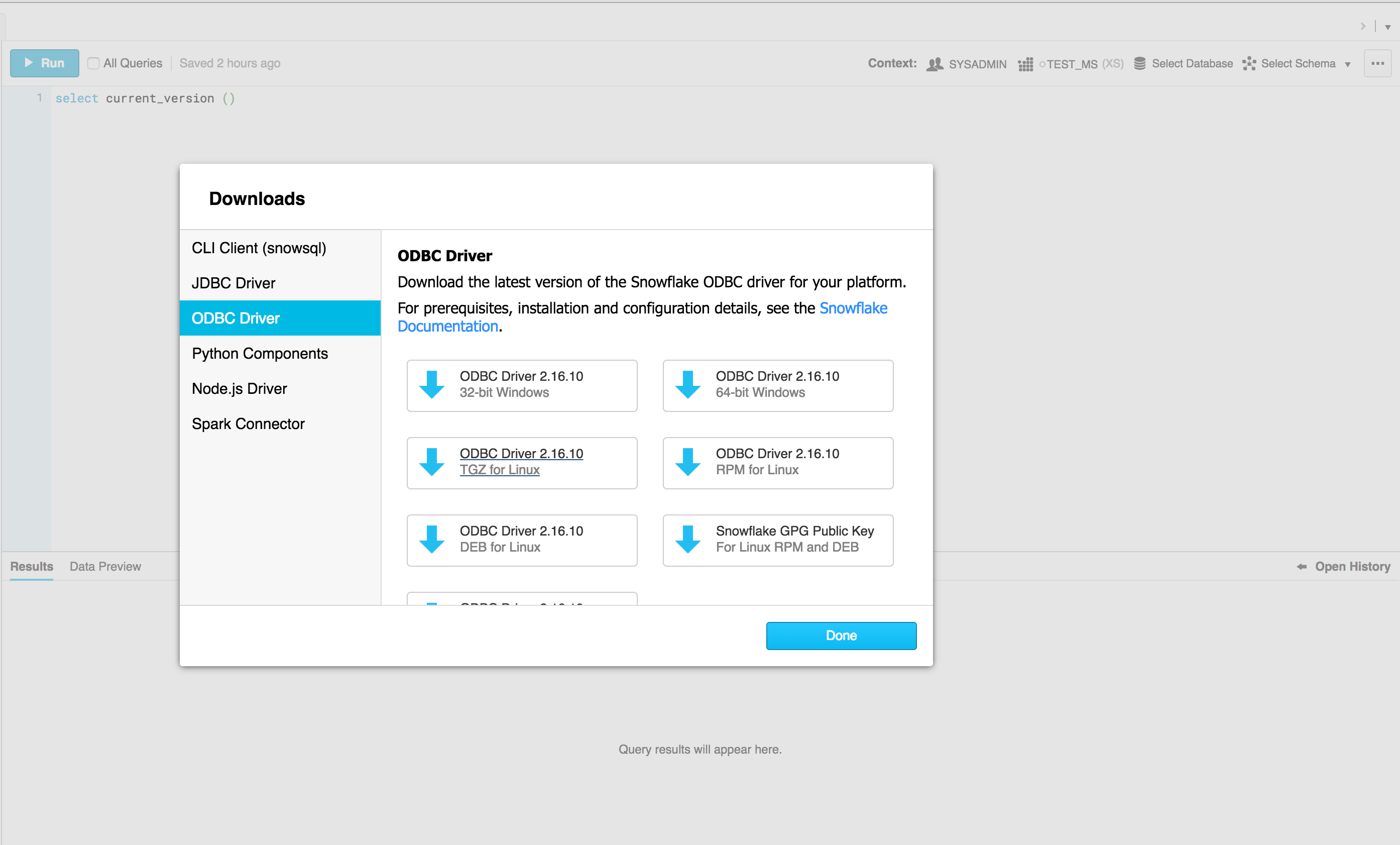
Download and extract Snowflake ODBC driver from Snowflake console
Open your Snowflake console (account.region.snowflakecomputing.com)
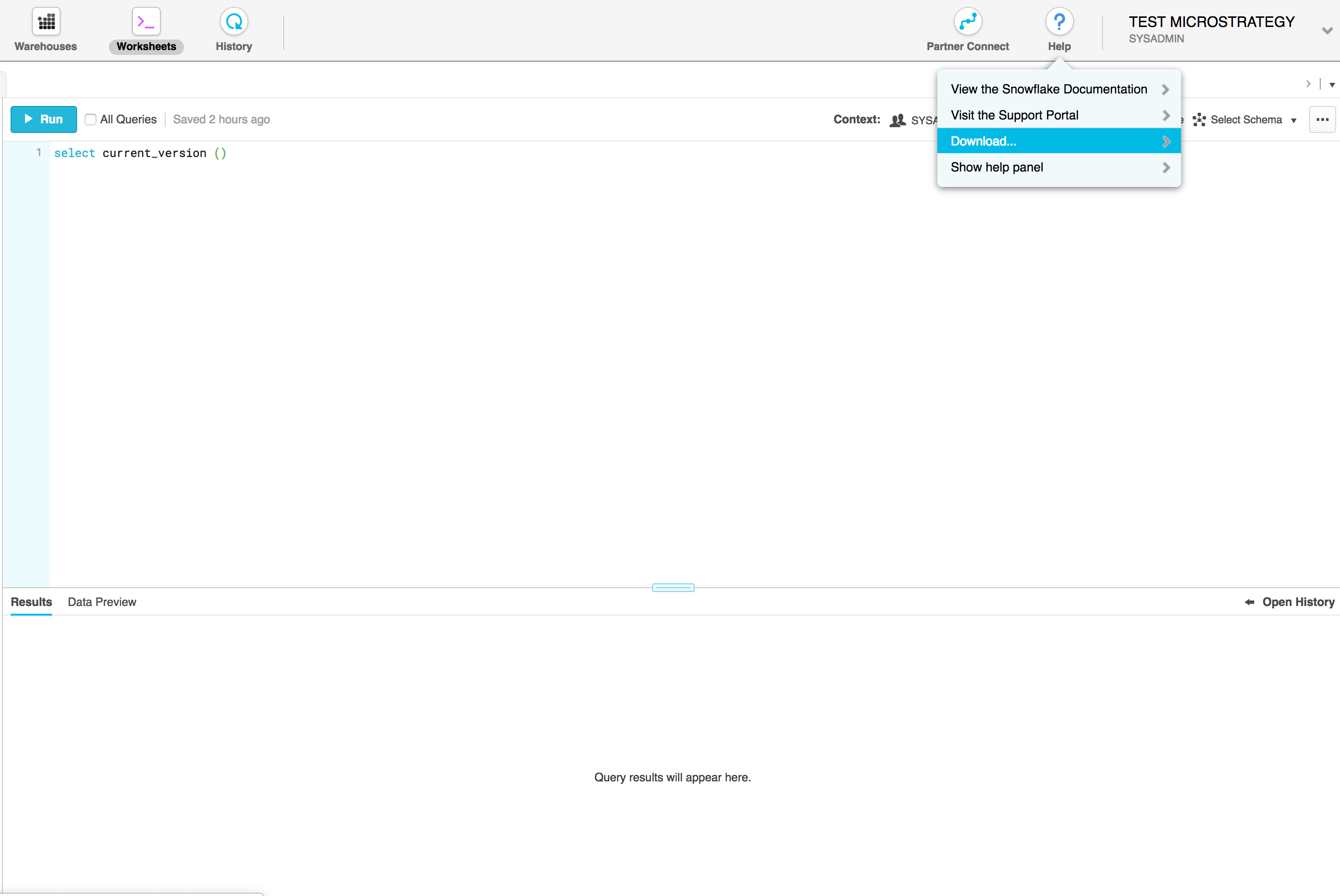
ka04W000001Is4bQAC_0EM44000000R4qT.png

In the popup that opens, select ODBC

ka04W000001Is4bQAC_0EM44000000R4qY.png

Download the following driver to the server hosting your Intelligence Server: TGZ for Linux
The following of this note assumes the driver was downloaded to /home/mstr/
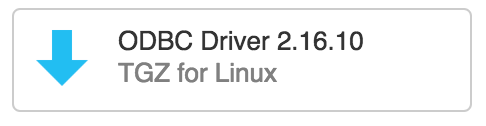
ka04W000001Is4bQAC_0EM44000000R4qd.png

Extract the driver tarball using the following command line (note: adjust the driver filename based on current version at the time of download)


cd /home/mstr
tar -xvzf snowflake_linux_x8664_odbc-2.16.10.tgz

Configure Strategy ODBC connection
Open Strategy odbc.ini file

/opt/mstr/MicroStrategy/odbc.ini

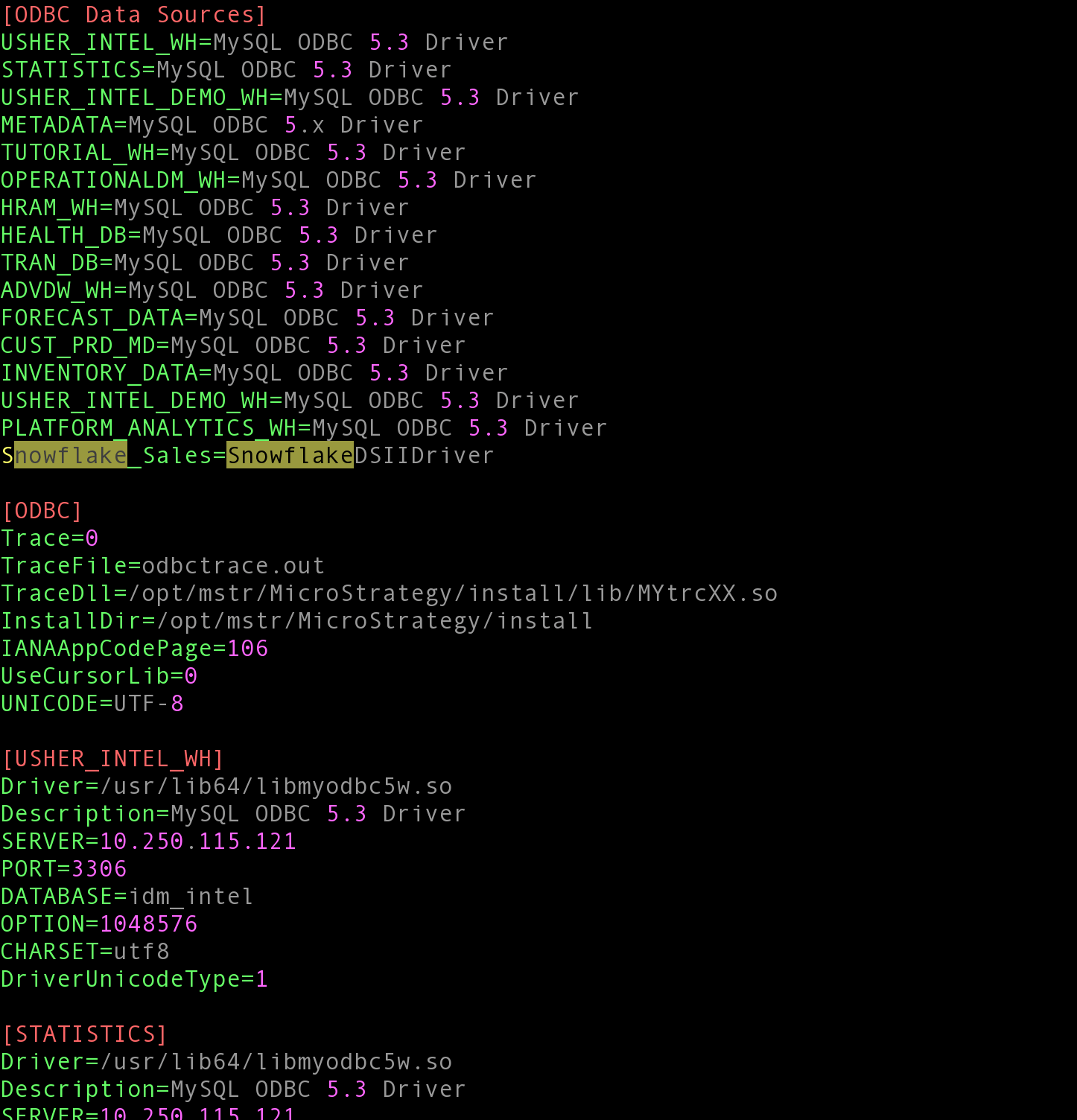
Add the following entry in [ODBC Data Sources] section. This example assumes the Snowflake DB used is named "Sales". Repeat for each Snowflake Database you are connecting to.

[ODBC Data Sources]
Snowflake_Sales=SnowflakeDSIIDriver

Add the following entry at the very end of this same odbc.ini file

[Snowflake_Sales]
Description=SnowflakeDB
Driver=/home/mstr/snowflake_odbc/lib/libSnowflake.so
Locale=en-US
SERVER=<Snowflake URL>
PORT=443
SSL=on
ACCOUNT=<Snowflake Account>
Database=<Snowflake Database>
Warehouse=<Snowflake Warehouse>

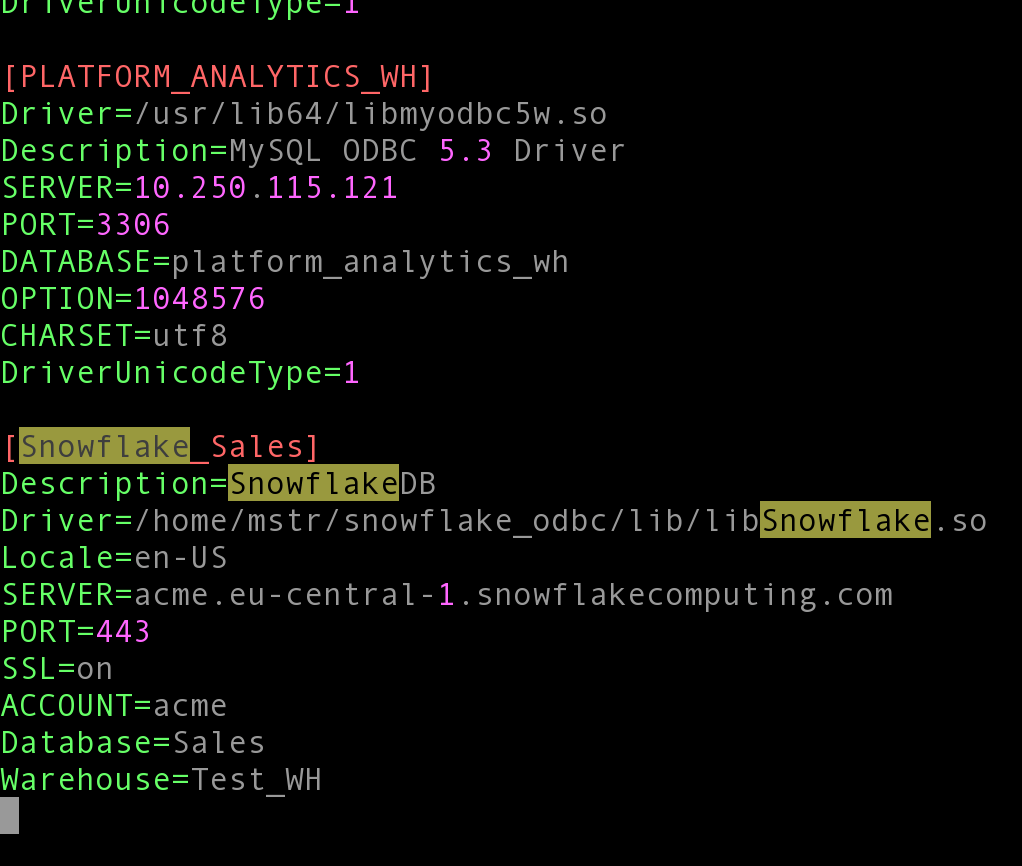
Example with Account = acme / Database = Sales / Warehouse = Test_WH / Region = eu-central-1
​​​​

[Snowflake_Sales]
Description=SnowflakeDB
Driver=/home/mstr/snowflake_odbc/lib/libSnowflake.so
Locale=en-US
SERVER=acme.eu-central-1.snowflakecomputing.com
PORT=443
SSL=on
ACCOUNT=acme
Database=Sales
Warehouse=Test_WH
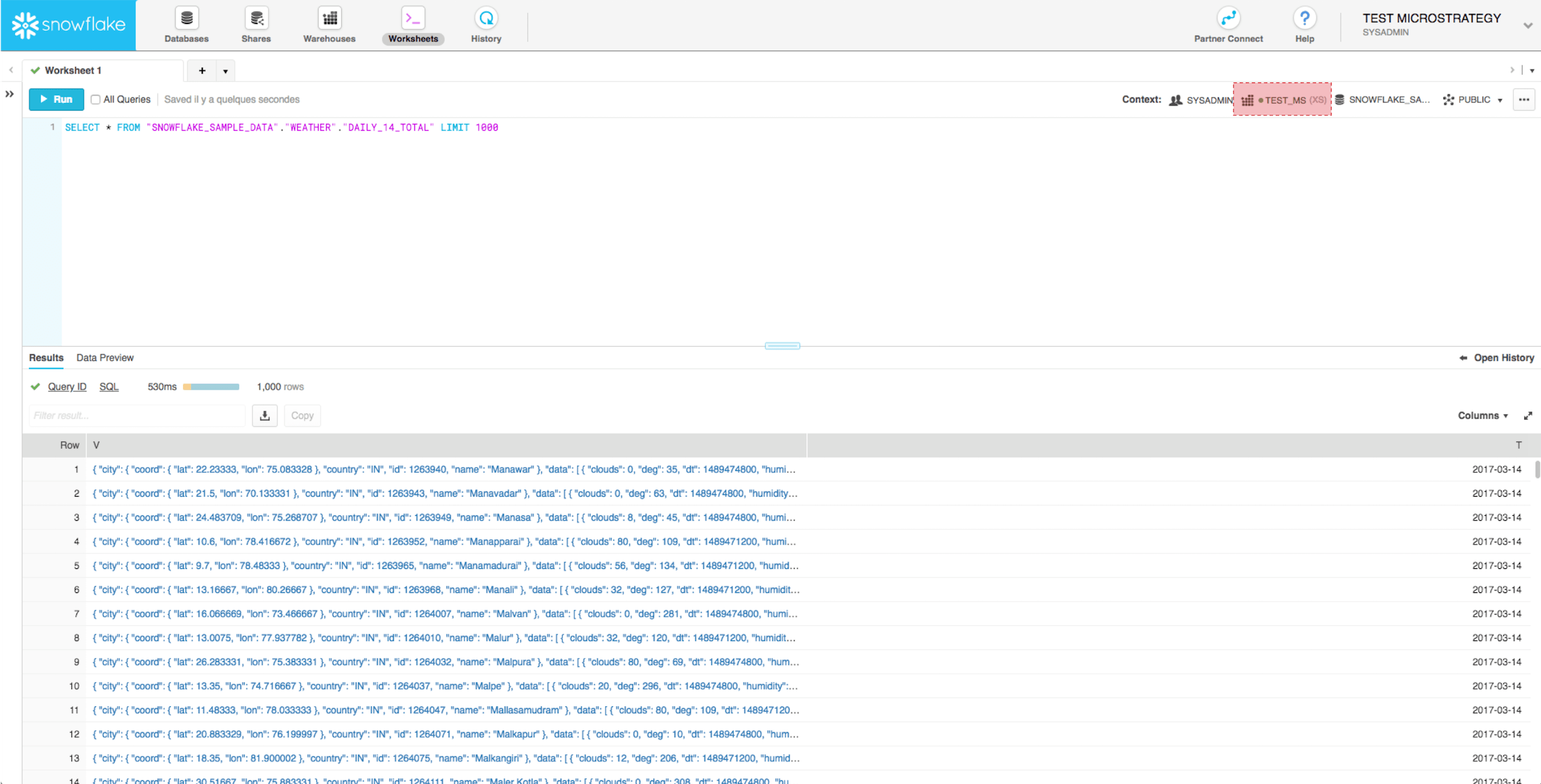
Note: the warehouse name should be visible on the Context section of the query console:

ka04W000001Is4bQAC_0EM44000000RI6z.png

When you are done, the odbc.ini file should look like:
ka04W000001Is4bQAC_0EM44000000R4rW.png
ka04W000001Is4bQAC_0EM44000000R4rb.png

Configuring the Database Connection in Strategy
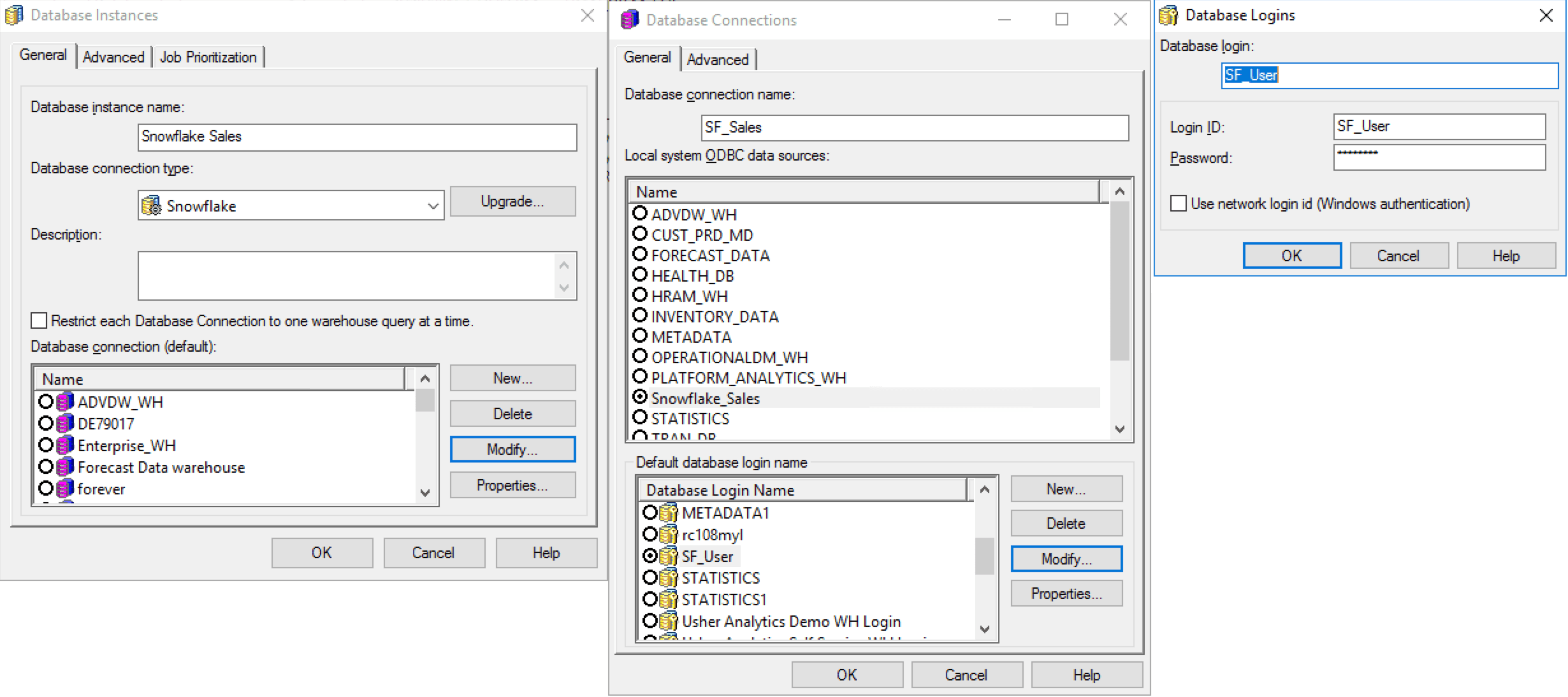
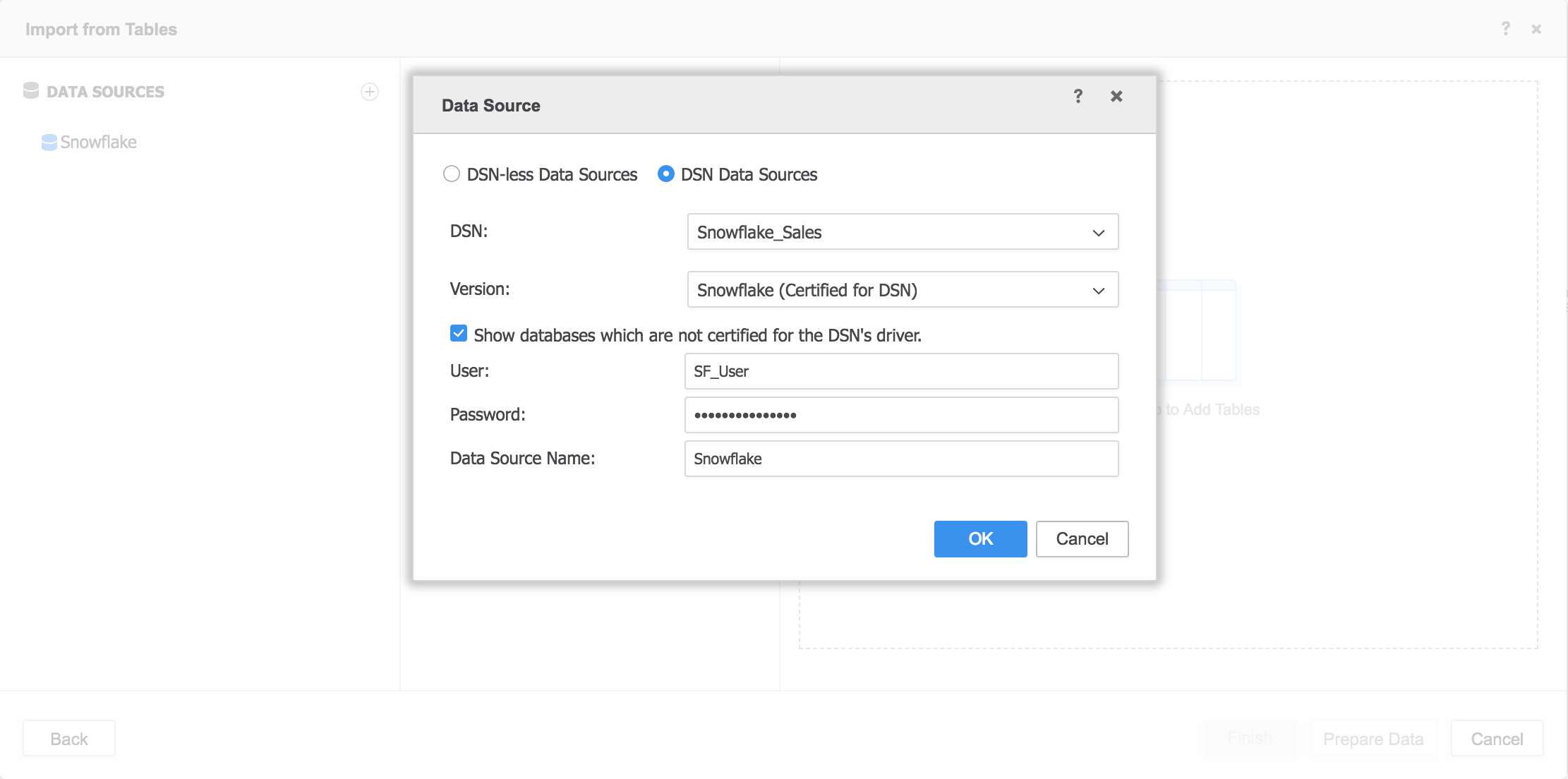
Assuming Snowflake Username is SF_User, the configuration screen should look like this
In Strategy Web Data Import
ka04W000001Is4bQAC_0EM44000000R4sK.png

In Strategy Developer

ka04W000001Is4bQAC_0EM44000000R4sU.png

Known issues
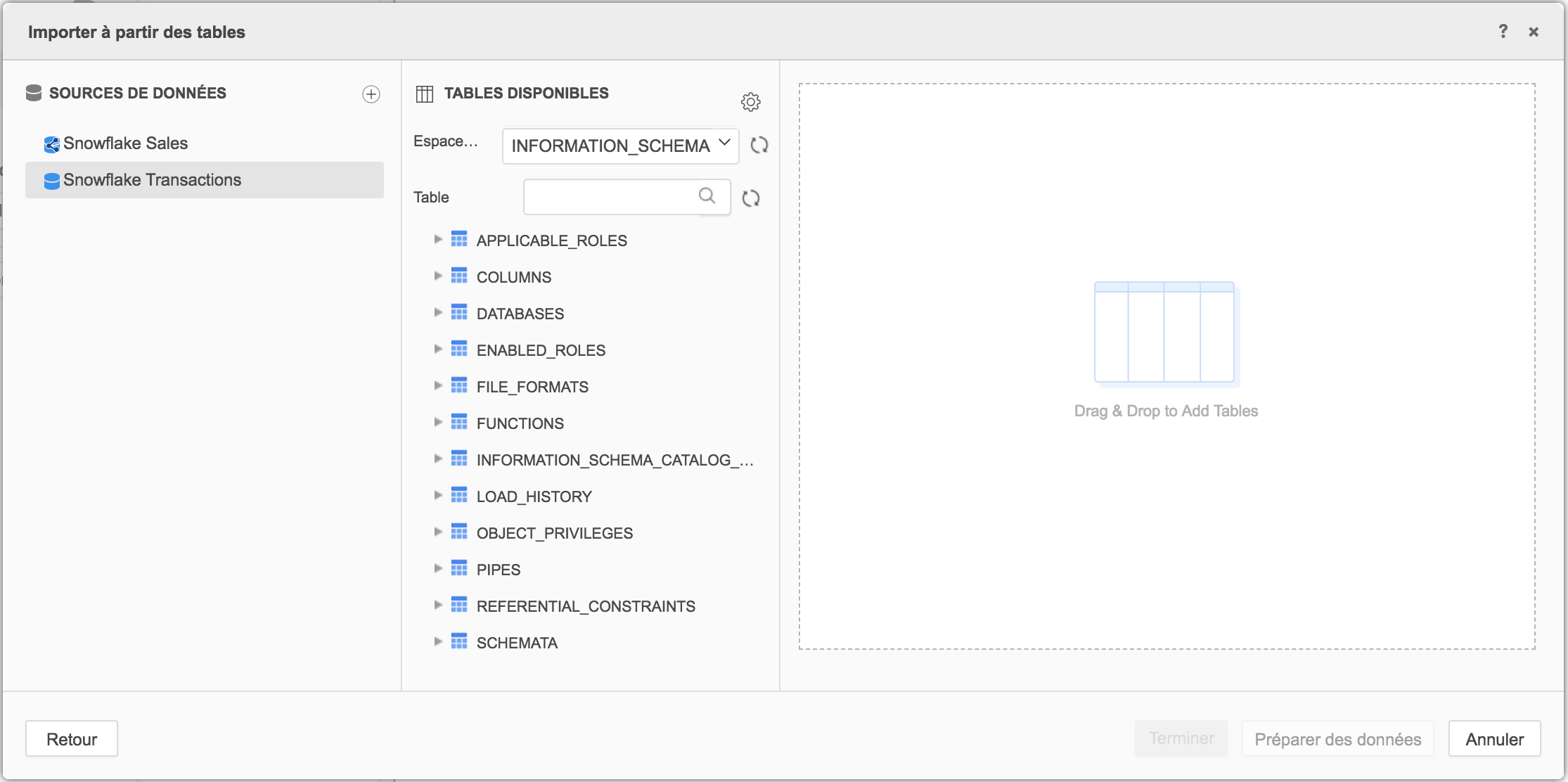
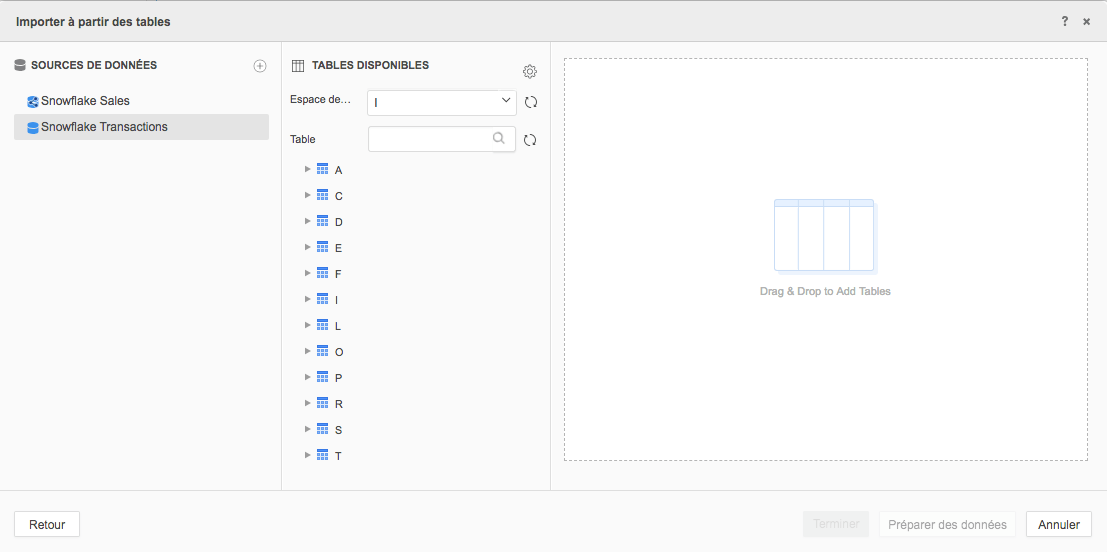
If namespaces and table names only show up as one letter, the Unix charset needs to be changed in the DB Connection
Screenshot of the issue:
ka04W000001Is4bQAC_0EM44000000R4rg.png

In order to resolve this:

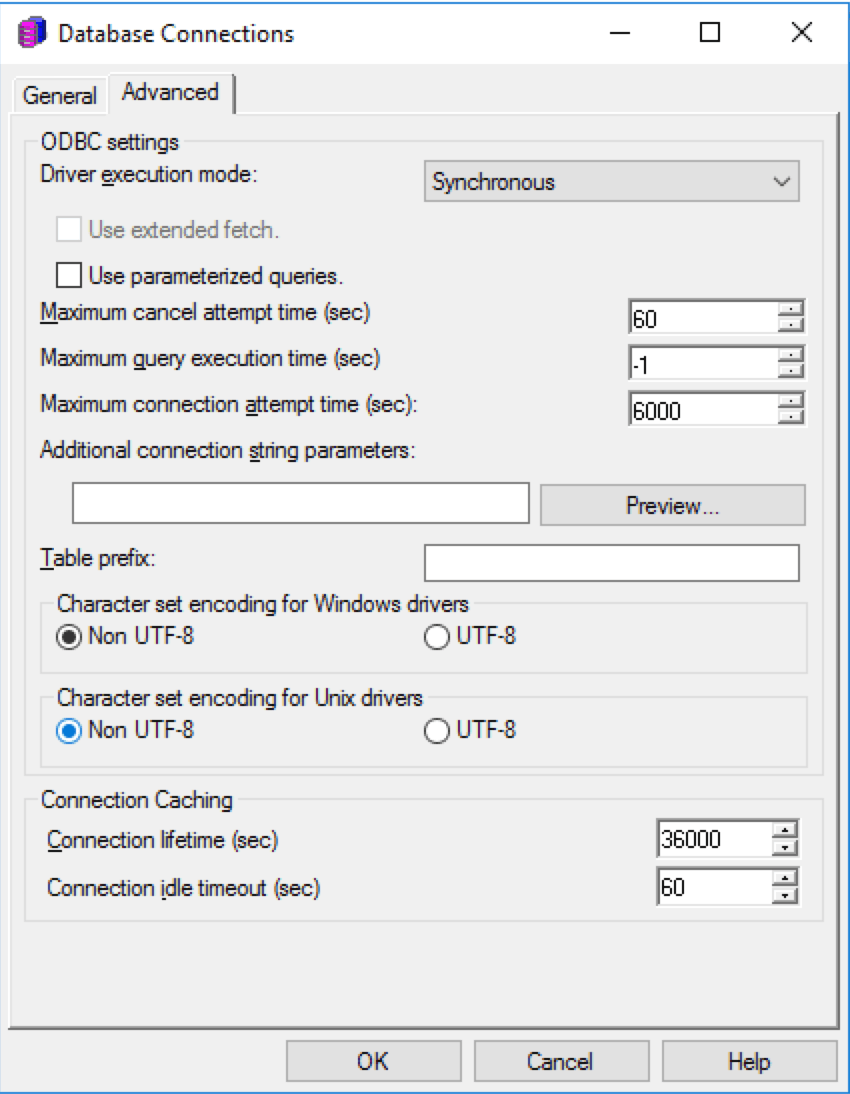
  1. Open the Database Instance in Developer
  2. Open DB Connection for this instance
  3. Go to Advanced tab
  4. Charset Encoding for UNIX = Non UTF-8
ka04W000001Is4bQAC_0EM44000000R4s0.png

Result :

ka04W000001Is4bQAC_0EM44000000R52P.png

  KB442134


Comment

0 comments

Details

Knowledge Article

Published:

October 17, 2018

Last Updated:

January 3, 2019