EducationSoftwareStrategy.com
StrategyCommunity

Knowledge Base

Product

Community

Knowledge Base

TopicsBrowse ArticlesDeveloper Zone

Product

Download SoftwareProduct DocumentationSecurity Hub

Education

Tutorial VideosSolution GalleryEducation courses

Community

GuidelinesGrandmastersEvents
x_social-icon_white.svglinkedin_social-icon_white.svg
Strategy logoCommunity

© Strategy Inc. All Rights Reserved.

LegalTerms of UsePrivacy Policy
  1. Home
  2. Topics

KB487038: How to construct the MicroStrategy Library URL to pass Attribute/Metric filters and execute the target dashboard


Yanqing Liu

Cloud Support Expert I • MicroStrategy


The article shows how to construct the MicroStrategy Library URL to pass Attribute/Metric filters and execute the target dashboard.

Introduction

It is supported to pass Attribute/Metric filters and execute the dashboard by appending the "dossier.filters" parameters to the dashboard URL. 

URL Format:http(s)://<domain>:<port>/<LibraryAppContext>/app/<ProjectID>/<DashboardID>/<PageKey>?dossier.filters=<EncodedFilterExpression>

Filter Expression Template for Attribute/Metric Selector:
[
	{
		"key": "<key of the selector object>",
		"currentSelection": {
			"selectionStatus": "included",
			"objectItems": [
				{
					"id": "id of the selection",
					"name": "<attribute/metric name>"
				}
			]
		}
	}
]

Steps

  • Access Strategy Library from the browser and open the browser's Developer Tool. Switch to the "Network Tab":
ka0PW0000003mT7YAI_0EMPW00000DKmaT.jpeg
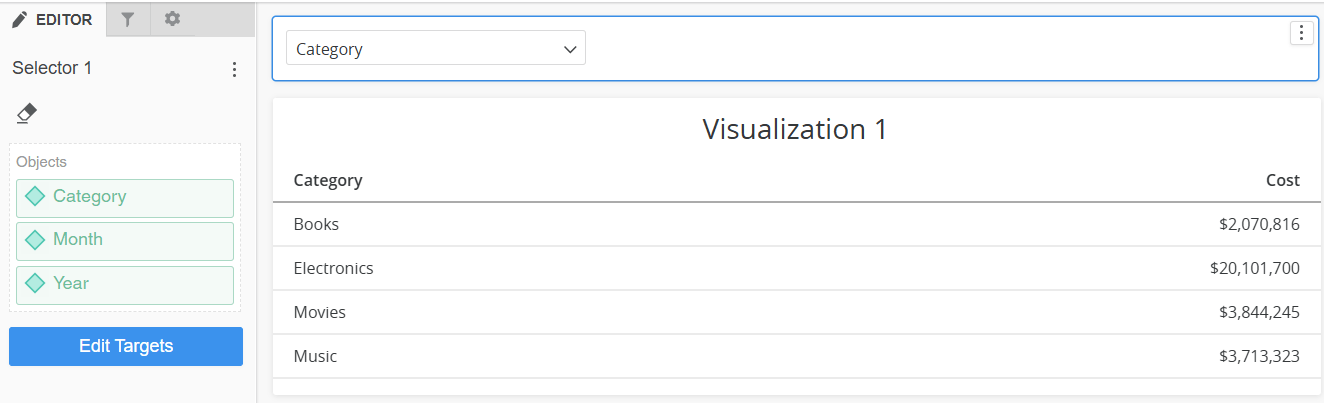
  • Execute the target dashboard with the Attribute/Metric selector in Editable mode. In this sample dashboard, the attribute selector, containing the attributes "Category", "Month" and "Year", is available.
ka0PW0000003mT7YAI_0EMPW00000DKmc5.jpeg
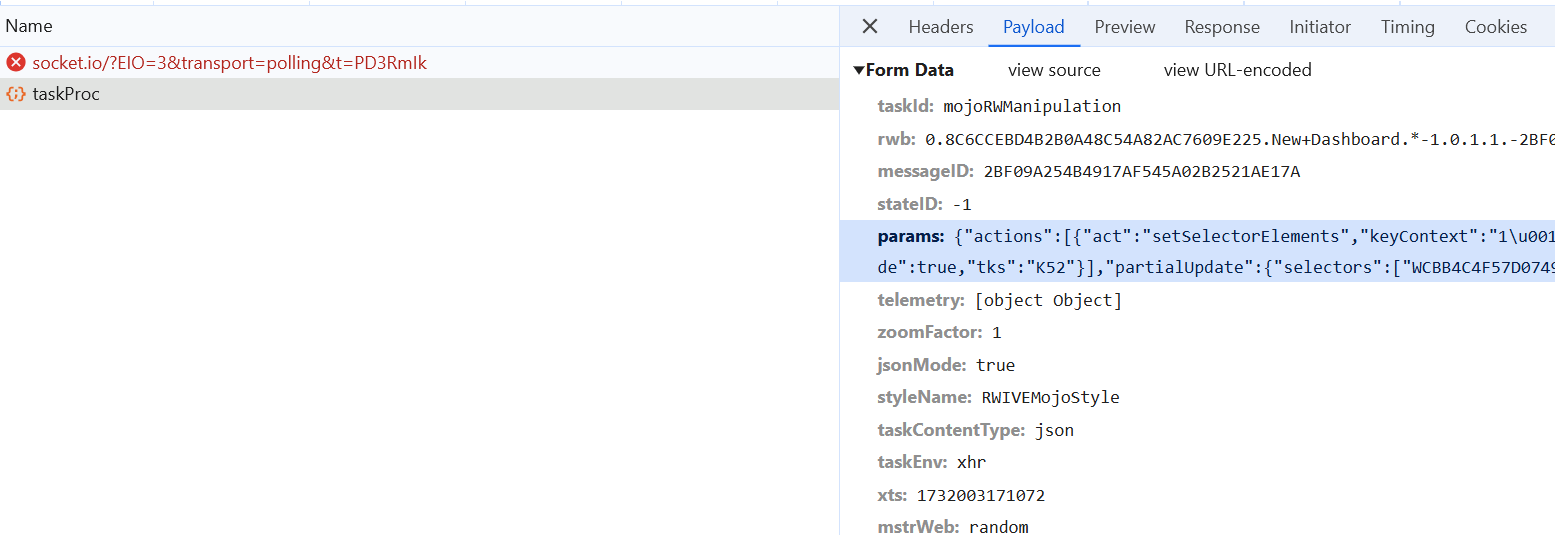
  • Change the selection to the target attribute, for example "Month". The "taskProc" with taskID "mojoRWManipulation" can be observed in the network trace after doing the operation. Switch to the "Payload" tab and copy out the value of "params":
ka0PW0000003mT7YAI_0EMPW00000DKmk9.jpeg
  • params: {"actions":[{"act":"setSelectorElements","keyContext":"1\u001eW080862EF53D6406A9D3CF032345211B9\u001eWCBB4C4F57D0749BEBA9EE8D517093FC0","ctlKey":"WCBB4C4F57D0749BEBA9EE8D517093FC0","elemList":"U8D679D4411D3E4981000E787EC6DE8A4;8D679D4411D3E4981000E787EC6DE8A4","isVisualization":false,"include":true,"tks":"K52"}],"partialUpdate":{"selectors":["WCBB4C4F57D0749BEBA9EE8D517093FC0"]},"style":{"params":{"treesToRender":3},"name":"RWIVEMojoStyle"}}


    The value of "ctlKey" is the key of the attribute selector object. "elemList" is the id of the selection.

  • Add the collected values to the filter expression template. Append the expression and set it as the value of "dossier.filters" in the dashboard URL:
    http(s)://<domain>:<port>/StrategyLibrary/app/B19DEDCC11D4E0EFC000EB9495D0F44F/8C6CCEBD4B2B0A48C54A82AC7609E225/K53--K46?dossier.filters=[{"key":"WCBB4C4F57D0749BEBA9EE8D517093FC0","currentSelection":{"selectionStatus":"included","objectItems":[{"id":"U8D679D4411D3E4981000E787EC6DE8A4;8D679D4411D3E4981000E787EC6DE8A4","name":"Month"}]}}]


  • Encode the filter expression in the URL.
    http(s)://<domain>:<port>/StrategyLibrary/app/B19DEDCC11D4E0EFC000EB9495D0F44F/8C6CCEBD4B2B0A48C54A82AC7609E225/K53--K46?dossier.filters=%5B%7B%22key%22%3A%22WCBB4C4F57D0749BEBA9EE8D517093FC0%22%2C%22currentSelection%22%3A%7B%22selectionStatus%22%3A%22included%22%2C%22objectItems%22%3A%5B%7B%22id%22%3A%22U8D679D4411D3E4981000E787EC6DE8A4%3B8D679D4411D3E4981000E787EC6DE8A4%22%2C%22name%22%3A%22Month%22%7D%5D%7D%7D%5D


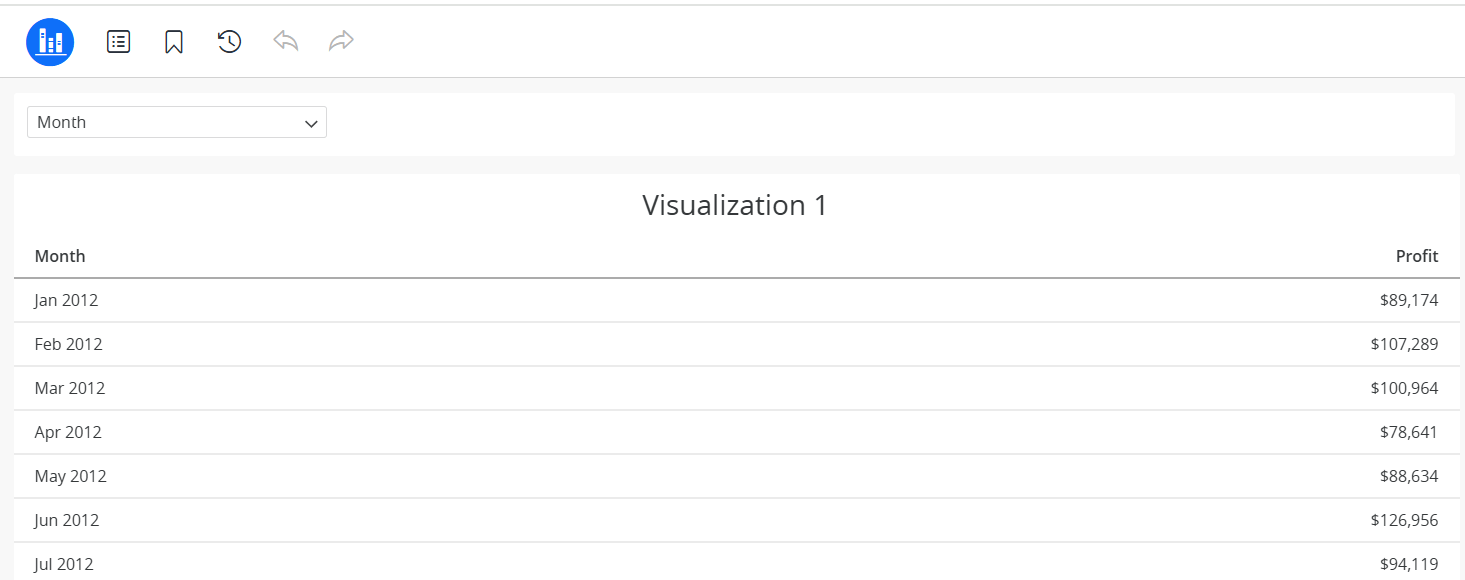
Access the generated URL from the browser and the attribute "Month" is selected:
ka0PW0000003mT7YAI_0EMPW00000DKn57.jpeg


Comment

0 comments

Details

Knowledge Article

Published:

December 15, 2024

Last Updated:

December 15, 2024