Starting with the release of Strategy ONE (March 2024), dossiers are also known as dashboards.
In some cases, users may want to see the direct object dependencies of objects in the Strategy metadata. For example, users might want to create a dossier that shows all dossiers and the component datasets on dossiers. Or a user might want to see all objects that have a certain metric as a component. Reporting requirements such as these can be accomplished using the “Object” and “Component Object” attributes in the Platform Analytics Cube. The following examples will illustrate how this kind of reporting can be done in Platform Analytics. The first example will show how to create a dosser in Platform Analytics that shows all dossiers and underlying datasets used in the dossiers. The second example will show how to create a dossier that shows all objects for which a certain metric is a component object.
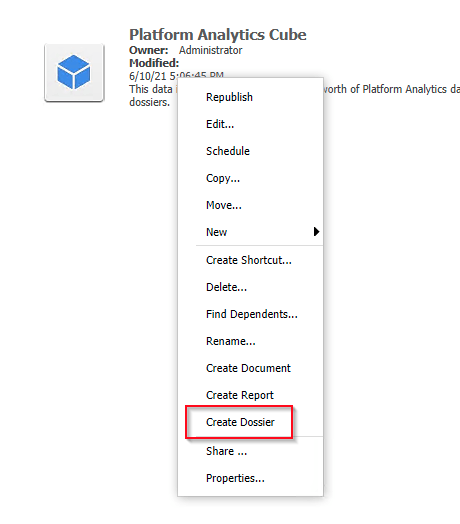
1. Browse to the Platform Analytics Cube in the Platform Analytics Project and select the option to create a new dossier.
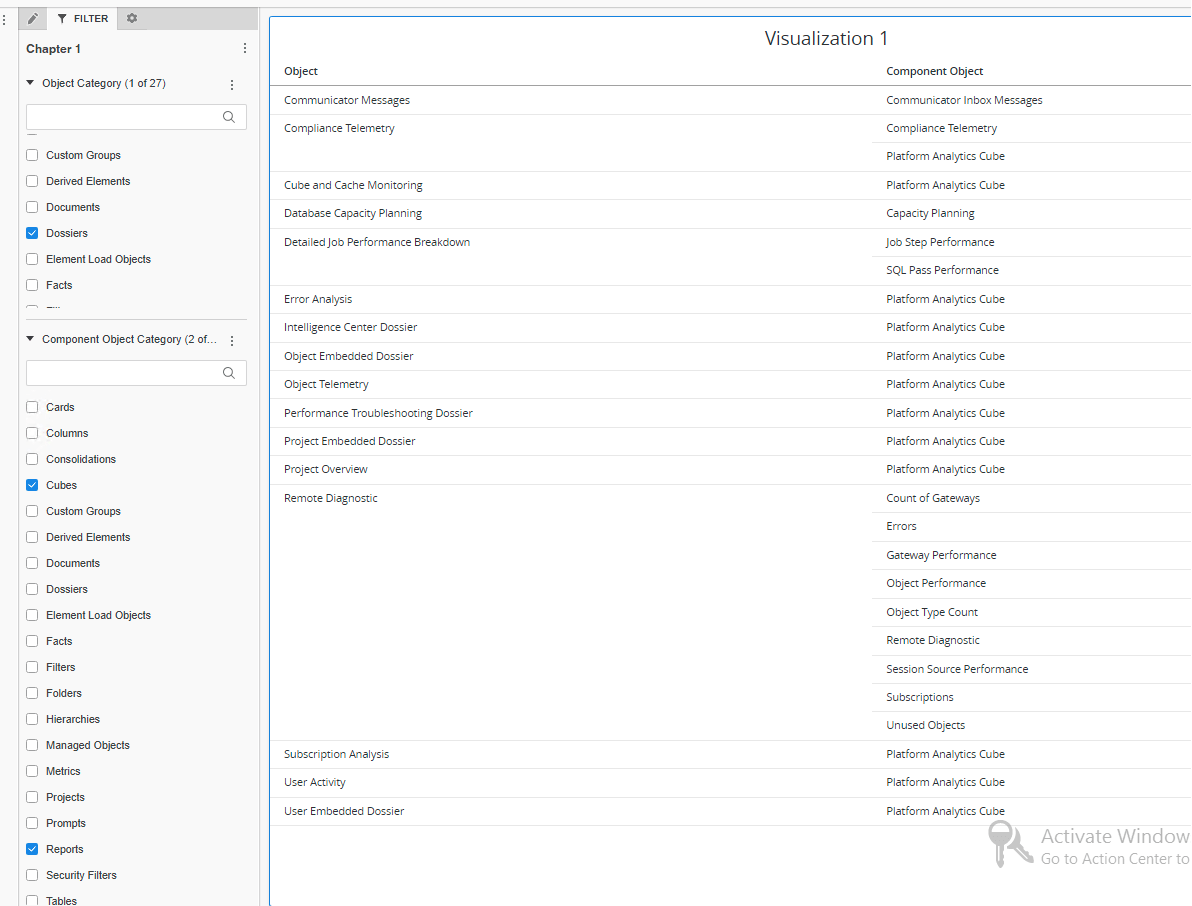
2. In the new dossier add the “Object Category” attribute to the filter panel and filter on the “Dossier” element. Add “Component Object Category” attribute to the filter panel and filter on the “Cubes” element and the “Reports” element.
3. Add Object and Component Object attributes to the grid to see all dossiers and their dependent datasets
1. Browse to the Platform Analytics Cube in the Platform Analytics Project and select the option to create a new dossier.
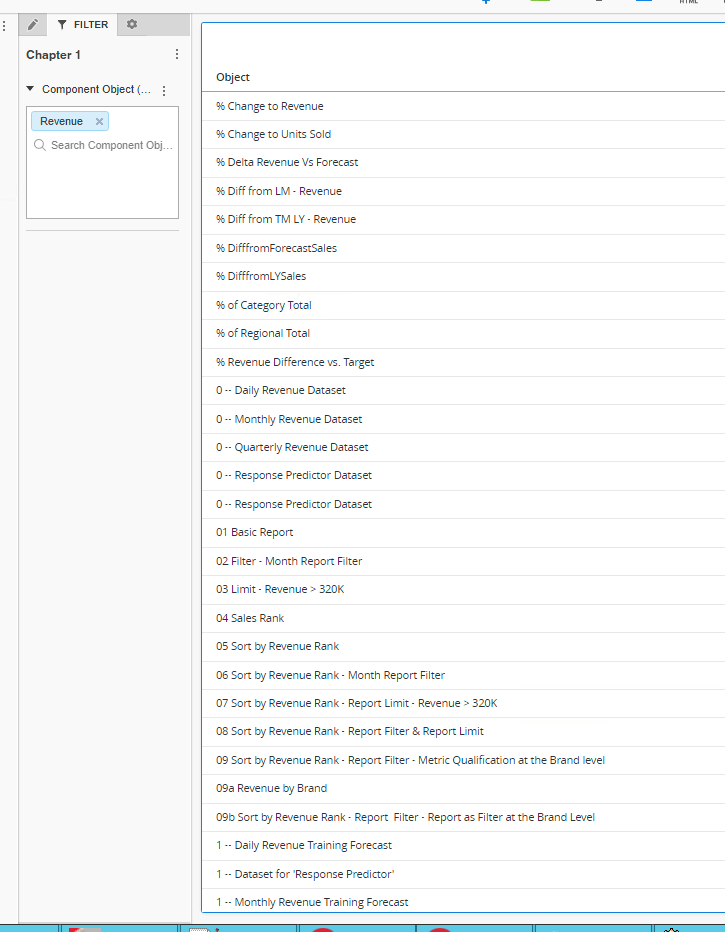
2. Add the “Component Object” attribute to the filter panel and filter on the metric that is of interest. In this example the metric is the “Revenue” metric.
3. Add the “Object” Attribute to the rows to see all of the objects that contain the “Revenue” metric as a component