EducationSoftwareStrategy.com
StrategyCommunity

Knowledge Base

Product

Community

Knowledge Base

TopicsBrowse ArticlesDeveloper Zone

Product

Download SoftwareProduct DocumentationSecurity Hub

Education

Tutorial VideosSolution GalleryEducation courses

Community

GuidelinesGrandmastersEvents
x_social-icon_white.svglinkedin_social-icon_white.svg
Strategy logoCommunity

© Strategy Inc. All Rights Reserved.

LegalTerms of UsePrivacy Policy
  1. Home
  2. Topics

How to create a multi-select drop down selector in a MicroStrategy Web Document


Sarah Rubel

Senior Sales Engineer • Strategy


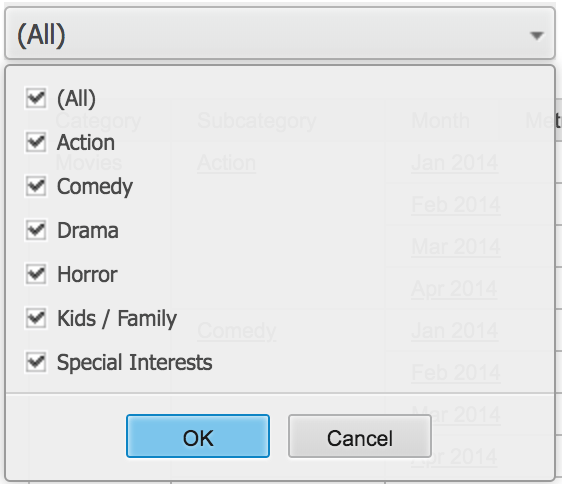
Tutorial on how to turn a standard drop-down selector into a multi-select drop-down in a MicroStrategy Web Document

When creating a Report Services Document, you may want to create a drop down selector to save space, but also would like the drop down to be a multi-selector. Below are instructions to achieve this in a Report Services Document. 
ka0PW000000141ZYAQ_0EM44000000WIUb.png

Steps to Create:
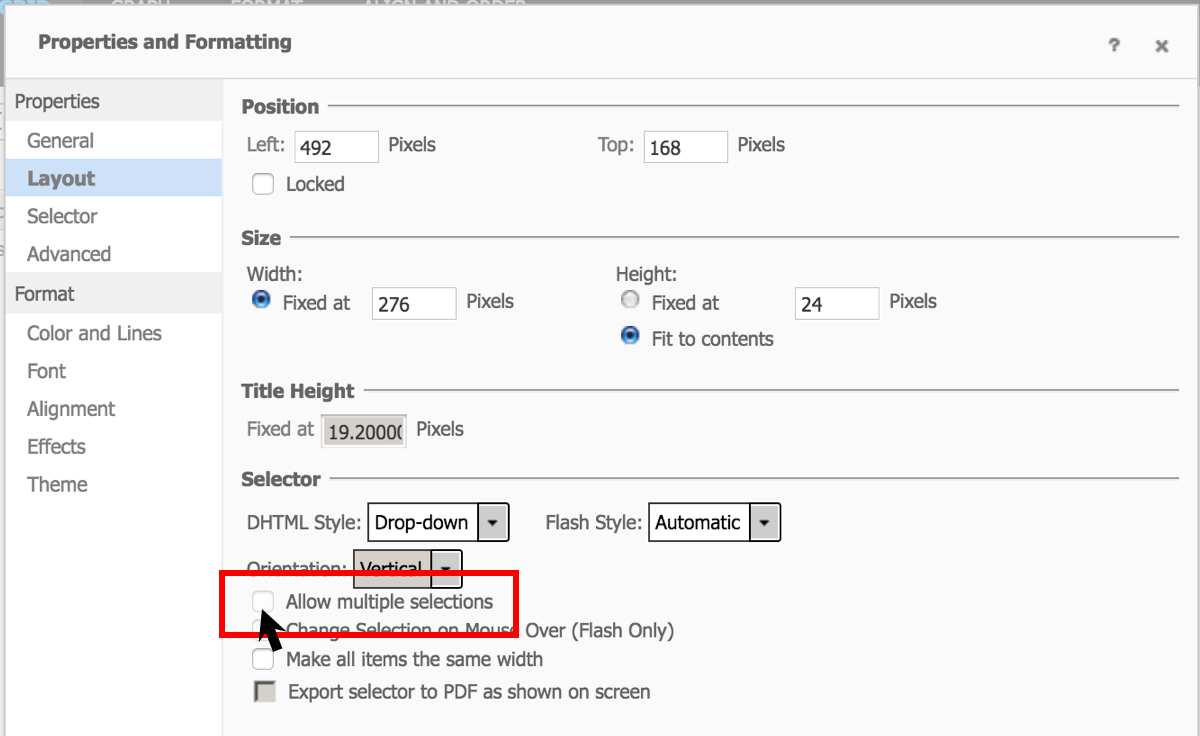
1. Right click on your drop down selector and choose Properties and Formatting
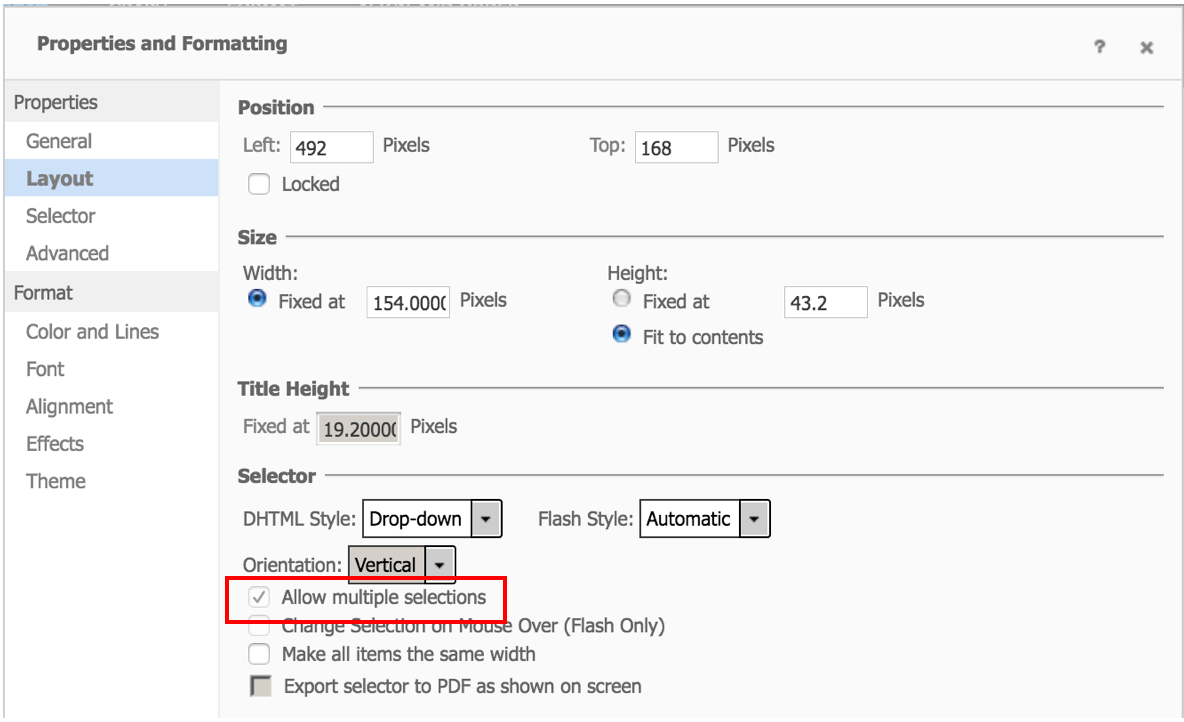
2. Navigate to the Layout Tab
3. In the layout tab, click "Allow multiple selections". It will not indicate that the check box is enabled, but this step is mandatory. 
ka0PW000000141ZYAQ_0EM44000000WITd.png

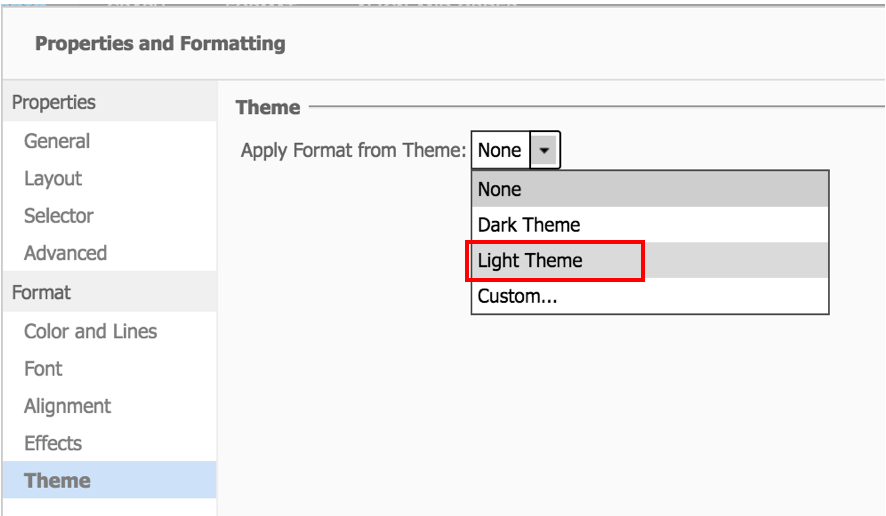
3. Next, navigate to the Theme tab. Choose the Light Theme from the drop down menu and click the Apply button.
ka0PW000000141ZYAQ_0EM44000000WITi.png

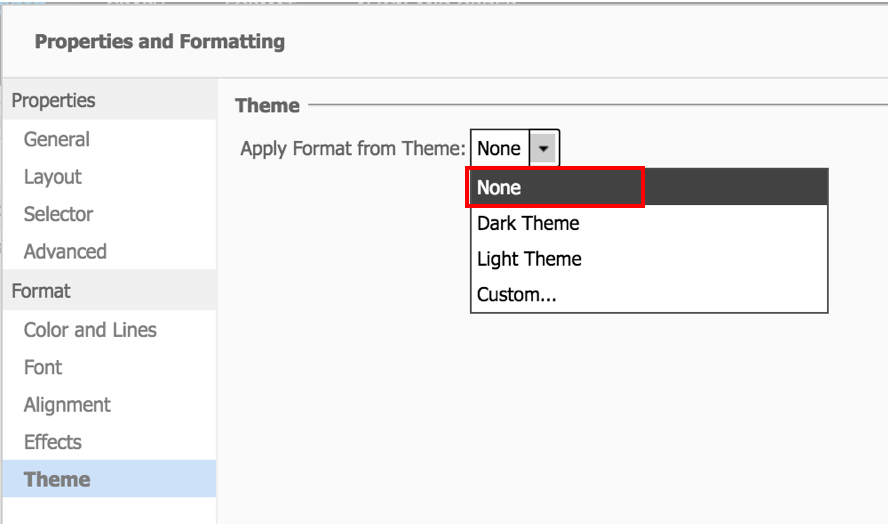
4) Next, change the Theme back to None and click Apply.
ka0PW000000141ZYAQ_0EM44000000WIU2.png

4. When you return to the Layout tab, you will see the checkbox for Allow multiple selections is now checked.
ka0PW000000141ZYAQ_0EM44000000WIUR.png


Comment

0 comments

Details

Knowledge Article

Published:

April 10, 2018

Last Updated:

March 4, 2024