EducationSoftwareStrategy.com
StrategyCommunity

Knowledge Base

Product

Community

Knowledge Base

TopicsBrowse ArticlesDeveloper Zone

Product

Download SoftwareProduct DocumentationSecurity Hub

Education

Tutorial VideosSolution GalleryEducation courses

Community

GuidelinesGrandmastersEvents
x_social-icon_white.svglinkedin_social-icon_white.svg
Strategy logoCommunity

© Strategy Inc. All Rights Reserved.

LegalTerms of UsePrivacy Policy
  1. Home
  2. Topics

KB441533: How to Create a Trust Store with the Certificate Chain of SSL/TLS Secured MicroStrategy Components


David Guo

Software Engineer • Strategy


A trust store might be required to configure MicroStrategy components that communicate with SSL/TLS. To create a trust store with the server certificate’s certificate chain, the root and intermediate parent certificates must be exported. This knowledge base article outlines one approach that can be taken. If the root and intermediate certificates are available already, then proceed to the "Create trust store" step. It is recommended to package the certificates together in a single chain file, if possible.

Retrieve Root and Intermediate Certificates from the Server Certificate

Server certificates can be reviewed from any browser by navigating to the site and viewing the server certificate through the browser. It is highly recommended to use Firefox, which has the explicit download as chain option.
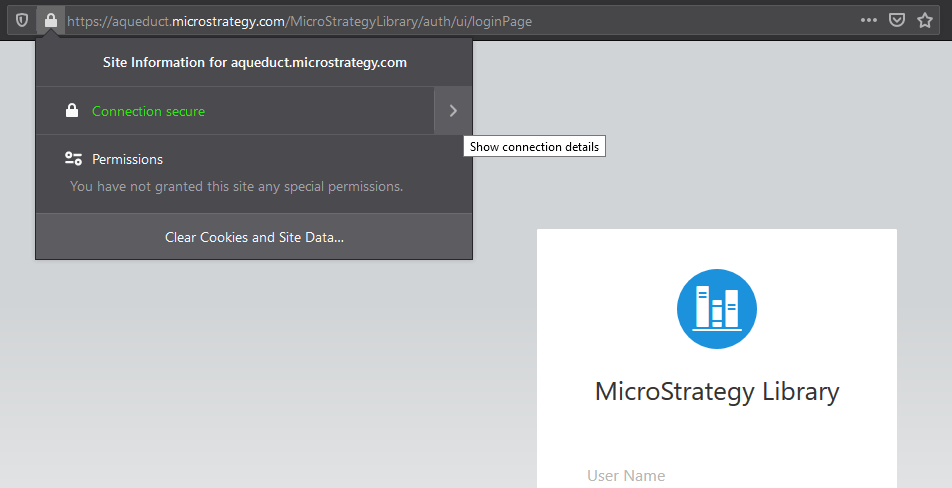
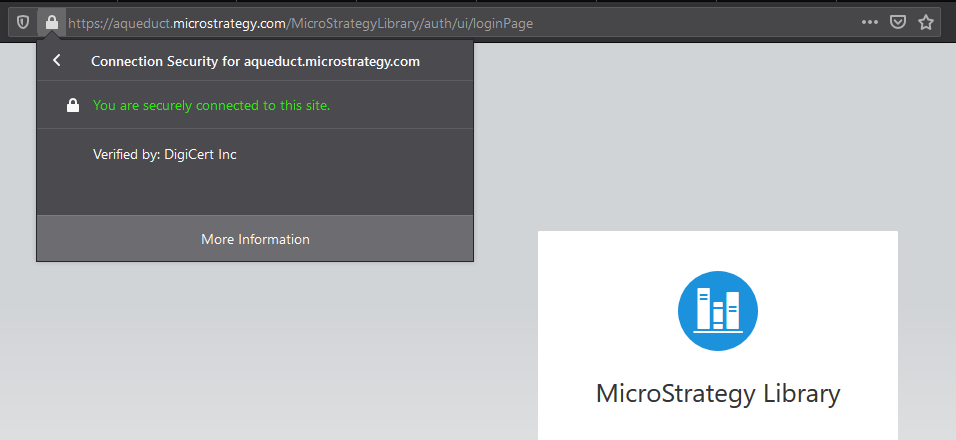
  • Navigate to an URL hosted by the machine you wish to obtain certificates from. In many cases, you will navigate to your Strategy Library URL or loadbalancer URL. Click on the Lock icon to the left of URL and choose Show Connection Details.
ka0PW00000011gPYAQ_0EM2R0000019blB.jpeg
  • Click on More Information to view the certificate.
ka0PW00000011gPYAQ_0EM2R0000019blG.jpeg
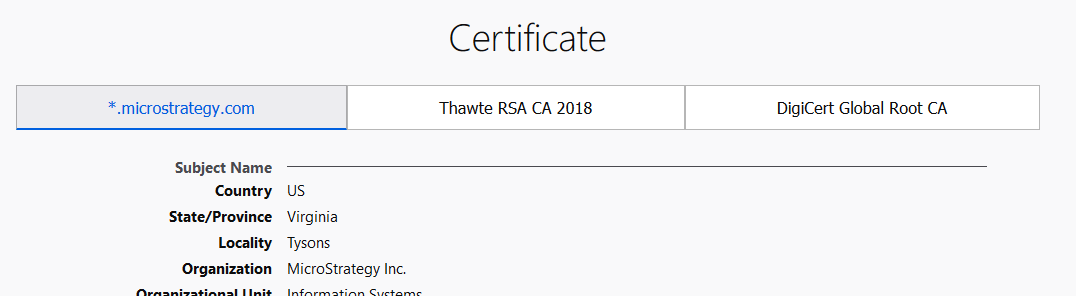
  • Depending on the version of Firefox you are using, different menus appear. Newer versions will open up a new tab in your browser.
    A certificate chain may contain one or more certificates.
    • The top most certificate is called CA root certificate. In this example it is from DigiCert Global Root.
    • Child certificates of the root certificate are called intermediate certificates. In this example it is Thawte RSA.
    • The bottom certificate is the leaf server certificate itself, issued to server *.Strategy.com
  • Notice there are multiple tab buttons in the page, each listing information for leaf and root certificates, going from left to right. Be sure you are on the left-most leaf certificate.
ka0PW00000011gPYAQ_0EM2R0000019blL.jpeg
  • Scroll down to the Miscellaneous section, where there are download links. click PEM (Chain).
ka0PW00000011gPYAQ_0EM2R0000019blQ.jpeg
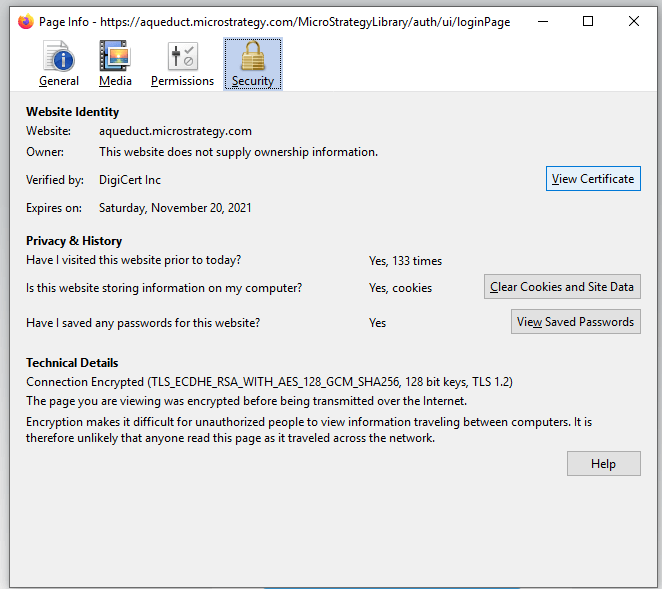
  • If you are using an older version of Firefox, a popup appears. Click View Certificate
ka0PW00000011gPYAQ_0EM2R0000019blV.jpeg
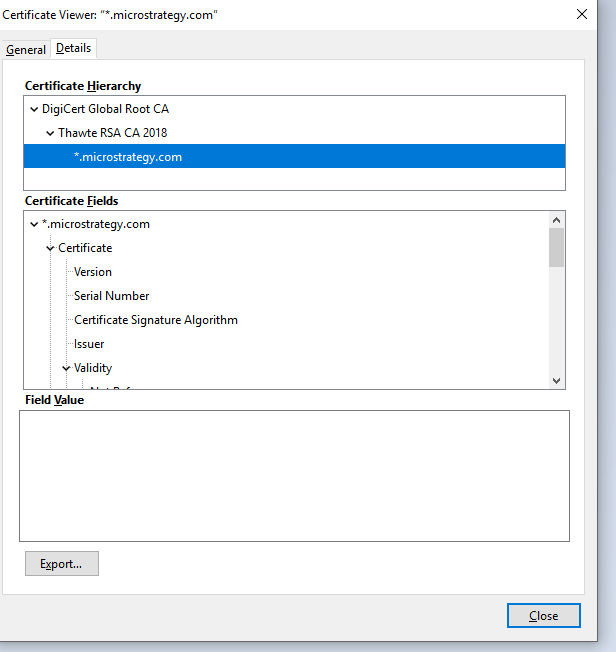
  • Switch to the Details tab. The certificate hierarchy of root to leaf certificates appears. Be sure to select the lowest leaf certificate.
ka0PW00000011gPYAQ_0EM2R0000019blf.jpeg
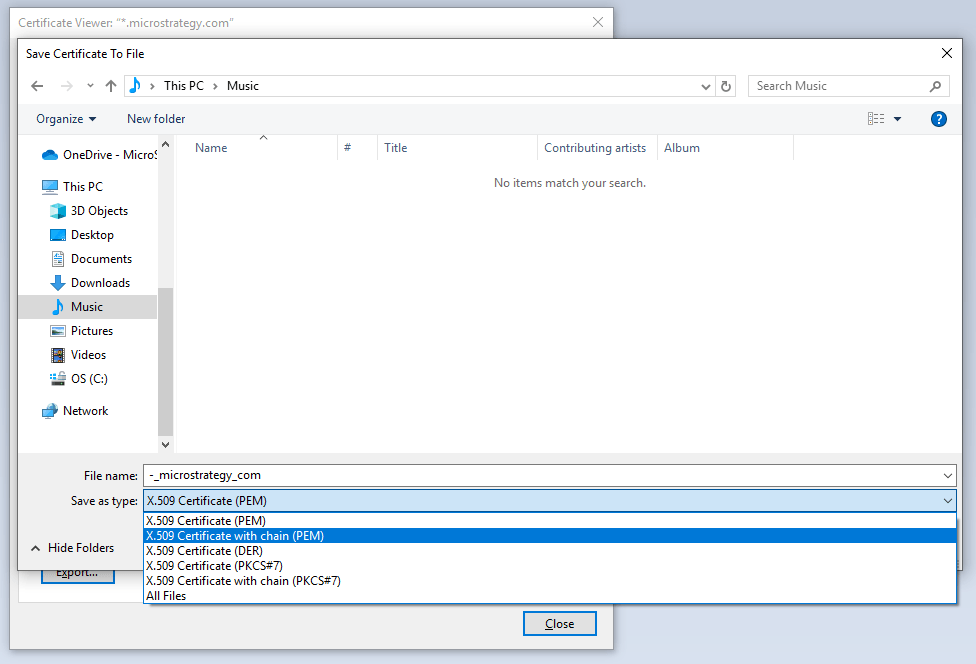
  • Click the Export button. Select your desired save location and change the Save as type to X.509 Certificate with chain (PEM).
ka0PW00000011gPYAQ_0EM2R0000019blk.jpeg

Generating Keystore

To enable TLS, you need to generate the keystore file for machine hosting the collaboration server. You must have the openssl library installed.

  1. Open a command prompt or Bash shell.
  2. Run the following commands. Your password can be anything, but in this procedure, we use the same password for simplicity: mstr123. This procedure uses collabsvc.
    
    openssl genrsa -des3 -passout pass:mstr123 -out collabsvc.key 2048

    
    openssl req -new -passin pass:mstr123 -key collabsvc.key -out collabsvc.csr

  3. You run through the certificate request creation prompts. In Common Name, make sure you use a machine name where the Collaboration Service is installed.
    Example:
    
    You are about to be asked to enter information that will be incorporated
    into your certificate request.
    What you are about to enter is what is called a Distinguished Name or a DN.
    There are quite a few fields but you can leave some blank
    For some fields there will be a default value,
    If you enter '.', the field will be left blank.
    -----
    Country Name (2 letter code) [AU]:US
    State or Province Name (full name) [Some-State]:VA
    Locality Name (eg, city) []:Tysons Corner
    Organization Name (eg, company) [Internet Widgits Pty Ltd]:MSTR
    Organizational Unit Name (eg, section) []:Web
    Common Name (e.g. server FQDN or YOUR name) []:mac-qfan 
    Email Address []:qfan@Strategy.com
    
    Please enter the following 'extra' attributes
    to be sent with your certificate request
    A challenge password []:mstr123
    An optional company name []:Strategy

  4. Run the following command:
    
    openssl x509 -req -passin pass:mstr123 -days 1024 -in collabsvc.csr -signkey collabsvc.key -out collabsvc.crt

  5. Run the following command:
    
    openssl pkcs12 -export -in collabsvc.crt -inkey collabsvc.key -out collabsvc.pfx

    This step prompts you for the password you used earlier during the creation of the files.
  6. Your final keystore file is called collabsvc.pfx. We suggest you copy it into the same directory as the Collaboration Server's config.json file.

Comment

0 comments

Details

Knowledge Article

Published:

August 16, 2018

Last Updated:

March 4, 2024