EducationSoftwareStrategy.com
StrategyCommunity

Knowledge Base

Product

Community

Knowledge Base

TopicsBrowse ArticlesDeveloper Zone

Product

Download SoftwareProduct DocumentationSecurity Hub

Education

Tutorial VideosSolution GalleryEducation courses

Community

GuidelinesGrandmastersEvents
x_social-icon_white.svglinkedin_social-icon_white.svg
Strategy logoCommunity

© Strategy Inc. All Rights Reserved.

LegalTerms of UsePrivacy Policy
  1. Home
  2. Topics

How to display a summary of selected elements


Philippe Royer

Senior Manager, Professional Services • MicroStrategy


Quick and easy trick to display, in a Document or Dashboard, a summary of the attribute elements selected, including when multiple selections have been performed

Displaying a list of selected elements in a Document or Dashboard can be easily accomplished using the ConcatAgg function.
Supports multiple element selections.

Step 1 - Metric creation


With the function ConcatAgg, create a metric for the attribute for which you want to get the selection summary.
Here : Category


ConcatAgg([Category@DESC])

ka044000000kPs7AAE_0EM440000002OlF.png


Step 2 - Text box

Place the previously created metric in a Text box
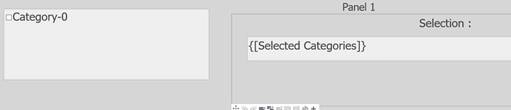


ka044000000kPs7AAE_0EM440000002OlG.png


Step 3 - Run your Dashboard or Document

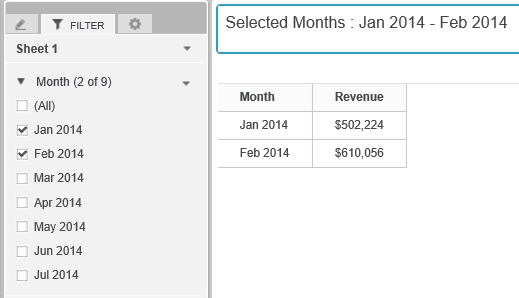
ka044000000kPs7AAE_0EM440000002OlH.png


ka044000000kPs7AAE_0EM440000002OlI.png
ka044000000kPs7AAE_0EM440000002OlJ.png


Bonus 

You can specify the delimiter (by default: comma) and the sort order.
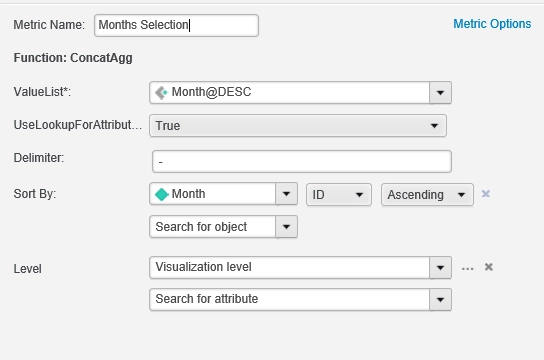
ka044000000kPs7AAE_0EM440000002OlK.png
ka044000000kPs7AAE_0EM440000002OlL.png

Comment

0 comments

Details

Knowledge Article

Published:

June 8, 2017

Last Updated:

June 8, 2017