EducationSoftwareStrategy.com
StrategyCommunity

Knowledge Base

Product

Community

Knowledge Base

TopicsBrowse ArticlesDeveloper Zone

Product

Download SoftwareProduct DocumentationSecurity Hub

Education

Tutorial VideosSolution GalleryEducation courses

Community

GuidelinesGrandmastersEvents
x_social-icon_white.svglinkedin_social-icon_white.svg
Strategy logoCommunity

© Strategy Inc. All Rights Reserved.

LegalTerms of UsePrivacy Policy
  1. Home
  2. Topics

KB486130: How to enable the missing 'Edit Catalog Options' cog icon on the 'Available Tables’ on 'Import from Tables' for a non-admin user when adding ‘Databases’ as ´External Data´.


Rainiero Leon

Support Engineer • MicroStrategy


Symptom


The Edit Catalog Options Dialog is useful to define how namespaces, tables, and columns are retrieved and cached for connections to your database data sources. This includes using either SQL or ODBC calls, customizing the SQL, selecting the applicable namespaces, and determining how table and column names for your database are cached, as mentioned here .
When going to ‘Add External Data,’
ka04W00000148BmQAI_0EM4W000005ah7W.jpeg

Then ‘Databases,’ and selecting ‘Select Tables’
ka04W00000148BmQAI_0EM4W000005ah7b.jpeg

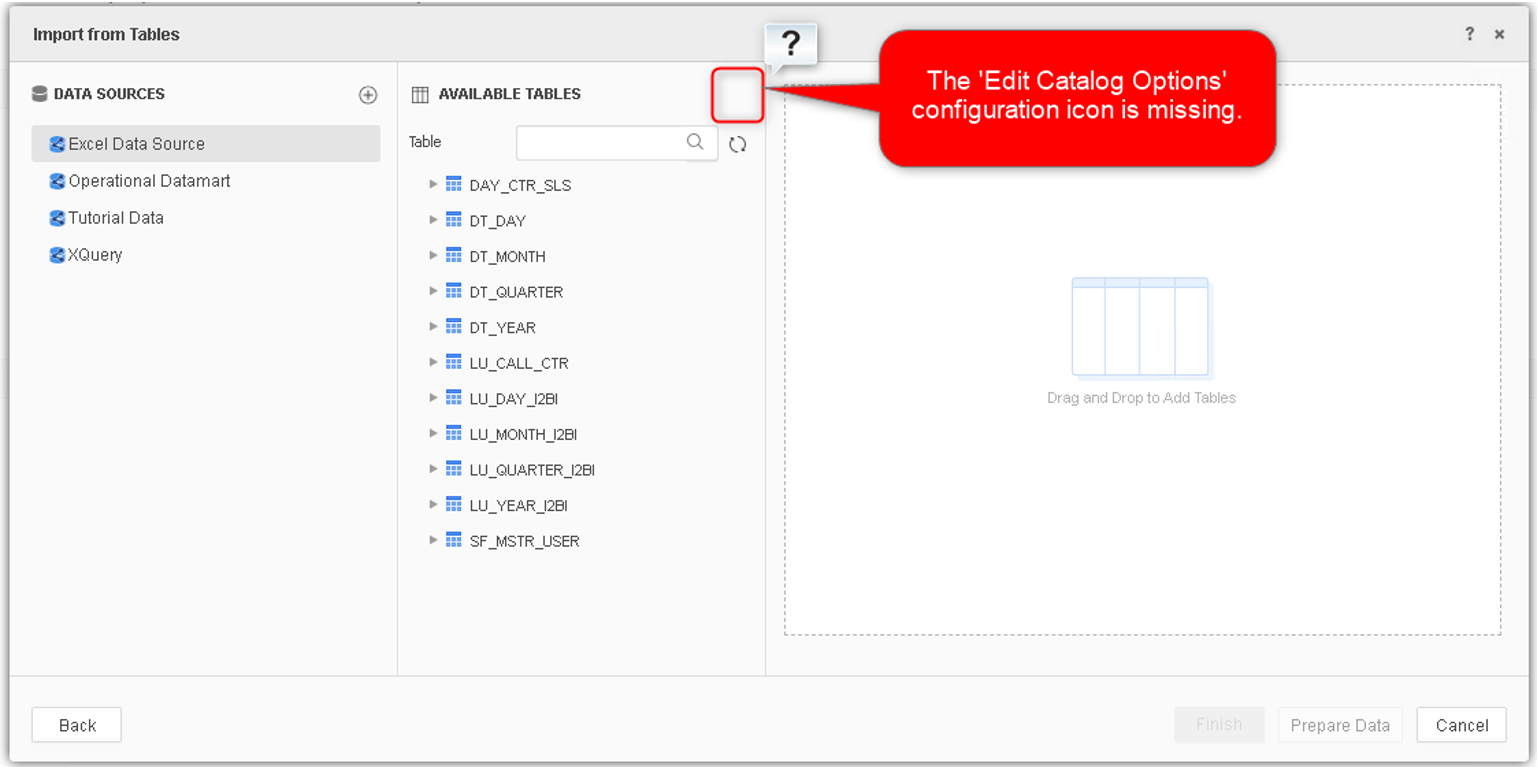
Depending on given privileges, for some non-admin users the ‘Edit Catalog Options’ configuration icon will not be shown as in the next screenshot.
ka04W00000148BmQAI_0EM4W000005ah7g.jpeg


Action


To fix this, the Privileges ‘Create and Edit Database Instances and Connections’ and ‘Create and Edit Database Logins’ must be given to the affected user.
To grant both Privileges, follow the steps:
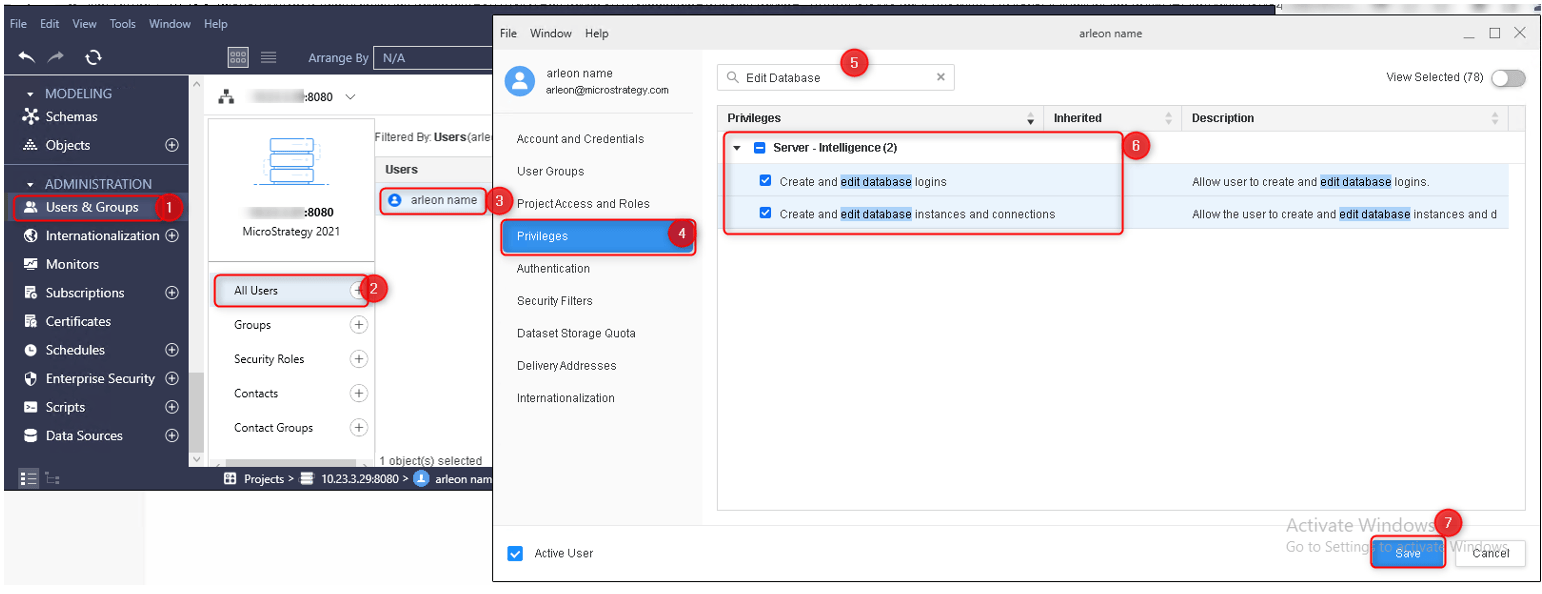
  1. Go to WorkStation, connect to your Environment, go to ‘Users and Groups’ under Administration.
  2. Select ‘All Users.’
  3. Select the affected User.
  4. Go to the ‘Privileges’ tab on the left.
  5. Use the Search box o filter the desired Privileges (as shown in the image).
  6. Tick the boxes for ‘Create and Edit Database Instances and Connections’ and ‘Create and Edit Database Logins’.
ka04W00000148BmQAI_0EM4W000005ah7q.jpeg

Now go back to ‘Add External Data,’ then ‘Databases,’ then ‘Select Tables’, select a ‘Data Source’ and you will see the ‘Edit Catalog Options’ configuration icon as in the next screenshot.
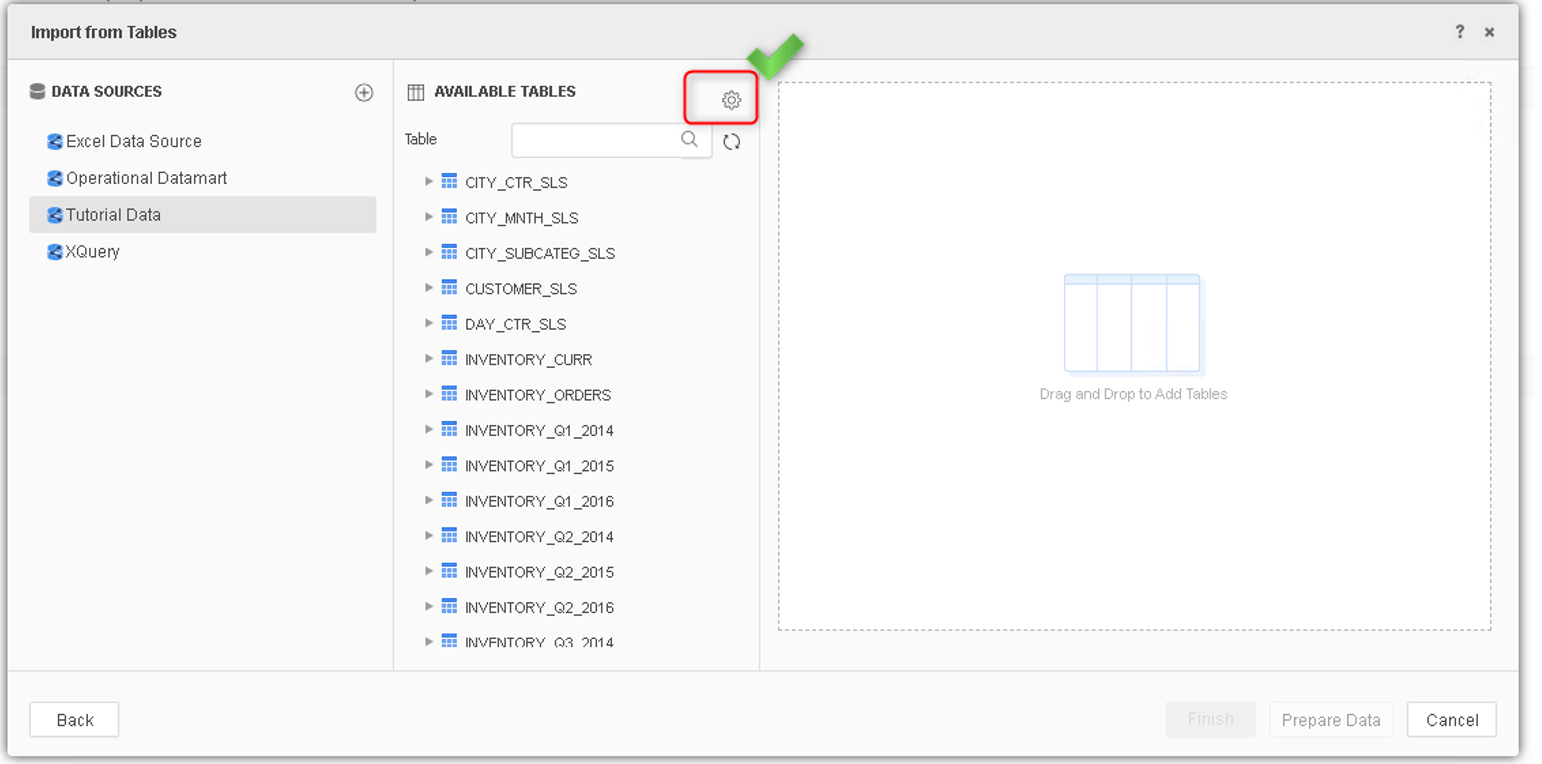
ka04W00000148BmQAI_0EM4W000005ah85.jpeg

The same can be achieved on Developer, to do so follow the next steps:
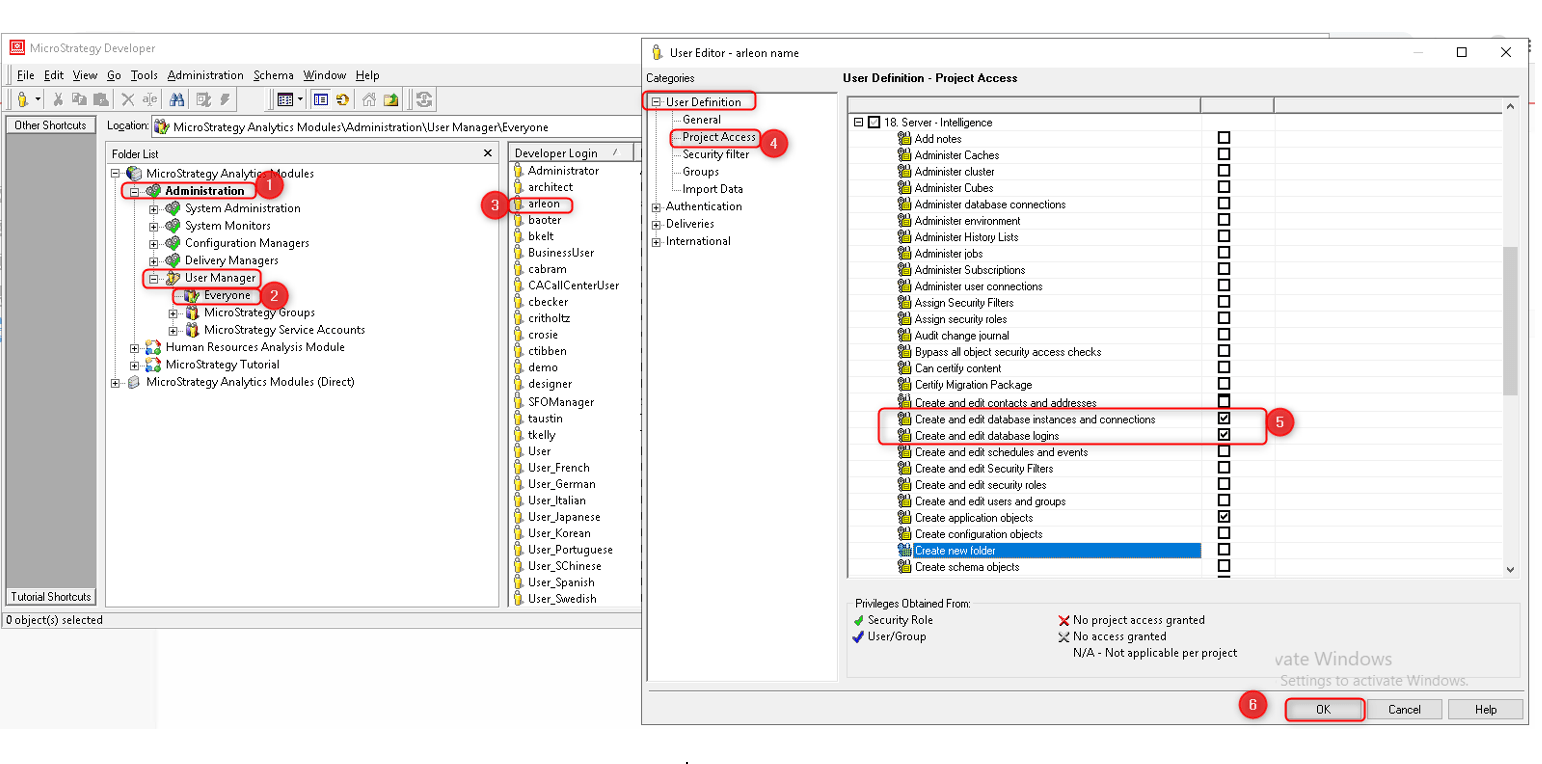
  1. Go to Developer, then ‘Administration’.
  2. Go to ‘Everyone’ under ‘User Manager’.
  3. Then select the affected User.
  4. Then go to ‘Project Access’ under ‘User Definition’.
ka04W00000148BmQAI_0EM4W000005ah8P.jpeg
  1. Go to ‘18. Intelligence Server‘ and select the following privileges:
    • Create and Edit Database instances and Connections.
    • Create and edit database logins.
  2. Click on ‘OK’.

Related article: How to Manage Database Connections 


Comment

0 comments

Details

Knowledge Article

Published:

July 14, 2023

Last Updated:

July 14, 2023