EducationSoftwareStrategy.com
StrategyCommunity

Knowledge Base

Product

Community

Knowledge Base

TopicsBrowse ArticlesDeveloper Zone

Product

Download SoftwareProduct DocumentationSecurity Hub

Education

Tutorial VideosSolution GalleryEducation courses

Community

GuidelinesGrandmastersEvents
x_social-icon_white.svglinkedin_social-icon_white.svg
Strategy logoCommunity

© Strategy Inc. All Rights Reserved.

LegalTerms of UsePrivacy Policy
  1. Home
  2. Topics

KB484070: How to fix the error, "User doesn't have Use access to the Prompt Object," when clicking on a parent action in the Performance Troubleshooting Dossier


Gerson Osorio

Quality Engineer, Senior • MicroStrategy


This article explains how to prevent a use access error from occurring when clicking on a parent action in the Performance Troubleshooting Dossier.

Starting with the release of Strategy ONE (March 2024), dossiers are also known as dashboards.

Description


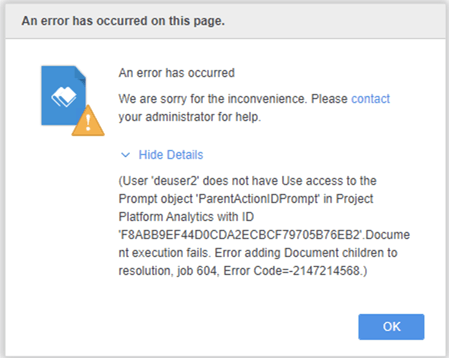
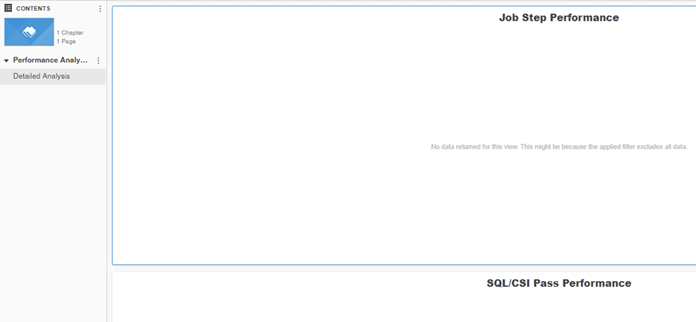
The Performance Troubleshooting Dossier in Platform Analytics provides detailed insight into the execution performance of objects executed against the Intelligence Server. When a non-Administrator user opens the Performance Troubleshooting Dossier and selects a Parent Action, the following error occurs:
User does not have Use access to the Prompt object 'ParentActionIDPrompt' in Project Platform Analytics with ID
This prevents you from seeing information about Job Step Performance and SQL/CSI Pass Performance. Advanced Statistics must be enabled to see information in Job Step Performance and SQL/CSI Pass Performance. 

ka0PW0000001JbZYAU_0EM2R000000nxLq.jpeg
ka0PW0000001JbZYAU_0EM2R000000nxLv.jpeg


Solution

Platform Analytics Project created before Strategy 2020 Update 1


If your Platform Analytics Project was created before Strategy 2020 Update 1, the Access Control List (ACL) must be updated for prompt object with the name, "ParentActionIDPrompt," and report object with the name, "Job Step Performance." Although the new package contains the correct ACLs for the objects, they are not applied by default after applying Update 1, because previous ACLs will be overwritten. 

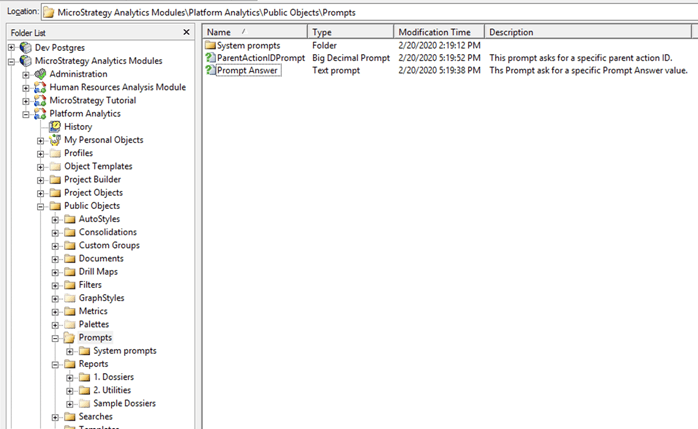
  • Open Strategy Developer.
  • In the left pane, go to Strategy Analytics Modules > Platform Analytics > Public Objects > Prompts.
ka0PW0000001JbZYAU_0EM2R000000nxMt.jpeg
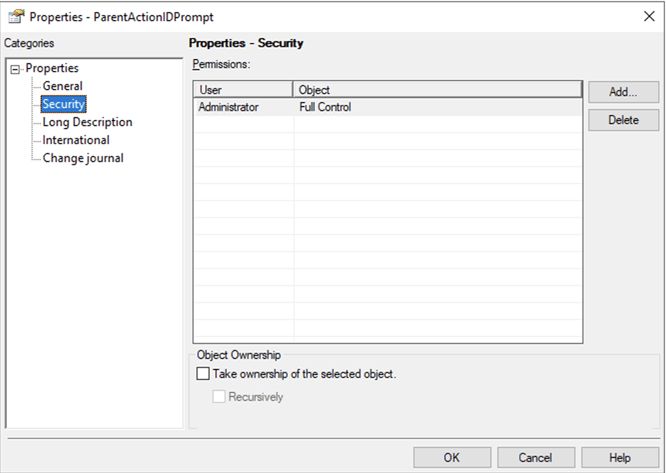
  • Right-click ParentActionIDPrompt > Properties > Security.
ka0PW0000001JbZYAU_0EM2R000000nxN3.jpeg
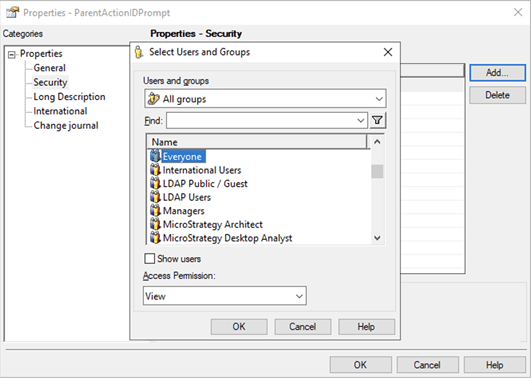
  • Click Add.
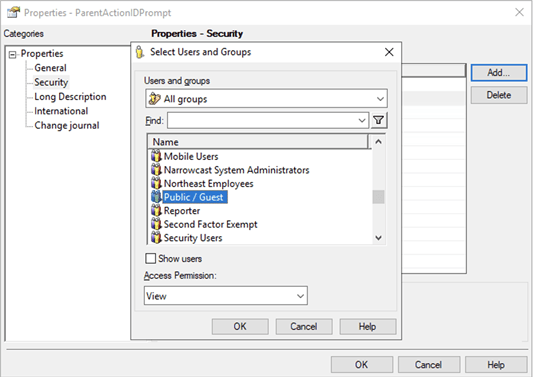
  • Select the Everyone user group, set Access Permission to View, and click OK.
ka0PW0000001JbZYAU_0EM2R000000nxN8.jpeg
  • Select the Public user group, set Access Permission to View, and click OK.
ka0PW0000001JbZYAU_0EM2R000000nxQH.jpeg
  • Once permissions for both user groups have been added, click OK.
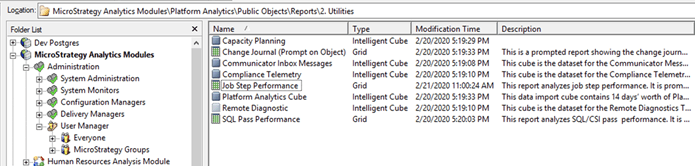
  • In the left pane, go to Strategy Analytics Modules > Platform Analytics > Public Objects > Reports > 2. Utilities.
ka0PW0000001JbZYAU_0EM2R000000nxQM.jpeg
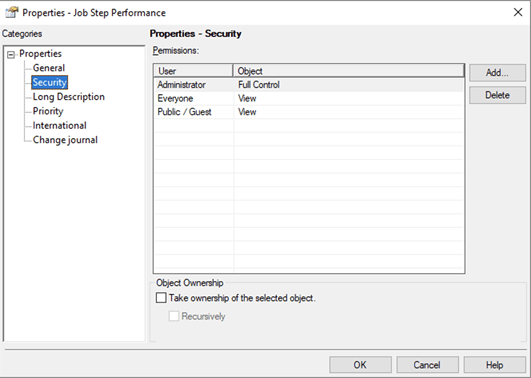
  • Right-click Job Step Performance > Properties > Security. 
ka0PW0000001JbZYAU_0EM2R000000nxQR.jpeg
  • For the Everyone and Public/Guest user groups, set Access Permission to View, and click OK.
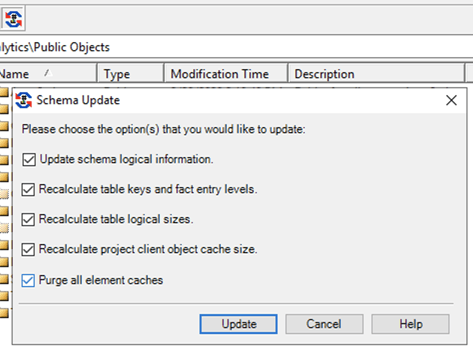
  • Update the project schema.
ka0PW0000001JbZYAU_0EM2R000000nxQW.jpeg
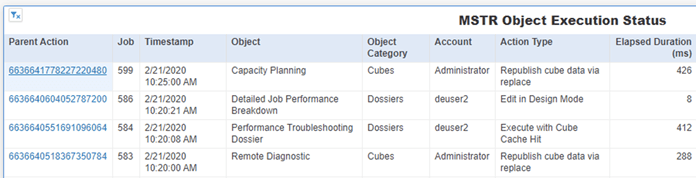
  • The non-administrative user can view information after selecting a Parent Action in the Performance Troubleshooting Dossier.

    Advanced Statistics must be enabled to see information in Job Step Performance and SQL/CSI Pass Performance.
ka0PW0000001JbZYAU_0EM2R000000nxQg.jpeg

Comment

0 comments

Details

Knowledge Article

Published:

February 24, 2020

Last Updated:

March 21, 2024