EducationSoftwareStrategy.com
StrategyCommunity

Knowledge Base

Product

Community

Knowledge Base

TopicsBrowse ArticlesDeveloper Zone

Product

Download SoftwareProduct DocumentationSecurity Hub

Education

Tutorial VideosSolution GalleryEducation courses

Community

GuidelinesGrandmastersEvents
x_social-icon_white.svglinkedin_social-icon_white.svg
Strategy logoCommunity

© Strategy Inc. All Rights Reserved.

LegalTerms of UsePrivacy Policy
  1. Home
  2. Topics

KB440563: How to import data from Hadoop Gateway


Community Admin

• Strategy


This article introduces prerequisites and steps to import data from Hadoop Gatewaye.

Support import of Parquet, AVRO, ORC and JSON file formats from Cloudera and Hortonworks is available since Strategy 10.7. 
 
Below file types can be imported from a Hadoop Distributed File System (HDFS):

  • Avro (.avro)
  • CSV (.csv)
  • Json (.json)
  • Orc (.orc)
  • Parquet (.parquet)
  • Text (.txt)


Prerequisites

  • Strategy Hadoop Gateway must be installed.

Refer to Technical Document below on how to install and configure Hadoop Gateway. KB248914: Overview and installation of the Strategy 10.0 - 10.5 Secure Enterprise Platform Hadoop Gateway (Big Data Engine)

  • Web Import Data privilege.


Steps to import data from Hadoop Gateway


Replace folderID with the ID of the folder that you want to display.
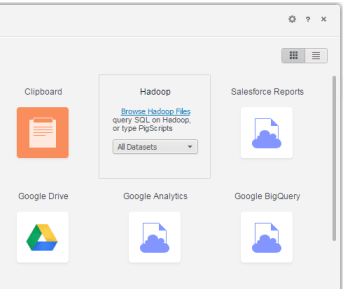
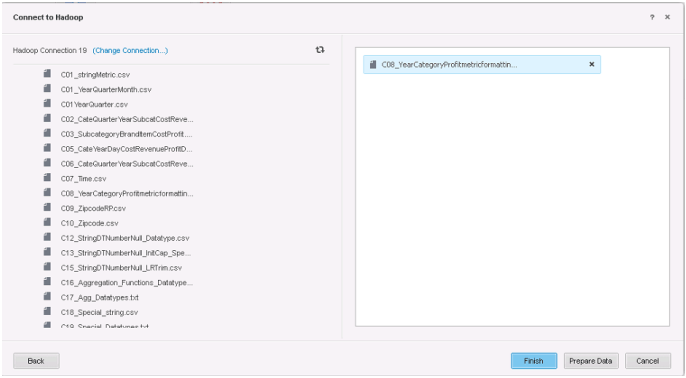
IS_COL_IDIS_COL_GUIDIS_COL_NAME7890032A1984AFD6BCA01E67DA92B177243itemid (1)79004362C804AD8441D4C09A19A3F60A800itemid (2)JOBIDCOLUMNIDCOLUMNNAME458830032A1984AFD6BCA01E67DA92B177243itemid458940032A1984AFD6BCA01E67DA92B177243itemid4592904362C804AD8441D4C09A19A3F60A800itemid      1Login to Strategy Web with administrator privilege and open a specific project. 2Click Add External Data.       3In the “Connect to Your Data” dialog box, place the mouse cursor over the Hadoop option and click Browse Hadoop Files.      4Drag the files that you want to import from the left pane to the right pane. 5Do one of the following:     •Click Finish to import the selected data files. •Click Prepare Data to preview the selected data.    6Optionally, click Wrangle… to perform data wrangling.

Replace folderID with the ID of the folder that you want to display.
IS_COL_IDIS_COL_GUIDIS_COL_NAME7890032A1984AFD6BCA01E67DA92B177243itemid (1)79004362C804AD8441D4C09A19A3F60A800itemid (2)JOBIDCOLUMNIDCOLUMNNAME458830032A1984AFD6BCA01E67DA92B177243itemid458940032A1984AFD6BCA01E67DA92B177243itemid4592904362C804AD8441D4C09A19A3F60A800itemid      1Login to Strategy Web with administrator privilege and open a specific project. 2Click Add External Data.       3In the “Connect to Your Data” dialog box, place the mouse cursor over the Hadoop option and click Browse Hadoop Files.      4Drag the files that you want to import from the left pane to the right pane. 5Do one of the following:     •Click Finish to import the selected data files. •Click Prepare Data to preview the selected data.    6Optionally, click Wrangle… to perform data wrangling.

Replace folderID with the ID of the folder that you want to display.
IS_COL_IDIS_COL_GUIDIS_COL_NAME7890032A1984AFD6BCA01E67DA92B177243itemid (1)79004362C804AD8441D4C09A19A3F60A800itemid (2)JOBIDCOLUMNIDCOLUMNNAME458830032A1984AFD6BCA01E67DA92B177243itemid458940032A1984AFD6BCA01E67DA92B177243itemid4592904362C804AD8441D4C09A19A3F60A800itemid      1Login to Strategy Web with administrator privilege and open a specific project. 2Click Add External Data.       3In the “Connect to Your Data” dialog box, place the mouse cursor over the Hadoop option and click Browse Hadoop Files.      4Drag the files that you want to import from the left pane to the right pane. 5Do one of the following:     •Click Finish to import the selected data files. •Click Prepare Data to preview the selected data.    6Optionally, click Wrangle… to perform data wrangling.

ka04W00000148MHQAY_0EM44000000A7iO.png


Replace folderID with the ID of the folder that you want to display.
IS_COL_IDIS_COL_GUIDIS_COL_NAME7890032A1984AFD6BCA01E67DA92B177243itemid (1)79004362C804AD8441D4C09A19A3F60A800itemid (2)JOBIDCOLUMNIDCOLUMNNAME458830032A1984AFD6BCA01E67DA92B177243itemid458940032A1984AFD6BCA01E67DA92B177243itemid4592904362C804AD8441D4C09A19A3F60A800itemid      1Login to Strategy Web with administrator privilege and open a specific project. 2Click Add External Data.       3In the “Connect to Your Data” dialog box, place the mouse cursor over the Hadoop option and click Browse Hadoop Files.      4Drag the files that you want to import from the left pane to the right pane. 5Do one of the following:     •Click Finish to import the selected data files. •Click Prepare Data to preview the selected data.    6Optionally, click Wrangle… to perform data wrangling.

Replace folderID with the ID of the folder that you want to display.
IS_COL_IDIS_COL_GUIDIS_COL_NAME7890032A1984AFD6BCA01E67DA92B177243itemid (1)79004362C804AD8441D4C09A19A3F60A800itemid (2)JOBIDCOLUMNIDCOLUMNNAME458830032A1984AFD6BCA01E67DA92B177243itemid458940032A1984AFD6BCA01E67DA92B177243itemid4592904362C804AD8441D4C09A19A3F60A800itemid      1Login to Strategy Web with administrator privilege and open a specific project. 2Click Add External Data.       3In the “Connect to Your Data” dialog box, place the mouse cursor over the Hadoop option and click Browse Hadoop Files.      4Drag the files that you want to import from the left pane to the right pane. 5Do one of the following:     •Click Finish to import the selected data files. •Click Prepare Data to preview the selected data.    6Optionally, click Wrangle… to perform data wrangling.

Replace folderID with the ID of the folder that you want to display.
IS_COL_IDIS_COL_GUIDIS_COL_NAME7890032A1984AFD6BCA01E67DA92B177243itemid (1)79004362C804AD8441D4C09A19A3F60A800itemid (2)JOBIDCOLUMNIDCOLUMNNAME458830032A1984AFD6BCA01E67DA92B177243itemid458940032A1984AFD6BCA01E67DA92B177243itemid4592904362C804AD8441D4C09A19A3F60A800itemid      1Login to Strategy Web with administrator privilege and open a specific project. 2Click Add External Data.       3In the “Connect to Your Data” dialog box, place the mouse cursor over the Hadoop option and click Browse Hadoop Files.      4Drag the files that you want to import from the left pane to the right pane. 5Do one of the following:     •Click Finish to import the selected data files. •Click Prepare Data to preview the selected data.    6Optionally, click Wrangle… to perform data wrangling.

ka04W00000148MHQAY_0EM44000000A7iT.png


Replace folderID with the ID of the folder that you want to display.
IS_COL_IDIS_COL_GUIDIS_COL_NAME7890032A1984AFD6BCA01E67DA92B177243itemid (1)79004362C804AD8441D4C09A19A3F60A800itemid (2)JOBIDCOLUMNIDCOLUMNNAME458830032A1984AFD6BCA01E67DA92B177243itemid458940032A1984AFD6BCA01E67DA92B177243itemid4592904362C804AD8441D4C09A19A3F60A800itemid      1Login to Strategy Web with administrator privilege and open a specific project. 2Click Add External Data.       3In the “Connect to Your Data” dialog box, place the mouse cursor over the Hadoop option and click Browse Hadoop Files.      4Drag the files that you want to import from the left pane to the right pane. 5Do one of the following:     •Click Finish to import the selected data files. •Click Prepare Data to preview the selected data.    6Optionally, click Wrangle… to perform data wrangling.

Replace folderID with the ID of the folder that you want to display.
IS_COL_IDIS_COL_GUIDIS_COL_NAME7890032A1984AFD6BCA01E67DA92B177243itemid (1)79004362C804AD8441D4C09A19A3F60A800itemid (2)JOBIDCOLUMNIDCOLUMNNAME458830032A1984AFD6BCA01E67DA92B177243itemid458940032A1984AFD6BCA01E67DA92B177243itemid4592904362C804AD8441D4C09A19A3F60A800itemid      1Login to Strategy Web with administrator privilege and open a specific project. 2Click Add External Data.       3In the “Connect to Your Data” dialog box, place the mouse cursor over the Hadoop option and click Browse Hadoop Files.      4Drag the files that you want to import from the left pane to the right pane. 5Do one of the following:     •Click Finish to import the selected data files. •Click Prepare Data to preview the selected data.    6Optionally, click Wrangle… to perform data wrangling.

Replace folderID with the ID of the folder that you want to display.
IS_COL_IDIS_COL_GUIDIS_COL_NAME7890032A1984AFD6BCA01E67DA92B177243itemid (1)79004362C804AD8441D4C09A19A3F60A800itemid (2)JOBIDCOLUMNIDCOLUMNNAME458830032A1984AFD6BCA01E67DA92B177243itemid458940032A1984AFD6BCA01E67DA92B177243itemid4592904362C804AD8441D4C09A19A3F60A800itemid      1Login to Strategy Web with administrator privilege and open a specific project. 2Click Add External Data.       3In the “Connect to Your Data” dialog box, place the mouse cursor over the Hadoop option and click Browse Hadoop Files.      4Drag the files that you want to import from the left pane to the right pane. 5Do one of the following:     •Click Finish to import the selected data files. •Click Prepare Data to preview the selected data.    6Optionally, click Wrangle… to perform data wrangling.

ka04W00000148MHQAY_0EM44000000A7iY.png

 
                     The “Connect to Hadoop” dialog box appears.
ka04W00000148MHQAY_0EM44000000A7id.png


Replace folderID with the ID of the folder that you want to display.
IS_COL_IDIS_COL_GUIDIS_COL_NAME7890032A1984AFD6BCA01E67DA92B177243itemid (1)79004362C804AD8441D4C09A19A3F60A800itemid (2)JOBIDCOLUMNIDCOLUMNNAME458830032A1984AFD6BCA01E67DA92B177243itemid458940032A1984AFD6BCA01E67DA92B177243itemid4592904362C804AD8441D4C09A19A3F60A800itemid      1Login to Strategy Web with administrator privilege and open a specific project. 2Click Add External Data.       3In the “Connect to Your Data” dialog box, place the mouse cursor over the Hadoop option and click Browse Hadoop Files.      4Drag the files that you want to import from the left pane to the right pane. 5Do one of the following:     •Click Finish to import the selected data files. •Click Prepare Data to preview the selected data.    6Optionally, click Wrangle… to perform data wrangling.

Replace folderID with the ID of the folder that you want to display.
IS_COL_IDIS_COL_GUIDIS_COL_NAME7890032A1984AFD6BCA01E67DA92B177243itemid (1)79004362C804AD8441D4C09A19A3F60A800itemid (2)JOBIDCOLUMNIDCOLUMNNAME458830032A1984AFD6BCA01E67DA92B177243itemid458940032A1984AFD6BCA01E67DA92B177243itemid4592904362C804AD8441D4C09A19A3F60A800itemid      1Login to Strategy Web with administrator privilege and open a specific project. 2Click Add External Data.       3In the “Connect to Your Data” dialog box, place the mouse cursor over the Hadoop option and click Browse Hadoop Files.      4Drag the files that you want to import from the left pane to the right pane. 5Do one of the following:     •Click Finish to import the selected data files. •Click Prepare Data to preview the selected data.    6Optionally, click Wrangle… to perform data wrangling.

Replace folderID with the ID of the folder that you want to display.
IS_COL_IDIS_COL_GUIDIS_COL_NAME7890032A1984AFD6BCA01E67DA92B177243itemid (1)79004362C804AD8441D4C09A19A3F60A800itemid (2)JOBIDCOLUMNIDCOLUMNNAME458830032A1984AFD6BCA01E67DA92B177243itemid458940032A1984AFD6BCA01E67DA92B177243itemid4592904362C804AD8441D4C09A19A3F60A800itemid      1Login to Strategy Web with administrator privilege and open a specific project. 2Click Add External Data.       3In the “Connect to Your Data” dialog box, place the mouse cursor over the Hadoop option and click Browse Hadoop Files.      4Drag the files that you want to import from the left pane to the right pane. 5Do one of the following:     •Click Finish to import the selected data files. •Click Prepare Data to preview the selected data.    6Optionally, click Wrangle… to perform data wrangling.


Replace folderID with the ID of the folder that you want to display.
IS_COL_IDIS_COL_GUIDIS_COL_NAME7890032A1984AFD6BCA01E67DA92B177243itemid (1)79004362C804AD8441D4C09A19A3F60A800itemid (2)JOBIDCOLUMNIDCOLUMNNAME458830032A1984AFD6BCA01E67DA92B177243itemid458940032A1984AFD6BCA01E67DA92B177243itemid4592904362C804AD8441D4C09A19A3F60A800itemid      1Login to Strategy Web with administrator privilege and open a specific project. 2Click Add External Data.       3In the “Connect to Your Data” dialog box, place the mouse cursor over the Hadoop option and click Browse Hadoop Files.      4Drag the files that you want to import from the left pane to the right pane. 5Do one of the following:     •Click Finish to import the selected data files. •Click Prepare Data to preview the selected data.    6Optionally, click Wrangle… to perform data wrangling.

Replace folderID with the ID of the folder that you want to display.
IS_COL_IDIS_COL_GUIDIS_COL_NAME7890032A1984AFD6BCA01E67DA92B177243itemid (1)79004362C804AD8441D4C09A19A3F60A800itemid (2)JOBIDCOLUMNIDCOLUMNNAME458830032A1984AFD6BCA01E67DA92B177243itemid458940032A1984AFD6BCA01E67DA92B177243itemid4592904362C804AD8441D4C09A19A3F60A800itemid      1Login to Strategy Web with administrator privilege and open a specific project. 2Click Add External Data.       3In the “Connect to Your Data” dialog box, place the mouse cursor over the Hadoop option and click Browse Hadoop Files.      4Drag the files that you want to import from the left pane to the right pane. 5Do one of the following:     •Click Finish to import the selected data files. •Click Prepare Data to preview the selected data.    6Optionally, click Wrangle… to perform data wrangling.

Replace folderID with the ID of the folder that you want to display.
IS_COL_IDIS_COL_GUIDIS_COL_NAME7890032A1984AFD6BCA01E67DA92B177243itemid (1)79004362C804AD8441D4C09A19A3F60A800itemid (2)JOBIDCOLUMNIDCOLUMNNAME458830032A1984AFD6BCA01E67DA92B177243itemid458940032A1984AFD6BCA01E67DA92B177243itemid4592904362C804AD8441D4C09A19A3F60A800itemid      1Login to Strategy Web with administrator privilege and open a specific project. 2Click Add External Data.       3In the “Connect to Your Data” dialog box, place the mouse cursor over the Hadoop option and click Browse Hadoop Files.      4Drag the files that you want to import from the left pane to the right pane. 5Do one of the following:     •Click Finish to import the selected data files. •Click Prepare Data to preview the selected data.    6Optionally, click Wrangle… to perform data wrangling.

Replace folderID with the ID of the folder that you want to display.
IS_COL_IDIS_COL_GUIDIS_COL_NAME7890032A1984AFD6BCA01E67DA92B177243itemid (1)79004362C804AD8441D4C09A19A3F60A800itemid (2)JOBIDCOLUMNIDCOLUMNNAME458830032A1984AFD6BCA01E67DA92B177243itemid458940032A1984AFD6BCA01E67DA92B177243itemid4592904362C804AD8441D4C09A19A3F60A800itemid      1Login to Strategy Web with administrator privilege and open a specific project. 2Click Add External Data.       3In the “Connect to Your Data” dialog box, place the mouse cursor over the Hadoop option and click Browse Hadoop Files.      4Drag the files that you want to import from the left pane to the right pane. 5Do one of the following:     •Click Finish to import the selected data files. •Click Prepare Data to preview the selected data.    6Optionally, click Wrangle… to perform data wrangling.

Replace folderID with the ID of the folder that you want to display.
IS_COL_IDIS_COL_GUIDIS_COL_NAME7890032A1984AFD6BCA01E67DA92B177243itemid (1)79004362C804AD8441D4C09A19A3F60A800itemid (2)JOBIDCOLUMNIDCOLUMNNAME458830032A1984AFD6BCA01E67DA92B177243itemid458940032A1984AFD6BCA01E67DA92B177243itemid4592904362C804AD8441D4C09A19A3F60A800itemid      1Login to Strategy Web with administrator privilege and open a specific project. 2Click Add External Data.       3In the “Connect to Your Data” dialog box, place the mouse cursor over the Hadoop option and click Browse Hadoop Files.      4Drag the files that you want to import from the left pane to the right pane. 5Do one of the following:     •Click Finish to import the selected data files. •Click Prepare Data to preview the selected data.    6Optionally, click Wrangle… to perform data wrangling.

Replace folderID with the ID of the folder that you want to display.
IS_COL_IDIS_COL_GUIDIS_COL_NAME7890032A1984AFD6BCA01E67DA92B177243itemid (1)79004362C804AD8441D4C09A19A3F60A800itemid (2)JOBIDCOLUMNIDCOLUMNNAME458830032A1984AFD6BCA01E67DA92B177243itemid458940032A1984AFD6BCA01E67DA92B177243itemid4592904362C804AD8441D4C09A19A3F60A800itemid      1Login to Strategy Web with administrator privilege and open a specific project. 2Click Add External Data.       3In the “Connect to Your Data” dialog box, place the mouse cursor over the Hadoop option and click Browse Hadoop Files.      4Drag the files that you want to import from the left pane to the right pane. 5Do one of the following:     •Click Finish to import the selected data files. •Click Prepare Data to preview the selected data.    6Optionally, click Wrangle… to perform data wrangling.

Replace folderID with the ID of the folder that you want to display.
IS_COL_IDIS_COL_GUIDIS_COL_NAME7890032A1984AFD6BCA01E67DA92B177243itemid (1)79004362C804AD8441D4C09A19A3F60A800itemid (2)JOBIDCOLUMNIDCOLUMNNAME458830032A1984AFD6BCA01E67DA92B177243itemid458940032A1984AFD6BCA01E67DA92B177243itemid4592904362C804AD8441D4C09A19A3F60A800itemid      1Login to Strategy Web with administrator privilege and open a specific project. 2Click Add External Data.       3In the “Connect to Your Data” dialog box, place the mouse cursor over the Hadoop option and click Browse Hadoop Files.      4Drag the files that you want to import from the left pane to the right pane. 5Do one of the following:     •Click Finish to import the selected data files. •Click Prepare Data to preview the selected data.    6Optionally, click Wrangle… to perform data wrangling.

Replace folderID with the ID of the folder that you want to display.
IS_COL_IDIS_COL_GUIDIS_COL_NAME7890032A1984AFD6BCA01E67DA92B177243itemid (1)79004362C804AD8441D4C09A19A3F60A800itemid (2)JOBIDCOLUMNIDCOLUMNNAME458830032A1984AFD6BCA01E67DA92B177243itemid458940032A1984AFD6BCA01E67DA92B177243itemid4592904362C804AD8441D4C09A19A3F60A800itemid      1Login to Strategy Web with administrator privilege and open a specific project. 2Click Add External Data.       3In the “Connect to Your Data” dialog box, place the mouse cursor over the Hadoop option and click Browse Hadoop Files.      4Drag the files that you want to import from the left pane to the right pane. 5Do one of the following:     •Click Finish to import the selected data files. •Click Prepare Data to preview the selected data.    6Optionally, click Wrangle… to perform data wrangling.

Replace folderID with the ID of the folder that you want to display.
IS_COL_IDIS_COL_GUIDIS_COL_NAME7890032A1984AFD6BCA01E67DA92B177243itemid (1)79004362C804AD8441D4C09A19A3F60A800itemid (2)JOBIDCOLUMNIDCOLUMNNAME458830032A1984AFD6BCA01E67DA92B177243itemid458940032A1984AFD6BCA01E67DA92B177243itemid4592904362C804AD8441D4C09A19A3F60A800itemid      1Login to Strategy Web with administrator privilege and open a specific project. 2Click Add External Data.       3In the “Connect to Your Data” dialog box, place the mouse cursor over the Hadoop option and click Browse Hadoop Files.      4Drag the files that you want to import from the left pane to the right pane. 5Do one of the following:     •Click Finish to import the selected data files. •Click Prepare Data to preview the selected data.    6Optionally, click Wrangle… to perform data wrangling.

Replace folderID with the ID of the folder that you want to display.
IS_COL_IDIS_COL_GUIDIS_COL_NAME7890032A1984AFD6BCA01E67DA92B177243itemid (1)79004362C804AD8441D4C09A19A3F60A800itemid (2)JOBIDCOLUMNIDCOLUMNNAME458830032A1984AFD6BCA01E67DA92B177243itemid458940032A1984AFD6BCA01E67DA92B177243itemid4592904362C804AD8441D4C09A19A3F60A800itemid      1Login to Strategy Web with administrator privilege and open a specific project. 2Click Add External Data.       3In the “Connect to Your Data” dialog box, place the mouse cursor over the Hadoop option and click Browse Hadoop Files.      4Drag the files that you want to import from the left pane to the right pane. 5Do one of the following:     •Click Finish to import the selected data files. •Click Prepare Data to preview the selected data.    6Optionally, click Wrangle… to perform data wrangling.

Replace folderID with the ID of the folder that you want to display.
IS_COL_IDIS_COL_GUIDIS_COL_NAME7890032A1984AFD6BCA01E67DA92B177243itemid (1)79004362C804AD8441D4C09A19A3F60A800itemid (2)JOBIDCOLUMNIDCOLUMNNAME458830032A1984AFD6BCA01E67DA92B177243itemid458940032A1984AFD6BCA01E67DA92B177243itemid4592904362C804AD8441D4C09A19A3F60A800itemid      1Login to Strategy Web with administrator privilege and open a specific project. 2Click Add External Data.       3In the “Connect to Your Data” dialog box, place the mouse cursor over the Hadoop option and click Browse Hadoop Files.      4Drag the files that you want to import from the left pane to the right pane. 5Do one of the following:     •Click Finish to import the selected data files. •Click Prepare Data to preview the selected data.    6Optionally, click Wrangle… to perform data wrangling.

Replace folderID with the ID of the folder that you want to display.
IS_COL_IDIS_COL_GUIDIS_COL_NAME7890032A1984AFD6BCA01E67DA92B177243itemid (1)79004362C804AD8441D4C09A19A3F60A800itemid (2)JOBIDCOLUMNIDCOLUMNNAME458830032A1984AFD6BCA01E67DA92B177243itemid458940032A1984AFD6BCA01E67DA92B177243itemid4592904362C804AD8441D4C09A19A3F60A800itemid      1Login to Strategy Web with administrator privilege and open a specific project. 2Click Add External Data.       3In the “Connect to Your Data” dialog box, place the mouse cursor over the Hadoop option and click Browse Hadoop Files.      4Drag the files that you want to import from the left pane to the right pane. 5Do one of the following:     •Click Finish to import the selected data files. •Click Prepare Data to preview the selected data.    6Optionally, click Wrangle… to perform data wrangling.

All preview and wrangling operations may not be available due to configuration and software constraints.
After you preview and wrangle the data, click Finish to import the data.
 
 
Article Reference Number: KB440563 KB440563


Comment

0 comments

Details

Knowledge Article

Published:

April 5, 2018

Last Updated:

November 9, 2018