Starting with the release of Strategy ONE (March 2024), dossiers are also known as dashboards.
INTRODUCTION:
In the scenario of parallel upgrade, Platform Analytics Repository need to be migrated from old environment to the new. For Platform Analytics running on Windows and using the local PostgreSQL repository, the migration steps can be divided in following parts.
NOTE:
STEPS:
1. Preparation before taking Platform Analytics Repository dump:
a. Get an estimated database size
View the out-of-the-box Platform Analytics Project Dossier>Database Capacity Planning dossier, go to Overview
Eg:

Go to TableOverview page to get the tables with top index size

b. Defer to database administrator to determine the best database migration strategy.
c. Ensure enough space on both environment and the network is fast enough to support Database transfer.
2. Dump Platform Analytics Repository from Strategy 2020 Update 7 environment:
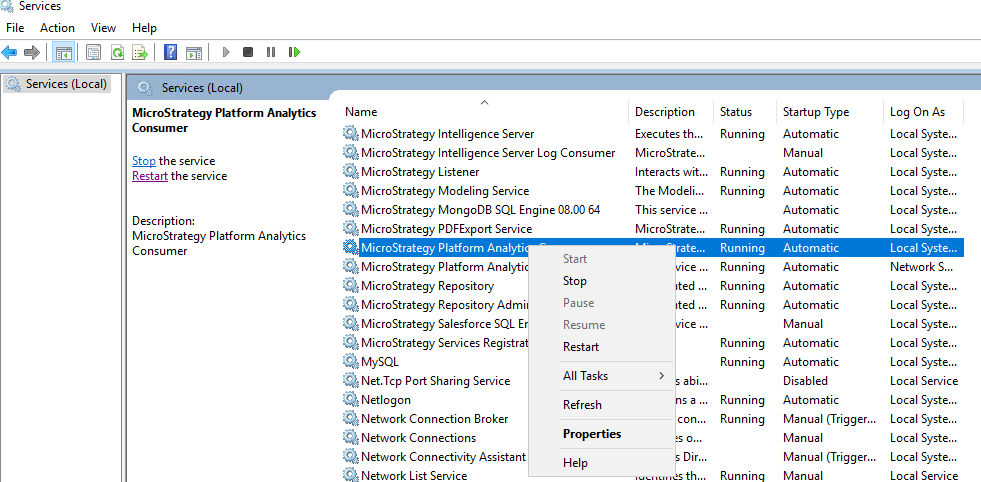
a. Stop Platform Analytics Consumer services using the Microsoft Services portal.
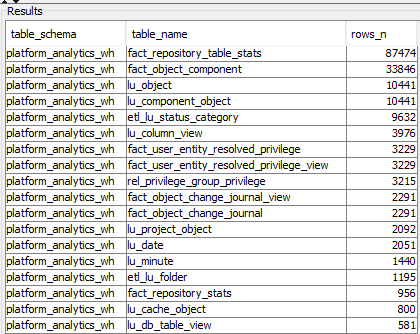
b. List out number of rows of each table by running below query from DB Query tool and save the result to excel. Pay attention to the last column ‘rows_n’.
with tbl as (SELECT table_schema,table_name FROM information_schema.tables where table_name not like 'pg_%' and table_schema in ('platform_analytics_wh')) select table_schema, table_name, (xpath('/row/c/text()', query_to_xml(format('select count(*) as c from %I.%I', table_schema, table_name), false, true, '')))[1]::text::int as rows_n from tbl ORDER BY 3 DESC;
Table number is 243 and sample output as below:
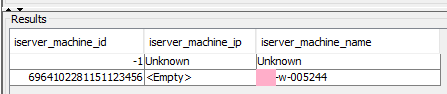
Run below query and notice the Intelligence Server name is only have one record.
select * from lu_iserver_machine;
c. Right Mouse Click on Command prompt to launch as Administrator; Navigate to pd_dump utility folder C:\Program Files (x86)\Common Files\MicroStrategy\Repository\pgsql\bin
Use pg_dump command in below in this format:
pg_dump -h servername -p 5432 -U username -F c -b -v -x -f "\\outfile\path" databasename
Example:
pg_dump -h 127.0.0.1 -p 5432 -U mstr_pa -F c -b -v -x -f "C:\tmp\output.txt" platform_analytics_wh
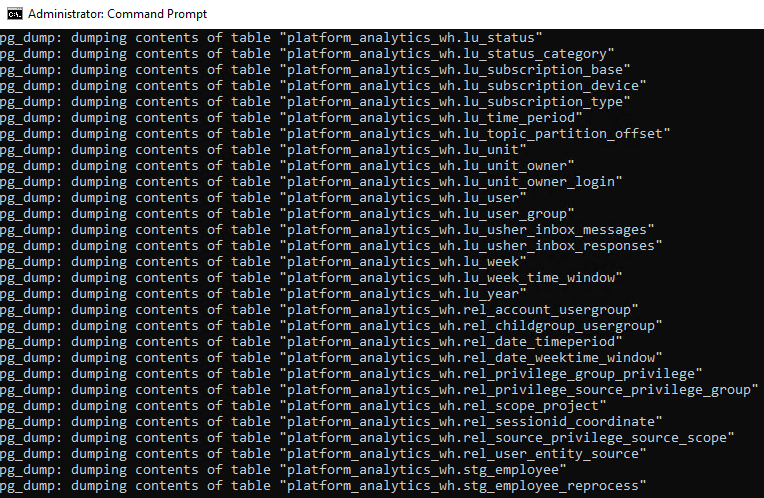
Refer to Knowledge Base Article below for detailed steps to dump DB:
KB485486: How to provide Platform Analytics Warehouse to Strategy Technical Support for troubleshooting purposes in Platform Analytics in Windows
d. Move the dumped file (output.txt in this example) to target windows machine.
3.Restore the m2020 Platform Analytics Repository in Strategy 2021 Update 6
a.Stop Platform Analytics Consumer services using the Microsoft Services portal.
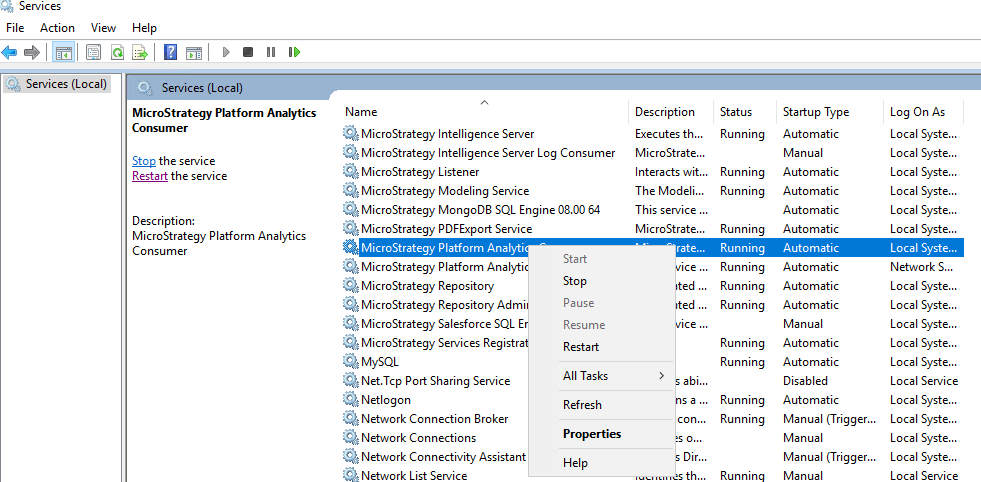
b.Manually drop the platform_analytics_wh schema if Platform Analytics has been installed on the machine and local PGSQL is being used.
Run below query in DBquery tool:
DROP SCHEMA IF EXISTS platform_analytics_wh CASCADE
c.Right Mouse Click on Command prompt to launch as Administrator; Navigate to pd_dump utility folder C:\Program Files (x86)\Common Files\MicroStrategy\Repository\pgsql\bin
Run below command:
pg_restore -c -U mstr_pa --dbname=xxxx --verbose 2020PA_WH_DUMP
eg:
pg_restore -c -U mstr_pa --dbname=platform_analytics_wh --verbose C:\tmp\output.txt
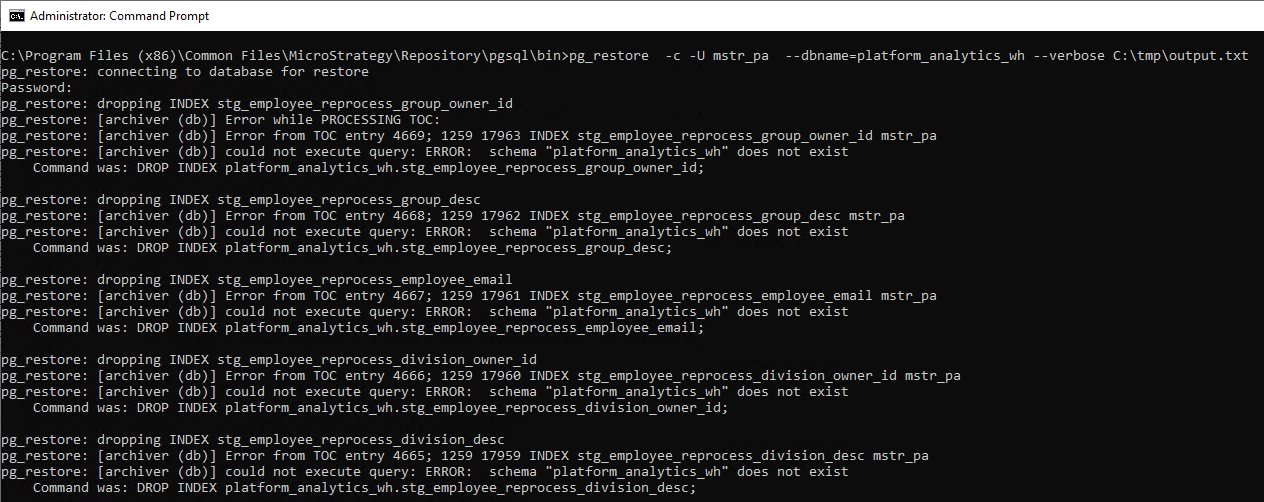
NOTE: “-c” could be omitted due to step b already drop the schema completely.
The time to restore depends on the size of the file. Entries are print on the screen as below:
pg_restore: processing data for table "platform_analytics_wh.rel_scope_project"
pg_restore: processing data for table "platform_analytics_wh.rel_sessionid_coordinate"
pg_restore: processing data for table "platform_analytics_wh.rel_source_privilege_source_scope"
pg_restore: processing data for table "platform_analytics_wh.rel_user_entity_source"
pg_restore: processing data for table "platform_analytics_wh.stg_employee"
pg_restore: processing data for table "platform_analytics_wh.stg_employee_reprocess"
pg_restore: executing SEQUENCE SET etl_lu_view_cutoffs_cutoff_id_seq
pg_restore: executing SEQUENCE SET lu_iserver_cluster_iserver_cluster_id_seq
pg_restore: creating CONSTRAINT "platform_analytics_wh.access_transactions access_transactions_pkey"
d.Once done, launch DBquery tool to run below query to list out number of rows of each table, and save the result to excel, and compare with output of 2.b.
with tbl as (SELECT table_schema,table_name FROM information_schema.tables where table_name not like 'pg_%' and table_schema in ('platform_analytics_wh')) select table_schema, table_name, (xpath('/row/c/text()', query_to_xml(format('select count(*) as c from %I.%I', table_schema, table_name), false, true, '')))[1]::text::int as rows_n from tbl ORDER BY 3 DESC;
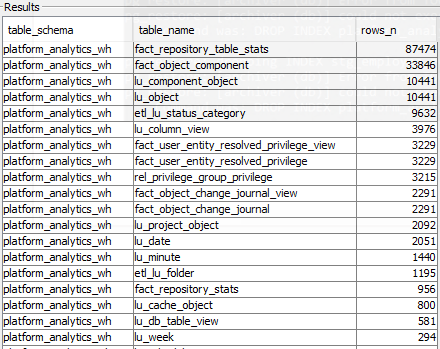
e.Once records are matched before dump and post restore, Update Encrypt password only if the mstr_pa password has been updated.
Navigate to the Strategy Install directory and edit the PAConsumerConfig.yaml file
For default installations, the location will be at: C:\Program Files (x86)\MicroStrategy\Platform Analytics\conf\PAConsumerConfig.yaml
Locate "pgWarehouseDbConnection" heading as shown below:
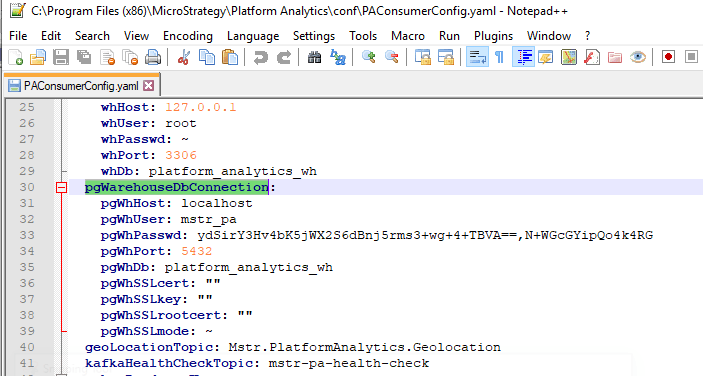
Run platform-analytics-encryptor.bat script located at: C:\Program Files (x86)\MicroStrategy\Platform Analytics\bin to generate new encrypted password, copy the password to the PAConsumerConfig.yaml file pgWhPasswd part.

4. Upgrade Platform Analytics Repository and Health Check:
a. Launch Configuration Wizard to upgrade Platform Analytics Repository and Platform Analytics Project.
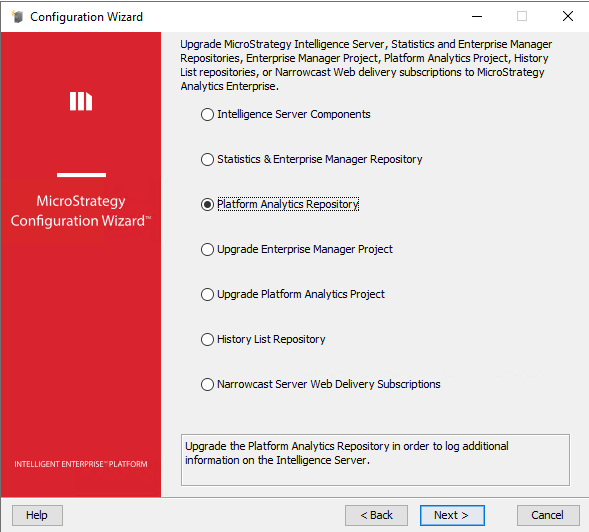
(Create Platform Analytics Project if there is not yet done)
5.Load Metadata Object Telemetry, resume PA consumer and Healthcheck.
a.Ensure telemetry service is enabled by running below query in Command Manager:
LIST ALL PROPERTIES FOR SERVER CONFIGURATION;
Enable the telemetry service if it is not yet enabled.
ALTER SERVER CONFIGURATION ENABLEMESSAGINGSERVICES TRUE CONFIGUREMESSAGINGSERVICES "bootstrap.servers:localhost:9092/batch.num.messages:5000/queue.buffering.max.ms:2000";
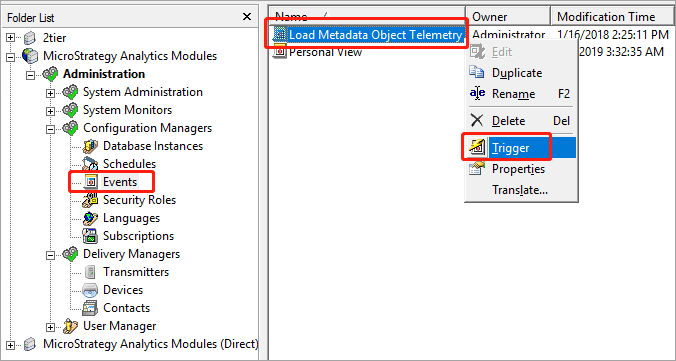
b.Using Developer, connect to the Intelligence Server for which you are triggering the initial load. Under Administration > Configuration Managers > Events right-click the Load Metadata Object Telemetry event and select Trigger.
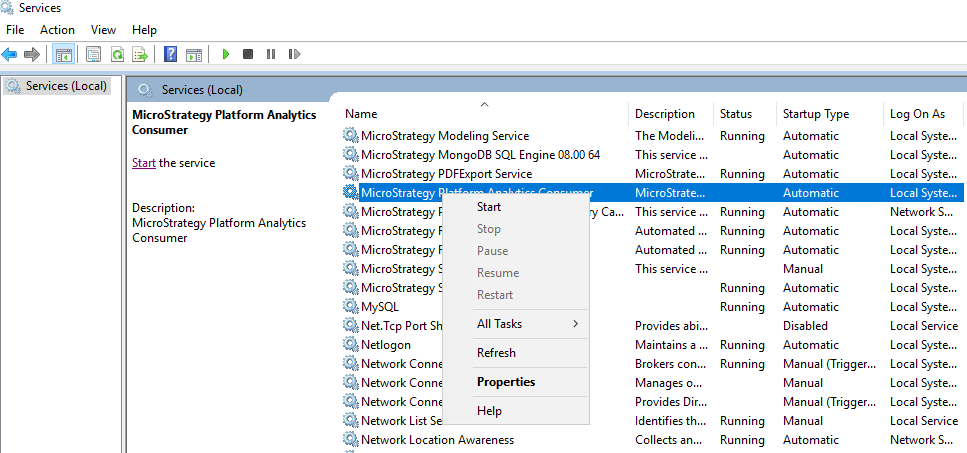
c. Start Platform Analytics Consumer services using the Microsoft Services portal.
d. Navigate to C:\Program Files (x86)\MicroStrategy\Platform Analytics\log to check the Platform Analytics health check report summary has three PASS.
Eg. platform-analytics-consumer-health-check-20220814064431.out

e. Verify the some frequently used fact and lookup table
Below query shall contain updated data:
select * from platform_analytics_wh.access_transactions order by tran_timestamp desc limit 10
select * FROM platform_analytics_wh.lu_date;
Below query now shows new server.
select * from lu_iserver_machine;

3rd party warning:
Third Party Software Installation WARNING
The third-party product(s) discussed in this technical note is manufactured by vendors independent of Strategy. Strategy makes no warranty, express, implied or otherwise, regarding this product, including its performance or reliability.
