EducationSoftwareStrategy.com
StrategyCommunity

Knowledge Base

Product

Community

Knowledge Base

TopicsBrowse ArticlesDeveloper Zone

Product

Download SoftwareProduct DocumentationSecurity Hub

Education

Tutorial VideosSolution GalleryEducation courses

Community

GuidelinesGrandmastersEvents
x_social-icon_white.svglinkedin_social-icon_white.svg
Strategy logoCommunity

© Strategy Inc. All Rights Reserved.

LegalTerms of UsePrivacy Policy
  1. Home
  2. Topics

KB483973: How to modify Google BigQuery driver's string column length for optimized memory consumption


Sergio Sainz Palacios

Software Architect • MicroStrategy


This article provides instructions for modifying the Google BigQuery ODBC and JDBC drivers' string column length.

Google BigQuery ODBC Driver


In order to improve memory consumption, Strategy recommends that you reduce the default string length to the smallest possible number, meaning the maximum length of a string column in your warehouse's table. When publishing a cube or fetching data from BigQuery, Strategy allocates memory based on the string column length value. Thus, a small number reduces the memory consumption when publishing a cube or fetching data.

On Windows

  • Open the ODBC Data source administrator (Run >
    odbcad32.exe).
  • Edit the DSN.
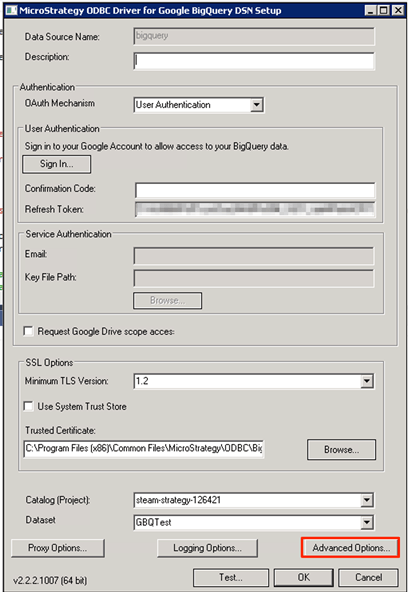
  • Click on Advanced options.
ka02R000000g5h4QAA_0EM2R000000nSPD.jpeg
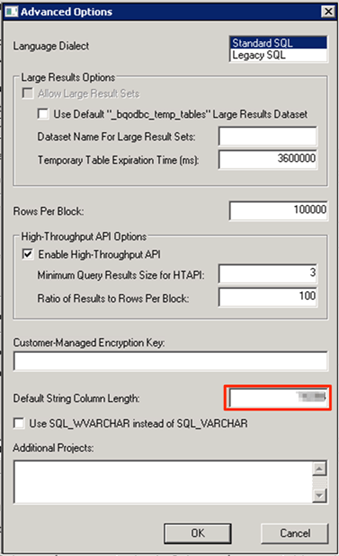
  • Change the Default String Column Length to the maximum string length that exists in the warehouse.
ka02R000000g5h4QAA_0EM2R000000nSQ1.jpeg
  • Click OK to save your changes on the Advanced Options dialog.
  • Click OK to save your changes on the Strategy ODBC Driver for Google BigQuery DSN Setup dialog.
  • Restart the Intelligence Server or delete cached connections for BigQuery for the changes to take effect.

On Linux

  • Go to the folder where Strategy is installed. For example, the MSTR_HOME folder is
    /opt/mstr/Strategy.
  • Edit the
    odbc.ini 
    file where the BigQuery DSN is defined.
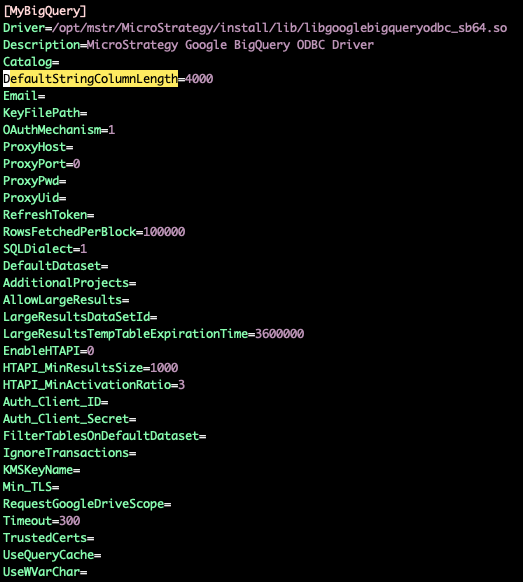
  • Modify the string length of DefaultStringColumnLength to the maximum string length that exists in the warehouse
ka02R000000g5h4QAA_0EM2R000000nSQ6.jpeg
  • Save the
    odbc.ini
    file.
  • Restart the Intelligence Server or delete cached connections for BigQuery for the changes to take effect.

Google BigQuery JDBC Driver

Data Import

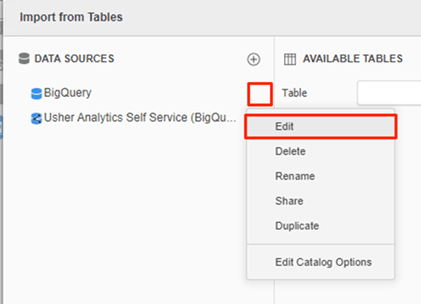
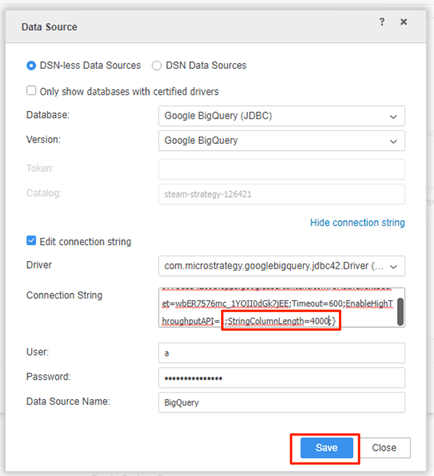
  • In the case that your BigQuery connection is created in data import, edit the database connection in the data import dialog (in Web/Workstation/Desktop).
ka02R000000g5h4QAA_0EM2R000000nSS2.jpeg
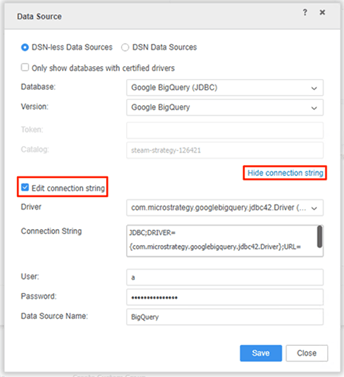
  • Click on Show connection string.
  • Select Edit connection string.
ka02R000000g5h4QAA_0EM2R000000nSTo.jpeg
  • Add the following string in the Connection String field:
    StringColumnLength=4000
    Change the value 4000 to the maximum string length that exists in the warehouse.
ka02R000000g5h4QAA_0EM2R000000nSTt.jpeg

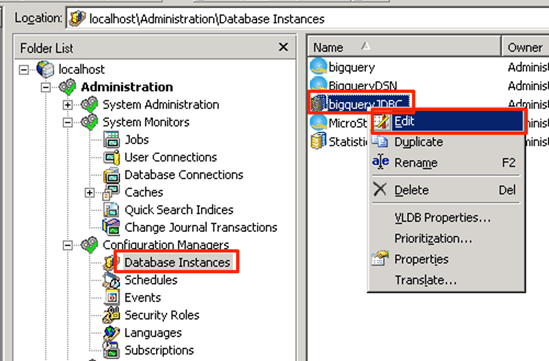
Primary Database Instance (in Strategy Developer)

  • If the JDBC connection is a primary database instance created in Developer, edit the database instance in Developer.
ka02R000000g5h4QAA_0EM2R000000nSRU.jpeg
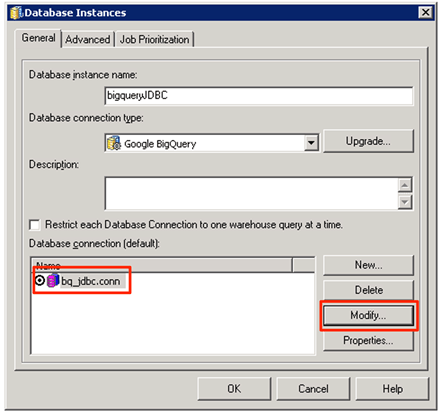
  • Click on Modify to edit the database connection.
ka02R000000g5h4QAA_0EM2R000000nSVG.jpeg
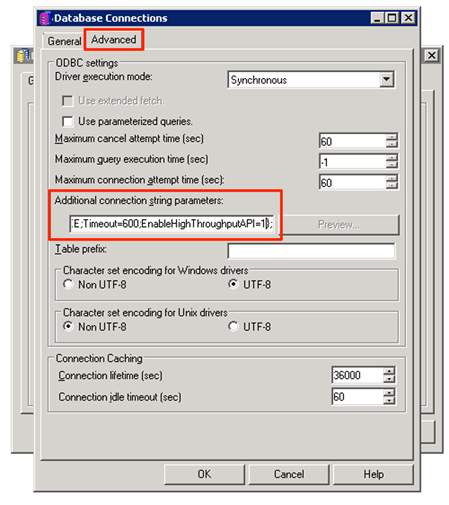
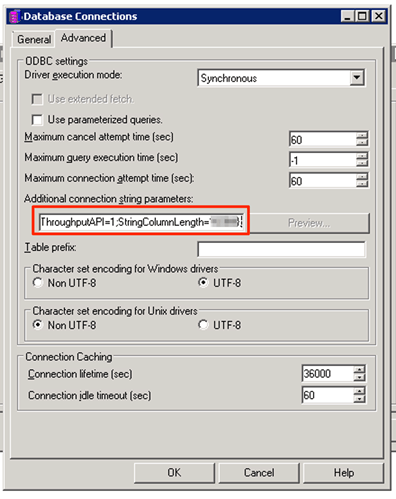
  • Copy the connection string parameters to a text editor.
ka02R000000g5h4QAA_0EM2R000000nSVL.jpeg
  • Add the following string to the connection string and paste it back to the Additional connection string parameters field:
    StringColumnLength=XX
    Where XX is the maximum string length that exists in the warehouse.
ka02R000000g5h4QAA_0EM2R000000nSVQ.jpeg
  • Click OK to save your changes on the Database Connections dialog. 
  • Click OK to save your changes on the Database Instances dialog. 

Comment

0 comments

Details

Knowledge Article

Published:

January 13, 2020

Last Updated:

January 13, 2020