EducationSoftwareStrategy.com
StrategyCommunity

Knowledge Base

Product

Community

Knowledge Base

TopicsBrowse ArticlesDeveloper Zone

Product

Download SoftwareProduct DocumentationSecurity Hub

Education

Tutorial VideosSolution GalleryEducation courses

Community

GuidelinesGrandmastersEvents
x_social-icon_white.svglinkedin_social-icon_white.svg
Strategy logoCommunity

© Strategy Inc. All Rights Reserved.

LegalTerms of UsePrivacy Policy
  1. Home
  2. Topics

KB484084: How to open MicroStrategy Workstation or Desktop 2020 Update 1


Jaime Perez

Vice President, Product Owner • MicroStrategy


This article explains why you are unable to open MicroStrategy Workstation or Desktop 2020 Update 1 on macOS. This article also provides solutions to work around this error.

Description


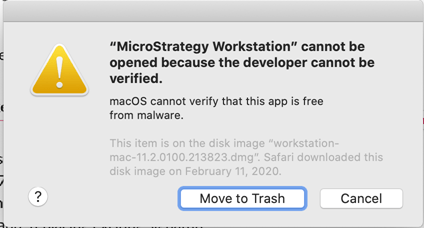
When opening Strategy Workstation or Desktop 2020 Update 1 on macOS, you may run into the following message, and the application will not open.
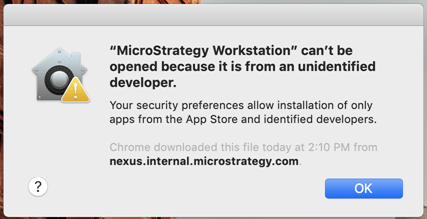
ka02R000000g71KQAQ_0EM2R000000o1xK.jpeg
ka02R000000g71KQAQ_0EM2R000000o1xZ.jpeg

Why is this happening?

Apple requires applications that run on macOS to be notarized For details, see Notarizing macOS Software Before Distribution.
Previous version of Strategy Workstation and Desktop, such as Strategy 2019 Update 4 and 5, and Strategy 2020, have been notarized and can be successfully tun on macOS High Sierra, Mojave, and Catlina.
However, due to stricter notarization requirements introduced in February 2020, Strategy Workstation and Desktop 2020 Update 1 have not been notarized yet. When opening Strategy Workstation or Desktop 2020 Update 1 on macOS, you will encounter the error.

Solution

From the dmg file

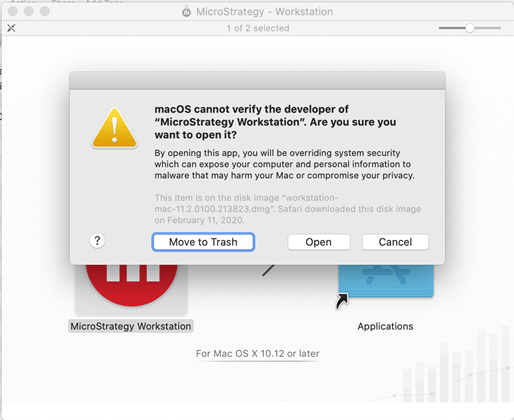
  • On macOS, right-click on the application dmg, and choose Open.
ka02R000000g71KQAQ_0EM2R000000o1xe.jpeg
  • A dialog appears. To launch the application, click OK.
ka02R000000g71KQAQ_0EM2R000000o1xj.jpeg
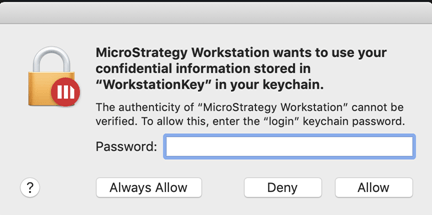
  • Enter the "WorkstationKey" to your keychain.
ka02R000000g71KQAQ_0EM2R000000o1xy.jpeg

From the Applications tab

For more details, refer to Apple's note on how to safely open apps on your mac.
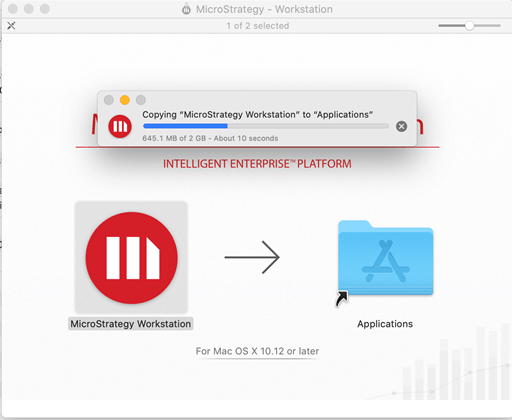
  • In the launch window, drag Strategy Workstaion or desktop to the Applications folder.
ka02R000000g71KQAQ_0EM2R000000o1y3.jpeg
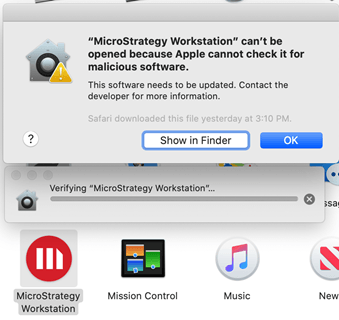
  • When the application is launched, the following error appears:
ka02R000000g71KQAQ_0EM2R000000o1y8.jpeg
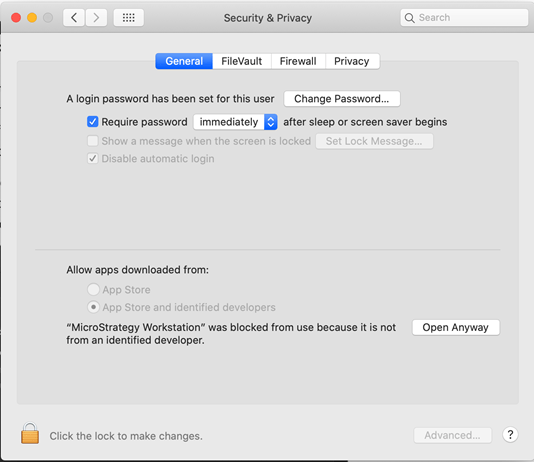
  • In macOS Catalina and macOS Mojave, when an app fails to install because it hasn't be notarized or is from an unidentified developer, it will appear in System Preferences > Security & Privacy > General.
  • Click Open Anyway to proceed with the install.
ka02R000000g71KQAQ_0EM2R000000o1yD.jpeg

For details on how to safely open apps on your Mac., see Apple's note.


Comment

0 comments

Details

Knowledge Article

Published:

February 28, 2020

Last Updated:

February 28, 2020