On mobile devices, the data cloud displays all data labels at the minimum font size to fit the smaller screen. If the amount of data displayed is too large, attribute elements shown on the data cloud will appear as the same font size instead of sized by differences in their metric values when viewing the app. To limit the amount of data shown to fit the display, the designer should add a view filter to the widget.
After adding the widget to your app document, follow these steps to set a view filter:
1. Right-click the widget grid and select Edit View Filter.
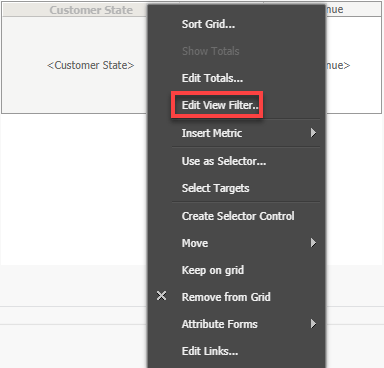
2. Click Add Condition in the View Filter Editor pane.
3. Double-click the metric used in the data cloud.
4. Select the appropriate view filter from the condition menu. In the example below, the Highest condition was select with 25 as the Value box. The Highest filter limits the Data Cloud to show the attributes with the top 25 metrics. In this example, the filter limits the data cloud to display the top 25 states with the highest revenue.
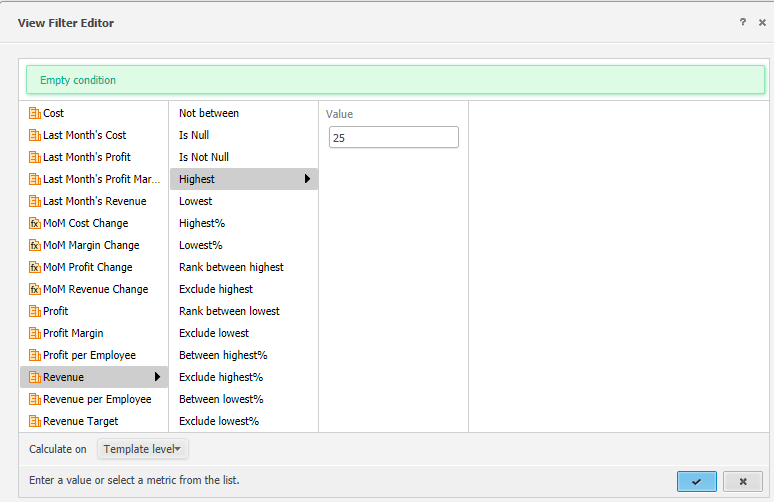
5. Click the blue check mark on the bottom of the View Filter Editor. Then click Save to apply your changes.
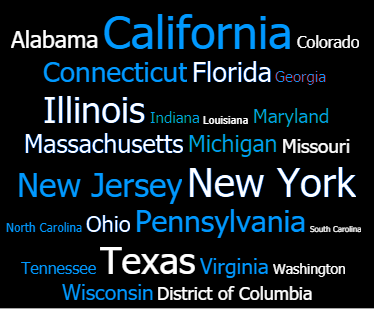
When viewed on a mobile device, the attribute elements will be appropriately sized based on the data cloud's metric. In the example below, the data cloud sizes the Customer State attribute based on the Revenue metric.
Take the Advanced Mobile Applications (10.421) class to learn more about creating Strategy mobile apps.
