EducationSoftwareStrategy.com
StrategyCommunity

Knowledge Base

Product

Community

Knowledge Base

TopicsBrowse ArticlesDeveloper Zone

Product

Download SoftwareProduct DocumentationSecurity Hub

Education

Tutorial VideosSolution GalleryEducation courses

Community

GuidelinesGrandmastersEvents
x_social-icon_white.svglinkedin_social-icon_white.svg
Strategy logoCommunity

© Strategy Inc. All Rights Reserved.

LegalTerms of UsePrivacy Policy
  1. Home
  2. Topics

KB484021: How to provide files to Technical Support using the SFTP site


Stephen Vizcarra

Senior Cloud Systems Engineer • MicroStrategy


For various technical reasons, MicroStrategy Technical Support may be required to gather custom files in-house for analysis and testing. This article explains how to provide files to Technical Support using MicroStrategy's secure SFTP website.

The Strategy SFTP site can be used to provide files to Strategy Support. It is especially useful for transmitting large files, such as core and dump files, which are generated as a result of an Intelligence Server crash. The SFTP Filedrop may be required for special file types, such as

MSIReg.reg
files, which cannot be transmitted as an email attachment. These files will be automatically removed by Strategy's email scrubbing system.
Please note that the user accessing the Filedrop must be a Support Liaison for Strategy Technical Support. 
To provide a file to Strategy Technical Support via the secure SFTP site, proceed with the following steps:
 

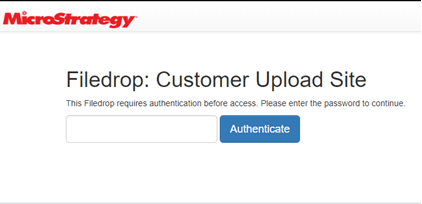
  • Use a web browser to navigate to the SFTP site: https://sftp.microstrategy.com/filedrop/support/authenticate.
  • Enter a password, provided by a support team member, for authentication.
ka04W000001IuNFQA0_0EM2R000000nhcb.jpeg
  • Click Authenticate.
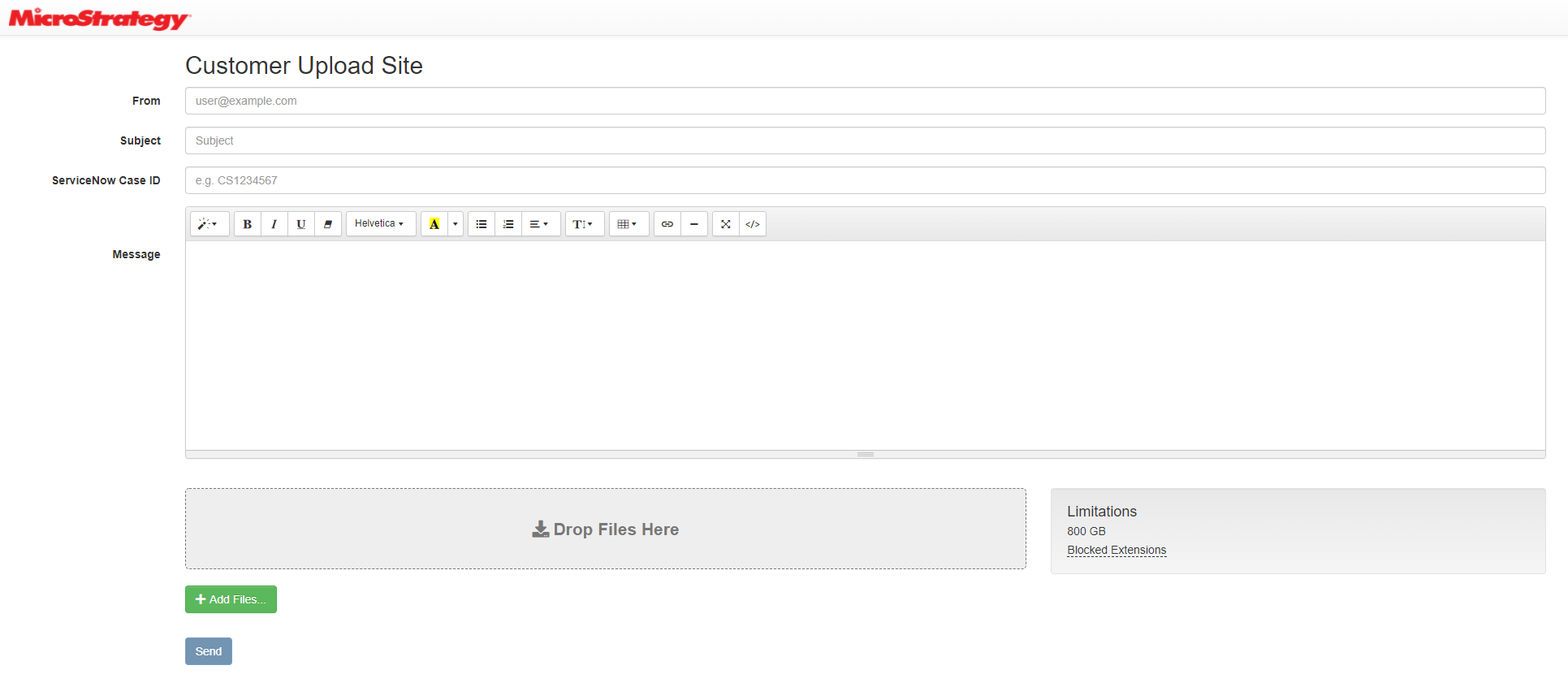
  • In the email template, fill out the required fields.
ka04W000001IuNFQA0_0EM4W000004YOqf.jpeg
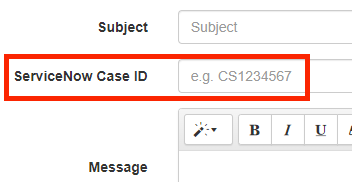
  • It is critical that the correct ServiceNow Case ID is provided on the email template, as the field is used to associate the provided file to the correct ServiceNow case, and notify the assigned engineer. 
ka04W000001IuNFQA0_0EM4W000004YOqp.jpeg
  • Add your files. Strategy recommends compressing your files prior to upload.
  • Click Send.

    Wait for the file transfer process to complete before shutting down your machine or breaking connection. Note that if the host machine shuts down or loses connection during the transfer process, the file may be rendered unusable by Technical Support. The amount of time needed for a successful file upload is dependent on the size of the file being uploaded. Large files, such as 100GB or larger, may take several hours to upload.
     
    Once the file has been successfully transmitted, the assigned Technical Support Engineer will be notified through the ServiceNow case.

Comment

0 comments

Details

Knowledge Article

Published:

February 3, 2020

Last Updated:

March 27, 2020