EducationSoftwareStrategy.com
StrategyCommunity

Knowledge Base

Product

Community

Knowledge Base

TopicsBrowse ArticlesDeveloper Zone

Product

Download SoftwareProduct DocumentationSecurity Hub

Education

Tutorial VideosSolution GalleryEducation courses

Community

GuidelinesGrandmastersEvents
x_social-icon_white.svglinkedin_social-icon_white.svg
Strategy logoCommunity

© Strategy Inc. All Rights Reserved.

LegalTerms of UsePrivacy Policy
  1. Home
  2. Topics

KB483952: How to reset selections in a document with multiple panels without reverting back to the default state


Community Admin

• Strategy


This article explains how to reset all selectors in a document with multiple panels, while keeping the panels in place.

Description


Upon resetting selections on a document with multiple panels, the viewed panel can change as well. This can be inefficient if you want to reset your selections and wish to stay on that panel. 
 

Steps to reproduce

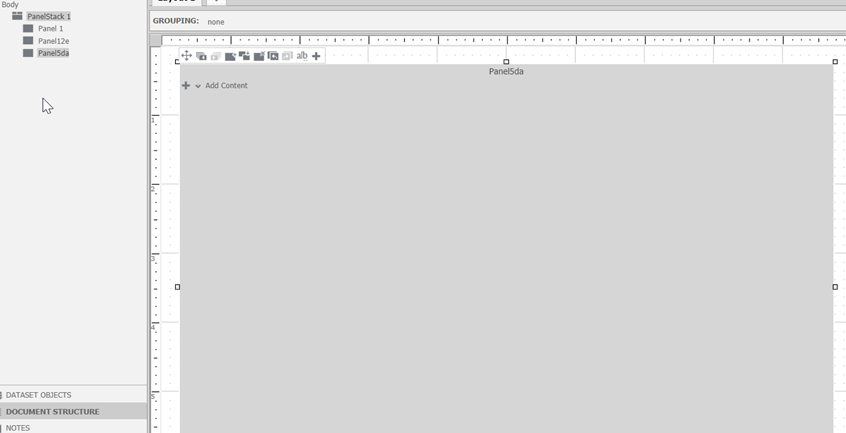
  • Create a document with at least two panels on top of each other.
ka04W000001IwuUQAS_0EM2R000000nL7R.jpeg
  • Add a dataset.
  • Add a grid in all your panels.
ka04W000001IwuUQAS_0EM2R000000nLAG.jpeg
  • Add a panel selector and a drop down selector.
  • Target the drop down selector to the grid.
ka04W000001IwuUQAS_0EM2R000000nLAL.jpeg
  • Run your document in presentation mode.
  • Select a panel value and a selector value.
ka04W000001IwuUQAS_0EM2R000000nLAa.jpeg
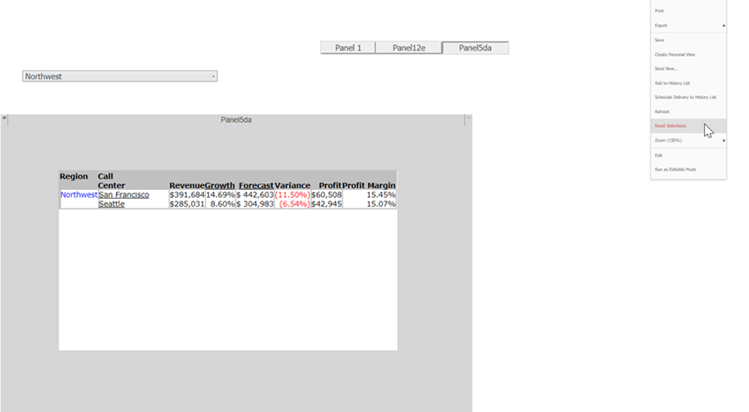
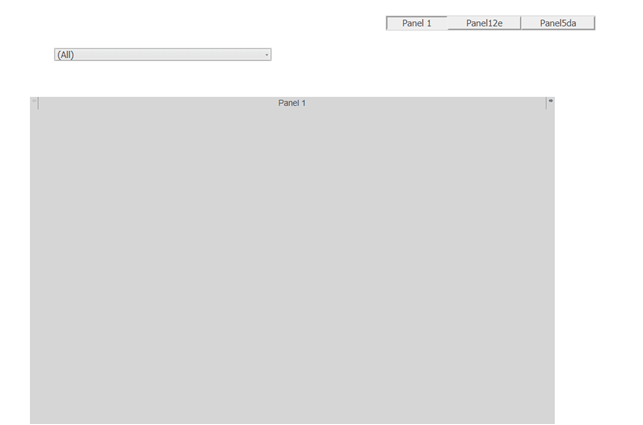
  • Click the hamburger icon in the top right > Reset Selections. The selections will reset, but you will be directed to another panel.
ka04W000001IwuUQAS_0EM2R000000nLAf.jpeg
ka04W000001IwuUQAS_0EM2R000000nLAk.jpeg

Solution


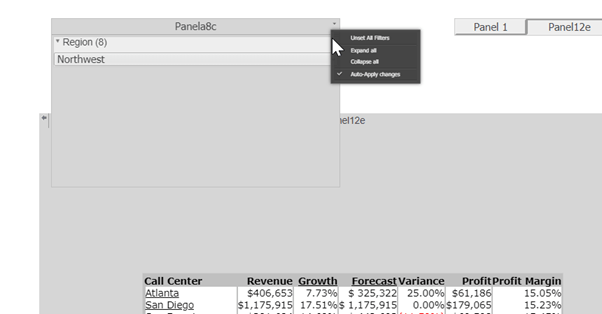
You can add a selector on top of a filter panel and utilize the Unset All Filters selection. By doing this, you will only reset the selections and keep the panels in place.
ka04W000001IwuUQAS_0EM2R000000nLB9.jpeg

Comment

0 comments

Details

Knowledge Article

Published:

January 2, 2020

Last Updated:

January 2, 2020