EducationSoftwareStrategy.com
StrategyCommunity

Knowledge Base

Product

Community

Knowledge Base

TopicsBrowse ArticlesDeveloper Zone

Product

Download SoftwareProduct DocumentationSecurity Hub

Education

Tutorial VideosSolution GalleryEducation courses

Community

GuidelinesGrandmastersEvents
x_social-icon_white.svglinkedin_social-icon_white.svg
Strategy logoCommunity

© Strategy Inc. All Rights Reserved.

LegalTerms of UsePrivacy Policy
  1. Home
  2. Topics

KB485629: How to restore AWS EC2 instances from snapshots


Monica Gallegos Salazar

Principal Product Specialist • MicroStrategy


This article provides steps for restoring AWS EC2 instances from snapshots. If the upgrade fails on an AWS environment, you can use the following steps to restore the EC2 instance to the previous version.
ka04W000001IwULQA0_0EM4W000005mRbC.png

Disclosure

ka04W000001IwULQA0_0EM4W000005mRbD.png

In MCP, the OCU automation only takes EBS snapshot while performing the Upgrade. It’s the customer’s responsibility to ensure all the proper backups of their infrastructure are in place, like EFS backups, RDS backups, EC2 snapshots, etc. Strategy is not responsible for any loss of data during the steps performed in this document.
Considerations:
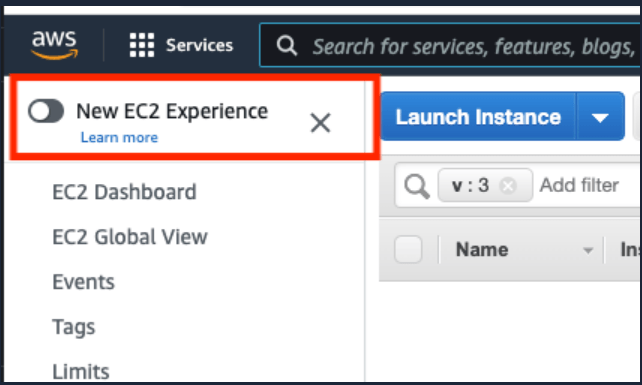
  1. Switch back to the previous AWS experience, as the new UI is very slow to load
ka04W000001IwULQA0_0EM4W000005mRbE.png


  1. You can use the following command before and after performing the to validate if the version has been reversed at the instance level

cat /opt/mstr/MicroStrategy/log/mstr.hist | grep 'Release\|Build'
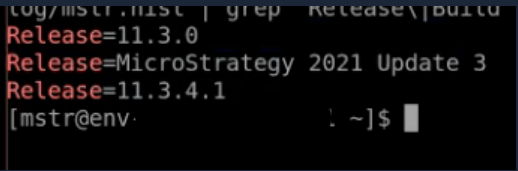
Before:

ka04W000001IwULQA0_0EM4W000005mRbF.png

After:

ka04W000001IwULQA0_0EM4W000005mRbG.png

Steps to Follow:

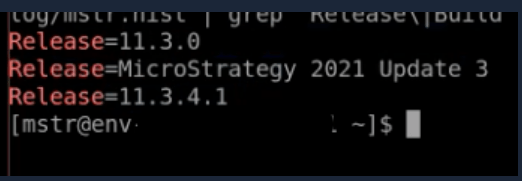
  1. Check the Release in the EC2 instance: SSH into the EC2 instance, and run this command:

 cat /opt/mstr/MicroStrategy/log/mstr.hist | grep 'Release\|Build'
You should see something like the following screenshot:
ka04W000001IwULQA0_0EM4W000005mRbH.png
  1. Locate the EC2 instances: Go to the EC2 service and search for the environment ID, you will see two types of instances
    1. Windows instance: The name of this instance will be something like env-12345waioxxx, containing "waio"
    2. Linux instance: The name will be in the following format:
      1. env-12345laioxxx: Team or Department type instance, look for “laio“
      2. env-12345laio1xxx or env-12345laio2xxx: Single node or multi node Enterprise level instance, look for “laio1“(node-1), “laio2“(node-2), “laio3“(node-3)…..etc
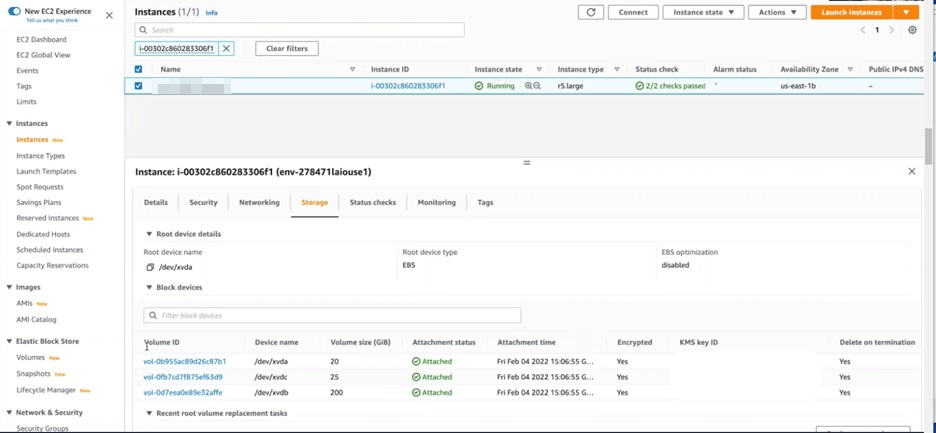
  2. Locate the attached EBS volumes: We will be working on the Linux instances from Step-2, click on the instance, under the details go to the “Storage” option and you will see the volumes attached to that instance
    Note: You can perform the same steps on the Windows instance as well to revert back to a previous Strategy version


ka04W000001IwULQA0_0EM4W000005mRbI.png


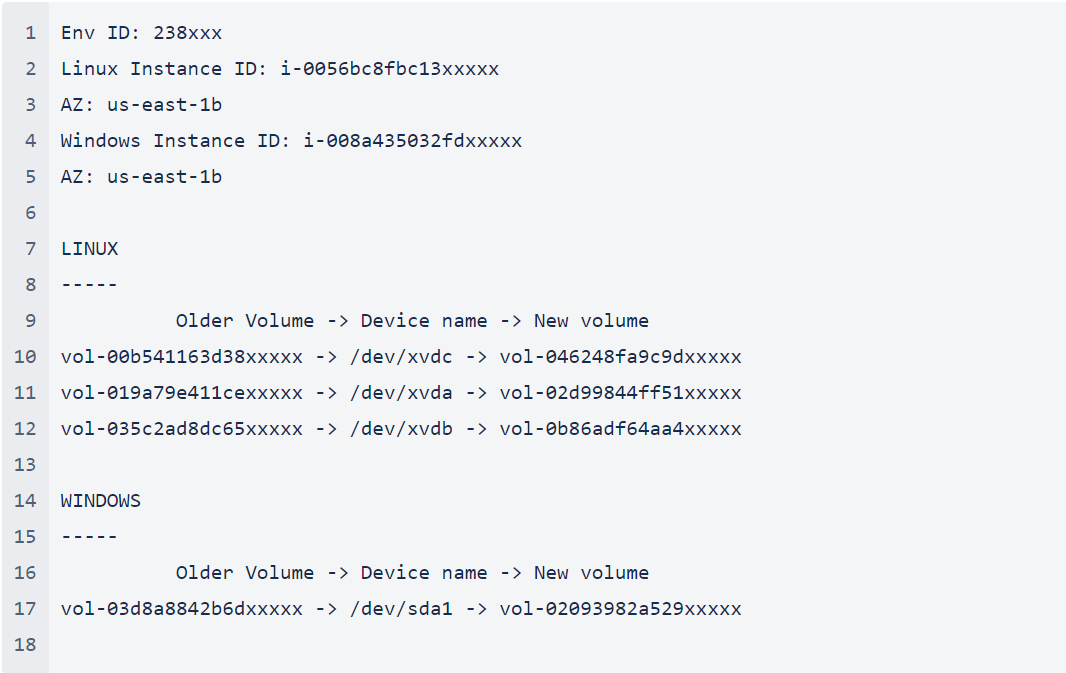
  1. EBS Volume metadata gathering: Take the note of following details for each volume attached with applicable instance:
    1. Volume ID
    2. Device Name
    3. Volume Size
    4. Volume Type
    5. Encrypted Status
    6. KMS Key ID (If applicable)
    7. List of all the tags of the volume
    8. Availability Zone
    9. Instance ID where this volume is attached to

Example:

ka04W000001IwULQA0_0EM4W000005mRbJ.png

Note: If this is being done for a multi node instance then get the details of all of the respective EBS volumes for each EC2 instance.
  1. Stop EC2: Stop the Environment from the MCP console


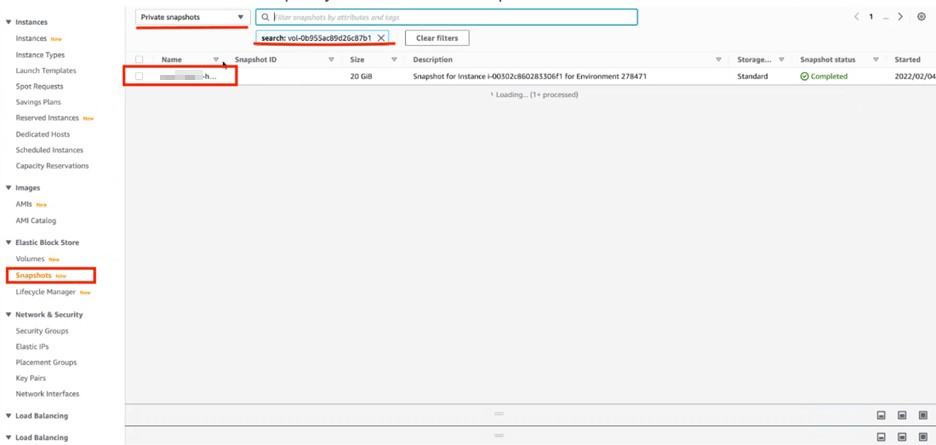
  1. Locate Snapshots: Go to the snapshots section of the EC2 dashboard, in “Private Snapshots” search with the “Volume-Id” Gathered in Step-4, you will see the snapshot created
ka04W000001IwULQA0_0EM4W000005mRbK.png


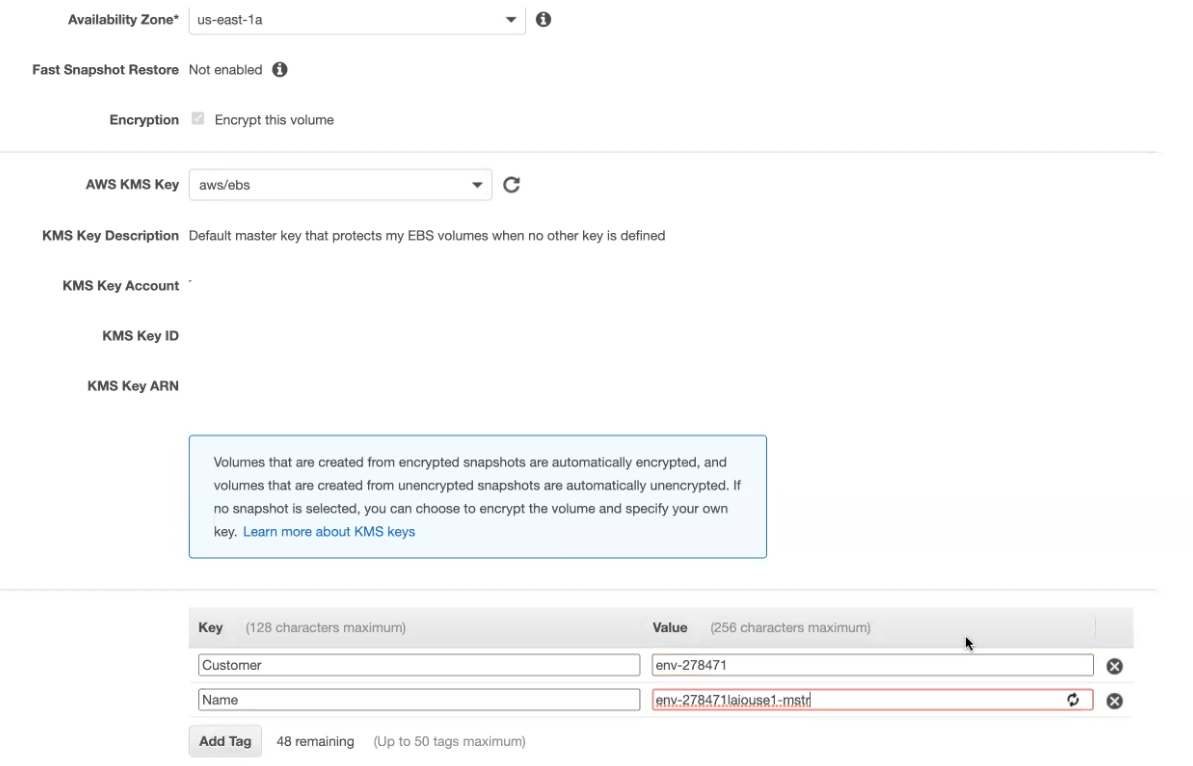
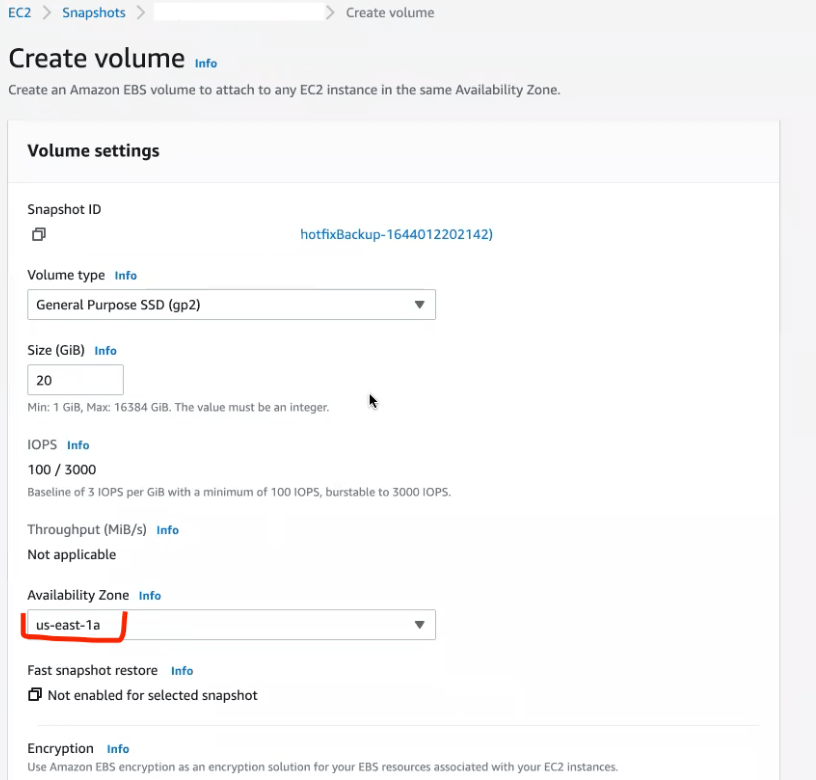
  1. Create Volumes: Select the snapshot and create a volume while cross checking all the information you gathered in Step-4, specially the following:
    1. Availability Zone
    2. Tags (Add at the end if not there)
    3. Encryption
    4. KMS Key
ka04W000001IwULQA0_0EM4W000005mRbL.png
ka04W000001IwULQA0_0EM4W000005mRbM.png


Note: The new volume should have the same properties as the existing one
Repeat these steps for all the volume IDs gathered in step 4.
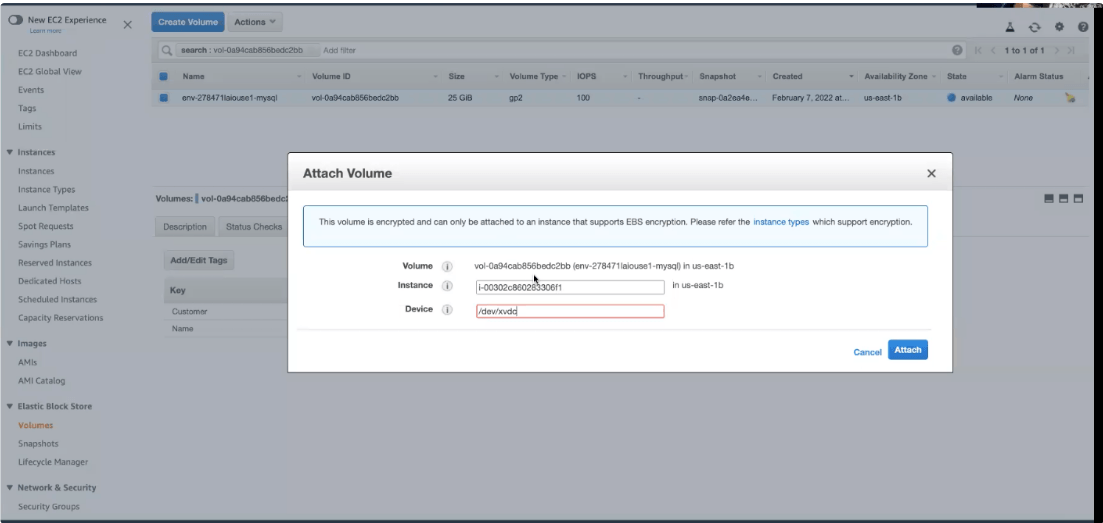
  1. Detach Volumes: Detach all the volumes attached with the Linux instance gathered in step 2.
  2. Attach Volumes: Attach the newly created volumes to the same instance by cross-checking the information gathered in step 4.
    Note: Attach all the volumes to the instance before moving to the next step.
ka04W000001IwULQA0_0EM4W000005mRbN.png


  1. Start the Instance: Start the instance from the MCP console.
  2. Validate: SSH into the instance and run the following command to validate if the version of the environment has been updated.

cat /opt/mstr/MicroStrategy/log/mstr.hist | grep 'Release\|Build'

ka04W000001IwULQA0_0EM4W000005mRbO.png
  1. Reach out to Tech Support: Reach out to Tech Support to change the version information on MCP console so that the One Click Upgrade process can be run again.

Comment

0 comments

Details

Knowledge Article

Published:

August 29, 2022

Last Updated:

August 29, 2022