EducationSoftwareStrategy.com
StrategyCommunity

Knowledge Base

Product

Community

Knowledge Base

TopicsBrowse ArticlesDeveloper Zone

Product

Download SoftwareProduct DocumentationSecurity Hub

Education

Tutorial VideosSolution GalleryEducation courses

Community

GuidelinesGrandmastersEvents
x_social-icon_white.svglinkedin_social-icon_white.svg
Strategy logoCommunity

© Strategy Inc. All Rights Reserved.

LegalTerms of UsePrivacy Policy
  1. Home
  2. Topics

KB484425: How to restore Azure Virtual Machines from snapshots


Anamika Sen

Software Engineer, Senior • MicroStrategy


This article provides steps for restoring Azure Virtual Machines from snapshots.

If the upgrade fails on an Azure environment, you can follow the following steps to restore the Virtual Machine (VM). We back up the operating system (OS) and data disks as snapshots in the resource group. In case of an upgrade failure, we need to create disk from snapshots and attach these newly created disks to the VM. 
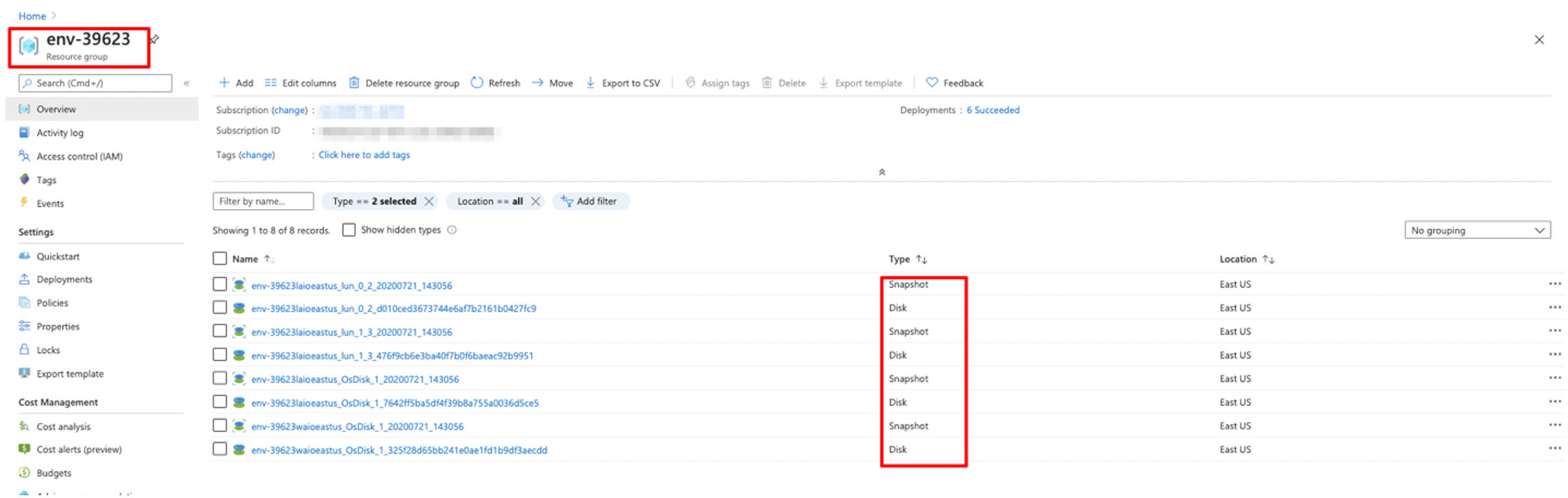
  • The snapshots are created for the disks in the environment. 
    Typically, we have one OS disk for each VM (Linux and Windows). There are 2 data disks attached to each Linux VM.
ka04W000000VpToQAK_0EM4W000001Iqyp.jpeg
  • As seen in the image above, we have snapshots for each of the disks.
  • Create a new managed disk from each of these snapshots.
  • Create a disk from the snapshot. This strategy allows you to keep the original VHD as a fallback:
    • From the Azure portal, on the left menu, select All services.
    • In the search box, enter Disks, and then select Disks from the list.
    • On the Disks page, select Create.
    • Enter a Name for the disk.
    • Choose a Resource group for the disk. Choose the existing Resource group.
    • For Account type, choose either Standard (HDD) or Premium (SSD) storage.
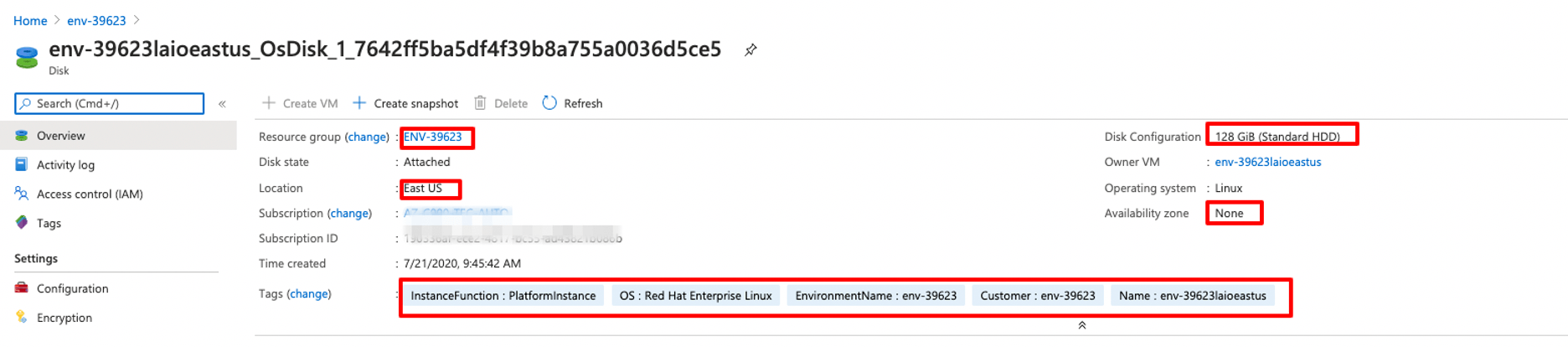
    • Go to the particular disk you want to create from the snapshot.
ka04W000000VpToQAK_0EM4W000001Iqyf.jpeg
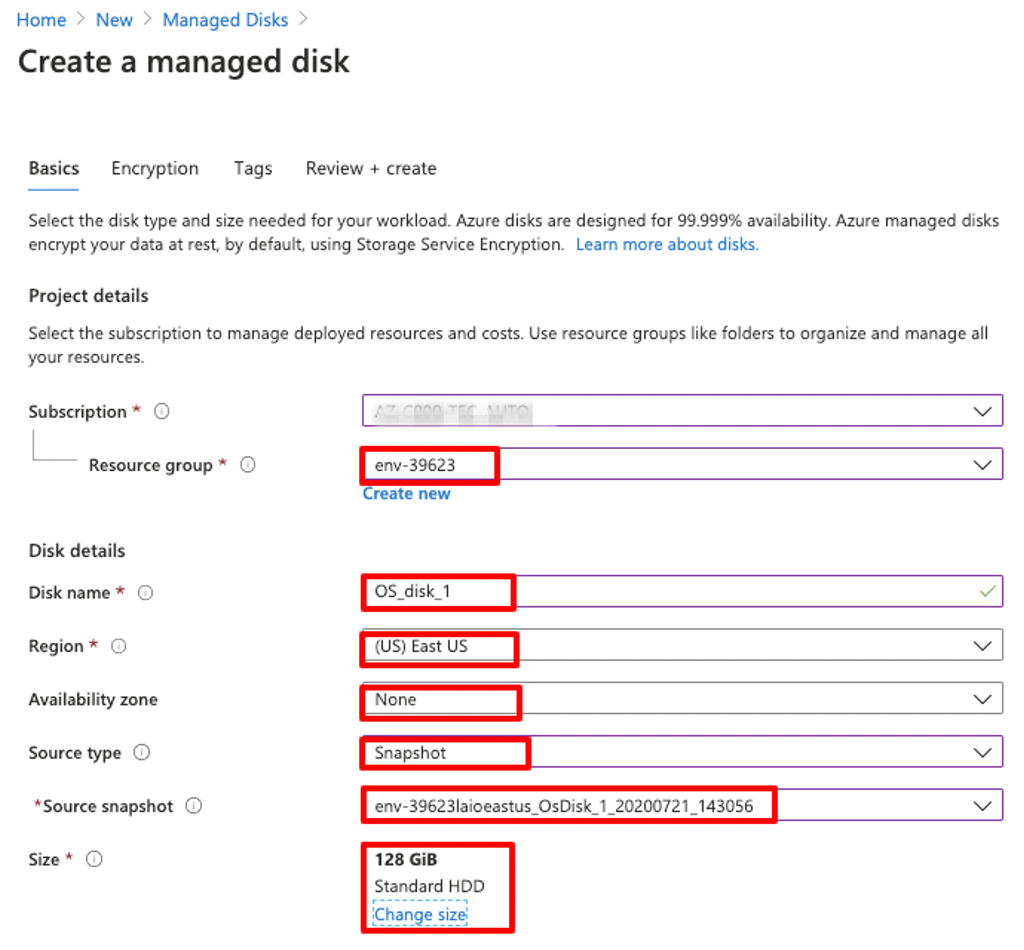
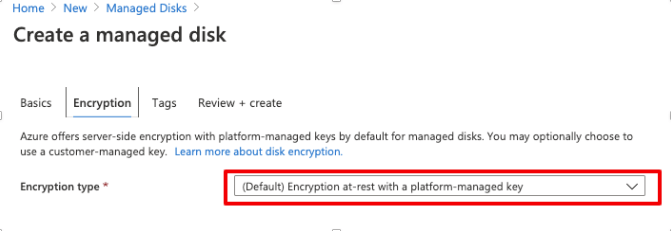
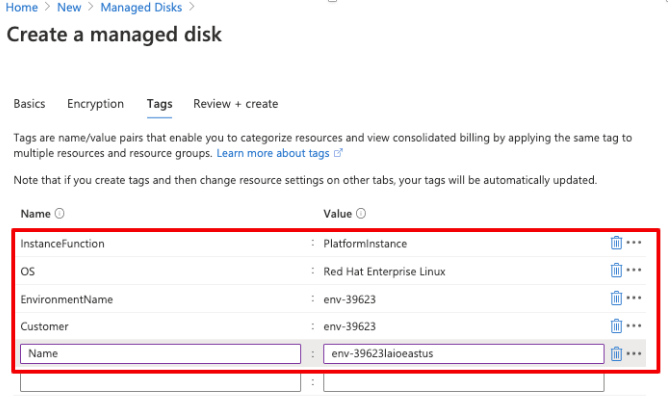
    • Replicate the details while creating the disk from the snapshot.
ka04W000000VpToQAK_0EM4W000001Iqyk.jpeg
ka04W000000VpToQAK_0EM2R000001IEnv.jpeg
ka04W000000VpToQAK_0EM2R000001IEo0.jpeg
    • In Source type, ensure Snapshot is selected.
    • Make any other adjustments as needed and then select Create to create the disk.
    • Repeat steps a-k for the number of disks you want to restore.
  • Attach the disks to the VM through the portal.
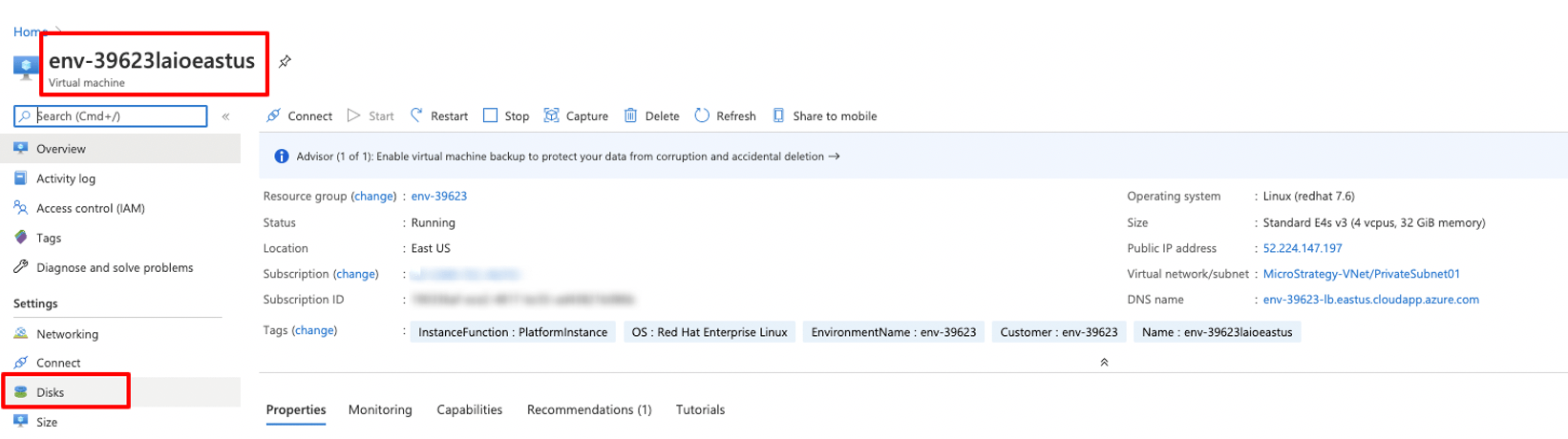
    • Swap the OS disk and attach the data disks to the VMs.
    • Go to the VM on the portal. Access Disks on the left menu.
ka04W000000VpToQAK_0EM4W000001Iqxr.jpeg
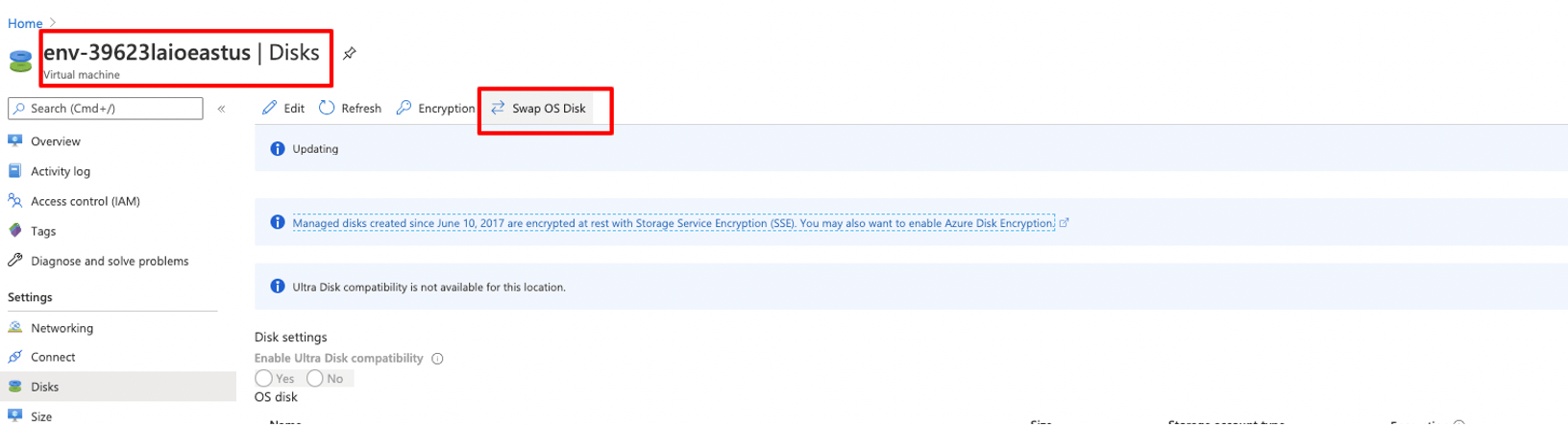
    • Stop the VM.
    • Click on Swap OS Disk and add the OS disk.
ka04W000000VpToQAK_0EM4W000001Iqxw.jpeg
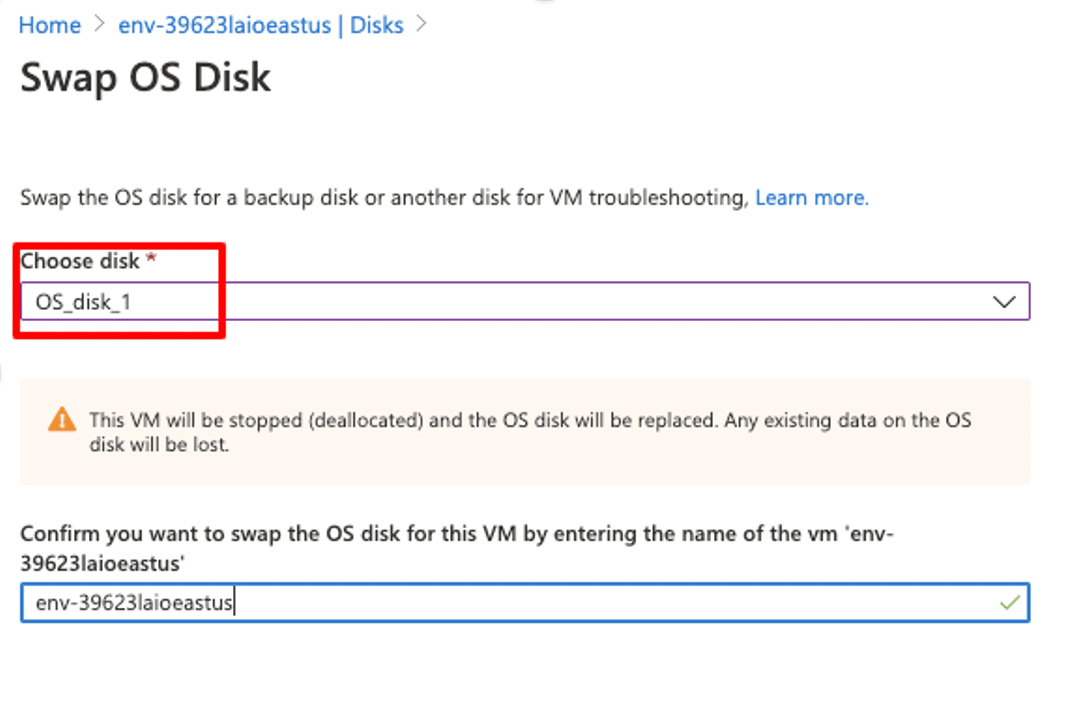
    • Add the OS disk you want to swap the existing disk with.
ka04W000000VpToQAK_0EM4W000001Iqy1.jpeg
    • If data disks are available for the VM, go the Disks page of the VM. Remove the existing data disks and add the new disks which were created from the snapshot earlier.
ka04W000000VpToQAK_0EM4W000001Iqy6.jpeg
    • Click on the ellipsis next to the existing data disks to detach the disks. Add the new data disks.
    • Restart the VMs to access the restored environment.
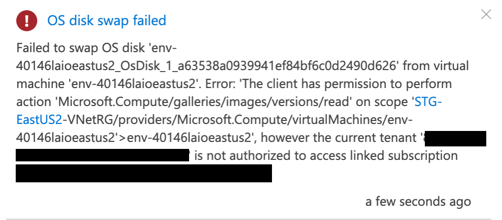
      Note: While performing the above steps, if you encounter an error like the one below, please follow the steps mentioned in section 5.
      Failed to swap OS disk 'env-40146laioeastus2_OsDisk_1_a63538a0939941ef84bf6c0d2490d626' from virtual machine 'env-40146laioeastus2'. Error: 'The client has permission to perform action 'Microsoft.Compute/galleries/images/versions/read' on scope 'STG-EastUS2-VNetRG/providers/Microsoft.Compute/virtualMachines/env-40146laioeastus2'>env-40146laioeastus2', however the current tenant ‘xxxxxx' is not authorized to access linked subscription ‘xxxxxxx'.
ka04W000000VpToQAK_0EM4W000001Iro8.jpeg
  • Attach the disks to the VM using Powershell commands.
    • Use Powershell commands to swap the disks. Repeat the commands below for each of the disks you want to swap/ replace.
    • Make note of the following parameters:
      • resourceGroupName
      • vmName
      • diskName (the OS and the data disks you want to swap/replace, as well as the names of the disks currently attached to the VM)
    • Replace the parameters with the values of your resources.
      
      # Powershell commands to swap the disks
      # Make note of the following parameters
      # resourceGroupName
      # vmName
      # diskNames - osDisks, dataDisks
      

    • Follow the steps below for the OS disk:
      
      # replace the bold parameters with your resource information
      
      # get the VM information
      $vm= Get-AzVM -ResourceGroupName resourceGroupName -Name vmName
      
      # Set the image reference to null
      # This is done because the VM was originally created from an Image in
      # Shared Image Gallery that is in another subscription and the Image Reference
      # is still pointing to the image. When we try to swap the disks, ARM
      # does not allow cross tenant operation for security reasons
      $vm.StorageProfile.ImageReference=$null
      
      # update the VM for the changes to take effect
      Update-AzVM -vm $vm -ResourceGroupName resourceGroupName
      
      # swap the disks
      $disk = Get-AzDisk -ResourceGroupName resourceGroupName -Name diskName
      
      # Apply the changes to the VM
      Set-AzVMOSDisk -VM $vm -ManagedDiskId $disk.Id -Name $disk.Name
      Update-AzVM -vm $vm -ResourceGroupName resourceGroupName
      

    • Follow the steps below for the data disks:
      
      # get the VM information
      $vm= Get-AzVM -ResourceGroupName resourceGroupName -Name vmName
      
      # set the image reference to null
      $vm.StorageProfile.ImageReference=$null
      
      # make note of the data disk you need to remove
      # $dataDisk to be removed
      Remove-AzVMDataDisk -VM $vm -Name dataDiskName
      
      # Update the vm
      Update-AzVM -vm $vm -ResourceGroupName resourceGroupName
      
      # get the new data disk
      $newDatadisk = Get-AzDisk -ResourceGroupName resourceGroupName -Name diskName
      # Add the new data disk
      # Make note of the LUN you want to attach it to
      # Provide appropriate LUN value while repeating the process
      $vm = Add-AzVMDataDisk -VM $vm -Name $ newDatadisk.Name -CreateOption Attach -ManagedDiskId $newDatadisk.Id -Lun 0
      
      # update the VM
      Update-AzVM -vm $vm -ResourceGroupName resourceGroupName
      # update the additional properties
      After the disks are added, you can modify the caching property to Read-only.
      

    • Restart the VMs to access the restored environment.


Comment

0 comments

Details

Knowledge Article

Published:

July 23, 2020

Last Updated:

September 27, 2020