Depending on the number of CPU-based licenses you purchase, you can have multiple processors (CPUs) running the Intelligence Server and Strategy Web. The ability to deploy the Intelligence Server or Strategy Web on specific, selected CPUs (a subset of the total number of physical CPUs) on a given machine is called CPU affinity (or processor affinity). As part of the installation process, you must provide the number of processors to be used by the Intelligence Server or Strategy Web on that machine.
For more information on how to apply CPU affinity to the Strategy Intelligence Server or Strategy Web ASP, refer to this documentation.
If you have CPU-based licenses for Strategy Web JSP, you will need to apply CPU affinity to match your CPUs and licenses by choosing which processors the web application server hosting Strategy Web uses on a given machine.
Strategy does not provide the mechanism to set the CPU affinity for Strategy Web JSP like it does for the Strategy Intelligence Server, as Strategy Web JSP is deployed on third party web application servers. It is the responsibility of the license-user to comply with their license restrictions.
Note: Failure to apply the CPU affinity to the Strategy Web JSP machine will result in being out of compliance with the Strategy License.
Strategy provides the following steps on how to apply CPU affinity as a sample guide. The instructions may vary depending on the operating system and on the application server’s brand, version, and specific configuration.
Refer to the following steps to set the CPU affinity for a CentOS Linux 7.8 machine using Redhat JBoss 7.2.0.
Before applying the CPU affinity, we’ll need to verify if there is any affinity set to the process already.
*.servicefile such as
jbossEap720.serviceunder
/etc/systemd/system/with the content below:
[Unit] Description=JBoss EAP Service After=syslog.target network.target [Service] Environment=JBOSS_USER=root Environment=JBOSS_HOME=/appSrv/EAP-7.2.0 Environment=JBOSS_CONSOLE_LOG=/appSrv/EAP-7.2.0/standalone/log/server.log Environment=RUN_CONF=/appSrv/EAP-7.2.0/bin/init.d/jboss-eap.conf ExecStart=/appSrv/EAP-7.2.0/bin/init.d/jboss-eap-rhel.sh start ExecStop=/appSrv/EAP-7.2.0/bin/init.d/jboss-eap-rhel.sh stop Type = forking [Install] WantedBy=multi-user.target

$ pgrep -f jboss-modules.jar

ps -aux

tasket -pc PID

Now that you have confirmed you need to apply CPU affinity, refer to the following steps.
Here are some resources for setting the CPU affinity:
*.servicefile in the
/etc/systemd/system/directory that runs the application server as a service.
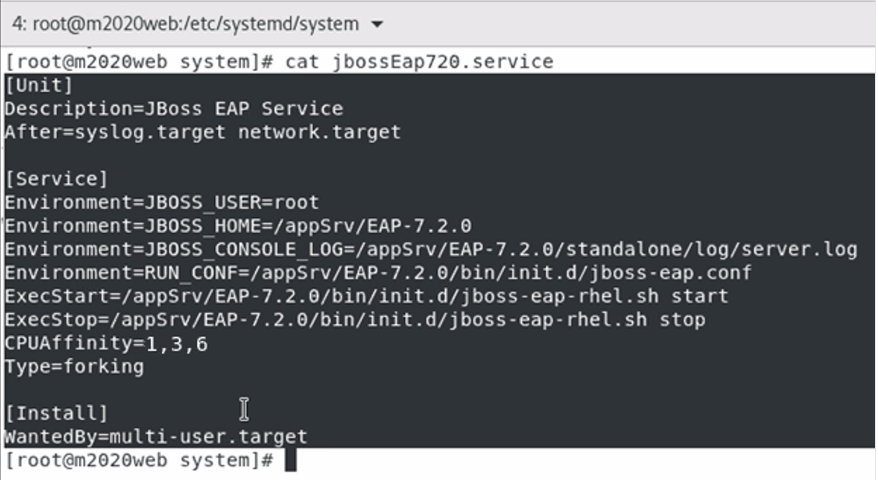
*.servicefile to add the line:
CPUAffinity=x,y,z
x,y,zare the CPU numbers of the CPUs that will be used by this service. In the case below, the CPU affinity is being set to 1 because the license key used only allows 1 CPU.

Systemctl daemon-reload

If the process shows that it is using the selected CPUs as per the CPU Affinity, you are done.
WARNING:
The third-party product(s) discussed in this technical note is manufactured by vendors independent of Strategy. Strategy makes no warranty, express, implied or otherwise, regarding this product, including its performance or reliability.
