After exporting, it is possible to see images like these:
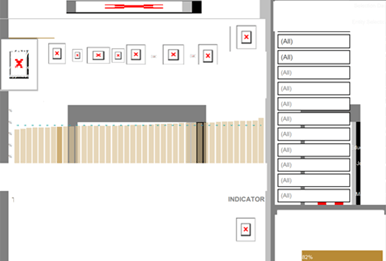

It is visible that the expected output images are replaced by a red cross in this case. Exporting multiple times or refreshing the project or cube won’t change the behavior.
When we look to the NewExportEngine.log file, we can see an error like the following:
YYYY-MM-DD HH:MM:SS.XXX+XX:XX [HOST:HOSTNAME][SERVER:CastorServer][PID:9744][THR:10876][Export Engine][Error][UID:14789FC14C7366F3F2024B8D8EB9E16D][SID:76EC4E3717B0E5A64B60398122184F41][OID:ACE8D02A4DE734F32AC2DB9DCDFA2A2F][PdfGenUtil.cpp:278] URL is blocked by WhiteList: <PATH OR WEB LINK> .
After this error message, usually we will get another message from the NewExportEngine.log indicating a successful PDF export:
CDSSExporter::ExportDocument3: Document name *Title of the document, id ACE8D02A4DE734F32AC2DB9DCDFA2A2F, format 1, SUCCESS.
This makes sense since the PDF was generated according to the algorithm at a code level, unfortunately for us, the images were not correctly processed.
As it is indicated in the error message, the problem comes from a URL blocked, the message means that it is needed to add the URL to the whitelist, this URL could be a network URL or a local path.
It is possible to see the blocked URL in the NEEBlockedURL.log. In any case it is necessary to modify the allowed URLs going to the Project Preferences > Project defaults > Security > Allow URLs to Export.

The new URL or path to add will need to use a relative path or the following protocols: https://, http://, or file:///.
Strategy has provided more detailed steps to add URLs to the WhiteList in this documentation.
Note: It is important to remember to clear the Export cache using Developer, in Administration > System Monitors > Caches > Documents locating the caches with PDF or Excel format and deleting them.
