EducationSoftwareStrategy.com
StrategyCommunity

Knowledge Base

Product

Community

Knowledge Base

TopicsBrowse ArticlesDeveloper Zone

Product

Download SoftwareProduct DocumentationSecurity Hub

Education

Tutorial VideosSolution GalleryEducation courses

Community

GuidelinesGrandmastersEvents
x_social-icon_white.svglinkedin_social-icon_white.svg
Strategy logoCommunity

© Strategy Inc. All Rights Reserved.

LegalTerms of UsePrivacy Policy
  1. Home
  2. Topics

KB484049: Impact of Microsoft Active Directory Changes on MicroStrategy Installations


Community Admin

• Strategy


This article explains how the new AD security update will impact MicroStrategy installations using LDAP authentication based on AD.

Microsoft announced (ADV190023) that they intend to release a security update via a Windows update that will enable hardening LDAP channel binding and LDAP signing for their Active Directory (AD) product. This anticipated update will be available in March of 2020. 

What does the AD update mean for Strategy installations?


If your installation uses LDAP authentication based on Active Directory, then you must ensure that AD is configured to use LDAPS. For 2020 installations, Strategy recommends that administrators use Workstation to establish the LDAPS configuration.
For installations of Strategy 2019 or earlier, Strategy recommends that administrators configure LDAPS through Developer. Alternatively, LDAPS connections can be established directly through AD administration facilities.
 
Strategy strongly recommends that any AD installation currently using LDAP upgrade the AD connection to LDAPS in preparation for this security change. Alternatively, you can disable LDAP signing. For steps to disable LDAP signing, click here.

How to Establish LDAPS Connection and Binding Using Workstation


The following steps are only available for installations of Strategy 2020. This is the recommended connection method for 2020 installations.
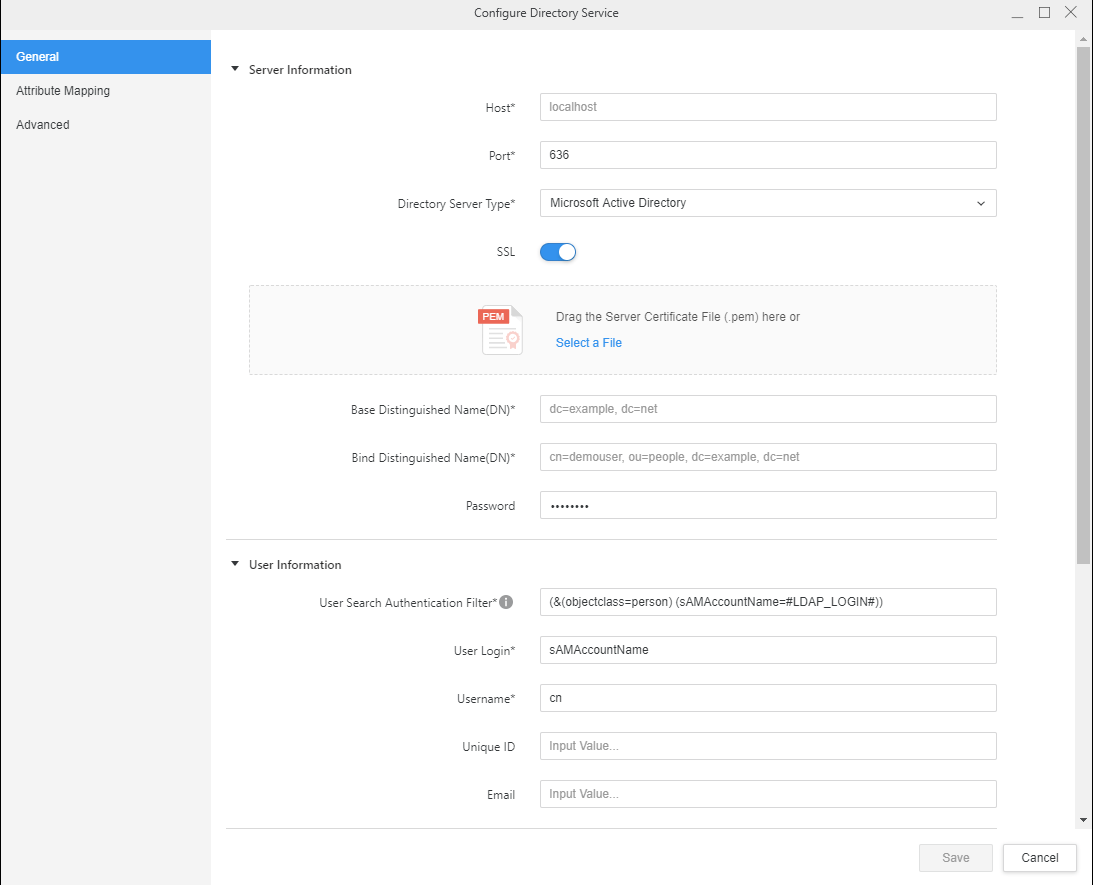
  • Open Strategy Workstation 2020.
  • In the Navigation pane, click Environments.
  • Right-click your connected environment and choose Directory Service > Configure Directory Service.
  • In the General tab, use the toggle to enable SSL. 
ka04W000001IwuDQAS_0EM2R000000nxHo.jpeg
  • Upload the SSL certificate.
    • If the Intelligence Server is on Windows, the required SSL certificate should already be in the machine trust store, no further action should be needed. If the certificate was not previously loaded, see KB13041.
    • If the Intelligence Server is on Linux, copy the Base-64 encoded .pem file to the drop zone to upload the certificate.
  • Click Save.


How to Establish LDAPS Connection and Binding Using Developer


This is the recommended connection method for installations of Strategy 2019 or earlier.
For steps to use Developer, see KB13041.


Comment

0 comments

Details

Knowledge Article

Published:

February 19, 2020

Last Updated:

February 25, 2020