EducationSoftwareStrategy.com
StrategyCommunity

Knowledge Base

Product

Community

Knowledge Base

TopicsBrowse ArticlesDeveloper Zone

Product

Download SoftwareProduct DocumentationSecurity Hub

Education

Tutorial VideosSolution GalleryEducation courses

Community

GuidelinesGrandmastersEvents
x_social-icon_white.svglinkedin_social-icon_white.svg
Strategy logoCommunity

© Strategy Inc. All Rights Reserved.

LegalTerms of UsePrivacy Policy
  1. Home
  2. Topics

KB485390: Importing Prompt Values from a File


Community Admin

• Strategy


This Knowledge Base article describes importing prompt values from a file.

Starting with the release of Strategy ONE (March 2024), dossiers are also known as dashboards.
Steps to import prompt values from a file

  1. Prepare file with the answers. The saved file must be a .txt, .csv or Excel file format (.xls, .xlsx).
  • If it's a text file (.txt), uploaded values should be separated with ;.
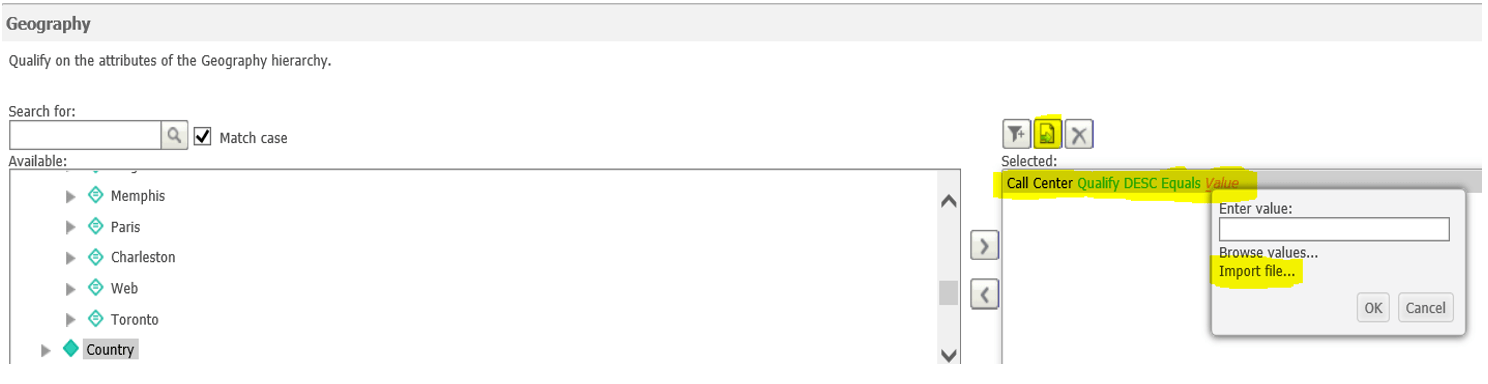
  1. Open a dataset/dossier with the feature to upload answers from files. 
  • When this feature is enabled, the additional icon appears at the top of the prompt answers' window.
ka0PW0000001JhHYAU_0EM4W000004YUhK.jpeg
  • You can import prompt values for:
    • Hierarchy prompts, in which the user selects a hierarchy from a drop-down list, and then select an attribute to create a filter for the attribute.
    • Attribute Qualification prompts, in which the user creates a filter based on an attribute.
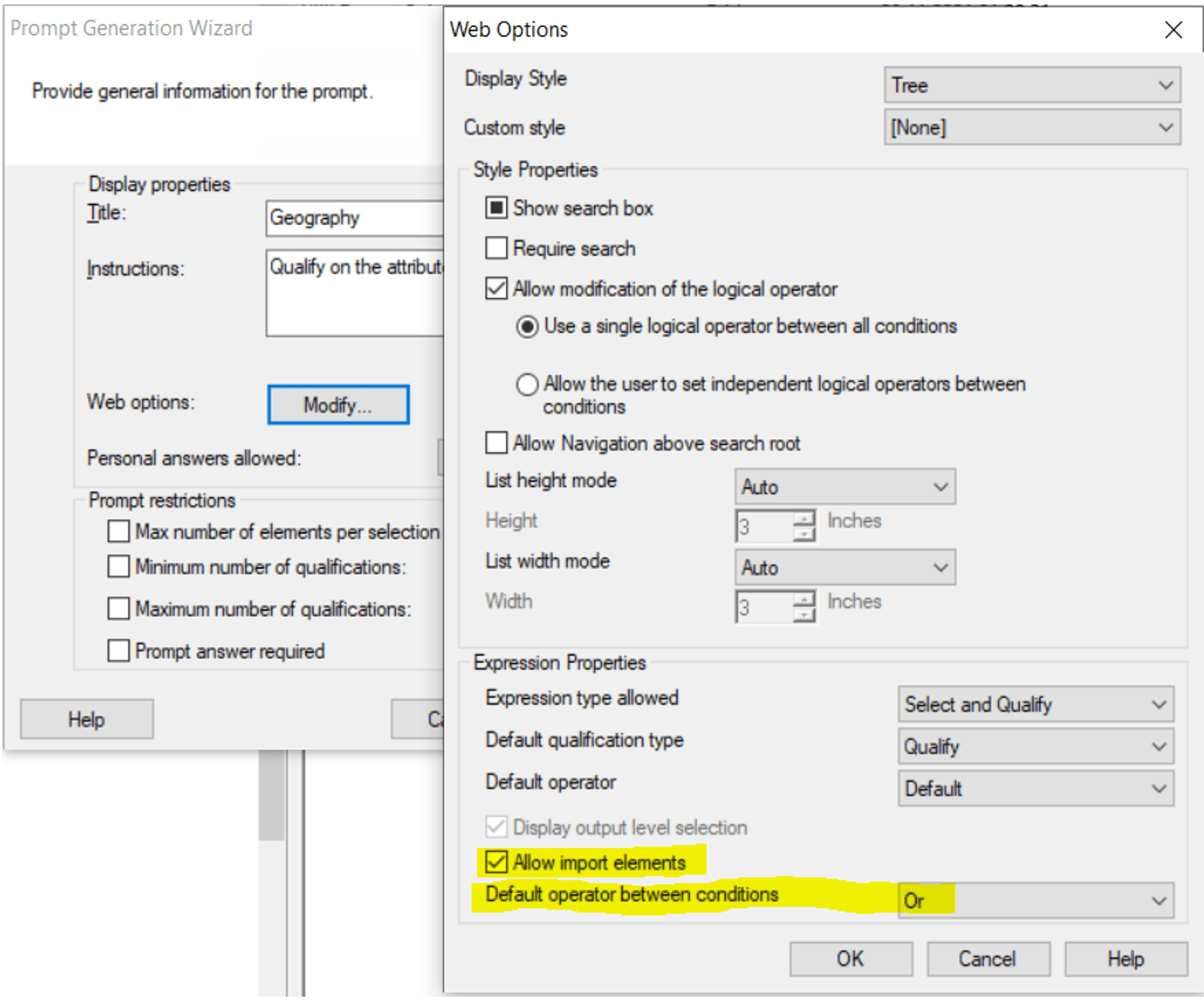
  • To enable importing prompt values, the ‘allow import elements’ in the Web options of prompt should be selected. There is also additional setting regarding the default operator between conditions. 
ka0PW0000001JhHYAU_0EM4W000004YUhF.jpeg
  1. Select the correct attribute and attribute form, to which you would like to upload answers.
  • For hierarchy prompt Geography, select attribute Call Center and attribute form DESC (Qualify DESC In/Equals Values Uploaded from File).
  • It's important to select the right attribute form and operators, which matches the format of the uploaded answers from the files. Please check the example below.

Example - how to import file with answers to the hierarchy prompt

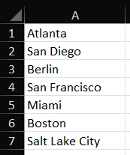
  1. Values in the uploaded Excel file. 
ka0PW0000001JhHYAU_0EM4W000004YUfT.jpeg
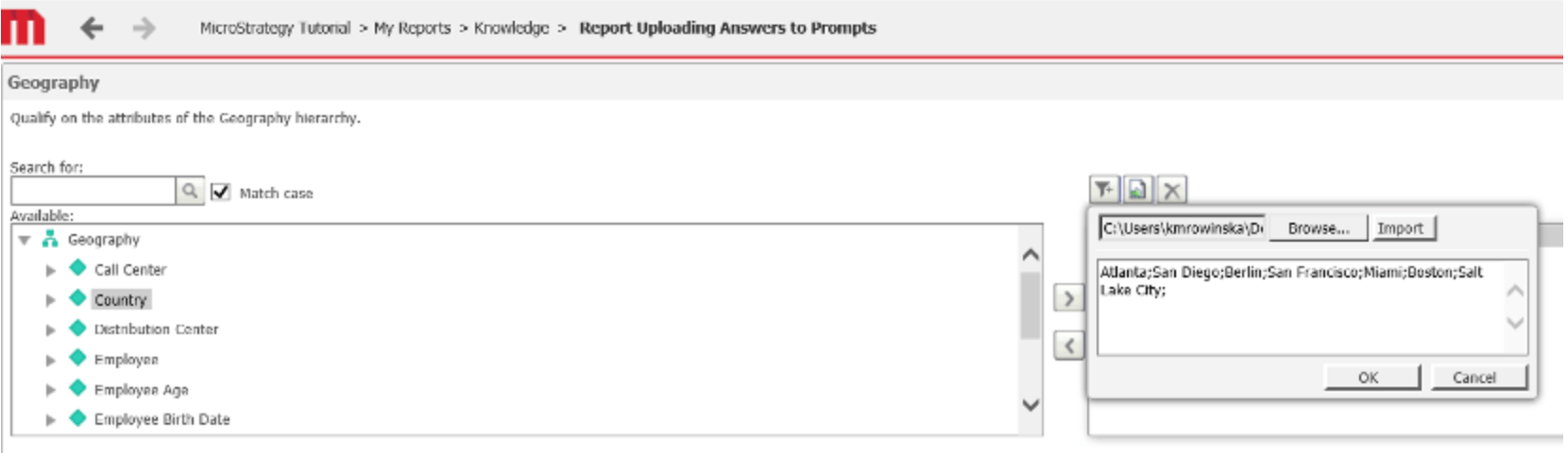
  1. Prompt screen of the dataset with importing prompt values from a file enabled. 
ka0PW0000001JhHYAU_0EM4W000004YUhU.jpeg
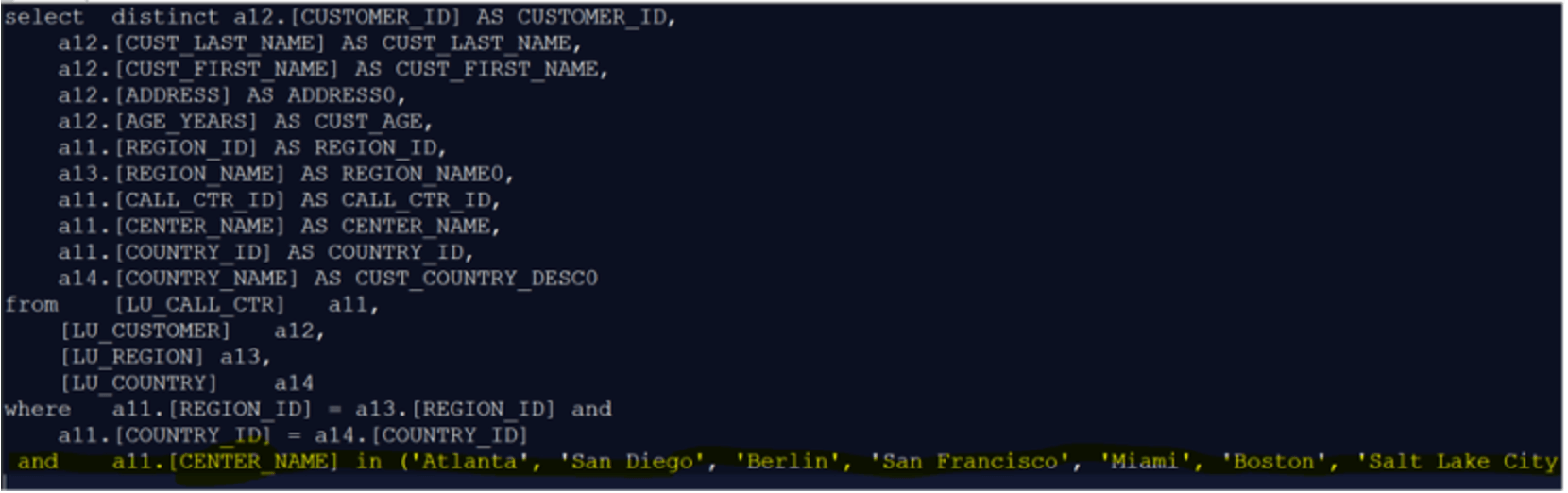
  1. SQL generated from the dataset with the uploaded values added to the condition after WHERE. 
ka0PW0000001JhHYAU_0EM4W000004YUhZ.jpeg

If the format of the uploaded answer doesn't correspond with the selected attribute, report/dossier won't return data, e.g., if description form is selected (varchar) as an attribute form and answers are codes (numeric values), data won't be returned.
 

Related content

Importing Prompt Values from a File - tutorial video


Comment

0 comments

Details

Knowledge Article

Published:

March 9, 2022

Last Updated:

March 21, 2024