EducationSoftwareStrategy.com
StrategyCommunity

Knowledge Base

Product

Community

Knowledge Base

TopicsBrowse ArticlesDeveloper Zone

Product

Download SoftwareProduct DocumentationSecurity Hub

Education

Tutorial VideosSolution GalleryEducation courses

Community

GuidelinesGrandmastersEvents
x_social-icon_white.svglinkedin_social-icon_white.svg
Strategy logoCommunity

© Strategy Inc. All Rights Reserved.

LegalTerms of UsePrivacy Policy
  1. Home
  2. Topics

KB484388: Importing data through File from Disk results in an import error


Qiuyun Wu

Software Engineer • MicroStrategy


This article addresses the import error encountered when importing data from a file from disk. This article also describes how to troubleshoot to avoid this error.

Description 


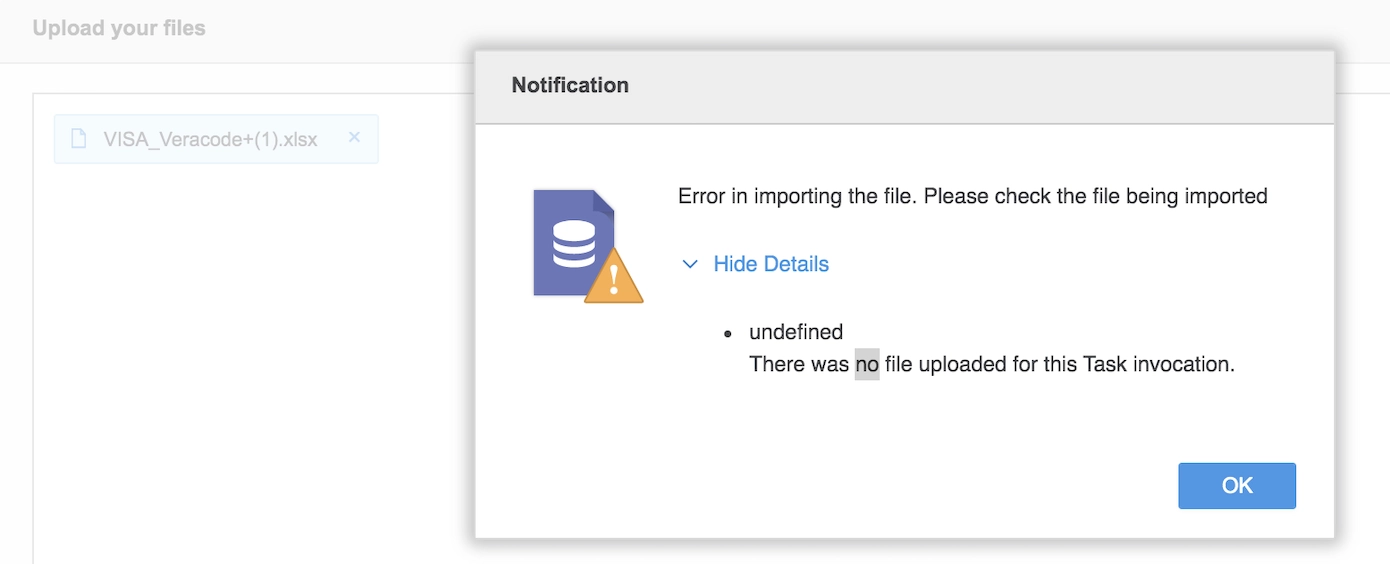
When importing data through File from Disk, you may encounter the following import errors: 
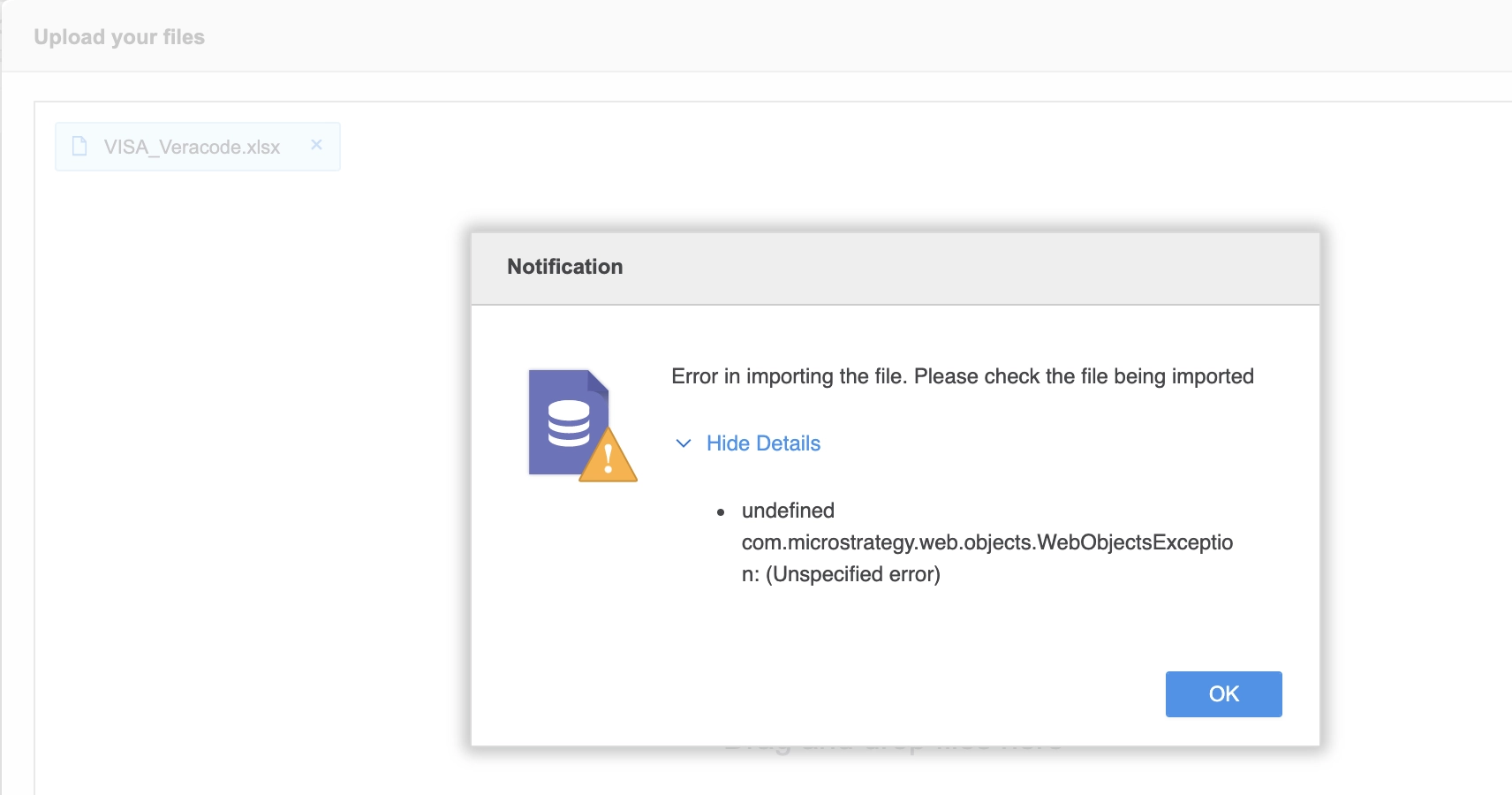
  • undefined. com.Strategy.web.objects.WebObjectsExpectation: (Unspecified error)
ka0PW0000000uOnYAI_0EM2R000001I2n5.jpeg
  • undefined. There was no file uploaded for this Task invocation. 
ka0PW0000000uOnYAI_0EM2R000001I2nU.jpeg

Steps to reproduce 


When there is no space for the Web server to use, the following steps will cause the issue: 

  1. Log in to Strategy Web.
  2. Click Create > Add External Data > File from Disk. 
  3. Upload a file and click Finish. 

Why is this happening? 

This may be caused by the lack of space on the Web server. You can check your disk space for the Web server or follow step 1 in the following Solution section to diagnose the cause of the issue in your environment.
 

Solution 

  • Check the MSTR log from the Web server (For tomcat, you can find it under
    PathOfTomcat\webapps\MicroStrategy\WEB-IN\log
    ).
    1. Check if the following exists in the MSTR log:
      java.io.IOException: No space left on device
      . 
    2. Here's an example: 
      
      <record>
        <package>com.Strategy.web.app.platform</package>
        <level>SEVERE</level>
        <miliseconds>1591540506989</miliseconds>
        <timestamp>06/07/2020 14:35:06:991</timestamp>
        <thread>370</thread>
        <class>HttpServletContainerServices</class>
        <method>getMultipartRequest</method>
        <message>java.io.IOException: No space left on device</message>
      </record>
      <record>
        <package>com.Strategy.webapi</package>
        <level>SEVERE</level>
        <miliseconds>1591540506997</miliseconds>
        <timestamp>06/07/2020 14:35:07:007</timestamp>
        <thread>370</thread>
        <class>CDSSXMLReportServer</class>
        <method>ImportCube</method>
        <message>(Unspecified error) (com.Strategy.webapi.MSTRWebAPIException)</message>
        <exception>com.Strategy.webapi.MSTRWebAPIException: (Unspecified error)
      	at com.Strategy.webapi.CDSSXMLReportServer.ImportCube(Unknown Source)
      	at com.Strategy.web.objects.WebRepo

  • If you find the same error in the MSTR log as in Step 1, please create space for the Web Server.
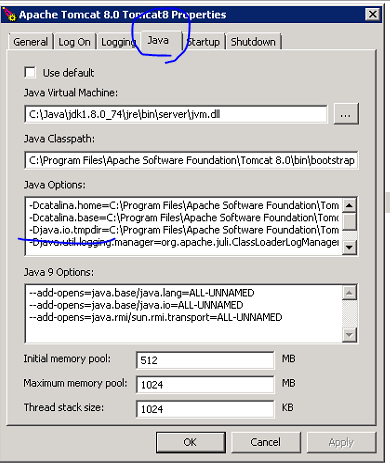
    • For a Windows environment, the default
      temp
      folder is defined by the java parameters. 
      • Djava.io.tmpdir=/some/directory

ka0PW0000000uOnYAI_0EM2R000001I4aN.jpeg
    • For a Linux environment, the
      temp
      folder can be found in the java parameters,
      Djava.io.tmpdir
      , which is defined in
      sentenv.sh
      under
      bin
      folder in Tomcat. 
      • If there's no
        Djava.io.tmpdir
        in
        setenv.sh
        , the system temp folder, 
        /tmp, 
        will be used. 

Comment

0 comments

Details

Knowledge Article

Published:

July 8, 2020

Last Updated:

February 26, 2024