EducationSoftwareStrategy.com
StrategyCommunity

Knowledge Base

Product

Community

Knowledge Base

TopicsBrowse ArticlesDeveloper Zone

Product

Download SoftwareProduct DocumentationSecurity Hub

Education

Tutorial VideosSolution GalleryEducation courses

Community

GuidelinesGrandmastersEvents
x_social-icon_white.svglinkedin_social-icon_white.svg
Strategy logoCommunity

© Strategy Inc. All Rights Reserved.

LegalTerms of UsePrivacy Policy
  1. Home
  2. Topics

KB439891: In a MicroStrategy dossier, users do not see the Share options to link to Library


Community Admin

• Strategy


This Knowledge Base article addresses an issue where users do not see the Share options in Visual Insight.

Starting with the release of Strategy ONE (March 2024), dossiers are also known as dashboards.

Description


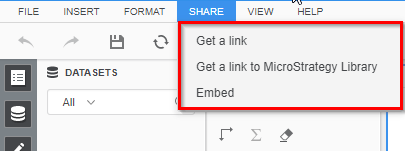
When viewing a Dossier In Strategy Web and clicking on 'Share' from the toolbar, some users may not see the following three options available:


“Get a link”
“Get a link to Strategy Library”
“Embed”
ka0PW0000001JfNYAU_0EM44000000YWX1.png


Why is this happening?

The Share options may not be visible for two possible reasons:

  • Strategy Scheduler is turned off
  • This particular User/User Group does not have the privilege 'Web subscribe to history list' (KB439878: In MicroStrategy 10.9 Visual Insight, users do not see the Share options )

Solution

Option 1 (Scheduler is turned off)

Enable the Scheduler through Strategy Developer. You can access this setting through the following steps:
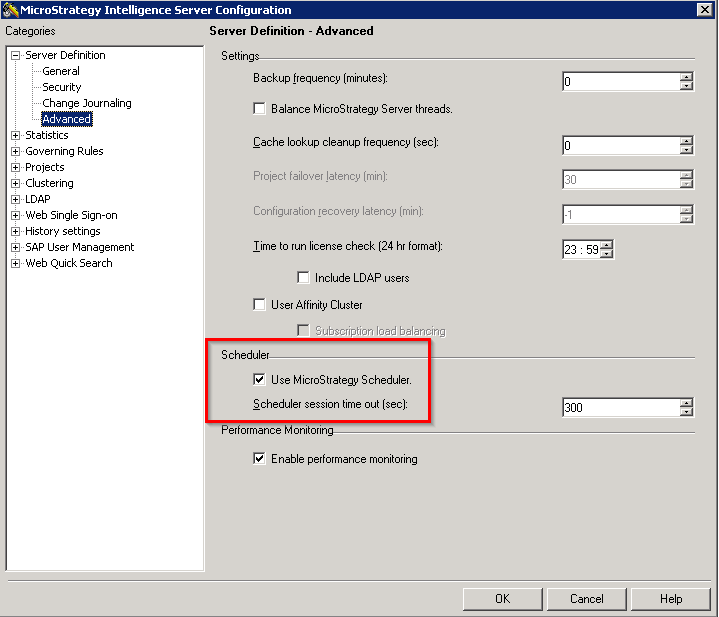
  1. Log in to your Project Source
  2. Right-click on the Project Source and choose 'Intelligence Server Configuration'
  3. Within Categories, browse into 'Server Definition' and choose the 'Advanced' subcategory


ka0PW0000001JfNYAU_0EM44000000YWX6.png


Option 2 (User does not have correct privileges)


Enable the 'Web subscribe to history list' privilege through Strategy Developer. You can do so by following these steps:
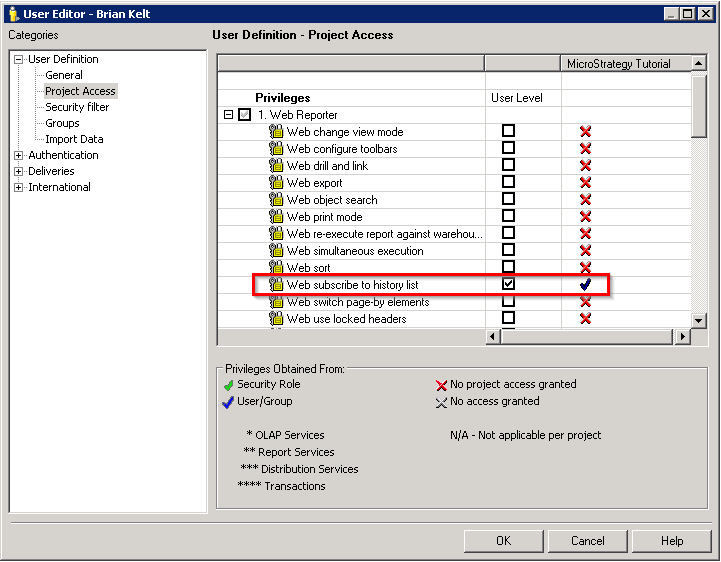
  1. From Strategy Developer, log in to your Project Source
  2. Under the 'Administration' section, browse into 'User Management' and right-click > edit the user/user group requiring this privilege
  3. Within Categories, browse into User Definition and choose the subcategory 'Project Access'
  4. This privilege is listed under '1. Web Reporter'
ka0PW0000001JfNYAU_0EM2R000000lf3W.jpeg

Comment

0 comments

Details

Knowledge Article

Published:

March 9, 2018

Last Updated:

March 21, 2024