EducationSoftwareStrategy.com
StrategyCommunity

Knowledge Base

Product

Community

Knowledge Base

TopicsBrowse ArticlesDeveloper Zone

Product

Download SoftwareProduct DocumentationSecurity Hub

Education

Tutorial VideosSolution GalleryEducation courses

Community

GuidelinesGrandmastersEvents
x_social-icon_white.svglinkedin_social-icon_white.svg
Strategy logoCommunity

© Strategy Inc. All Rights Reserved.

LegalTerms of UsePrivacy Policy
  1. Home
  2. Topics

KB483752: In Web, when SAML OKTA trusted authentication is enabled and a user session times out while interacting with a dossier, users will be sent to a standard log in page


Neelima Yelisetty

Quality Architect • MicroStrategy


This article explains a known defect in Web 10.11 and how to workaround the problem.

Starting with the release of Strategy ONE (March 2024), dossiers are also known as dashboards.

Description


When SAML OKTA trusted authentication is enabled and a user's session on the Intelligence Server expires while working on a dossier, they will be taken to a standard log in page instead of the SAML OKTA log in page.

Steps to Reproduce

  1. Set up your environment with SAML OKTA trusted authentication.
  2. Log in to Strategy Web 10.11.
  3. Run a dossier.
  4. Wait for the session to timeout or disconnect the user session using the User Connection Monitor in Developer. For more information on this tool, see the System Administrator Help.
  5. Once the session has timed out, interact with the dossier. Notice the user page redirects to a standard log in page.

Why is this happening?


This is an identified defect in Strategy Web 10.11.

Solution


This defect has been addressed in Strategy 2020 Update 2. Please upgrade to Strategy 2020 Update 2 or later versions to take advantage of this fix. 

Workaround

  • Open the Web Admin page.
  • Under Security, select the Allow automatic login if session is lost checkbox.
ka0PW0000001JduYAE_0EM2R000000mYH9.jpeg
  • Click Save.
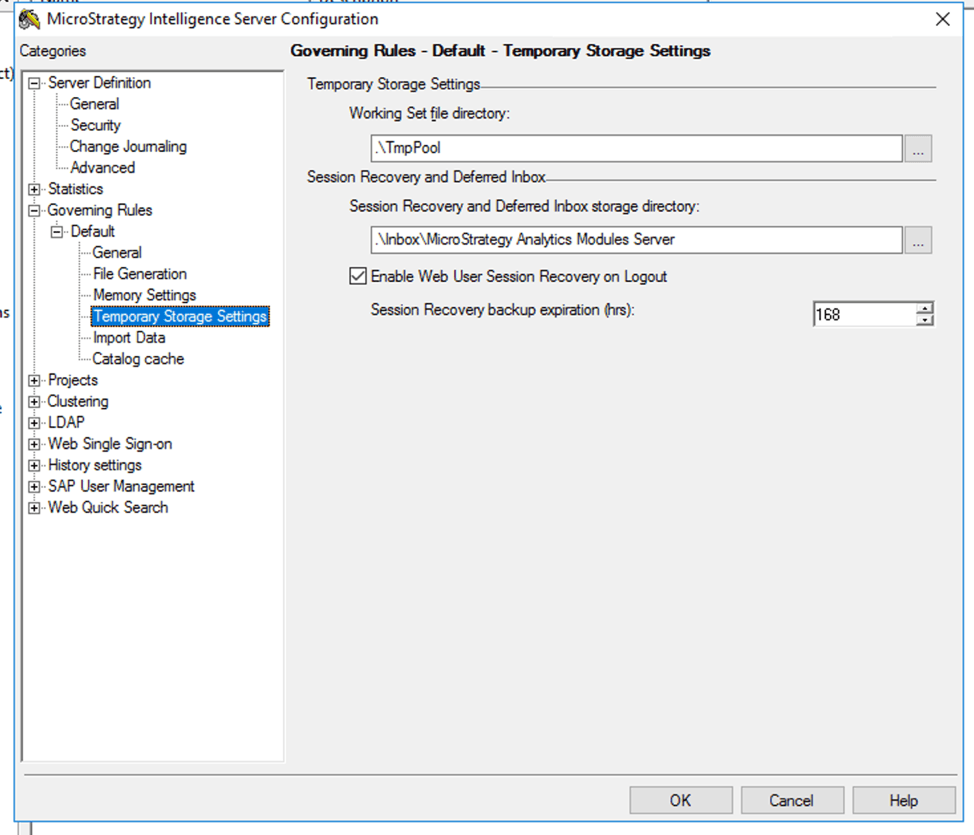
    At this point, users will automatically be logged back in when a session times out. However, if they are working on a dossier when the session times out, it will be lost. To avoid this situation, it's recommended to enable the Web User Session Recovery on Logout setting.
  • Open Strategy Developer.
  • Open the Strategy Intelligence Server Configuration window and select Governing Rules > Default > Temporary Storage Settings.
ka0PW0000001JduYAE_0EM2R000000mYHs.jpeg
  • Select the Enable Web User Session Recovery on Logout checkbox. For more information on this setting, see KB302259.
  • Click OK.
  • Restart the Intelligence Server.


Now if the session time expires, users will be automatically logged back in to the environment and any lost dossiers can be restored to their original state.
Note: If you are a 3rd party user and not a mapped metadata user, you can still use the Allow automatic login if session is lost checkbox to stop the standard log in page from appearing. You will see an error when the session times out, but if you click OK you will be logged back in to the environment. However, as a 3rd party user, you cannot restore any lost dossiers.


Comment

0 comments

Details

Knowledge Article

Published:

October 25, 2019

Last Updated:

March 21, 2024