SYMPTOM:
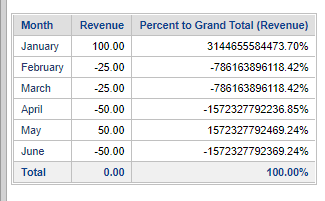
Users observe that large percentages are returned for a Percent to Total metric, but that the Grand Total is zero. As dividing by zero is mathematically impossible, we would expect a null or empty value to be returned for the Percent to Total.
CAUSE:
Due to a floating point rounding error, the Total is not a true zero. If the metric values are formatted to show additional decimal places to the right, there are non-zero values in the Total. When the Percent-to-Total is then calculated, zero is not in the denominator, resulting in the large, incorrect percentages.
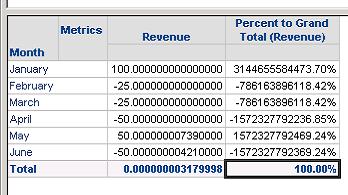
For additional information regarding floating point rounding errors in Strategy, refer to KB000038662.
WORKAROUND:
The following workarounds can be applied so that a non-zero Total caused by a floating point rounding error is handled as zero. In the case of Percent to Total, the zero should be converted to a null value as dividing by zero is mathematically impossible. (Strategy has a Zero Check property to prevent a division by zero error, described here.)
Option 1: Apply Round2 to the denominator of the Percent-to-Total metric:
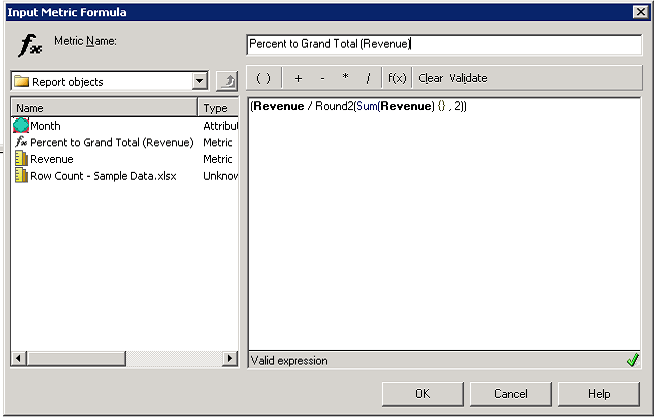
Example Metric Definition: Revenue/Round2(Sum(Revenue){}, 2)
When the rounding is applied, the non-zero Total will be rounded to a true zero. This results in cross-tab nulls. In Developer, the display settings for null values can be adjusted through Report Data Options.
Option 2: Create a "Total" metric to be used in a Case statement
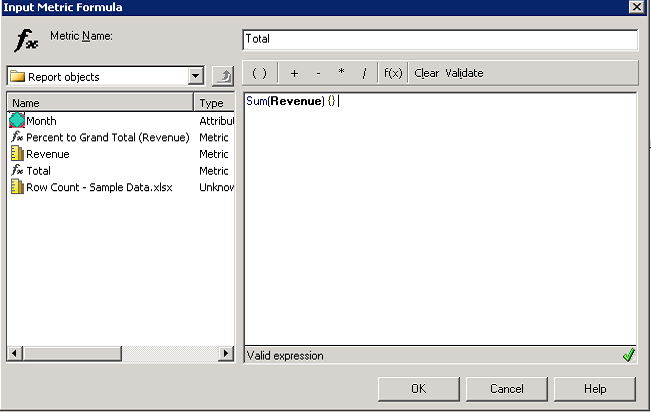
Use the Total metric in a Percent to Total metric with the following definition:
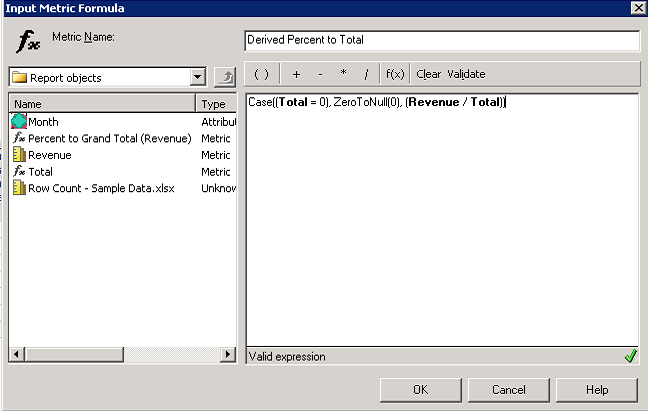
Example Metric Definition: Case((Total = 0), ZeroToNull(0), (Revenue / Total))
In Option 2, we have seen scenarios where the non-zero value is evaluated at a precision lower than the Zero Check, allowing the Case statement to evaluate as true, invoking the ZeroToNull function. If this does not work for your specific scenario, consider using Option 1.
Contact Strategy Technical Support if neither workaround provided resolves the issue.
KB441992
