EducationSoftwareStrategy.com
StrategyCommunity

Knowledge Base

Product

Community

Knowledge Base

TopicsBrowse ArticlesDeveloper Zone

Product

Download SoftwareProduct DocumentationSecurity Hub

Education

Tutorial VideosSolution GalleryEducation courses

Community

GuidelinesGrandmastersEvents
x_social-icon_white.svglinkedin_social-icon_white.svg
Strategy logoCommunity

© Strategy Inc. All Rights Reserved.

LegalTerms of UsePrivacy Policy
  1. Home
  2. Topics
  3. Indian Premier League

Indian Premier League


Harpreet Kaur

MicroStrategy Consultant • Nice Software Solutions


This stunning design depicts the data and results from the just concluded IPL. Relive the season now that the final has been done. It focuses on the players' batting and bowling statistics, as well as the Purple and Orange cap holders. Vaishnavi Kalbande and Hatim Ali from Nice Software Solutions have done an outstanding job in articulating it.

SYMPTOM:
In Strategy Web 9.2.x, multiple thresholds defined on the same metric do not take effect when running a report.
STEPS TO REPRODUCE:
Follow the steps below to reproduce the issue with Strategy Tutorial project:

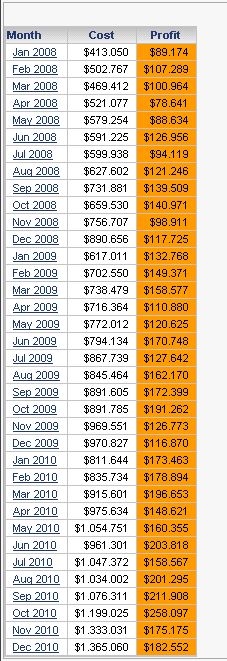
  1. In Strategy Web, create a report with attribute Month in the row an metrics Cost, Profit in the column.
  2. Run the report created at step 1 in Strategy Web, right click metric Profit and select Threshold>Advanced.
  3. Define two thresholds in Advanced Threshold Editor, one based on metric Cost the other based one metric Profit, as shown below:
ka04W000000OdrSQAS_0EM44000000277e.jpeg
  • Apply the thresholds and note that only the first thresholds takes effect, as shown below:
ka04W000000OdrSQAS_0EM44000000277d.jpeg

 
CAUSE:
This working by design. When multiple thresholds based on different metric values are defined on the same metric, only the formatting of the first threshold can be applied. 
 
WORKAROUND:
Follow steps below to use custom formatting to change metric color according to metric values.
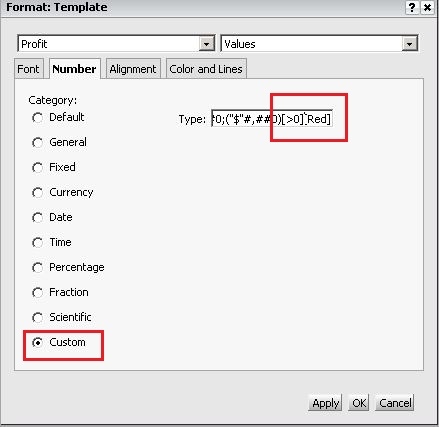
  1. Right click metric Profit and select "Advanced Formatting". Go to Number tab and select Profit>Values, change the Category to "Custom".
  2. In the Type text box, add "" after the condition formatting defined, such as "", as shown below:
ka04W000000OdrSQAS_0EM44000000277f.jpeg

 
Note: For now, only eight colors (Black. Blue, Cyan, Green, Magenta, Red, White, Yellow) are supported in custom formatting.
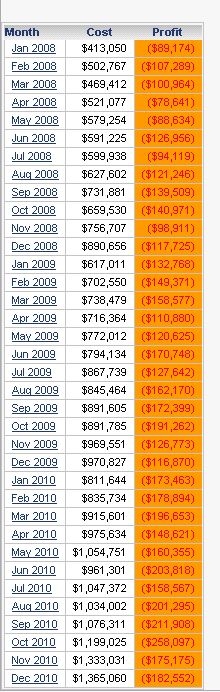
  • Note that the formatting of Profit value is changed, as shown below:
ka04W000000OdrSQAS_0EM44000000277c.jpeg

Comment

0 comments

Details

Example

Published:

June 21, 2022

Last Updated:

June 21, 2022