EducationSoftwareStrategy.com
StrategyCommunity

Knowledge Base

Product

Community

Knowledge Base

TopicsBrowse ArticlesDeveloper Zone

Product

Download SoftwareProduct DocumentationSecurity Hub

Education

Tutorial VideosSolution GalleryEducation courses

Community

GuidelinesGrandmastersEvents
x_social-icon_white.svglinkedin_social-icon_white.svg
Strategy logoCommunity

© Strategy Inc. All Rights Reserved.

LegalTerms of UsePrivacy Policy
  1. Home
  2. Topics

KB484184: Initializing the Amazon S3 connector causes MicroStrategy Web 2020 to hang


Mengran (Molly) Wang

Senior Cloud Support Engineer III • MicroStrategy


This article explains why the page hangs when using the Amazon S3 connector to add external data in MicroStrategy Web 2019 and 2020. This article also provides a solution to avoid this behavior.

Description


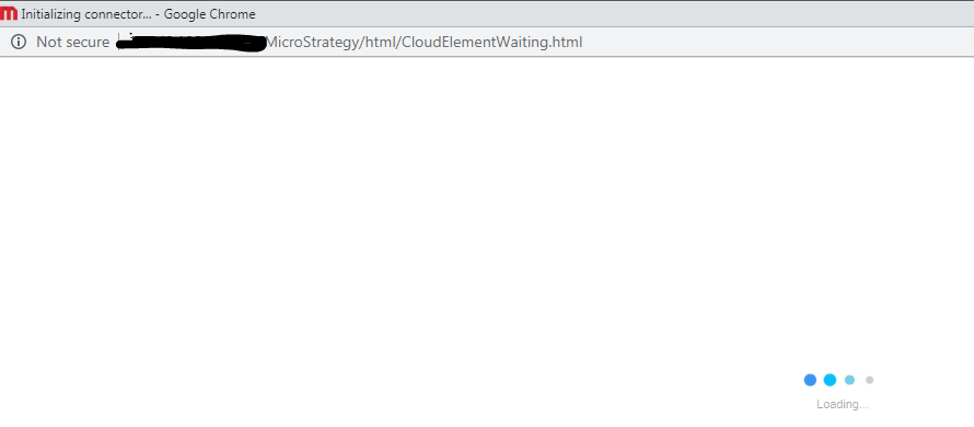
When adding external data in Strategy Web 2019 or 2020, selecting the Amazon S3 connector may cause the page to hang and not direct you to the configuration page.

ka02R000000g7GAQAY_0EM2R0000019WpI.jpeg
ka02R000000g7GAQAY_0EM2R0000019WpN.jpeg


In the fiddler log, the 

DIGetCloudElementToken
task returns a 505 error and the following response header:
X-MSTR-TaskFailureMsg: You have entered an invalid name.

ka02R000000g7GAQAY_0EM2R0000019WpS.jpeg


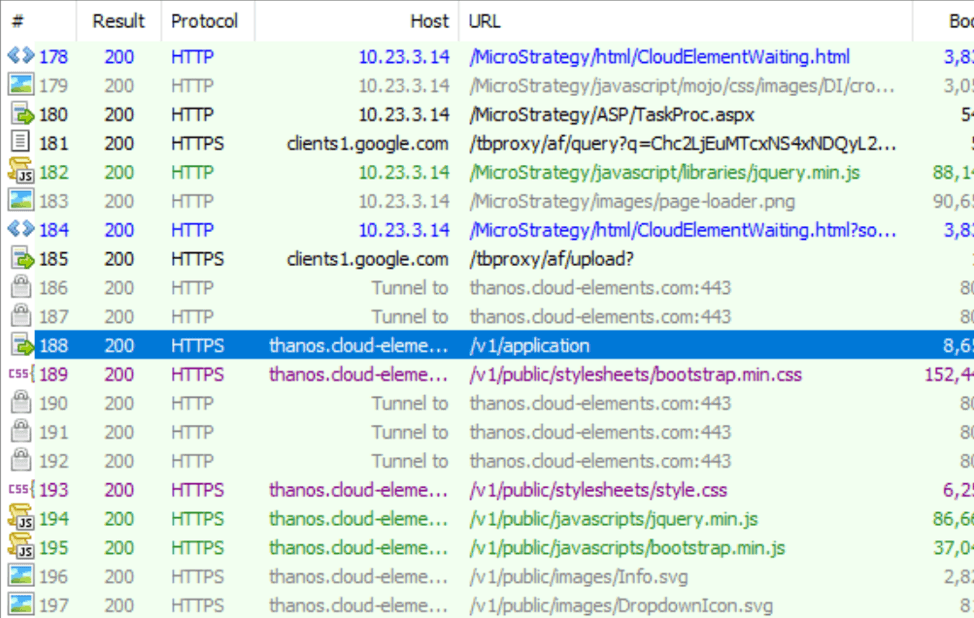
However, in the fiddler log collected in-house where the issue does not exist, there are queries from https://thanos.cloud-elements.com/v1/application to generate the token.
ka02R000000g7GAQAY_0EM2R0000019WpX.jpeg

Why is this happening?


The Amazon S3 connector is hosted by a vendor. When you are unable to see the connector page, it usually means it failed to create a corresponding account or user on Cloud Elements platform.

Solution


Make sure https://thanos.cloud-elements.com/v1/application is accessible in both the Intelligence Server machine and client machine. When it’s accessible, you will see the following browser:

ka02R000000g7GAQAY_0EM2R0000019Wpc.jpeg

In a Linux machine:

ka02R000000g7GAQAY_0EM2R0000019Wph.jpeg

You can also check the DSSErrors log in both the Intelligence Server and client machines.
In both the Intelligence Server and client machines, whitelist https://thanos.cloud-elements.com.


Comment

0 comments

Details

Knowledge Article

Published:

April 12, 2020

Last Updated:

April 12, 2020