
In early 2019, Strategy introduced the next wave in Analytics with the HyperIntelligence Chrome Extension, bringing zero-click analytics to web applications such as Office 365, Google, and Salesforce. Today, we are excited to provide our latest innovation within the Mobile Analytics space, HyperIntelligence for Mobile. HyperIntelligence for Mobile is the latest product within the HyperIntelligence family, delivering zero-click analytics right to your favorite mobile devices to ensure you get the insights you need any time, any place.
What is HyperIntelligence for Mobile for iOS?
Imagine you are a Sales Representative for a top retail company. In sales, you are constantly on the move, traveling to different places to market products to potential customers around the globe. You constantly need information on the teams that will be on-site during the visit, as well as prospect information so you are well prepared to lead the meetings.
Rather than taking the time to open your laptop and search the web to find information, what if the answers automatically delivered to your mobile device?
Strategy HyperIntelligence for Mobile is an iOS application that allows you to access cards on your mobile devices. The application enables cards to appear across your mobile devices with the specific information of your choosing - from employee and client data to sport statistics across the NFL or NBA. With HyperIntelligence for Mobile, the time it takes fo find information is significantly reduced, giving you more time to make better business decisions and increase productivity.
What data can I use for HyperIntelligence for Mobile?
HyperIntelligence for Mobile surfaces cards on your mobile device, combining information from multiple enterprise data sources. Strategy's large library of native gateways and drivers enables Strategy applications to easily access data from a variety of enterprise resources including databases, enterprise directories, cloud applications, and more. Feel free to use the data of your choosing, or a combination of multiple sources that create the most valuable card. This saves you the time of opening multiple applications such as Salesforce, Workday and Outlook - it's all in one place.
How can I view HyperIntelligence cards with Calendar or Reminders on Mobile?
The cards you create using Workstation can be consumed across all iOS devices. One of the most impactful ways to utilize the HyperIntelligence for Mobile functionality is to connect your corporate accounts to your native iOS Mail app. This enables all of your meetings and events to sync with the native Calendar and Reminder applications on your device. The HyperIntelligence app connects to both the Calendar and Reminder applications, pushing notifications to send relevant information.

Note: As a user, you will not see any underlines like the HyperIntelligence Chrome Extension. The cards will only be displayed from the mobile app and notifications. Mobile push notifications based on the iOS Calendar and Reminder apps, not downloaded calendar applications.
For example, let's say I have a meeting in 20 minutes with my new consulting team and a few representatives from the Client's headquarters. On my way to the meeting, I can easily view all of the data on the client and new team through the alert notification. This allows me to be more prepared going into the meeting.
Tip: When you download the HyperIntelligence mobile application from the App Store, the application will ask you for permissions to your native Calendar application. By allowing this permission to the app, the card notifications will automatically be synced. You are now ready for Calendar and Reminder cards on-the-go.
Are there any other ways to view the cards on my mobile device?
In addition to the native Calendar integration, you can view your HyperIntelligence cards through the native Spotlight search or straight on the mobile app. To view cards with the native Spotlight search on your device, swipe down on your home screen and start searching for keywords to get the insights you need. The keywords will allow you to view associated color-coded cards. Client Cards may be blue, while Employee Cards might be red.
Note: HyperIntelligence for Mobile will turn off the spotlight search functionality by default. Go to your settings to turn the spotlight search feature on. To enable cards for Spotlight search, go to Account > Enable cards > + Add More Cards. Check back and search for different keywords within the Spotlight search.
Tip: When you download the HyperIntelligence mobile app, the application will give you a few demo cards to start with. Try typing any Fortune 500 company (Amazon, Apple, Amazon) in the Spotlight search bar and find cards results.
What's different within the HyperIntelligence for Mobile app itself?
Within the HyperIntelligence mobile application, go to the Cards Section to view all cards that have been published for your account. The Home page allows you to conduct specific in-app searches to find information based on keywords. If you need fast information about multiple different clients, you might want to search for information directly within the application. From the app, click the Account page. The account page will enable you to view logging information, connect to a new environment, ask for help directly, or make changes to account settings. The HyperIntelligence mobile app is the one-stop source for all of your cards in one place on your mobile device.

How should I get started with HyperIntelligence for Mobile?
The first step will be to download the HyperIntelligence for Mobile App for your iOS device. Once you have the app downloaded, make sure to obtain a configuration link via email from your Administrator, or obtain an environment link to input within the Account settings. After the environment link is ready to go, login with your Strategy credentials to see the cards published for your account. Not sure what your credentials are? Ask your administrator and they can help!

How can Administrators obtain the app configuration link?
1. Administrators can obtain the the configuration link on Workstation.
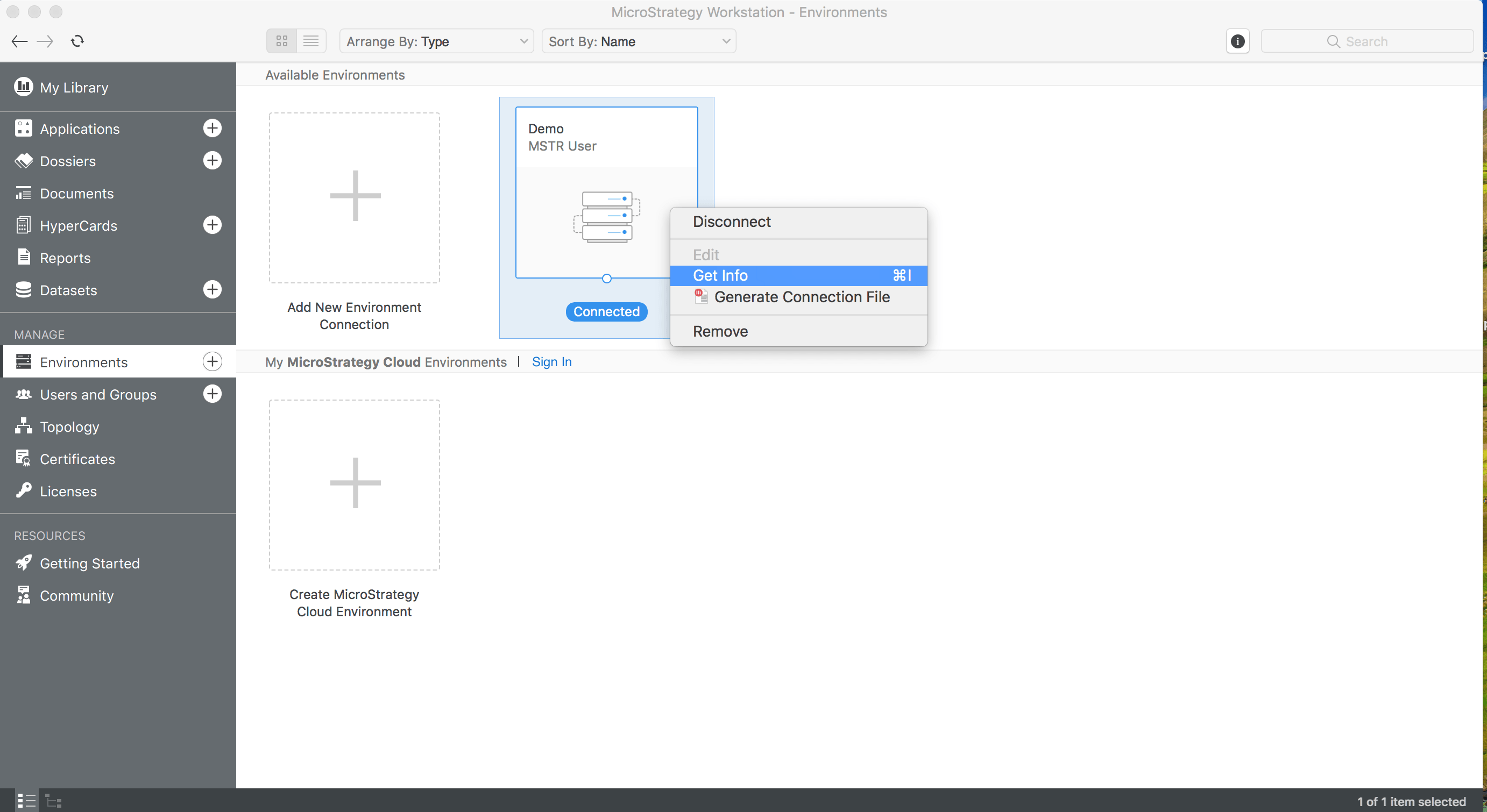
On the left pane, go to Manage > Environments.
2. Right click on the environment that you wish to configure.
3. Choose Get Info. The Properties screen will appear on Workstation.
4. Under General, you will see the following:
5. From the mobile Configuration URL, choose Full URL or Tiny URL from the drop-down menu.
6. Send this link to different clients that need the HyperIntelligence mobile configuration link.
7. Once clicking the link through email and entering Strategy credentials.
Supported Phones and Operating Systems
iPhone - Requires iOS 11 or later, 5S Device or higher.
iPad - Requires iOS 11 or later.
HyperIntelligence for Mobile is supported on Strategy 2019 and later.
To view Profile cards, make sure to update to Strategy 2019, Update 1.
Want to learn more about HyperIntelligence for Mobile?
Feel free to visit the Learning Center or visit our documentation page here!
