Strategy filters can be used to create a data set that is filtered on a rolling date range. The rolling date range can be constructed from a single prompt answer. For example, a report can be created to provide the revenue for a date selected in a date prompt and next five days, automatically.
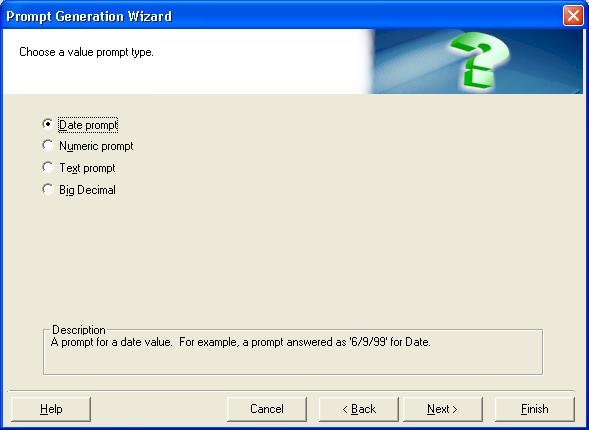
To create a report that will use a date prompt to establish a rolling date range, first create a date prompt, which is a type of value prompt. In the second screen of the value prompt, the user can select 'Date prompt', as shown below:
Next, users must create an attribute qualification filter that should be based off of the day attribute. The filter should qualify on the attribute form that has a date or datetime format of the day attribute and the Operator should be set to "Between" causing the appearance of two text fields. Both of the text fields should be set to custom so that applysimple statements can be inserted, as shown below:
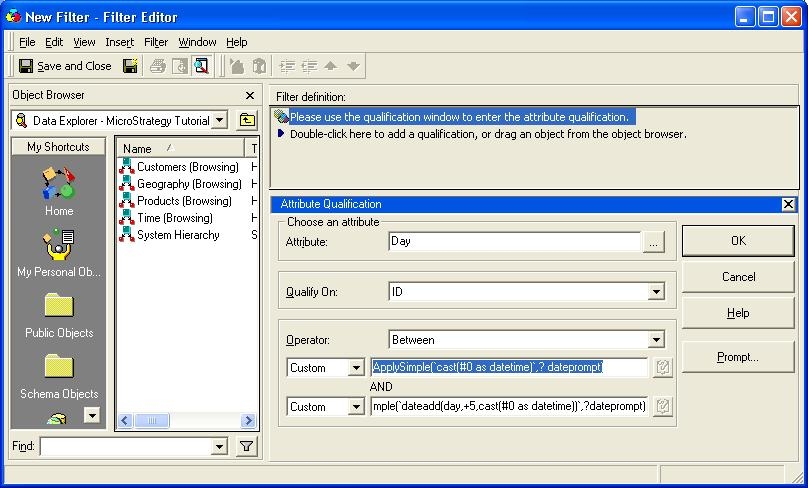
The first pass-through statement is simply returning the prompt answer provided by the user in the date prompt. The second statement adds five days on the select day ID. The combination of the two statements inside of the attribute qualification filter creates a date range for the day attribute. In this example, the date range extends from the date provided in prompt through the date provided in the prompt + five days. If the day attribute is on the template and the filter is added to the report or created locally, the results of the report will be filtered by the rolling date range.
If the user desires a report that calculates a date range by subtracting days from the prompt answer date then the pass-through statements should be reversed. The pass-through statement that will generate the first date of the date range should always be in the upper text field in the attribute qualification filter in order to generate the correct SQL.
NOTE:
The syntax of the pass-through statements in this example is for SQL Server. Clients should contact a Database Administrator for the SQL syntax specific to the database against which this statement will run.
