EducationSoftwareStrategy.com
StrategyCommunity

Knowledge Base

Product

Community

Knowledge Base

TopicsBrowse ArticlesDeveloper Zone

Product

Download SoftwareProduct DocumentationSecurity Hub

Education

Tutorial VideosSolution GalleryEducation courses

Community

GuidelinesGrandmastersEvents
x_social-icon_white.svglinkedin_social-icon_white.svg
Strategy logoCommunity

© Strategy Inc. All Rights Reserved.

LegalTerms of UsePrivacy Policy
  1. Home
  2. Topics

KB10095: How to display the value prompt answer on a report in MicroStrategy Developer 9.4.x-10.x


Stefan Zepeda

Salesforce Solutions Architect • Strategy


Using a new metric which is created with a value prompt, users can view their prompt answer on a report. The following procedure describes how to display the value prompt answer on a report

Using a new metric which is created with a value prompt, users can view their prompt answer on a report. The following procedure describes how to display the value prompt answer on a report:
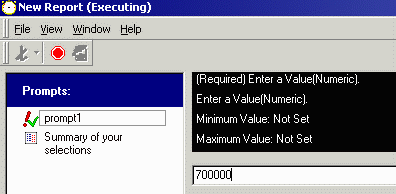
  • Create a numeric prompt, "promtp1."
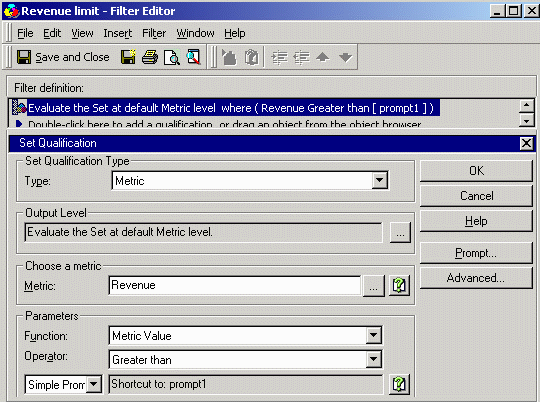
  • Create the filter 'Revenue limit' with "prompt1" on the metric, 'Revenue,' as shown below:
ka02R000000kWF9QAM_0EM440000002FtV.gif
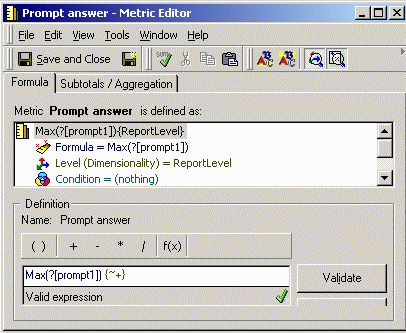
  • Create the metric, 'Prompt Answer' with the following definition:
ka02R000000kWF9QAM_0EM440000002FtX.gif
  •  
    Max(?)
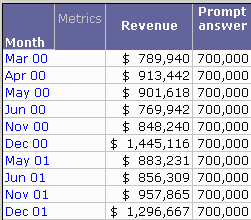
  • Place the attribute, 'Month,' the filter, 'Revenue limit,' and metrics, 'Revenue' and 'Prompt answer' in the report. The metric, 'Prompt answer' will display the prompt answer on the report, as shown below:
ka02R000000kWF9QAM_0EM440000002FtE.gif
ka02R000000kWF9QAM_0EM440000002Jrn.gif

NOTE:
If the metric 'Prompt answer' returns as blank, remove and re-add the metric, 'Prompt answer' onto the report in design mode.
The metric can show only value prompt answers.


Comment

0 comments

Details

Knowledge Article

Published:

April 20, 2017

Last Updated:

April 20, 2017