SYMPTOM:
The following error message appears after an end user executes a report with at least one attribute on it:
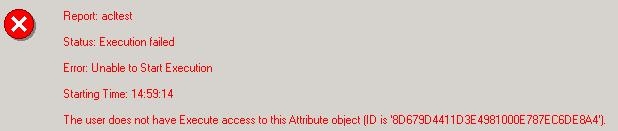
User does not have Execute access to this Attribute object (ID is 'XXXX').
CAUSE:
Unlike Metric objects, this message appears when a report is executed by an end user that does not have execute privileges to an attribute on the report. This occurs because the end user is not listed in the Access Control List (ACL) of that specific attribute. This can be confusing to the end user because this message will not appear if a user is not included in the ACL of a metric. The report will execute but displays the Grid View without the metric column returned. This is the defined behavior for metrics. Attributes, however, cannot be removed in the Grid View because removing an attribute can alter the data returned.
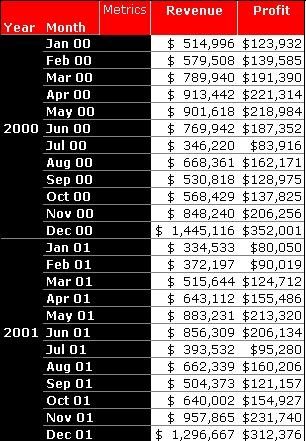
Examine the following example where a report is executed with the attributes 'Year' and 'Month' and the metrics 'Revenue' and 'Profit' on the template, as shown below:
If the user executing the report does not have access to the 'Revenue' metric, then the report will execute and return a Grid View without the Revenue column included, as illustrated below:
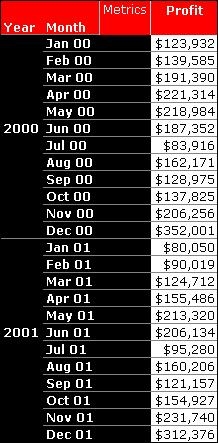
In this case, the end user does not have execute permissions for the 'Revenue' metrics so the metric is not included in the SQL submitted to the warehouse. Metrics have this property because the removal of one metric will not effect the value of any others on the template. In the Grid View of the report with both 'Revenue' and 'Profit' on the columns, the metric value for 'Profit' in Dec. 01 was $312,376. In the screen shot above with metric Profit in Dec. of 2001, it is also $312,376.
If the 'Month' attribute was removed in the same manner when a user executed the report, the metric values for each metric would all be altered because the report dimensionality would be changed from 'Month' to 'Year'.
ACTION:
The report behavior described above is by design, therefore, the following actions are to eliminate the message that appears after the report execution.
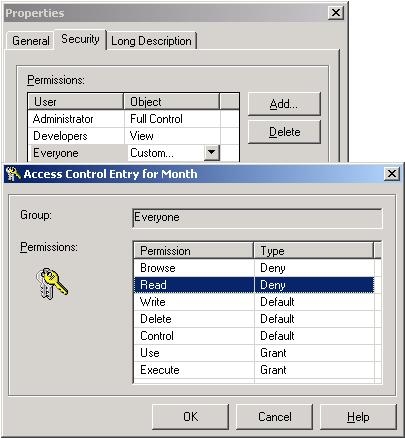
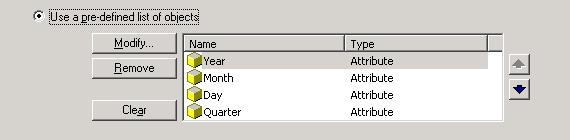
The Administrator should then grant Execute and Use permissions to all the users and deny the read or browse permissions to users who should not be able view the information for any of the attributes in the object prompt.
This object prompt can be placed on the report template to create a prompted template:
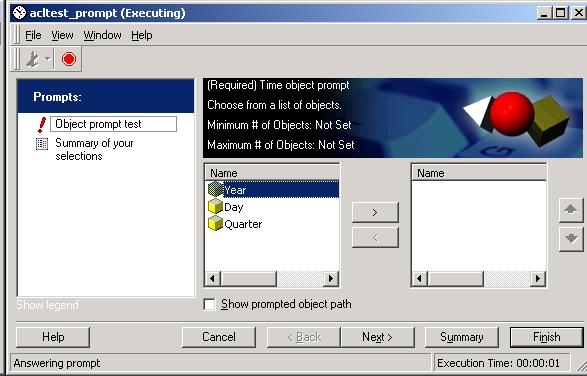
When the end user executes the report, the prompt will be displayed, but the end user will only see the attributes in the object prompt for which they have Read permissions. This specific end user does not have permissions to the Read the Month attribute. They will also not be able to Browse the attribute elements through the Data Explorer.
