In Strategy reports, users can place entire hierarchies as objects without specifying attributes. This feature enables reports to be dynamic in nature, giving end-users more power in determining what will be displayed on the report.
This document explains how the Strategy Engine resolves these hierarchies when they are encountered and different scenarios of where hierarchies can be used.
Uses for Hierarchy Objects
In a Strategy report, hierarchies can be used in three places: Metrics, Templates, and Prompts. In metrics, hierarchies can be used to specify the target, or level, that the metric will calculate values. In templates, hierarchy objects can be placed directly on the grid. For prompts, users can create filter definition prompts that will list specific attributes within the specified hierarchy.
Hierarchies in Metrics
When placing a hierarchy into the target, the metric level can be targeted to any attribute listed within it. Hierarchies used as a target are vague and before generating SQL, the Strategy Engine must resolve the metric dimensionality to a specific attribute. To determine which attribute in the hierarchy to use, the Engine will look at the lowest level listed on the report template that directly relates to the specified hierarchy. This feature is useful in drilling when metric dimensionality must be dynamic. Consider the following example:
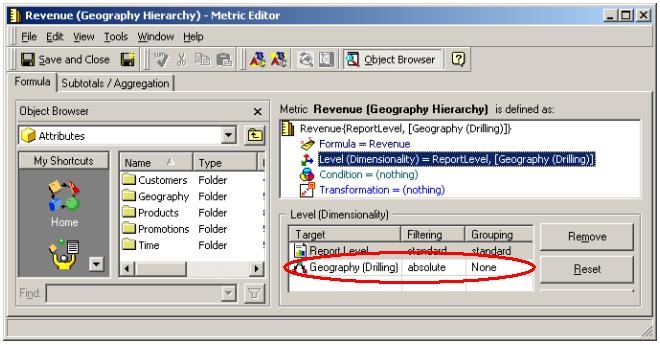
The following metric can be found using the Strategy Tutorial Project. Notice that the "Geography" hierarchy is used as the Target with Filtering set to "Absolute" and Grouping set to "None":
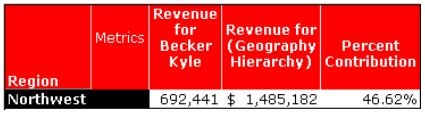
The report below consists of "Region", and three metrics. A filter on a specific employee (Becker Kyle) has been added to the report. is the metric that will change dynamically each time the user drills down. will be a static metric, retrieving the revenue for a particular employee within the company. This metric is defaulted to "Report Level" and will take the report filter into account. The last metric is that evaluates how employee (Becker Kyle) is doing compared to the level specified as related to the "Geography" hierarchy:
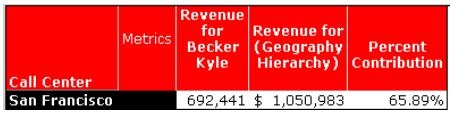
The next report is a drilled-to report on Region = Northwest. Notice how metric changes dynamically to reflect Call Center (San Francisco), which is the next level in the Geography hierarchy after Region. This process will continue until the hierarchy reaches its lowest level (employee) and where the Percent Contribution Metric will equal 100%:
Next…
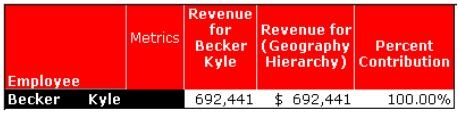
Note that for the first report example above, if Call Center were to be included with the Region attribute, then the metric would evaluate at the Call Center level. This is because Call Center is the lowest level on the report template that is directly related to the "Geography" hierarchy.
Hierarchies in Templates
When hierarchies are placed onto the report template, the final report output will depend on the filter. At least one attribute in the hierarchy must be used in the report filter. The Strategy Engine will resolve to the lowest level attribute listed in the report filter if two or more attributes from the same hierarchy are included, as shown in the example below:
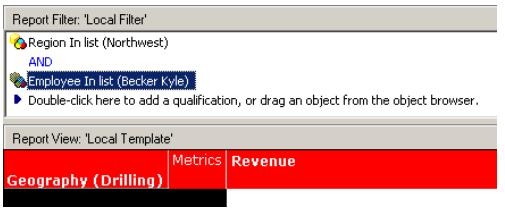
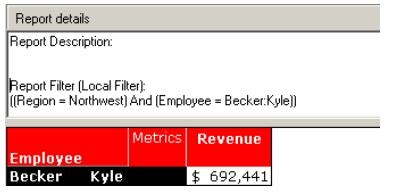
The following report will resolve to Employee: Revenue, since Employee is the lowest level attribute in the Geography Hierarchy. Note that Region was not included on the template even though it was included in the report filter:
Hierarchies in Prompts
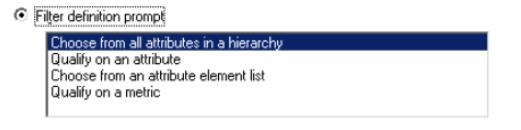
The last place that Hierarchies can be used in reports is within Filter Definition Prompts. By creating a filter definition prompt, users can choose attribute objects in a hierarchy. Resolution of hierarchies in prompts is ultimately up to the end users upon executing the report:
SUMMARY: Order of Resolution
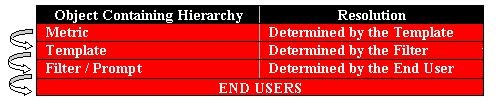
In summary, the following table lists the order of resolution of hierarchies in a report: