EducationSoftwareStrategy.com
StrategyCommunity

Knowledge Base

Product

Community

Knowledge Base

TopicsBrowse ArticlesDeveloper Zone

Product

Download SoftwareProduct DocumentationSecurity Hub

Education

Tutorial VideosSolution GalleryEducation courses

Community

GuidelinesGrandmastersEvents
x_social-icon_white.svglinkedin_social-icon_white.svg
Strategy logoCommunity

© Strategy Inc. All Rights Reserved.

LegalTerms of UsePrivacy Policy
  1. Home
  2. Topics

KB10191: What are the “Custom Time Window” and “WH Data Deletion” buttons in the MicroStrategy Enterprise Manager 9.x Console?


Community Admin

• Strategy


What are the “Custom Time Window” and “WH Data Deletion” buttons in the MicroStrategy Enterprise Manager 9.x Console?

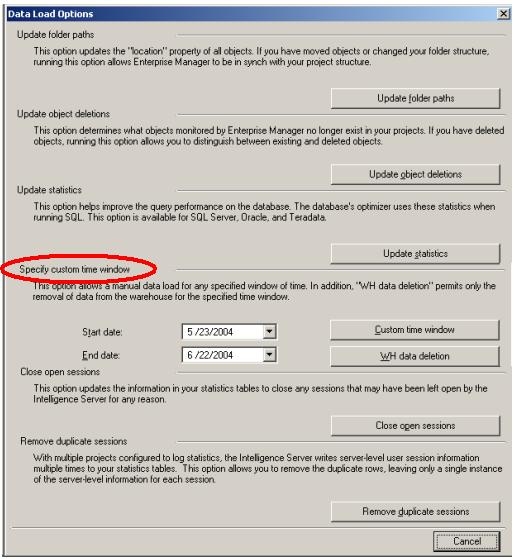
In Strategy Enterprise Manager 9.x, users are given the ability to either perform a data load or delete information from the Enterprise Manager Warehouse for a given period of time. The Enterprise Manager Console provides this option to specify a 'Custom Time Window,' and can be used to specify a Start and End date for the task they would like to perform. The following screen shot illustrates the location of this option:
 

ka04W000000OhLbQAK_0EM440000002Bpd.jpeg

 
The following procedure describes how to specify the custom time window for either a data load or warehouse data deletion:
 

  1. Open the Enterprise Manager Console.
  2. Select Tools > Data Load Options on the menu items.
  3. Specify a start and ending time in the custom time window area.
  4. Click on "Custom Time Window" to perform a data load, or click on "WH Data Deletion" to perform a Warehouse data deletion.

Example: Using the Custom Time Window for Data Loads
Suppose a user notices that data is missing from the Enterprise Manager warehouse from dates 5/7/2008 to 5/10/2008. Upon checking the statistic tables (i.e., IS_REPORTS_STATS, IS_SESSION_STATS), the user verifies that data does exist for the missing time period. By using the Custom Time Window, users can perform a data load just for that specific time window.
 
To achieve this, perform the following:
 

  1. Open the Enterprise Manager Console.
  2. Go to Tools > Data Load Options.
  3. Specify a start date of 5/7/2008 and an end date of 5/11/2008.
  4. Click on the "Custom Time Window" button to begin the data load for the specified dates.

Example: Using the Custom Time Window for Warehouse Data Deletion
Suppose a user would like to delete the information in their warehouse tables to make it smaller. However, rather than deleting all the information from the Enterprise Manager warehouse tables, the user wishes to only purge data that is older than 1/1/2006.
To achieve this, perform the following steps using the Custom Time Window:

  1. Open the Enterprise Manager Console.
  2. Go to Tools > Data Load Options.
  3. Specify a start date of 5/7/1899 and an end date of 1/1/2006.
  4. Click on the "WH data deletion" button to begin the warehouse data deletion for the specified dates.

Comment

0 comments

Details

Knowledge Article

Published:

May 24, 2017

Last Updated:

May 24, 2017