EducationSoftwareStrategy.com
StrategyCommunity

Knowledge Base

Product

Community

Knowledge Base

TopicsBrowse ArticlesDeveloper Zone

Product

Download SoftwareProduct DocumentationSecurity Hub

Education

Tutorial VideosSolution GalleryEducation courses

Community

GuidelinesGrandmastersEvents
x_social-icon_white.svglinkedin_social-icon_white.svg
Strategy logoCommunity

© Strategy Inc. All Rights Reserved.

LegalTerms of UsePrivacy Policy
  1. Home
  2. Topics

KB10255: How to format a metric in MicroStrategy 9.x to allow for differences in appearance of negative and positive values


Stefan Zepeda

Salesforce Solutions Architect • Strategy


How to format a metric in MicroStrategy 9.x to allow for differences in appearance of negative and positive values

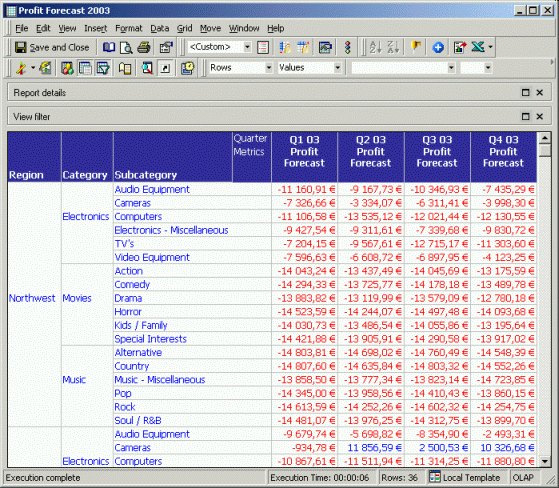
In some cases, a user might want to customize the appearance of metric results, especially for negative and positive values. Below is an example of how to customize a metric to display negative values in red with a minus sign before it. In this particular example, the EURO symbol will be placed after the values:
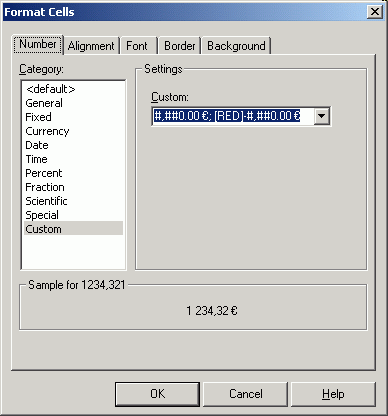
  • Open the metric Editor for the metric to be customized.
  • Select Metric Values formatting properties from Tools > Formatting > Values.
  • Select "Custom" and enter the following string in the empty box:
ka04W000001IwMQQA0_0EM440000002Fuk.gif
  •  
    #,##0.00 €; -#,##0.00 €
  • Press OK and save the metric as well as the report.

Execute the report and notice the new format:
ka04W000001IwMQQA0_0EM440000002Fun.gif

 
NOTE: Refer to the following Strategy Knowledge Base document for a list of the syntaxes to assist users in customizing other metric formats:

  • KB16876 - How to customize a metric's format using syntax in MicroStrategy Desktop 9.x and newer

Comment

0 comments

Details

Knowledge Article

Published:

June 13, 2017

Last Updated:

June 13, 2017