EducationSoftwareStrategy.com
StrategyCommunity

Knowledge Base

Product

Community

Knowledge Base

TopicsBrowse ArticlesDeveloper Zone

Product

Download SoftwareProduct DocumentationSecurity Hub

Education

Tutorial VideosSolution GalleryEducation courses

Community

GuidelinesGrandmastersEvents
x_social-icon_white.svglinkedin_social-icon_white.svg
Strategy logoCommunity

© Strategy Inc. All Rights Reserved.

LegalTerms of UsePrivacy Policy
  1. Home
  2. Topics

KB10434: How to create N-Level deep nested prompts in MicroStrategy Developer


Stefan Zepeda

Salesforce Solutions Architect • Strategy


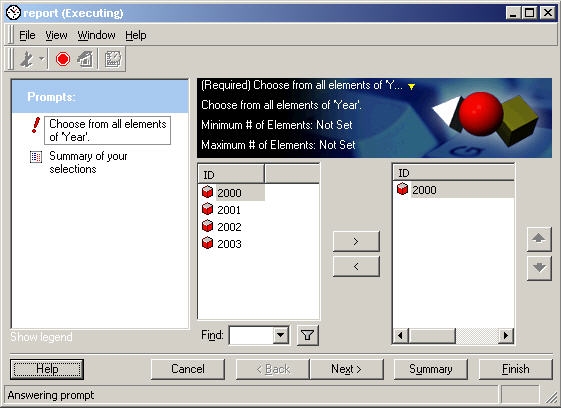
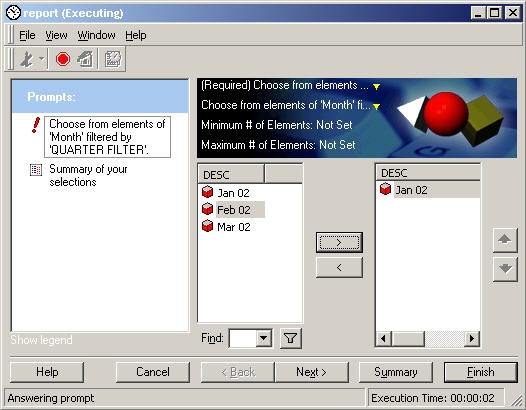
The example in this document demonstrates how to create a 3-level deep nested prompt that will prompt the user to select a year, then a quarter within that year, then a month within that quarter.

The example in this document demonstrates how to create a 3-level deep nested prompt that will prompt the user to select a year, then a quarter within that year, then a month within that quarter.
 
Prompt-in-prompt is a feature in which the answer to one prompt is used to define another prompt. This feature is only implemented for element list prompts. The following procedure describes how to achieve this:
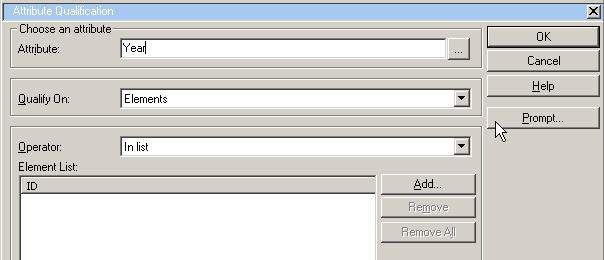
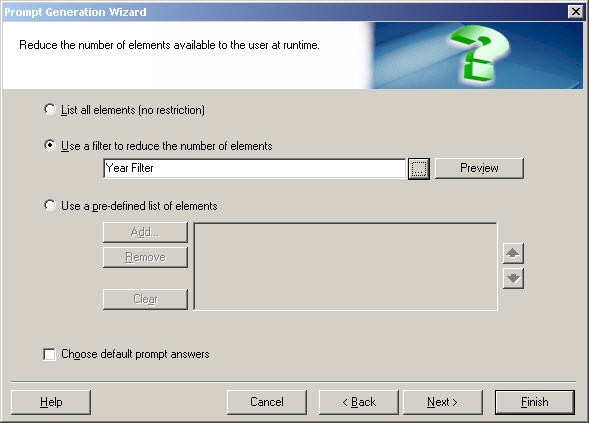
  • Create the highest level filter. This is a filter which contains a prompt on an attribute element list. Create a filter on the attribute "Year." Click "prompt on attribute element list" and click "Next" through the rest of the screens to accept the default values. Do not set any additional conditions. Save the filter as "YEAR FILTER:"
     
ka02R000000kbxnQAA_0EM440000002Fua.jpeg
  •  
    From this level on, each filter will contain both a prompt on an element list and will have its element list filtered by the filter created one level above it. There is no limit to the number of such filters that can be layered.
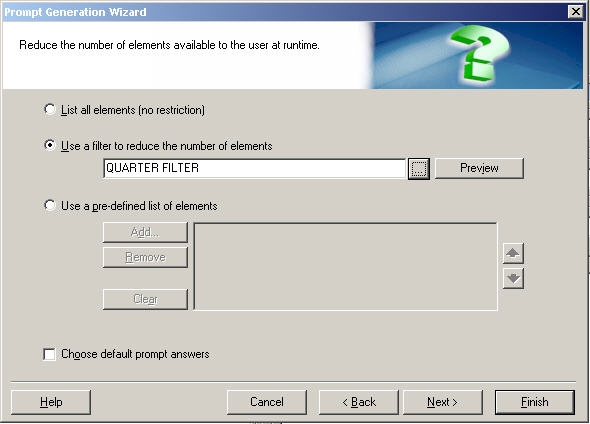
  • Create a filter on attribute "Quarter" and click "Prompt." Select "Use a filter to reduce the number of elements" and select the "YEAR FILTER" created in the previous step:
     
ka02R000000kbxnQAA_0EM440000002FuX.jpeg
  • Save this filter as "QUARTER FILTER:"
     
ka02R000000kbxnQAA_0EM440000002FuJ.jpeg
  • Follow the same basic procedure as above to create a Month filter. Create a filter on attribute "Month" and click "Prompt." Select "Use a filter to reduce the number of elements" and select the "QUARTER FILTER" created in the previous step.
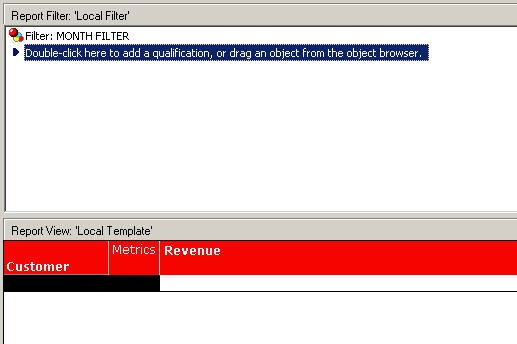
  • Place only the lowest level filter in the filter section of the report. In this case, the "MONTH FILTER" will be placed in the filter section:
     
ka02R000000kbxnQAA_0EM440000002Fub.jpeg

When the report is executed, it will prompt for year, then for quarters in the selected year, then for months in the selected quarter, as shown in the following sequence of screenshots:
ka02R000000kbxnQAA_0EM440000002FuK.jpeg


ka02R000000kbxnQAA_0EM440000002FuO.jpeg


Comment

0 comments

Details

Knowledge Article

Published:

June 5, 2017

Last Updated:

June 5, 2017