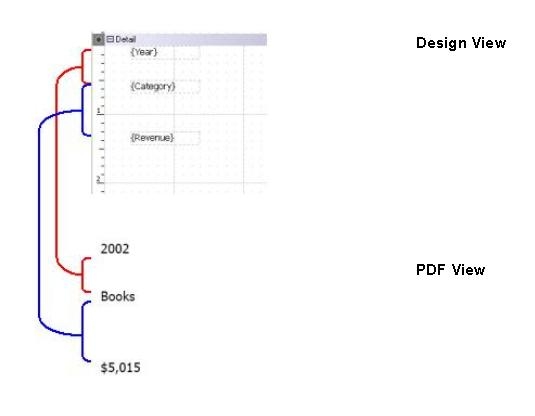
Attributes and metrics added individually to a Report Services Document within the Detail sections of the document will display all of the attribute and metric values, respectively, within the document. The spacing between the lines on which the values reside is dependent upon the relative spacing between the attribute and/or metric to either the top of the section or to the bottom of the object above it. This spacing will be used as the line spacing between the values displayed in the report.
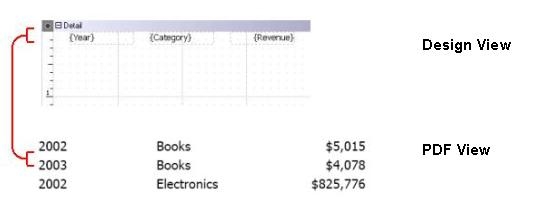
The following is an example of decreased line spacing. Line spacing is smaller because the objects are positioned at the top of the section.
The following is an example of increased line spacing. The space between lines is larger because of the space between the top of the Detail section and the display objects.
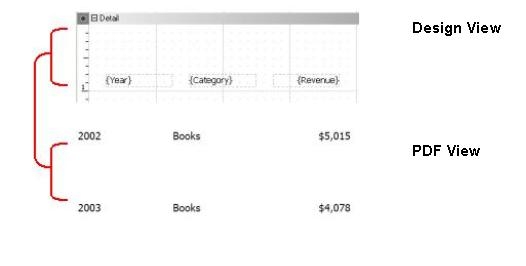
Note in this case that the vertical space will precede each detail row. If there are objects in the Detail Header section, they will be separated from the first detail row by the 3/4 inches of space above the text fields in the Detail section.
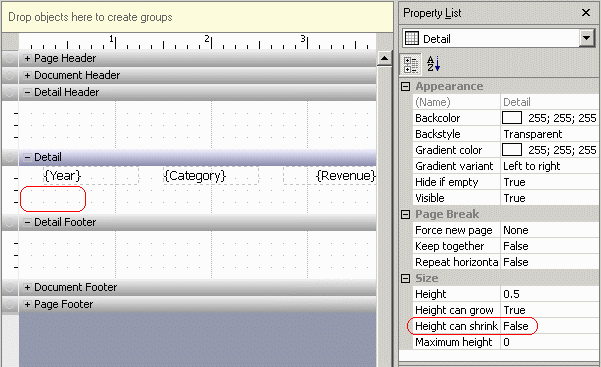
If it is required to have empty space following the display objects within a section, drag the immediately following section divider down to increase the amount of space. Then set the "Height Can Shrink" section property to False, to preserve the additional space at the bottom of the section. (If "Height Can Shrink" is True, trailing white space at the bottom of the section will be removed.)
The following is an example of increased line spacing relative to other objects: