VLDB properties (sometimes called VLDB settings) allow users to customize the SQL generated by the Strategy Engine. The default VLDB properties are based on the DBMS object that is selected in the Configuration Managers > Database Instance Manager > Database Instance > Database Connection Type and in general, these default values provide optimal SQL generation for that particular database type and version. If needed, SQL generation may be fine tuned based on user requirements by changing the VLDB settings from their default values.
The following procedure may be used to obtain a list of non-default VLDB properties that have been enabled in a report (i.e., at the report level):
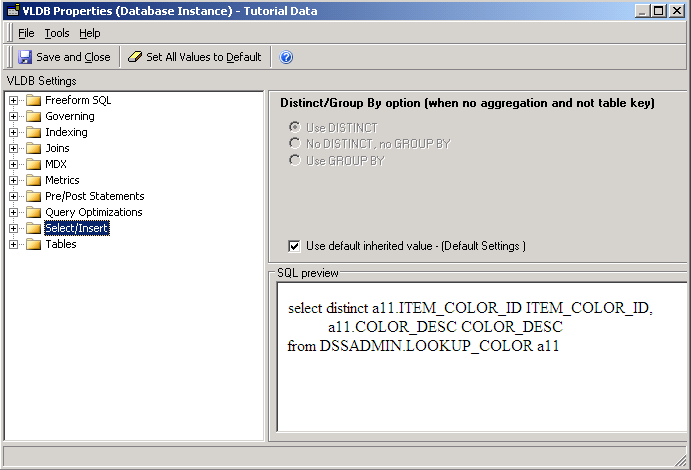
1. In the report editor, go to Data > VLDB Properties. This launches the 'VLDB Properties (Report)' editor. Users can also right-click on the Database Instance and select VLDB Properties option for the project level settings.
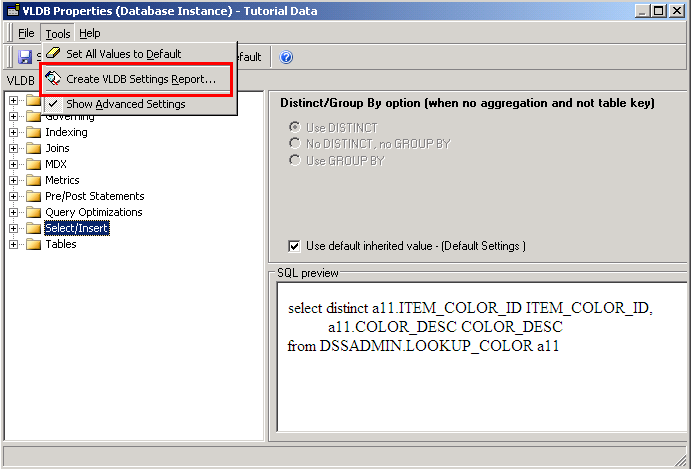
2. Go to Tools > Create VLDB Settings Report.
3. Check the boxes, 'Do not show settings with default values' and 'Show descriptions of setting values'. Leave the box, 'Show physical setting names' unchecked. In case the entire list is needed leave the box 'Do not show settings with default values' unchecked.
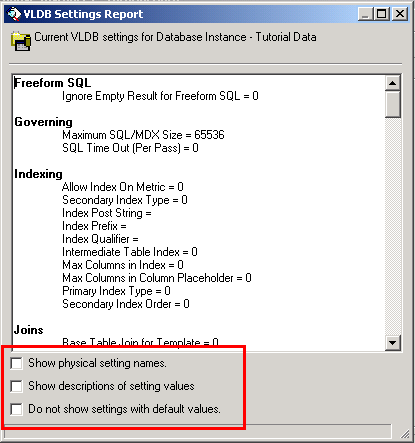
4. The resulting report in the 'VLDB Settings Report' dialog box represents a list of non-default VLDB properties that have been enabled for that report. If this is required by Strategy Technical Support for trouble-shooting an issue, copy and paste the contents of this report into notepad and send it.
The same procedure may be followed for obtaining a list of non-default VLDB properties that have been enabled at any of the other levels (Project, Database Instance, Metric). Access the appropriate 'VLDB properties' editor for the respective level and follow Steps 2 - 4, as above.
