EducationSoftwareStrategy.com
StrategyCommunity

Knowledge Base

Product

Community

Knowledge Base

TopicsBrowse ArticlesDeveloper Zone

Product

Download SoftwareProduct DocumentationSecurity Hub

Education

Tutorial VideosSolution GalleryEducation courses

Community

GuidelinesGrandmastersEvents
x_social-icon_white.svglinkedin_social-icon_white.svg
Strategy logoCommunity

© Strategy Inc. All Rights Reserved.

LegalTerms of UsePrivacy Policy
  1. Home
  2. Topics

KB10519: How to remove the report filter created by drilling from an attribute element to a higher level in MicroStrategy Developer 9.x


Stefan Zepeda

Salesforce Solutions Architect • Strategy


How to remove the report filter created by drilling from an attribute element to a higher level in MicroStrategy Developer 9.x

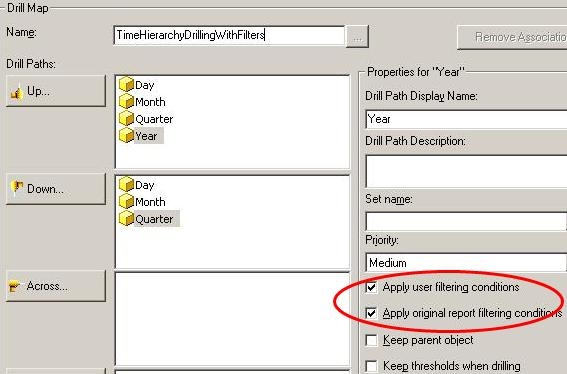
As one of the advantages in defining custom drill paths by creating drill map objects, users can adjust the drilling behavior by checking or unchecking the options "Apply user filtering conditions" and "Apply original report filtering conditions." The following procedure uses the Strategy Tutorial project to explain the two different behaviors that these respective options exhibit when they are both checked and unchecked.
 

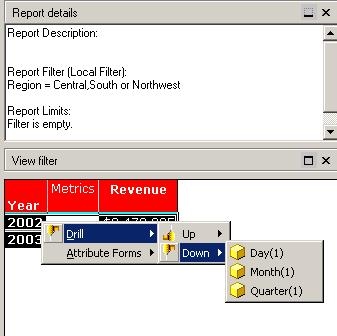
  • Create a report with the 'Year' attribute in the row and 'Revenue' metric in the columns with a filter on Region = Central, South, or Northwest:
ka02R000000kcWxQAI_0EM440000002Fsr.jpeg
  • The drill map object associated with this report is defined below:
ka02R000000kcWxQAI_0EM440000002Fsy.jpeg
  • Drill from Year 2002 to Month:
ka02R000000kcWxQAI_0EM440000002Fsw.jpeg
  •  
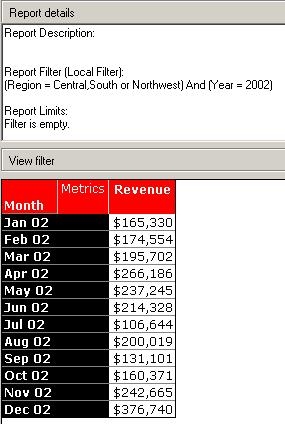
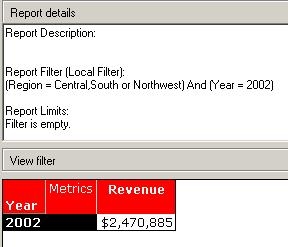
    Notice that filter for Year = 2002 is added to the result:
ka02R000000kcWxQAI_0EM440000002Ft0.jpeg
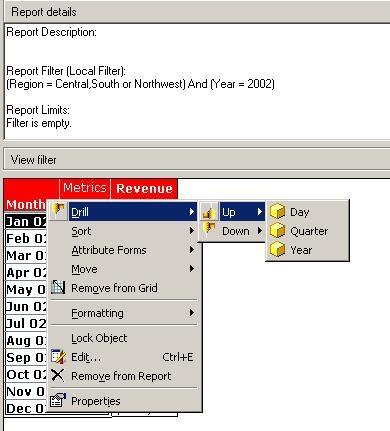
  • Drill up from this child report to Year:
ka02R000000kcWxQAI_0EM440000002Fsq.jpeg
  •  
    Notice that the grand-child report preserves both of the filters, Year = 2002 and Region = Central, South, or Northwest:
ka02R000000kcWxQAI_0EM440000002Ft1.jpeg
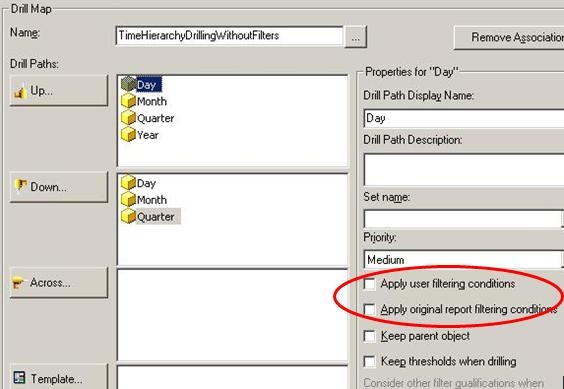
  • In the drill map editor, create a new drill map with the same drill path. This time, uncheck the options for "Apply user filtering conditions" and "Apply original report filtering conditions," as shown below:
ka02R000000kcWxQAI_0EM440000002Fse.jpeg
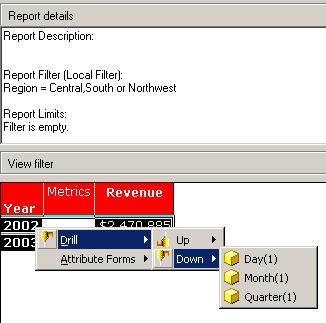
  • Drill down from Year to Month:
ka02R000000kcWxQAI_0EM440000002Fss.jpeg

Notice that the child report has no filter at all:
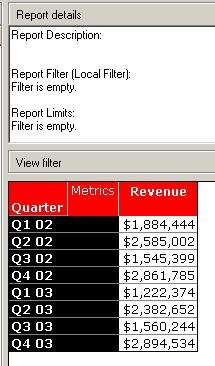
ka02R000000kcWxQAI_0EM440000002Fsm.jpeg

 
No filter will be added by drilling up from Quarter to Year:
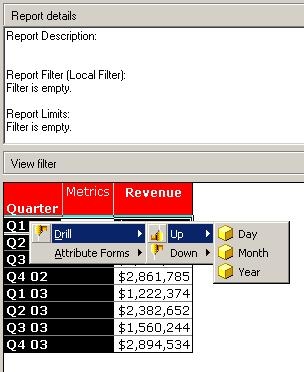
 

ka02R000000kcWxQAI_0EM440000002Fso.jpeg

 
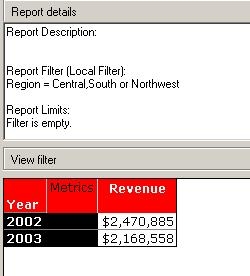
Finally, notice both years are included:
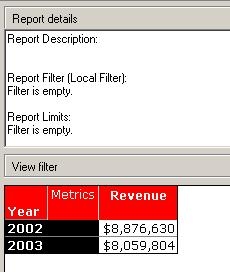
ka02R000000kcWxQAI_0EM440000002Fsj.jpeg


Comment

0 comments

Details

Knowledge Article

Published:

April 14, 2017

Last Updated:

April 14, 2017