EducationSoftwareStrategy.com
StrategyCommunity

Knowledge Base

Product

Community

Knowledge Base

TopicsBrowse ArticlesDeveloper Zone

Product

Download SoftwareProduct DocumentationSecurity Hub

Education

Tutorial VideosSolution GalleryEducation courses

Community

GuidelinesGrandmastersEvents
x_social-icon_white.svglinkedin_social-icon_white.svg
Strategy logoCommunity

© Strategy Inc. All Rights Reserved.

LegalTerms of UsePrivacy Policy
  1. Home
  2. Topics

KB10755: How to limit the number of rows returned in a Ranking Report when there is are two rows with the same value, or a "tie" in MicroStrategy


Community Admin

• Strategy


This article describes how to limit the rows returned to a ranking report containing ties

When a report is created with a filter that should return "Top X" records (such as "Top 10 Sales," "Top 10 Cities by Revenue," etc.), Strategy may return more records than the designated number if there is a "tie" - two rows with the same value. In many cases, this is preferable as the report should contain all of the records that meet the criteria. In some situations, such as in a Report Services document, where formatting is based on exactly X rows being returned, it may be preferable to create a report which will return exactly X rows even when there is a tie. In this case, if two records tie for the Xth position, only the first will be seen.
 
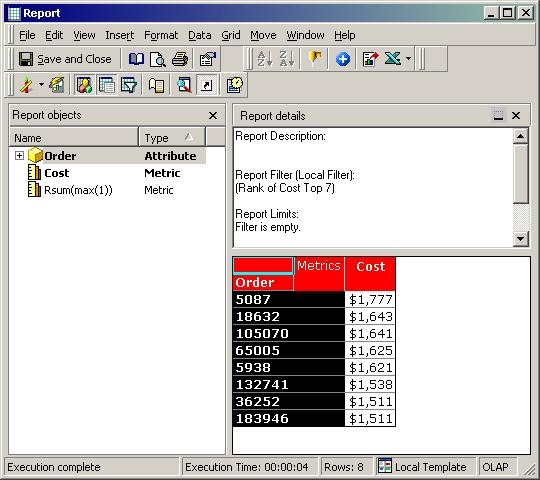
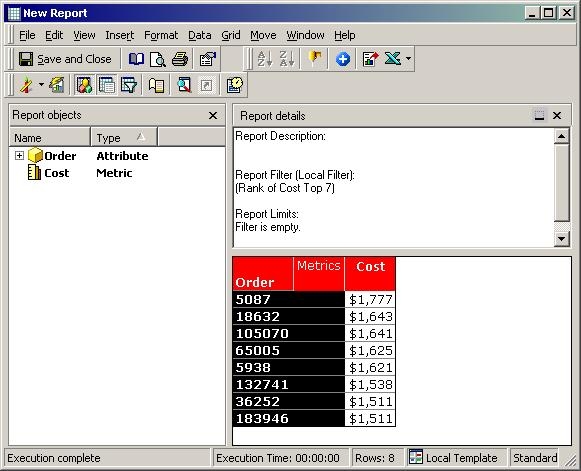
The following example report contains a filter that returns a Rank of the Top Seven Orders by Cost. However, in the following image, the report displays eight rows. This is due to a tie between two orders, both for $1511.
 
These results are sorted in descending order by Cost:
ka04W000000OhkrQAC_0EM440000002Fqu.jpeg

 
This procedure involves creating a running sum metric to be used in a Report Limit which will return only the first X records even if more than X records are returned by the report filter.
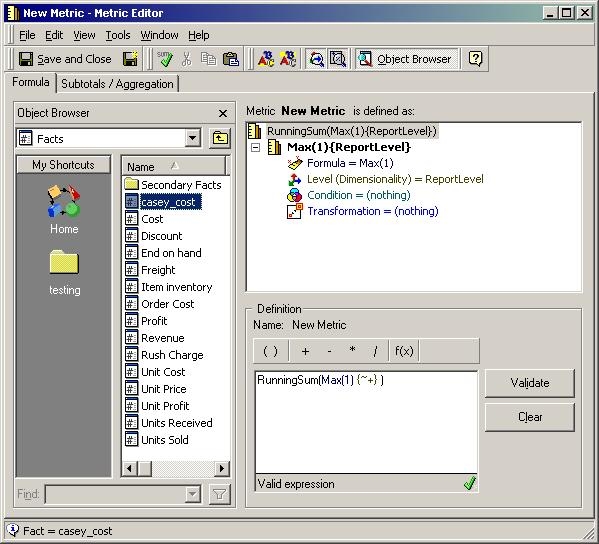
  • Create a Running Sum Metric so that a Report limit can be set to return only the first seven rows even if there is a tie.
  • Enter the Metric definition RunningSum(Max(1)).
  • Click Validate:
ka04W000000OhkrQAC_0EM440000002Fqw.jpeg
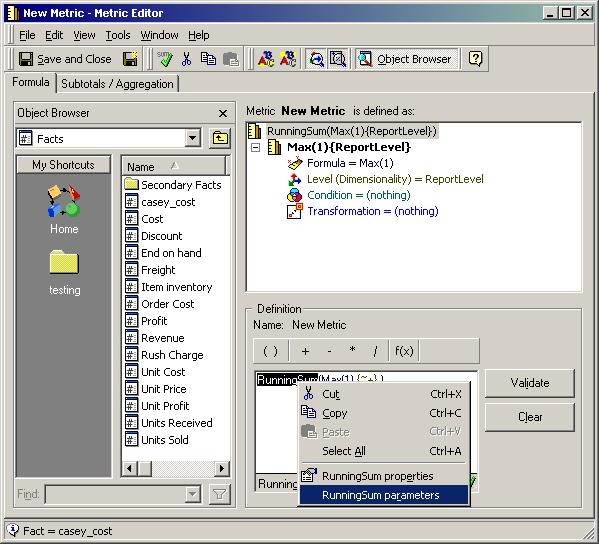
  • Highlight the term RunningSum, right-click and go to "Running Sum Parameters:"
ka04W000000OhkrQAC_0EM440000002Fqs.jpeg
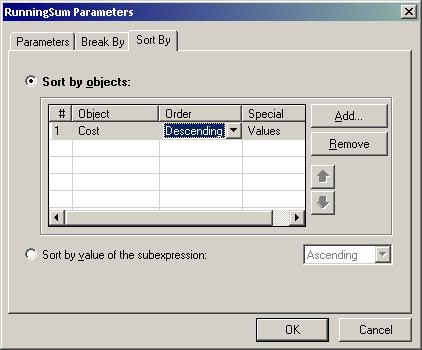
  • On the Sort By tab, add the metric on which the Top X filtering is based in the report and sort in the same order as the report is sorted (in this example, Descending Order by Cost). Click OK.
  • Save and close the metric. Here, it is saved as RS(Max(1)):
ka04W000000OhkrQAC_0EM440000002Fr5.jpeg
  • Add the new metric to the report objects window so that it will not be visible on the report, as shown below:
ka04W000000OhkrQAC_0EM440000002FrA.jpeg
  • Go to Report Data Options in the File Menu.
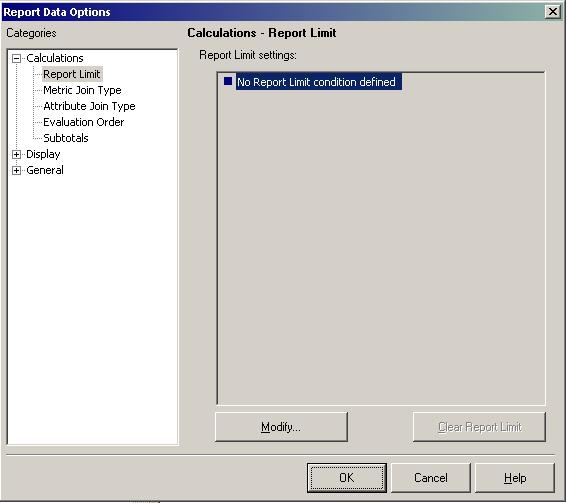
  • In the Calculations section, click "Report Limit" and then "Modify," as shown below:
ka04W000000OhkrQAC_0EM440000002Fqy.jpeg
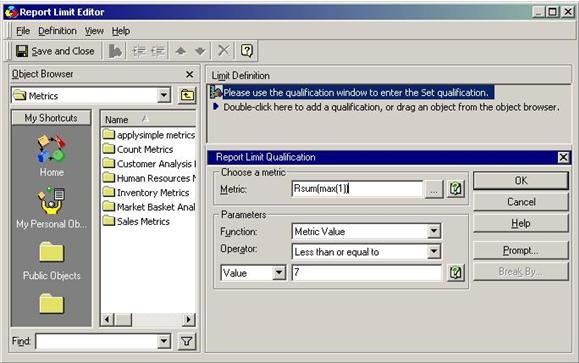
  • Select the new metric and set the function to Metric Value, the Operator to Less than or equal to and the Value to the number of rows to be returned on the report. This number should be equal to the number selected in the report filter (i.e., if returning Top 10 cities by revenue, select ten in the report limit qualification):
ka04W000000OhkrQAC_0EM440000002Fr8.jpeg

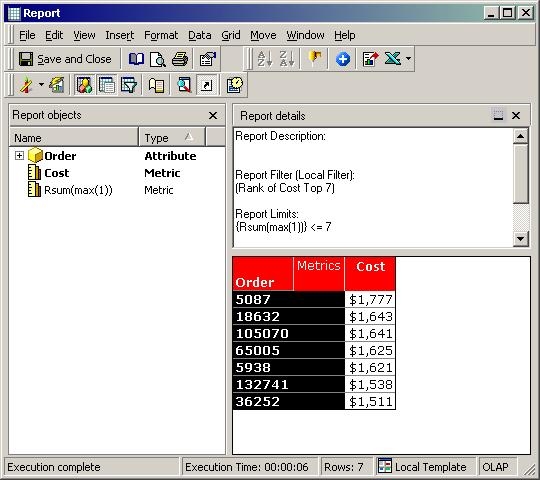
Now, when the report is re-executed, only seven rows are returned:
ka04W000000OhkrQAC_0EM440000002Fr6.jpeg


Comment

0 comments

Details

Knowledge Article

Published:

April 14, 2017

Last Updated:

April 14, 2017