OVERVIEW:
It is common to use embedded filters within one another to prompt a User at the highest level and to select elements at the lowest level possible. This is discussed in Strategy Knowledge Base document, "KB5700-7XX-1212 - How to create N-Level deep nested prompts in Strategy Desktop."
However, in situations where some attributes that are not composed of a unique combination of values that identify them, the directions offered in KB5700-7XX-1212 may not work. This is because only the previous filter qualification will be used to filter the current filter prompt elements available for selection. For example, if there are four levels of embedded filter prompts, then for the third prompt, its elements will only be filtered by the previous filter's prompt answers.
In this case, the procedure in this document may be followed so that each filter answer for subsequent prompts will be used to filter the current prompt selection.
SCENARIO:
In the following example, consider that a user wishes to set up embedded filter prompts to select one specific customer. Each number represents a different filter and the arrows indicate which filter it will use to filter its prompt selections:
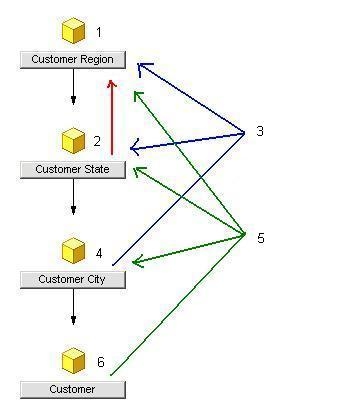
Notice that the Customer State filter prompt will simply be using the Customer Region filter prompt to filter Customer State's elements. However, once past the second level, the prompted filter must point to a new filter (ex. 3 and 5) which points to both of the preceding filters. The following steps will demonstrate how to build this scenario:
1. Create a new filter called "1 - Customer Region" on the attribute Customer Region with the following criteria:
Qualify On: Elements
Operator: In List
Prompt: List all elements.
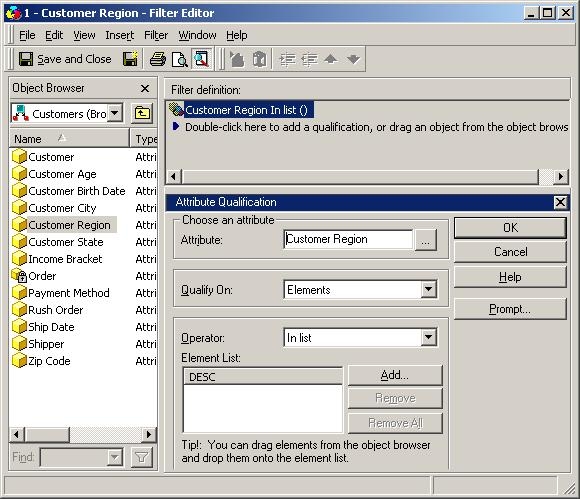
2. Create a new filter called "2 - Customer State" on the attribute Customer State with the following criteria:
Qualify On: Elements
Operator: In List
Prompt: Use a filter to reduce the number of elements (use the "1 - Customer Region" filter)

3. Create a new filter called "3 - Customer Region and State" with the qualifications being a Shortcut to the Filter "1 - Customer Region" and a Shortcut to the Filter "2 - Customer State."
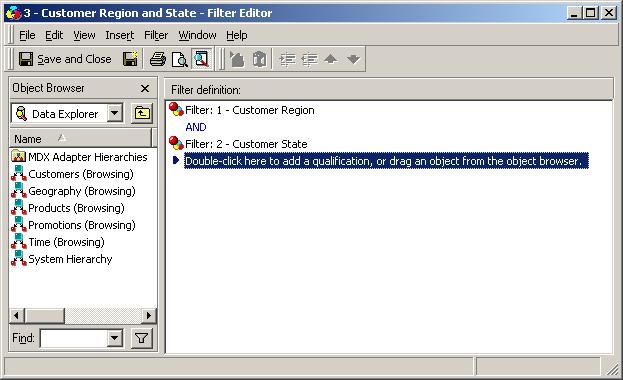
4. Create a new filter called "4 - Customer City" on the attribute Customer City with the following criteria:
Qualify On: Elements
Operator: In List
Prompt: Use a filter to reduce the number of elements (use the "3 - Customer Region and State" filter)

5. Create a new filter called "5 - Customer Region, State, and City" with the qualifications being a Shortcut to the Filter "1 - Customer Region," "2 - Customer State," and "4 - Customer City."

6. Create a new filter called "6 - Customer" on the attribute Customer City with the following criteria:
Qualify On: Elements
Operator: In List
Prompt: Use a filter to reduce the number of elements (use the "5 - Customer Region, State, and City" filter)
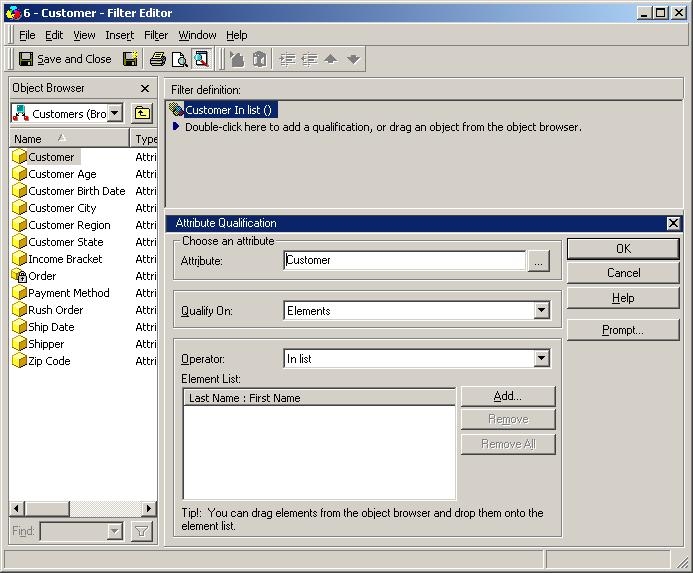
7. Create a new report and place Customer and Profit on the template, respectively. Also, place the following filters in the Report Filter:
1 - Customer Region
2 - Customer State
4 - Customer City
6 - Customer
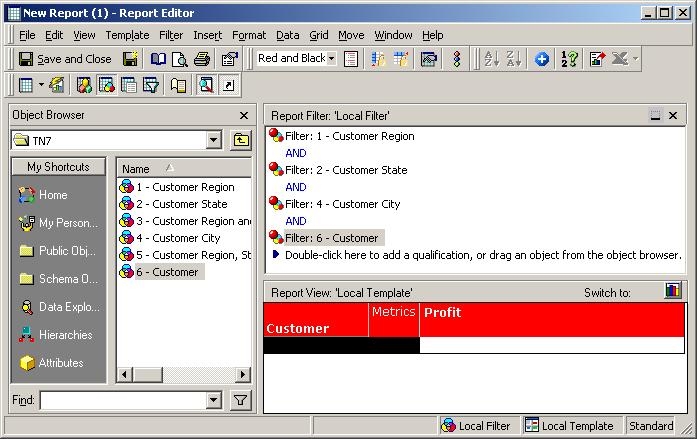
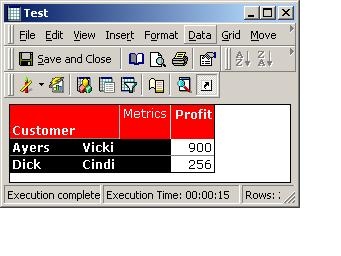
8. Execute the report. Users will now be prompted for each attribute filter with the elements being filtered correctly by the preceding attribute filters:


10847
