EducationSoftwareStrategy.com
StrategyCommunity

Knowledge Base

Product

Community

Knowledge Base

TopicsBrowse ArticlesDeveloper Zone

Product

Download SoftwareProduct DocumentationSecurity Hub

Education

Tutorial VideosSolution GalleryEducation courses

Community

GuidelinesGrandmastersEvents
x_social-icon_white.svglinkedin_social-icon_white.svg
Strategy logoCommunity

© Strategy Inc. All Rights Reserved.

LegalTerms of UsePrivacy Policy
  1. Home
  2. Topics

KB10909: How to hide a metric on a report without MicroStrategy OLAP Services privileges


Stefan Zepeda

Salesforce Solutions Architect • Strategy


For users without MicroStrategy OLAP Services who wish to hide a metric object on a report, an alias can be created for that object and the column settings can be formatted accordingly.

For users without Strategy OLAP Services who wish to hide a metric object on a report, an alias can be created for that object and the column settings can be formatted accordingly.
Consider the following report with three metrics, where the Revenue metric must be hidden but still used in the SQL:
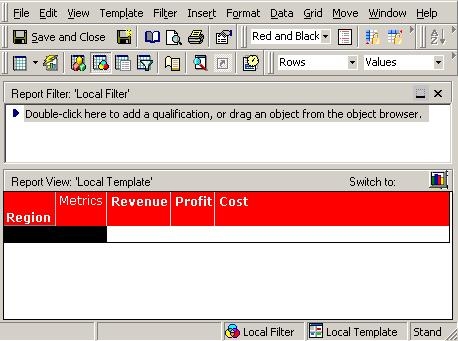
ka02R000000kc90QAA_0EM440000002FqS.jpeg

 
Go to the Data menu > Report Data Options > Display > Alias. Alias the metric name to something such as '.' (a period), as shown below:
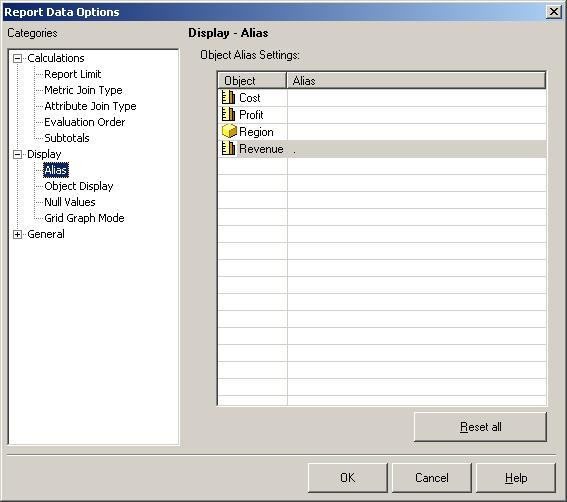
ka02R000000kc90QAA_0EM440000002Fpx.jpeg

 
In Design View, go to the Grid menu > Options > Columns and Rows. Choose the 'Fixed Column Widths' option. Select the Revenue metric (will appear as '.') and make the column width to be 0 pixels, as shown below:
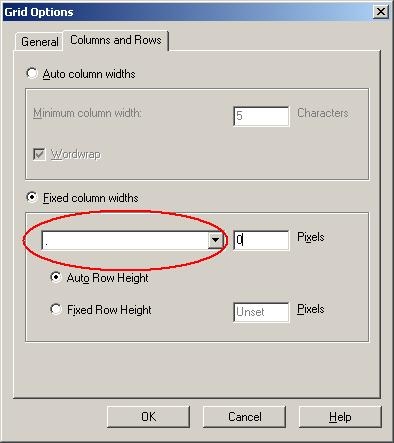
ka02R000000kc90QAA_0EM440000002FqB.jpeg

 
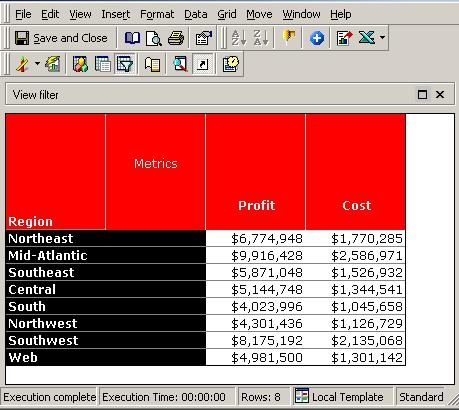
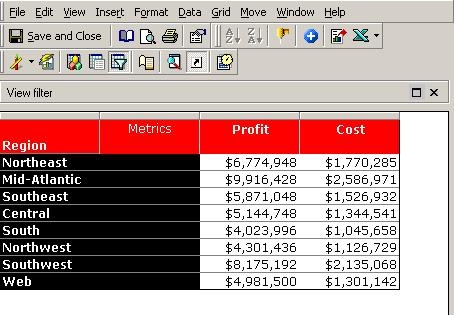
When executing the report, notice that the Revenue metric is hidden and does not appear on the report:
ka02R000000kc90QAA_0EM440000002FqE.jpeg

NOTES:

  • If an alias is not created and only the column width is formatted to 0 pixels for the metric, the columns and the font size will force the metric headers to expand, as illustrated below:
ka02R000000kc90QAA_0EM440000002Fq6.jpeg
  • If Strategy OLAP Services is available for users making these changes, metrics can be hidden by simply dragging them off the report into the Report Objects window.
     

Comment

0 comments

Details

Knowledge Article

Published:

May 24, 2017

Last Updated:

May 24, 2017