EducationSoftwareStrategy.com
StrategyCommunity

Knowledge Base

Product

Community

Knowledge Base

TopicsBrowse ArticlesDeveloper Zone

Product

Download SoftwareProduct DocumentationSecurity Hub

Education

Tutorial VideosSolution GalleryEducation courses

Community

GuidelinesGrandmastersEvents
x_social-icon_white.svglinkedin_social-icon_white.svg
Strategy logoCommunity

© Strategy Inc. All Rights Reserved.

LegalTerms of UsePrivacy Policy
  1. Home
  2. Topics

KB10937: What is the feature "System Prompt" and how is it used in MicroStrategy?


Stefan Zepeda

Salesforce Solutions Architect • Strategy


This article describes the feature "System Prompt" and how it is used in MicroStrategy

WHAT IS A "SYSTEM PROMPT"?
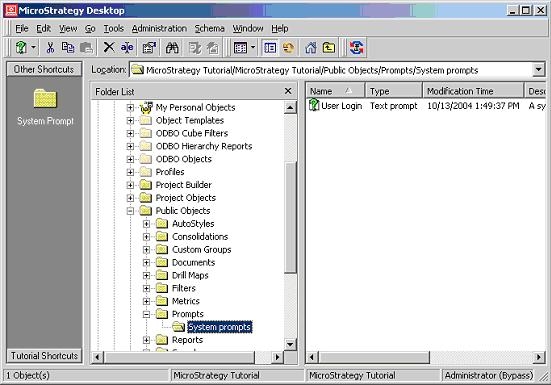
"System Prompt" is a system object that was introduced back in version 8.0.0. The object is named as "User Login" and is implemented as a prompt object. The object can be found under Public Objects > Prompts > System prompts, as shown below:
ka0PW0000000zczYAA_0EM440000002Fow.jpeg

 
Unlike ordinary prompt objects, system prompts don't require any answers from the user. When a report containing a system prompt runs, the prompt is answered automatically with the login of the user who runs the report. On the other hand, like other prompt objects, answers to system prompts are used to match caches. Therefore, users don't share caches for reports that contain system prompts. For details on how caches are matched, refer to the Strategy product help documentation on Cache Matching Algorithm. Cache Matching Algorithm
WHEN ARE SYSTEM PROMPTS USED? 
 
System prompts provide users more flexibility in implementing the security mechanisms of Strategy applications. The following three examples demonstrate how system prompts can be used:
 

  • The security filter definition process is more simple with system prompts

    A report displays employee information and each manager can only view the information of those employees which the manager supervises.

           Security filters can be defined in a dynamic way. For example: If there are multiple managers, "Jane Doe", "Tom White" , only one security filter is necessary and it is defined as:
 
           Manager = ?
  • This security filter can be assigned to a Manager user group. When a user with login "Jane Doe" executes the report, the security filter will generate SQL for condition:

    Manager = 'Jane Doe'
     
  • Report level "security filter" can be implemented

    Security filter functionalities can be implemented at report level by defining report filters with a system prompt. For instance, the Manager = ? condition can be used to define a report filter and users can include that report filter in certain reports but not others. In this way, security is enforced at the report level, not the project level.


  • Database tables containing security information can be used

    To synchronize security constraints for all enterprise applications, some organizations maintain security information in database tables and build all enterprise applications based on security tables. With system prompts, it is possible to use database security tables to build Strategy security mechanisms.
     
    Example:

    In the database warehouse, there is a table called SecurityRegion, with two columns, Region_ID and User_ID. SecurityRegion table defines from which region a user is allowed to view data. Using system prompts, users can use SecurityRegion table to create a report with a restriction on regions. Strategy Tutorial project is used in the following example to illustrate this:


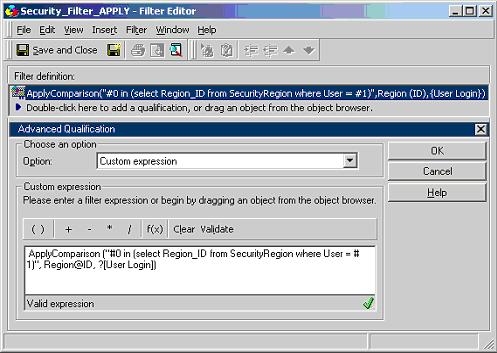
  • Define an attribute qualification filter, Security_Filter_APPLY with a  custom expression, as shown below:
ka0PW0000000zczYAA_0EM440000002Foy.jpeg
  •  
    ApplyComparison ("#0 in (select Region_ID from SecurityRegion where User = #1)", Region@ID, ?)
     
  • Create a report with the Region attribute on the template and Security_Filter_APPLY as the report filter.
  • Login as 'Administrator' user. View SQL and notice that only the regions the administrator are allowed to view are returned:
    select a11.Region_ID Region_ID, a11.REGION_NAME REGION_NAME
    from LU_REGION a11
    where a11.Region_ID in
        (select Region_ID from SecurityRegion where User = 'Administrator')
  • Login as 'Brian Kelt.' SQL for the same report changes to:
    select a11.Region_ID Region_ID, a11.REGION_NAME REGION_NAME
    from LU_REGION a11
    where a11.Region_ID in
        (select Region_ID from SecurityRegion where User = 'Brian Kelt')

For a more detailed example on how to use database tables and the User Login System Prompt to implement data security, refer to the following Strategy Knowledge Base document on "How to implement different security rules for different facts using the user Login System Prompt in Strategy"

  • KB11351: How to implement different security rules for different facts using the user Login System Prompt in MicroStrategy

Comment

0 comments

Details

Knowledge Article

Published:

June 2, 2017

Last Updated:

February 27, 2024