EducationSoftwareStrategy.com
StrategyCommunity

Knowledge Base

Product

Community

Knowledge Base

TopicsBrowse ArticlesDeveloper Zone

Product

Download SoftwareProduct DocumentationSecurity Hub

Education

Tutorial VideosSolution GalleryEducation courses

Community

GuidelinesGrandmastersEvents
x_social-icon_white.svglinkedin_social-icon_white.svg
Strategy logoCommunity

© Strategy Inc. All Rights Reserved.

LegalTerms of UsePrivacy Policy
  1. Home
  2. Topics

KB10969: How to set the default metric Join Type to Outer Join in MicroStrategy Developer 9.x - 10.x?


Stefan Zepeda

Salesforce Solutions Architect • Strategy


Perform the steps in this article to change the metric join type from the product default (Inner) to Outer for all reports in the project.

Perform the steps in this article to change the metric join type from the product default (Inner) to Outer for all reports in the project.
 
Note that the current default setting can be seen by viewing Report Data Options for any report, as shown below:
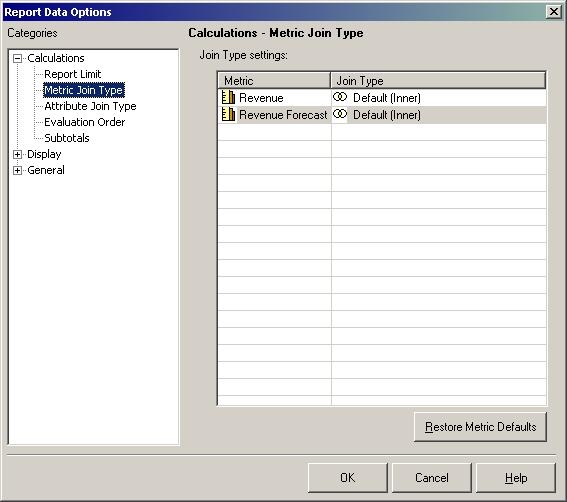
ka02R000000kc8hQAA_0EM440000002FoY.jpeg

 
The following is a procedure that will modify the default setting to create Outer Joins for metrics at the Project level:
Procedure:
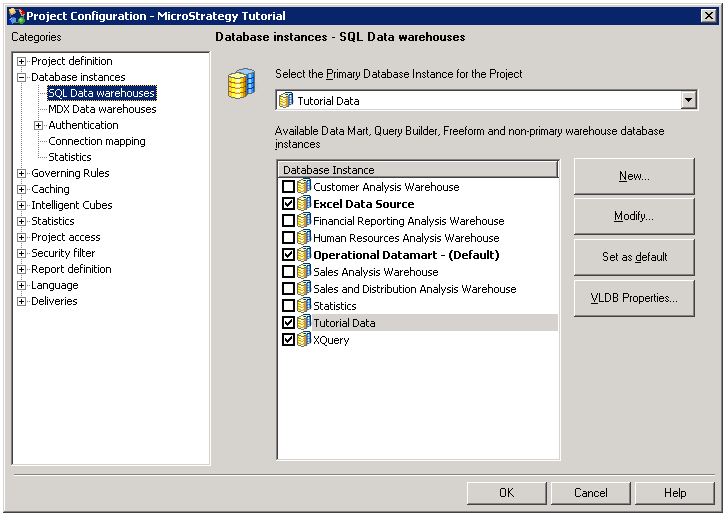
  • Right-click on the Project name and select Project Configuration.
  • Under Categories, select Database Instances, then SQL Data warehouses.
  • Click the "VLDB Properties..." button under the warehouse name, as shown below:
ka02R000000kc8hQAA_0EM440000002Mem.png
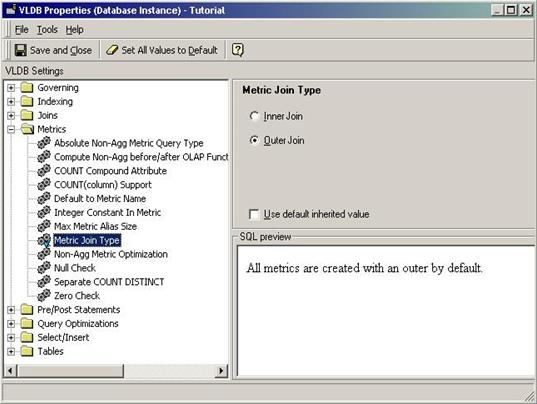
  • Open the "Metrics" folder and select "Metric Join type."
  • Uncheck the "Use default inherited value" checkbox.
  • Select the radio button labeled "Outer Join."
ka02R000000kc8hQAA_0EM440000002Foi.jpeg
  • Save and close.

Comment

0 comments

Details

Knowledge Article

Published:

May 24, 2017

Last Updated:

May 24, 2017